
1. Ọja Ipariview
The Leadjoy Magickey Motion Controller is a wireless motion mapping module designed to enhance your gaming experience by translating physical movements into in-game actions. It features a high-precision 6-axis gyroscope sensor and a 4000Hz high-speed 2.4G wireless chip, ensuring responsive and accurate control. This device allows players to map movements of their head, instep, and wrist to various button signals, including single keys, combination keys, or complex macros.
The controller supports pitch (forward/backward), roll (left/right), and yaw (rotation/shake) movements, providing a new dimension of interaction with your games. It can function as an extension for existing gamepads or be used independently for simpler game operations.
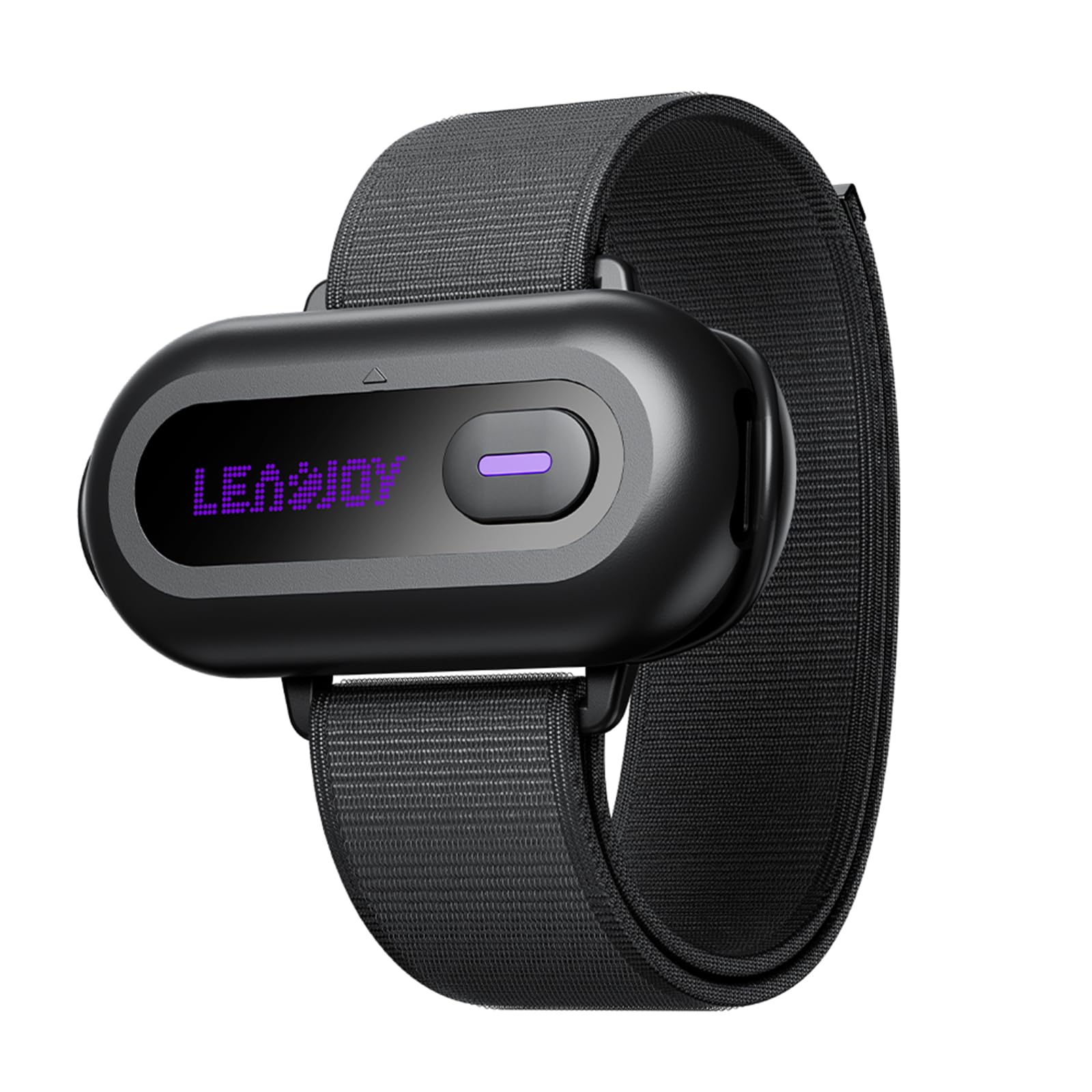
Image 1.1: The Leadjoy Magickey Motion Controller, a compact wireless device designed for motion-based gaming input.
2. Awọn ilana iṣeto
2.1 Package Awọn akoonu
- Leadjoy Magickey Motion Controller (LJMK001-1)
- 1 AA Batiri
- Afowoyi Olumulo (iwe-ipamọ yii)
2.2 Ibẹrẹ Asopọ
- Insert the included AA battery into the Magickey Motion Controller.
- Ensure your primary game controller (e.g., Xeno Plus or Saber Plus) is powered on.
- Connect the Magickey Motion Controller wirelessly to your game controller. Refer to your game controller's manual for specific pairing instructions if needed.
- Connect your game controller to your PC via a wired connection.
- Once connected, the Magickey Motion Controller will function as an extension, allowing you to map its motion inputs to keyboard, mouse, or gamepad button values.

Image 2.1: Diagram illustrating the Magickey's components and potential mapping configurations with a gamepad, keyboard, and mouse.
3. Awọn ilana Iṣiṣẹ
3.1 Recommended Attachment Positions
For optimal performance and comfort, the following attachment positions are officially recommended:
- Iwaju: For head movements (pitch, roll, yaw).
- Front of the Thigh: For leg/foot movements.
- Instep: For foot movements.
- Ọwọ: For hand/wrist movements.

Image 3.1: Visual guide demonstrating recommended attachment points on the head, knee, and foot for motion control.
3.2 Custom Key Functions and Mapping
The Magickey Motion Controller supports 6 customizable key functions. These functions allow you to assign specific in-game actions to your physical movements. Each custom key can be mapped to:
- A single controller button value.
- A single keyboard key value.
- A single mouse button value.
- A combination of keys (e.g., Ctrl+C).
- A macro (a sequence of commands).
To configure these mappings, use the dedicated Leadjoy software (available for download from the official Leadjoy website). The software provides an intuitive interface for assigning movements to desired actions.
3.3 Triggering Actions with Motion
Once configured, you can trigger custom key values or macros through the following movements:
- Awọn gbigbe ori: Shaking your head left/right, rotating left/right, nodding forward/backward, or raising your head.
- Foot Movements: Shaking your feet left/right, or raising your feet (e.g., standing on tiptoes).
Experiment with different movements and mappings to find the most intuitive and effective controls for your preferred games.

Image 3.2: A gamer utilizing the Leadjoy Magickey Motion Controller in conjunction with a keyboard and mouse for an immersive experience.
4. Itọju
To ensure the longevity and optimal performance of your Leadjoy Magickey Motion Controller, follow these maintenance guidelines:
- Ninu: Use a soft, dry cloth to wipe the surface of the controller. Do not use liquid cleaners or abrasive materials.
- Ibi ipamọ: Tọju olutọju naa ni itura, aye gbigbẹ kuro lati orun taara ati awọn iwọn otutu to gaju.
- Batiri: Remove the battery if the controller will not be used for an extended period to prevent leakage.
- Yago fun Ipa: Protect the device from drops or strong impacts, which can damage internal components.
5. Laasigbotitusita
If you encounter issues with your Leadjoy Magickey Motion Controller, please refer to the following common solutions:
- Alakoso Ko Dahun:
- Ṣayẹwo boya o ti fi batiri sii daradara ati pe o ni idiyele ti o to. Rọpo ti o ba wulo.
- Ensure the controller is properly paired with your game controller. Re-pair if the connection is unstable.
- Verify that your game controller is correctly connected to the PC.
- Inaccurate Motion Tracking:
- Ensure the controller is securely attached to the recommended body part and is not shifting during use.
- Calibrate the motion controller using the Leadjoy software if available.
- Avoid using the controller in environments with strong electromagnetic interference.
- Awọn ọrọ iyaworan:
- Double-check your key mappings in the Leadjoy software. Ensure the correct movements are assigned to the desired actions.
- Update the Leadjoy software and controller firmware to the latest versions.
For further assistance, please contact Leadjoy customer support.
6. Awọn pato
| Nọmba awoṣe | LJMK001-1 |
| Brand | Leadjoy |
| Asopọmọra | 2.4G Alailowaya |
| Idibo Oṣuwọn | 4000Hz |
| Sensọ Iru | 6-apa Gyroscope |
| Batiri Iru | 1 x AA Batiri (pẹlu) |
| Isunmọ Batiri Igbesi aye | wakati meji 10 |
| Awọn iwọn (Apapọ) | 11.8 x 6.7 x 3.8 cm |
| Ìwúwo (Apapọ) | 60 g |
| Age Target | 12 ọdun ati si oke |
| Ilu isenbale | China |
| ASIN | B0GWNCHRW1 |
7. Atilẹyin ọja ati Support
7.1 atilẹyin ọja Alaye
Leadjoy products typically come with a standard manufacturer's warranty. Please refer to the warranty card included with your product or visit the official Leadjoy website for detailed warranty terms and conditions specific to the LJMK001-1 model.
7.2 Onibara Support
For technical support, troubleshooting assistance, or any inquiries regarding your Leadjoy Magickey Motion Controller, please contact Leadjoy customer support through their official webaaye tabi alaye olubasọrọ ti a pese ninu apoti ọja rẹ.
Official Leadjoy Store: Visit Leadjoy Store on Amazon.co.jp