
1. Ifihan
This manual provides essential information for the safe and efficient use of your Kyocera ECOSYS MZ3201ix A3 Laser Multifunction Printer. Please read this manual thoroughly before operating the device and keep it for future reference.
Ọja Pariview
The Kyocera ECOSYS MZ3201ix is a versatile A3 laser multifunction printer designed for both office and home office environments. It offers high-resolution printing, copying, scanning, and faxing capabilities, ensuring efficient document management.
Awọn ẹya pataki:
- Print resolution up to 1200 dpi.
- Print speed up to 32/17 pages A4/A3 per minute in black and white.
- 100-sheet universal feeder and 500-sheet cassette.
- Duplex unit for double-sided printing (DIN A5 - DIN A3).
- Integrated high-level security features.
- Automatic Document Feeder (ADF).
- Network-ready with Ethernet and USB connectivity.
- Scan to email functionality.
- Iboju ifọwọkan ti o ni oye.
2. Alaye Aabo
Always observe the following safety precautions to prevent injury or damage to the device.
- Ibi ti ina elekitiriki ti nwa: So itẹwe pọ mọ ibudo agbara ti a fi ilẹ nikan pẹlu vol to tọtage. Má ṣe ju àwọn ibi ìpèsè agbára lọ.
- Ibi: Place the printer on a stable, level surface. Ensure adequate ventilation around the device. Avoid placing it near water or heat sources.
- Mimu: Do not attempt to disassemble or modify the printer. Refer all servicing to qualified personnel.
- Awọn ohun elo: Use only genuine Kyocera toner and parts. Keep toner cartridges out of reach of children.
- Gbigbe Ẹrọ naa: The printer is heavy (49 kg). Use appropriate lifting techniques or assistance when moving it to prevent injury.
3. Ohun ti o wa ninu Apoti
Ṣọra si apoti naa ki o rii daju pe gbogbo awọn nkan wa:
- Kyocera ECOSYS MZ3201ix Multifunction System
- Toner katiriji
- Egbin Toner eiyan
- Okun agbara
- Awọn ilana aabo
- Itọsọna ibere ni kiakia
If any items are missing or damaged, please contact your vendor or Kyocera support.
4. Eto
4.1 Ṣiṣii ati Gbe
- Yọ gbogbo ohun èlò ìdìpọ̀, àwọn téèpù, àti àwọn fíìmù ààbò kúrò nínú ẹ̀rọ ìtẹ̀wé náà.
- Place the printer on a sturdy, level surface capable of supporting its weight (approximately 49 kg). Ensure there is sufficient space around the printer for ventilation and access to trays and covers.
4.2 Nsopọ agbara USB
- Connect the power cable to the power input on the rear of the printer.
- Pulọọgi opin miiran ti okun agbara sinu iṣan itanna ti ilẹ.
4.3 Installing Toner and Waste Toner Container
- Ṣii ideri iwaju ti itẹwe naa.
- Insert the toner cartridge according to the instructions provided on the cartridge and inside the printer.
- Insert the waste toner container into its designated slot.
- Pa ideri iwaju ni aabo.
4.4 ikojọpọ Iwe
- Pull out the paper cassette (standard 500-sheet tray or 100-sheet universal feeder).
- Adjust the paper guides to the size of the paper you are loading (supports A5 to A3).
- Load the paper stack, ensuring it does not exceed the maximum fill line.
- Fi pẹ̀lẹ́pẹ̀lẹ́ tì kásẹ́ẹ̀tì ìwé náà padà sínú ẹ̀rọ ìtẹ̀wé náà.
4.5 Nẹ́tíwọ́ọ̀kì àti Ìsopọ̀ USB
- For Network Connection (Ethernet): Connect an Ethernet cable from your network router/switch to the LAN port on the printer.
- For Direct Connection (USB): Connect a USB 2.0 cable from your computer to the USB port on the printer.
4.6 Software fifi sori
- Tan-an itẹwe nipa lilo bọtini agbara.
- Follow the on-screen instructions on the printer's touch screen for initial setup, including language and network settings.
- On your computer, insert the driver CD (if provided) or download the latest drivers and utility software from the official Kyocera webojula.
- Run the installer and follow the prompts to install the printer drivers and software.
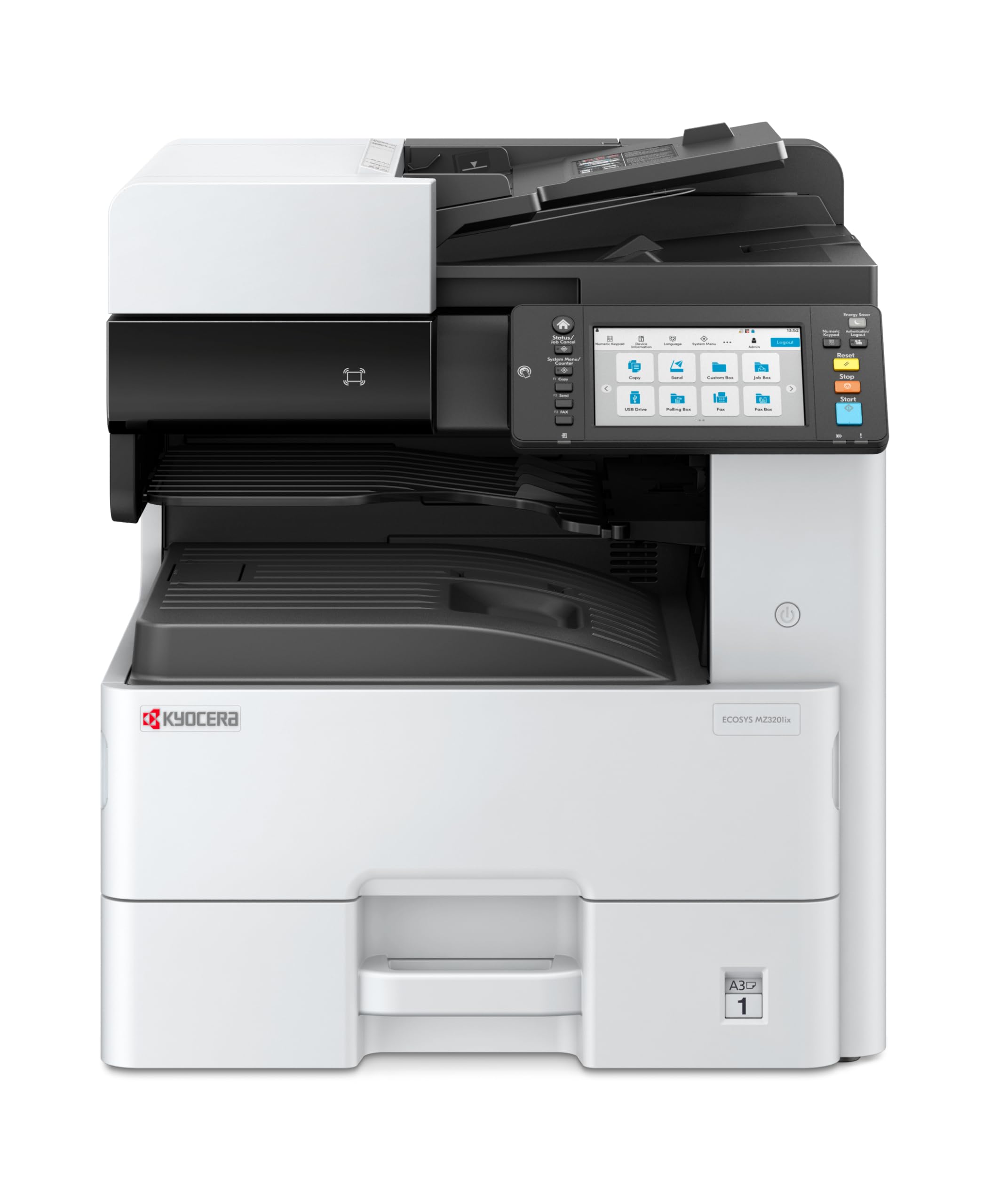
Image 1: Kyocera ECOSYS MZ3201ix A3 Laser Multifunction Printer. This image shows the front view of the printer, highlighting its compact design and the integrated touch screen panel.
5. Awọn ilana Iṣiṣẹ
5.1 Ipilẹ titẹ sita
- Ṣii iwe ti o fẹ lati tẹ sita lori kọnputa rẹ.
- Yan File > Tẹjade.
- Choose the Kyocera ECOSYS MZ3201ix from the list of available printers.
- Adjust print settings (e.g., number of copies, paper size, duplex printing) as needed.
- Tẹ Titẹ sita.
5.2 Awọn iwe aṣẹ didakọ
- Fi ìwé náà sí orí gíláàsì ẹ̀rọ ìwádìí tàbí ojú rẹ̀ sí orí rẹ̀ nínú Automatic Document Feeder (ADF).
- On the printer's touch screen, select the Daakọ iṣẹ.
- Adjust settings such as number of copies (up to 999), zoom, and paper type.
- Tẹ awọn Bẹrẹ bọtini lati bẹrẹ daakọ.
5.3 Awọn iwe-iṣayẹwo
- Gbe iwe naa sori gilasi ọlọjẹ tabi ni ADF.
- On the printer's touch screen, select the Ṣayẹwo iṣẹ.
- Choose your desired scan destination (e.g., Scan to PC, Scan to Email, Scan to USB).
- Configure scan settings such as resolution (up to 1200 x 1200 dpi), color mode, and file ọna kika.
- Tẹ awọn Bẹrẹ bọtini lati bẹrẹ Antivirus.
5.4 Faxing Awọn iwe aṣẹ
(Note: Fax functionality requires a telephone line connection, not detailed in this manual.)
- Gbe iwe naa sori gilasi ọlọjẹ tabi ni ADF.
- On the printer's touch screen, select the Faksi iṣẹ.
- Tẹ nọ́mbà fakisi olugba naa sii nipa lilo bọtini itẹwe naa.
- Ṣe àtúnṣe sí àwọn ètò fax tó yẹ.
- Tẹ awọn Bẹrẹ bọtini lati fi awọn Faksi.
6. Itọju
Itọju deedee n ṣe idaniloju iṣẹ ṣiṣe to dara julọ ati gigun igbesi aye ẹrọ itẹwe rẹ.
6.1 Ninu itẹwe
- Òde: Mu ese ita gbangba pẹlu asọ, damp, lint-free asọ. Ma ṣe lo abrasive ose tabi epo.
- Gilasi Scanner: Gently clean the scanner glass with a soft cloth and a non-abrasive glass cleaner.
- Awọn Rollers ADF: Lorekore nu ADF rollers pẹlu kan lint-free asọ dampened with isopropyl alcohol to prevent paper jams.
6.2 Rírọ́pò Káàtìrì Toner
- When the printer indicates low toner, order a new Kyocera toner cartridge.
- Ṣii ideri iwaju ti itẹwe naa.
- Yọ katiriji toner ti o ṣofo nipa fifaa jade.
- Unpack the new toner cartridge and shake it gently to distribute the toner.
- Insert the new toner cartridge firmly into its slot until it clicks into place.
- Pa ideri iwaju.
6.3 Replacing Waste Toner Container
- When the printer indicates the waste toner container is full, prepare a new one.
- Open the cover that provides access to the waste toner container.
- Carefully remove the full waste toner container. Seal it in a plastic bag for proper disposal.
- Insert the new waste toner container into its slot.
- Pa ideri naa.
7. Laasigbotitusita
Apá yìí ń sọ̀rọ̀ nípa àwọn ìṣòro tó wọ́pọ̀ tí o lè bá pàdé pẹ̀lú ẹ̀rọ ìtẹ̀wé rẹ.
7.1 Iwe Jams
- Aisan: Printer stops, and an error message indicates a paper jam.
- Ojutu: Turn off the printer. Open all covers and trays. Carefully remove any jammed paper, pulling in the direction of the paper path. Ensure no small pieces of paper remain. Close all covers and restart the printer.
7.2 Ko dara Print Didara
- Aisan: Faded prints, streaks, or spots on pages.
- Ojutu: Check toner level and replace if low. Perform a print head cleaning or calibration from the printer's maintenance menu. Ensure you are using appropriate paper for your print job.
7.3 Itẹwe Ko fesi
- Aisan: Printer is online but does not print documents sent from the computer.
- Ojutu: Check all cable connections (USB/Ethernet). Restart both the printer and your computer. Verify that the correct printer driver is installed and selected. Check the printer's network settings if connected via Ethernet.
7.4 Awọn koodu aṣiṣe
If an error code appears on the touch screen, refer to the comprehensive user manual (available on the Kyocera website) for specific instructions related to that code. Many codes indicate specific issues like open covers, paper jams, or consumable replacement needs.
8. Awọn pato
| Ẹya ara ẹrọ | Sipesifikesonu |
|---|---|
| Brand | Kyocera |
| Orukọ awoṣe | ECOSYS MZ3201ix |
| Nọmba awoṣe | 110C2V3NL0 |
| Asopọmọra Technology | Àjọlò, USB 2.0 |
| Imọ-ẹrọ titẹ sita | Lesa |
| Pataki Awọn ẹya ara ẹrọ | Automatic Document Feeder, Auto-Duplex, Network Ready, Scan to Email, Touch Screen |
| Ijade itẹwe | Monochrome |
| Max Print Speed Black & White | 32 Pages per minute (A4) |
| Iwọn Nkan | 49 kilo |
| Awọn iwọn Ọja (DxWxH) | 58.5P x 59l x 68.8H cm |
| Max Print Resolution Black & White | 1200 x 1200 dpi |
| Ipinnu Scanner | 1200 x 1200 dpi |
| Ile oloke meji Printing | Laifọwọyi |
| Max Copy Count | 999 |
| First Page Jade Time | Awọn aaya 5.2 |
| Max Supported Paper Size | A3 |
| O pọju Input dì Agbara | 1600 |
| Printing Media Type | Iwe pẹlẹbẹ |
| Awọn iṣẹ | Copy, Fax, Scan, Print |
9. Atilẹyin ọja ati Support
Your Kyocera ECOSYS MZ3201ix printer comes with a standard manufacturer's warranty. For detailed information regarding warranty terms, duration, and coverage, please refer to the warranty card included with your product or visit the official Kyocera webojula.
Atilẹyin Onibara:
If you encounter any issues that cannot be resolved using this manual or require technical assistance, please contact Kyocera customer support. You can find contact information on the Kyocera webaaye tabi ninu iwe ti a pese pẹlu itẹwe rẹ.
When contacting support, please have your printer's model name (ECOSYS MZ3201ix) and serial number ready. The serial number is typically located on a label on the back or bottom of the printer.