1. Ifihan
The Pinnacle PCTV Deluxe is a versatile USB 1.0/2.0 solution designed for watching and recording television broadcasts directly on your laptop or desktop PC. It supports PAL/SECAM TV standards and offers high-quality video capture. For optimal performance, a USB 2.0 connection is recommended.
This device integrates with PCTV Vision software, enabling real-time recording of TV shows and audio/video streams in MPEG 1/2 formats. Key features include direct burning to CD/DVD, live broadcast pause and playback, and access to teletext pages via Pinnacle web text technology. An infrared remote control is included for convenient operation.
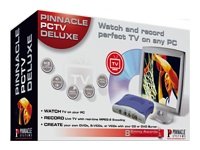
Image showing the retail box for the Pinnacle PCTV Deluxe. The box features the product name, 'Watch and record perfect TV on any PC' slogan, and illustrations of a monitor displaying TV content, optical discs, and the PCTV Deluxe device.
2. Package Awọn akoonu
Jọwọ rii daju pe gbogbo awọn ohun ti a ṣe akojọ si isalẹ wa ninu apo rẹ:
- Pinnacle PCTV Deluxe USB TV Card
- Isakoṣo latọna jijin Iṣakoso
- Software CD (PCTV Vision)
- Fifi sori Itọsọna
3. Eto
3.1 System Awọn ibeere
- Eto iṣẹ: Windows
- Available USB 1.0 or 2.0 port (USB 2.0 recommended for best performance)
- Minimum processor and RAM as specified by the PCTV Vision software
3.2 Fifi sori ẹrọ Hardware
- Connect your TV antenna or cable source to the antenna input on the Pinnacle PCTV Deluxe device.
- Plug the USB cable from the PCTV Deluxe device into an available USB port on your computer.
- Insert the batteries into the infrared remote control.
3.3 Software fifi sori
- Insert the PCTV Vision Software CD into your computer's optical drive.
- Follow the on-screen instructions to install the PCTV Vision software and necessary drivers.
- Tun kọmputa rẹ bẹrẹ ti o ba ṣetan lẹhin fifi sori ẹrọ ti pari.
4. Awọn ilana Iṣiṣẹ
4.1 Watching Live TV
- Launch the PCTV Vision software from your desktop or Start menu.
- The software will typically scan for available TV channels upon first launch. Follow the prompts to complete channel setup.
- Use the PCTV Vision interface or the included remote control to change channels and adjust volume.
4.2 Recording TV Shows
The PCTV Deluxe allows real-time recording of TV shows and audio/video streams in MPEG 1/2 formats.
- While watching live TV, locate the 'Record' button within the PCTV Vision software interface or on your remote control.
- Press 'Record' to begin recording the current program.
- To stop recording, press the 'Stop' button. Recorded files are typically saved to a designated folder on your computer.
- You can burn recorded content directly to a CD or DVD using the software's integrated features.
4.3 Time-Shifting (Pause/Playback Live TV)
The time-shifting feature allows you to pause a live broadcast and resume watching from where you left off.
- While watching live TV, press the 'Pause' button on the software interface or remote control.
- To resume watching, press 'Play'. You can also use the 'Rewind' and 'Fast Forward' functions to navigate within the buffered content.
4.4 Teletext Functionality
Pinnacle web text technology enables you to view teletext pages directly.
- Access the teletext function through the PCTV Vision software interface.
- Navigate teletext pages using the provided controls or remote.
5. Itọju
To ensure the longevity and optimal performance of your Pinnacle PCTV Deluxe:
- Jeki ẹrọ naa di mimọ ati ofe kuro ninu eruku. Lo asọ asọ ti o gbẹ fun mimọ.
- Yago fun ṣiṣafihan ẹrọ naa si awọn iwọn otutu to gaju, ọriniinitutu, tabi oorun taara.
- Periodically check the Pinnacle website for software and driver updates to ensure compatibility and access to the latest features.
- Store the remote control and device in a safe place when not in use.
6. Laasigbotitusita
If you encounter issues with your Pinnacle PCTV Deluxe, consider the following troubleshooting steps:
- Ko si ifihan agbara TV: Ensure your antenna or cable connection is secure and properly connected to the device. Verify that your TV source is active.
- Sọ́fítíwètì Kò Ń Ṣí/Kò bàjẹ́: Try reinstalling the PCTV Vision software and drivers. Ensure your operating system is up to date.
- Iṣakoso Latọna jijin Ko Dahun: Check the batteries in the remote control and replace them if necessary. Ensure there are no obstructions between the remote and the device's IR receiver.
- Didara fidio ti ko dara: Ensure you are using a USB 2.0 port for optimal performance. Check your antenna signal strength.
- Ohun elo Ko Damọ: Disconnect and reconnect the USB device. Try a different USB port. Reinstall the drivers.
For further assistance, refer to the support section on the Pinnacle Systems webojula.
7. Awọn pato
| Ẹya ara ẹrọ | Ẹ̀kúnrẹ́rẹ́ |
|---|---|
| Brand | Pinnacle |
| jara | Pinnacle PCTV Deluxe |
| Orukọ awoṣe | Pinnacle PCTV Deluxe |
| Nọmba Awoṣe Nkan | 202261290 |
| Ni wiwo Hardware | USB (1.0/2.0 compatible) |
| Ibamu System isẹ | Windows |
| Ipinnu Yaworan fidio | 480p |
| Ọna igbasilẹ fidio | MPEG 1/2 |
| Iwọn Nkan | 2.64 iwon |
| Package Mefa | 14.96 x 9.06 x 3.54 inches |
| Olupese | Pinnacle Systems |
| ASIN | B000092RSA |
8. Atilẹyin ọja ati Support
Pinnacle Systems products are typically covered by a limited manufacturer's warranty. Please refer to the warranty information included with your product packaging or visit the official Pinnacle Systems webAaye fun alaye ofin ati ipo.
For technical support, driver downloads, and frequently asked questions, please visit the support section of the Pinnacle Systems website. Contact information for customer service may also be found there.


