1. Ifihan
This manual provides essential information for the setup, operation, maintenance, and troubleshooting of your Microsoft Wheel Optical Mouse, Model D66-00069. Please read this manual thoroughly to ensure optimal performance and longevity of your device.
2. Eto
Follow these steps to connect your Microsoft Wheel Optical Mouse to your computer.
2.1 System Awọn ibeere
- PC: Windows XP (Pentium 233-MHz or faster), Windows 2000 (Pentium 133 MHz or higher processor), Windows ME/98 (Pentium 133 MHz or higher processor), Windows NT 4.0 SP Pack 6 or later (Pentium 133 MHz or higher processor).
- 25 MB of available hard-disk space.
- CD-ROM drive (for software installation, if applicable).
- Microsoft Internet Explorer version 5.0 or later (to view Egba Mi O files).
- An available PS/2 or Universal Serial Bus (USB) port.
- Mac: 15MB free Hard Drive space, Mac OS X version 10.1 to 10.1.3 (excluding 10.0), Mac OS 8.6 to 9.x, CD-ROM drive, An available Universal Serial Bus (USB) port.
2.2 Nsopọ Asin
- Locate an available USB or PS/2 port on your computer.
- Insert the mouse connector into the appropriate port. The mouse is plug-and-play, meaning it should be recognized automatically by your operating system.
- If prompted, follow any on-screen instructions for driver installation. For advanced customization, install the provided software from the CD-ROM drive.
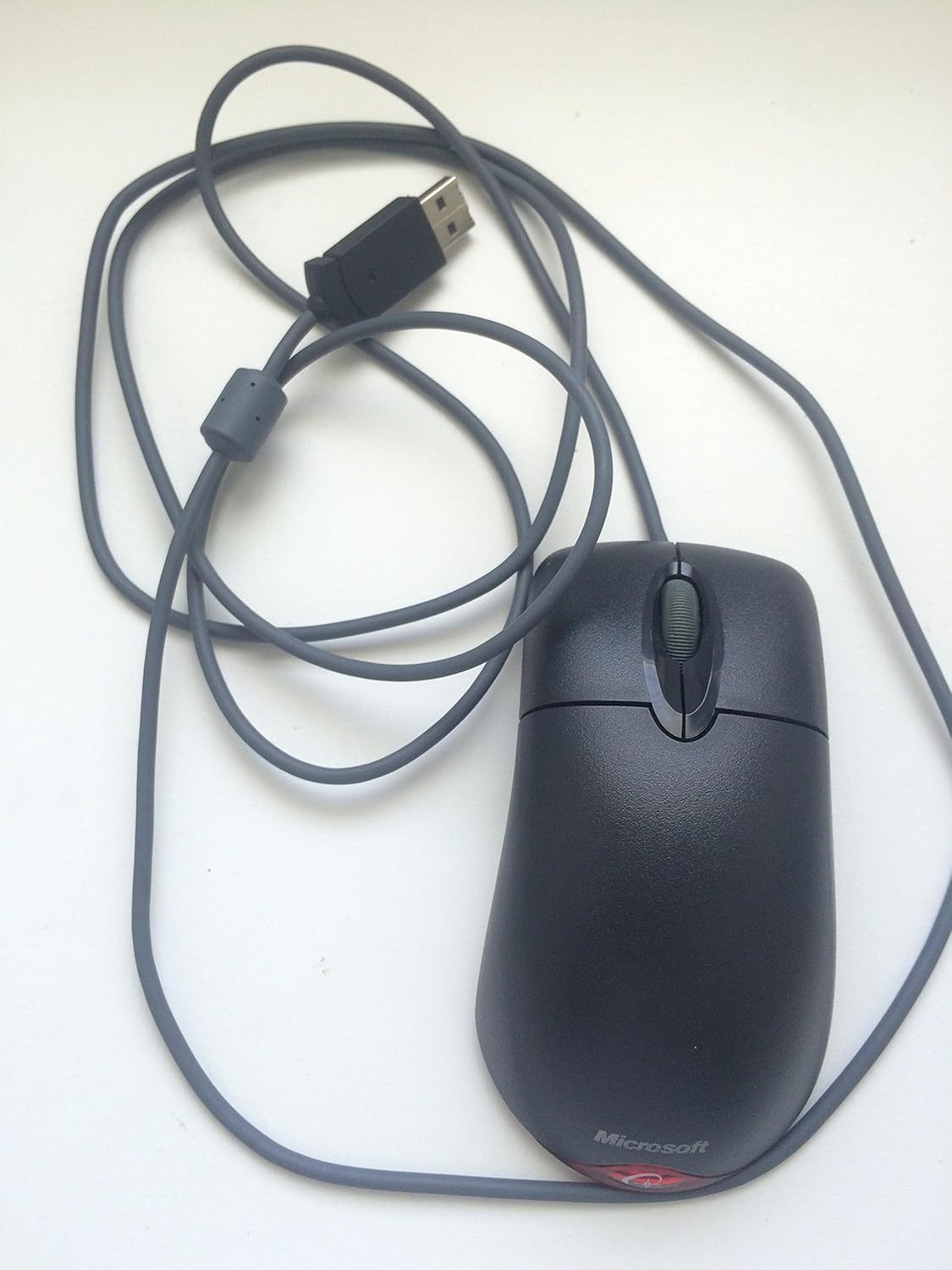
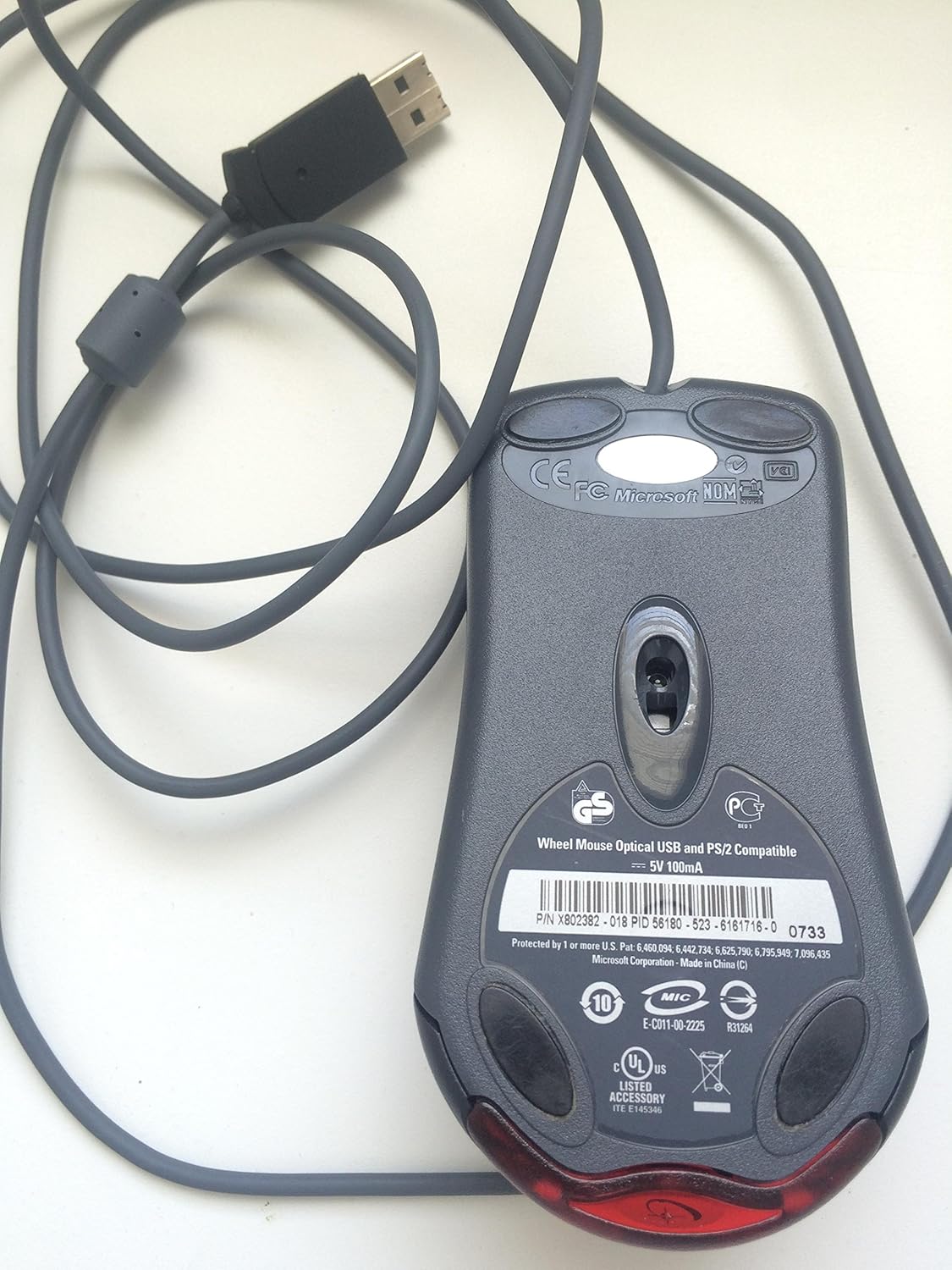
Yi fidio pese kan gbogboogbo loriview of the Microsoft Wheel Optical Mouse, demonstrating its physical features and basic functionality.
3. Ṣiṣẹ Asin
The Microsoft Wheel Optical Mouse is designed for intuitive and precise control.
3.1 Ipilẹ Awọn iṣẹ
- Bọtini Titẹ-Osi: Ti a lo fun yiyan awọn ohun kan, ṣiṣi files, ati awọn iṣẹ ṣiṣe.
- Bọtini Titẹ-ọtun: Used to open context menus for additional options.
- Yi lọ Kẹkẹ: Eerun kẹkẹ soke tabi isalẹ lati yi lọ nipasẹ awọn iwe aṣẹ ati web pages. Press the wheel down to activate the customizable middle-click function, often used for auto-scrolling or opening links in new tabs.
3.2 IntelliEye Optical Technology
The mouse utilizes IntelliEye optical technology, which tracks mouse movement 6000 times per second. This provides smooth, precise motion on almost any surface, eliminating the need for a mouse pad in most cases.
3.3 Àwọn bọ́tìnì tí a lè ṣe àtúnṣe
The buttons and scroll wheel can be customized using the Microsoft mouse software. This allows you to assign new commands or repetitive tasks to suit your workflow, such as opening a file or web page with a single click.
4. Itọju
To ensure the longevity and optimal performance of your mouse, follow these simple maintenance guidelines:
- Ninu: Lo asọ rirọ, ti ko ni lint ni sere dampened pẹlu omi tabi a ìwọnba ninu ojutu lati mu ese awọn dada ti awọn Asin. Yago fun awọn kemikali lile tabi awọn ohun elo abrasive.
- Sensọ Ojú: Jẹ́ kí sensọ̀ opitika tó wà ní ìsàlẹ̀ eku náà mọ́ tónítóní kí ó má sì sí eruku tàbí ìdọ̀tí. Má ṣe gbìyànjú láti ṣí eku náà casing.
- Itọju USB: Yago fun atunse tabi yiyi okun Asin lati ṣe idiwọ ibajẹ inu.
5. Laasigbotitusita
If you encounter issues with your Microsoft Wheel Optical Mouse, try the following solutions:
- Asin Ko Dahun:
- Ensure the USB or PS/2 connector is securely plugged into the correct port on your computer.
- Try plugging the mouse into a different USB or PS/2 port.
- Tun kọmputa rẹ bẹrẹ.
- Gbigbe Kọsọ Ainiṣiṣẹ:
- Nu sensọ opitika lori isalẹ ti Asin.
- Rí i dájú pé o ń lo àsíìsì lórí ojú tó yẹ. Àwọn ojú tó ń tàn yanranyanran tàbí tó ń hàn gbangba lè fa ìṣòro.
- Check for any software conflicts or outdated drivers. Reinstalling the mouse software may resolve the issue.
- Awọn bọtini tabi Yi lọ Kẹkẹ Ko Ṣiṣẹ:
- Verify that the mouse software is correctly installed and configured.
- Ṣe idanwo Asin lori kọnputa miiran lati pinnu boya ọrọ naa wa pẹlu Asin tabi ẹrọ rẹ.
6. Awọn pato
| Ẹya ara ẹrọ | Ẹ̀kúnrẹ́rẹ́ |
|---|---|
| Brand | Microsoft |
| jara | Wheel Mouse Optical |
| Nọmba awoṣe | D66-00069 |
| Hardware Platform | PC, Tabulẹti |
| Ibamu System isẹ | Mac OS X v10.1x–10.4x, Windows Vista/XP/Pro/Home/Media Center Edition/Tablet PC Edition/Windows 2000 SP4 + |
| Iwọn Nkan | 14.2 iwon |
| Awọn iwọn Ọja (LxWxH) | 9.5 x 9 x 2.25 inches |
| Àwọ̀ | Dudu |
| Orisun agbara | Okun Itanna |
| Asopọmọra Technology | USB |
| Imọ-ẹrọ Iwari išipopada | Opitika |
7. atilẹyin ọja Information
Ọja yi wa pẹlu kan 3-odun olupese atilẹyin ọja. For specific terms and conditions, please refer to the warranty documentation included with your purchase or visit the official Microsoft support webojula.
AlAIgBA Ofin: This product is sold as is.
8. Atilẹyin
For further assistance, technical support, or to download the latest drivers and software, please visit the official Microsoft support website or contact their customer service. Ensure you have your product model number (D66-00069) available when seeking support.


