1. Ifihan
This manual provides essential information for the proper setup, operation, and maintenance of your Coby DVD-527 5.1 Channel Progressive Scan DVD Player. Please read this manual thoroughly before using the device to ensure optimal performance and safety. The Coby DVD-527 features a super-slim design, 5.1 channel audio output, and progressive scan video output for enhanced picture quality on compatible televisions.
2. Alaye Aabo
- Orisun Agbara: Rii daju pe ipese agbara ibaamu voltage requirements specified on the unit.
- Afẹfẹ: Ma ṣe dina awọn ṣiṣi atẹgun. Gba aaye to peye ni ayika ẹyọ naa fun sisan afẹfẹ to dara lati ṣe idiwọ igbona.
- Ọrinrin: Ma ṣe fi ẹrọ naa han si ojo, ọrinrin, tabi ọriniinitutu ti o pọ ju.
- Ninu: Yọọ kuro lati inu iṣan agbara ṣaaju ṣiṣe mimọ. Lo asọ asọ ti o gbẹ.
- Ṣiṣẹ: Maṣe gbiyanju lati ṣiṣẹ ọja yi funrararẹ. Tọkasi gbogbo iṣẹ si oṣiṣẹ oṣiṣẹ ti o peye.
3. Package Awọn akoonu
Jẹrisi pe gbogbo awọn ohun kan wa ninu package:
- Coby DVD-527 DVD Player
- Iṣakoso Iṣakoso latọna jijin ni kikun
- AV Cable
- Afowoyi Olumulo (iwe-ipamọ yii)
- Alaye atilẹyin ọja
4. Ọja Ipariview
The Coby DVD-527 DVD Player and its accompanying remote control are designed for ease of use and integration into your home entertainment system.
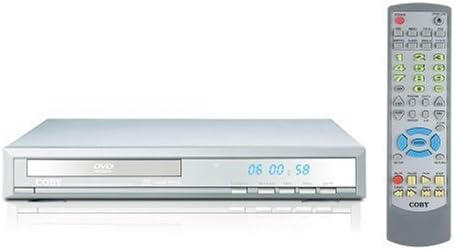
Nọmba 1: Coby DVD-527 DVD Player (left) and its full-function remote control (right). The DVD player features a slim profile with a disc tray, display screen, and control buttons on the front panel. The remote control includes various buttons for playback, navigation, and special features.
Iwaju Panel idari
The front panel typically includes the disc tray, power button, play/pause, stop, and eject buttons, along with a digital display showing playback time or status.
Ru Panel Awọn isopọ
The rear panel houses various audio and video output ports for connecting to your television and audio system.
Isakoṣo latọna jijin
The included remote control provides full functionality for operating the DVD player from a distance, including power, playback controls, menu navigation, volume, and special features.
5. Eto
5.1 Nsopọ si Telifisonu kan
Yan ọkan ninu awọn ọna asopọ fidio atẹle:
- Component Video Output (Progressive Scan): For the highest quality picture on HD-capable televisions, connect the Y, Pb, and Pr component video outputs from the DVD player to the corresponding inputs on your TV using component video cables.
- Àgbéjáde Fídíò RCA: Connect the yellow RCA video output from the DVD player to the video input on your TV using an RCA video cable.
- S-Video Ijade: Connect the S-Video output from the DVD player to the S-Video input on your TV using an S-Video cable.
5.2 Nsopọ si ohun Audio System
Yan ọkan ninu awọn ọna asopọ ohun atẹle:
- 5.1 Dolby Digital Output: For surround sound, connect the 5.1 channel audio outputs (Front Left, Front Right, Center, Surround Left, Surround Right, Subwoofer) from the DVD player to the corresponding inputs on your 5.1 channel receiver or amplifier.
- Ijade ohun afetigbọ Digital Coaxial: Connect the coaxial digital audio output from the DVD player to the coaxial digital audio input on your receiver or amplifier using a coaxial digital audio cable.
- Ijade Olohun Digital Optical: Connect the optical digital audio output from the DVD player to the optical digital audio input on your receiver or amplifier using an optical digital audio cable.
- Ijade ohun ohun Analog: Connect the red and white RCA analog audio outputs from the DVD player to the corresponding audio inputs on your TV or stereo system using an RCA audio cable.
5.3 Asopọ agbara
After all audio and video connections are made, plug the DVD player's power cord into a standard AC power outlet.
6. Awọn ilana Iṣiṣẹ
6.1 Ipilẹ Disiki Sisisẹsẹhin
- Turn on your television and select the correct input source for the DVD player.
- Press the Power button on the DVD player or remote control to turn on the unit.
- Press the Eject button (▲) on the front panel or remote to open the disc tray.
- Place a compatible disc (DVD, CD, CD-R/RW, MP3) gently into the disc tray with the label side facing up.
- Press the Eject button (▲) again to close the disc tray. The player will begin reading the disc.
- Playback should start automatically. If a disc menu appears, use the navigation buttons on the remote to select your desired option and press Enter.
- Use the Play (▶), Pause (▐▐), Stop (■), Fast Forward (►►), and Rewind (◄◄) buttons on the remote for playback control.
6.2 Pataki Awọn ẹya ara ẹrọ
- Ifihan Lori Iboju: Press the OSD button on the remote to view playback information on your screen.
- Isẹ Sun-un: Use the Zoom button to magnify a portion of the picture.
- Ọpọ Viewawọn igun: For discs that support it, press the Angle button to switch between different camera angles.
- Awọn atunkọ: Press the Subtitle button to select available subtitle languages.
- Parental Lock Control: Access the setup menu to configure parental control settings, restricting playback of certain content based on rating.
6.3 Eto eto
Press the Setup button on the remote to access the system menu. Here you can adjust video settings (e.g., aspect ratio, progressive scan mode), audio settings, language preferences, and parental control options. Refer to the on-screen menu for detailed navigation.
7. Itọju
7.1 Ninu Unit
Wipe the exterior of the DVD player with a soft, dry cloth. Do not use liquid cleaners or aerosol sprays, as they may damage the finish or internal components.
7.2 Disiki Itọju
Handle discs by their edges. Keep discs clean and free of scratches. Store discs in their cases when not in use to prevent dust and damage.
8. Laasigbotitusita
If you encounter problems with your DVD player, refer to the following common issues and solutions:
- Ko si Agbara:
• Ensure the power cord is securely plugged into both the DVD player and a working electrical outlet.
• Check if the power outlet is functional by plugging in another device. - Ko si Aworan:
• Verify that the video cables are correctly connected between the DVD player and the TV.
• Ensure your TV is set to the correct input source (e.g., AV1, Component, HDMI).
• Check the TV's picture settings. - Ko si Ohun:
• Confirm that audio cables are properly connected to your TV or audio system.
• Check the volume level on both the DVD player and your TV/audio system.
• Ensure your TV/audio system is set to the correct audio input.
• If using digital audio, verify the audio settings in the DVD player's setup menu. - Àṣìṣe Dísìkì Kò Ṣiṣẹ́ / Àṣìṣe Dísìkì:
• Ensure the disc is clean and free of scratches or smudges.
• Make sure the disc is inserted correctly with the label side facing up.
• Verify that the disc format is compatible with the player (DVD, CD, CD-R/RW, MP3). - Iṣakoso latọna jijin Ko Ṣiṣẹ:
• Check and replace the batteries in the remote control.
• Ensure there are no obstructions between the remote and the DVD player's sensor.
• Point the remote directly at the DVD player.
9. Awọn pato
| Awoṣe | DVD-527 |
| Brand | Coby |
| Awọn iwọn (W x D x H) | 11 x 10 x 2 inches (isunmọ) |
| Iwọn | 7 poun (isunmọ) |
| Media Type Compatibility | DVD, CD, CD-R/RW, MP3 |
| Ijade fidio | Component Video (Y, Pb, Pr), RCA Video, S-Video |
| Ijade ohun | 5.1 Channel Dolby Digital, Coaxial Digital, Optical Digital, Analog RCA (L/R) |
| Pataki Awọn ẹya ara ẹrọ | Progressive Scan, Multiple Subtitles, Multiple Viewing Angles, On-Screen Display, Zoom Operation, Parental Lock Control |
| Ibamu fidio | NTSC/PAL System |
10. Atilẹyin ọja ati Support
This product is covered by a limited manufacturer's warranty. Please refer to the warranty information card included in your package for specific terms and conditions, including the warranty period and coverage details. Keep your purchase receipt as proof of purchase.
For technical assistance or customer support, please refer to the contact information provided in your warranty documentation or visit the official Coby website for the most current support resources.


