Ọrọ Iṣaaju
This manual provides instructions for the Vivitar Vivicam 5024 5.1MP Digital Camera. It covers setup, operation, maintenance, and troubleshooting to help you get the most from your camera. The Vivicam 5024 features a 5.1-megapixel sensor, 8x digital zoom, and a 2.4-inch TFT preview screen, designed for capturing photos and videos.
Ọja Pariview
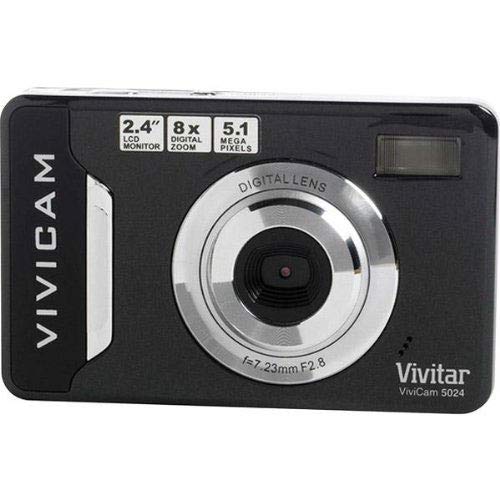
Aworan 1: Iwaju view of the Vivitar Vivicam 5024 Digital Camera. Shows the lens, flash, and overall compact design.
The Vivitar Vivicam 5024 is a compact digital camera equipped with a 5.1-megapixel sensor for still images and video recording. It includes an 8x digital zoom and a 2.4-inch color LCD screen for framing shots and reviewing content. Key features include anti-shake technology, scene modes, ISO adjustment, and white balance settings.
Ṣeto
1. Fifi sori batiri
The Vivicam 5024 operates on three (3) AAA batteries. Ensure batteries are inserted with correct polarity.
- Wa ideri iyẹwu batiri ni isalẹ kamẹra.
- Gbe ideri naa ṣii.
- Insert three fresh AAA batteries, matching the positive (+) and negative (-) terminals as indicated inside the compartment.
- Pa ideri batiri naa ni aabo.
2. Fifi sori Kaadi SD
The camera uses an SD (Secure Digital) card for storing photos and videos. A 4GB SD card is typically included.
- Locate the SD card slot, which does not have a cover, on the side of the camera.
- Insert the SD card into the slot with the metal contacts facing the front of the camera until it clicks into place.
- To remove, gently push the card further in until it springs out.
3. Agbara akọkọ Lori
Press and hold the Power button, usually located on the top of the camera, until the LCD screen illuminates.
Ṣiṣẹ kamẹra
1. Awọn iṣakoso ipilẹ
- Bọtini agbara: Yipada kamẹra si titan/pa.
- Bọtini Yiyọ: Tẹ ni agbedemeji si idojukọ, ni kikun lati ya aworan kan.
- Awọn bọtini Sun-un: Control the 8x digital zoom (usually marked 'W' for Wide and 'T' for Telephoto).
- Awọn bọtini lilọ kiri: Used to navigate menus and playback images.
- Iboju LCD: 2.4-inch display for framing shots, reviewing images, and accessing menus.
2. Gbigba Awọn fọto
- Tan kamẹra.
- Fírémù àwòrán rẹ nípa lílo ibojú LCD 2.4-inch.
- Use the zoom buttons to adjust the 8x digital zoom as needed.
- Press the Shutter button halfway down to allow the camera to focus.
- Press the Shutter button fully to capture the image.
- Pataki: Due to the camera's design, it is crucial to hold the camera perfectly still for a couple of seconds after pressing the shutter button to ensure a clear image.
The camera features anti-shake technology to assist in reducing blur, but stable handling is still recommended.
3. Awọn fidio gbigbasilẹ
The Vivicam 5024 can record video. To switch to video mode, navigate through the camera's menu or use a dedicated mode button if available.
- Start recording by pressing the Shutter button (or dedicated record button).
- Stop recording by pressing the button again.
- Akiyesi: The Vivitar Vivicam 5024 records video without sound. This is a design characteristic and not a malfunction.
4. Ipo Sisisẹsẹhin
Lati tunview awọn fọto ati awọn fidio:
- Enter Playback mode (usually via a dedicated button or menu option).
- Lo awọn bọtini lilọ kiri lati yi lọ nipasẹ awọn media ti o ya.
- Press the Shutter button or OK button to view a video or a larger image.
5. Awọn Eto Akojọ aṣyn
Access the camera's menu to adjust various settings:
- Awọn ipo Iwoye: Select pre-set modes for different shooting conditions (e.g., Portrait, Landscape).
- ISO: Adjust light sensitivity (e.g., for low-light conditions).
- Iwontunwonsi Funfun: Correct color cast based on lighting (e.g., Daylight, Cloudy, Fluorescent).
- Awọn ọna Filaṣi: Set the built-in flash to Automatic, Red-Eye Reduction, Fill-Flash, or Off.
- Aago ara-ẹni: Set a delay (e.g., 10 seconds) before taking a photo.
Nsopọ si Kọmputa kan
Láti gbé àwọn fọ́tò àti fídíò sí kọ̀ǹpútà rẹ:
- Rii daju pe kamẹra ti wa ni pipa.
- Locate the USB port on the isalẹ ti kamẹra.
- Connect the camera to your computer using a compatible USB cable.
- Turn on the camera. It should appear as a removable disk drive on your computer.
- Fa ati ju silẹ files from the camera's SD card folder to your computer.
- Yọ kamẹra kuro ninu kọmputa rẹ lailewu ṣaaju ki o to ge okun USB kuro.
Itoju
1. Ninu Kamẹra
- Lo asọ ti o rọ, ti o gbẹ lati nu ara kamẹra mọ.
- For the lens and LCD screen, use a specialized lens cleaning cloth and solution.
- Yago fun lilo abrasive ose tabi epo.
- Note that the camera does not have a lens cover, so keep the lens area clean and protected from dust.
2. Itọju batiri
- Remove batteries if the camera will not be used for an extended period.
- Use high-quality AAA alkaline or rechargeable batteries for optimal performance.
3. Ìtọ́jú Káàdì SD
- Format the SD card periodically within the camera's menu to maintain performance.
- Avoid removing the SD card while the camera is writing data.
- The SD card slot does not have a cover; protect it from dust and moisture.
Laasigbotitusita
- Kamẹra ko tii: Ṣayẹwo fifi sori batiri ati rii daju pe awọn batiri jẹ alabapade.
- Blurry photos: Ensure the camera is held still for a few seconds after pressing the shutter. Check lighting conditions and adjust ISO if necessary.
- Flash not working: Verify flash mode settings in the camera menu. Ensure batteries have sufficient power.
- No sound in videos: This camera model (Vivicam 5024) does not record audio with video. This is a normal operational characteristic.
- Ko le gbe lọ files si kọmputa: Ensure USB cable is securely connected to both camera (bottom port) and computer. Verify camera is powered on and recognized as a removable disk.
Awọn pato
| Orukọ awoṣe | 5024 |
| Ipinnu sensọ Fọto | 5.1 Megapixels (Effective Still Resolution: 5 MP) |
| Digital Sisun | 8x |
| Iwon iboju | 2.4 Inches (TFT LCD) |
| Iduroṣinṣin Aworan | Oni-nọmba |
| Atilẹyin File Ọna kika | JPEG (Sibẹ), MP4 (fidio) |
| -Itumọ ti Media | SD Card (up to 4GB recommended) |
| Asopọmọra Technology | USB |
| Orisun agbara | 3 x AAA batiri |
| Filaṣi | Built-In, Automatic modes |
| Aago ara ẹni | Awọn aaya 10 |
| Iwọn Nkan | 100 giramu |
Atilẹyin ọja ati Support
Specific warranty information for the Vivitar Vivicam 5024 is typically provided with the product packaging or can be found on the manufacturer's official website. For technical support or service inquiries, please refer to the contact information provided by Vivitar at the time of purchase or visit their official support channels.


