1. Ifihan
This user manual provides comprehensive instructions for the setup, operation, and maintenance of your new Microsoft Wired Keyboard, Awoṣe ANB-00021Jọ̀wọ́ ka ìwé ìtọ́ni yìí dáadáa kí o tó lo ọjà náà láti rí i dájú pé ó ṣiṣẹ́ dáadáa àti pé ó pẹ́ tó.

Figure 1: Microsoft Wired Keyboard (Model ANB-00021)
This image displays the Microsoft Wired Keyboard from an angled perspective, showcasing its full layout, including the numeric keypad and special function keys. The keyboard is black with a standard QWERTY layout and a wired USB connection.
2. Awọn ẹya Ọja
The Microsoft Wired Keyboard is designed for efficiency and durability, offering a comfortable typing experience. Key features include:
- Black, English/International Layout: Standard QWERTY layout suitable for various regions.
- Asopọmọra USB: Simple and reliable wired connection.
- Ultra-Flat Design: Slim Profile for a modern aesthetic and comfortable wrist position.
- Short Key Travel: Responsive keys with a short actuation distance for efficient typing.
- Asesejade-Atako: Designed to withstand minor spills, protecting internal components.
- Awọn bọtini Ifiṣootọ: Includes 5 special keys for quick access to common functions.
- Calculator Key: Instant access to the calculator application.
- Gently Inclined Key Block: Ergonomic design for reduced strain during extended use.
- Classic Keyboard Layout: Familiar and intuitive key arrangement.
- Pulọọgi ati Ṣiṣẹ: No software installation required; simply connect and use.
3. Eto
Setting up your Microsoft Wired Keyboard is a straightforward process due to its Plug and Play functionality.
- Yọ Keyboard kuro: Farabalẹ yọ keyboard kuro lati apoti rẹ.
- So pọ mọ Ibudo USB kan: Locate an available USB port on your computer (desktop PC, laptop, or compatible device). Insert the USB connector of the keyboard firmly into the USB port.
- Idanimọ eto: Your operating system (Windows, macOS, Linux, etc.) will automatically detect and install the necessary drivers. This process usually takes a few seconds.
- Ṣetan fun Lilo: Once the drivers are installed, the keyboard is ready for immediate use. No additional software or configuration is typically required.
For optimal performance, ensure the USB cable is not kinked or strained.
4. Awọn ilana Iṣiṣẹ
The Microsoft Wired Keyboard operates like any standard QWERTY keyboard, with additional convenience features.
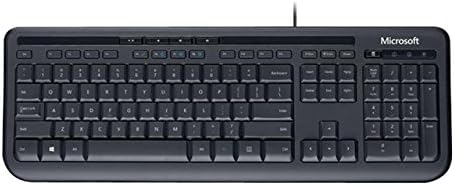
olusin 2: Top-isalẹ view of the keyboard layout
Aworan yii pese oke-isalẹ ti o han gbangba view of the Microsoft Wired Keyboard, highlighting the full QWERTY key layout, function keys, numeric keypad, and the row of special hotkeys located above the function keys.
Àwọn Iṣẹ́ Bọ́tìkì Déédé
- Àwọn Kọ́ọ́lù Àlùfánẹ́ẹ̀tì: Used for typing letters, numbers, and symbols.
- Awọn bọtini iṣẹ (F1-F12): Perform various tasks depending on the active application or operating system.
- Nọmba bọtini foonu: Located on the right, for efficient data entry.
- Awọn bọtini lilọ kiri: Arrow keys, Home, End, Page Up, Page Down for cursor movement and scrolling.
- Àwọn Kọ́kọ́rọ́ Àtúnṣe: Shift, Ctrl, Alt, Windows key for combination shortcuts.
Special Keys (Hotkeys)
The keyboard features a row of dedicated hotkeys above the function keys for quick access to multimedia and system functions:
- Awọn bọtini Iṣakoso Media: Mu ṣiṣẹ / Sinmi, Duro, Orin ti tẹlẹ, Orin t’okan.
- Volume Control Keys: Dakẹ, Iwọn didun isalẹ, Iwọn didun Soke.
- Calculator Key: Instantly launches the system's calculator application.
- Other Programmable Keys: Some models may include additional keys that can be customized through operating system settings or Microsoft keyboard software (if available).
Familiarize yourself with these keys to enhance your productivity.
5. Itọju
Proper care and maintenance will extend the life of your Microsoft Wired Keyboard.
- Ninu:
- Ge asopọ keyboard kuro lati kọnputa rẹ ṣaaju ṣiṣe mimọ.
- Lo asọ rirọ, ti ko ni lint ni sere dampened pẹlu omi tabi ìwọnba, ti kii-abrasive ninu ojutu.
- Wipe the surface of the keys and the keyboard casing.
- Fun eruku ati idoti laarin awọn bọtini, lo afẹfẹ fisinuirindigbindigbin.
- Maṣe ṣe immerse the keyboard in water or use harsh chemicals.
- Atako Asesejade: While the keyboard is splash-resistant, it is not waterproof. Avoid exposing it to excessive liquids. In case of a spill, disconnect immediately, wipe dry, and allow to air dry completely before reconnecting.
- Ibi ipamọ: Tí o kò bá lò ó fún ìgbà pípẹ́, tọ́jú keyboard náà sí ibi tí ó mọ́ tónítóní tí ó sì gbẹ, tí ó jìnnà sí ibi tí ooru bá pọ̀ sí.
- Itọju USB: Yago fun awọn atunse didasilẹ tabi kọnks ninu okun USB lati yago fun ibajẹ.
6. Laasigbotitusita
If you encounter issues with your keyboard, refer to the following common problems and solutions:
| Isoro | Owun to le Fa | Ojutu |
|---|---|---|
| Keyboard ko fesi | Asopọ USB alaimuṣinṣin, ibudo USB ti ko tọ, ariyanjiyan awakọ. | Rí i dájú pé okùn USB náà so mọ́ ibudo USB tó ń ṣiṣẹ́ dáadáa. Gbìyànjú ibudo USB mìíràn. Tún kọ̀ǹpútà rẹ bẹ̀rẹ̀. |
| Awọn bọtini pato ko ṣiṣẹ | Debris under the key, key mechanism damage. | Use compressed air to clear debris. If the key is physically damaged, contact support. |
| Hotkeys not functioning | Software conflict, operating system settings. | Ensure your operating system is up to date. Check keyboard settings in your OS control panel. |
| Unexpected behavior after liquid exposure | Internal components affected by liquid. | Immediately disconnect the keyboard. Allow it to dry completely for at least 24-48 hours in a well-ventilated area before attempting to reconnect. If issues persist, the keyboard may be damaged. |
If the problem persists after trying these solutions, please refer to the Support section.
7. Awọn pato
Detailed technical specifications for the Microsoft Wired Keyboard (Model ANB-00021):
| Iwa | Ẹ̀kúnrẹ́rẹ́ |
|---|---|
| Nọmba awoṣe | ANB-00021 |
| Brand | Microsoft |
| Asopọmọra Technology | USB (Ti firanṣẹ) |
| Apejuwe Keyboard | Standard QWERTY, USB |
| Pataki Ẹya | Asesejade-sooro |
| Àwọ̀ | Dudu |
| Nọmba ti Awọn bọtini | Ọdun 600 (Note: This number is as per product specifications and may refer to total keypresses lifespan or a specific internal metric, not physical keys.) |
| Keyboard Backlighting | None (Single Color support listed, but typically implies no backlighting for this model) |
| Ara | Igbalode |
| Ohun elo | Ṣiṣu |
| Awọn iwọn Ọja (L x W x H) | 8.66 x 3.15 x 1.18 inches (22 x 8 x 3 cm isunmọ.) |
| Iwọn Nkan | 1.31 poun (0.59 kg isunmọ.) |
| Awọn ẹrọ ibaramu | Laptop, PC, Tablet, Smartphone (via appropriate adapters if needed) |
| Olupese | Microsoft |
| Ọjọ Akọkọ Wa | Oṣu Kẹta Ọjọ 9, Ọdun 2011 |
8. Atilẹyin ọja ati Support
For warranty information and technical support regarding your Microsoft Wired Keyboard, please refer to the official Microsoft support channels.
- Atilẹyin Ayelujara: Visit the official Microsoft Support webAaye fun FAQs, awọn itọsọna laasigbotitusita, ati awọn igbasilẹ awakọ.
- Olubasọrọ Support: For direct assistance, contact Microsoft customer service through their provided contact methods (phone, chat, email).
- Ẹri ti rira: Ṣe idaduro ẹri rira rẹ nigbagbogbo fun awọn iṣeduro atilẹyin ọja.
Specific warranty terms and conditions may vary by region and purchase date. Please consult the documentation included with your product or the Microsoft webAaye fun awọn alaye atilẹyin ọja ti o peye julọ ati ti o wa titi di oni.


