1. Ifihan
The Logitech Wireless Presenter R400 is designed to provide intuitive control over your presentations, allowing you to move freely and engage with your audience. This device combines essential presentation functions, including slide navigation and a red laser pointer, into a compact and ergonomic design. It operates wirelessly, offering a reliable connection for effective communication during your presentations.

Figure 1.1: The Logitech Wireless Presenter R400, a sleek black device with control buttons and a laser pointer.
2. Eto
Setting up your Logitech Wireless Presenter R400 is a straightforward process that requires no software installation.
- Fi awọn batiri sii: The presenter requires two AAA batteries. Locate the battery compartment on the underside of the device, open it, and insert the batteries according to the polarity indicators.
- Mu olugba USB pada: The wireless mini receiver is conveniently stored inside the presenter itself. Gently pull the receiver out from its storage slot.
- Olugba Sopọ: Plug the USB receiver into an available USB port on your computer. The system will automatically detect the device.
- Agbara Tan: Slide the ON/OFF switch on the side of the presenter to the "ON" position. The device is now ready for use.
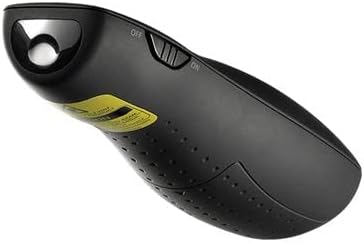
Figure 2.1: The Logitech Wireless Presenter R400 with its USB receiver stored in the base.
No additional drivers or software are required for basic functionality on compatible Windows-based systems.
3. Awọn ilana Iṣiṣẹ
The R400 presenter features intuitively placed controls for seamless presentation management.

olusin 3.1: Top view of the Logitech Wireless Presenter R400, highlighting the navigation and laser pointer buttons.
- Slide Navigation:
- Tẹ awọn Forward (>) button to advance to the next slide.
- Tẹ awọn Back (<) button to return to the previous slide.
- Atọka lesa:
- Tẹ mọlẹ Atọka lesa button (typically a dot icon) to activate the red laser. Release the button to turn off the laser. This feature is useful for highlighting specific points on your presentation screen.
- Black Screen Function:
- Tẹ awọn Iboju dudu button (often a blank screen icon) to temporarily black out your presentation screen. Press it again to resume the presentation. This allows you to shift audience attention back to yourself.
- Start/Stop Presentation:
- The R400 may include a dedicated button to start or stop your presentation (e.g., a play/pause icon). Consult your software for specific compatibility.
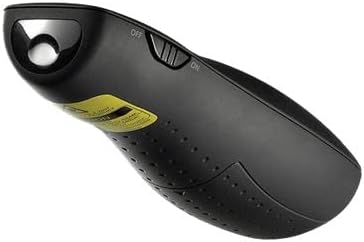
olusin 3.2: Apa view of the Logitech Wireless Presenter R400, illustrating the laser output.
The wireless range of the R400 is approximately 50 feet (15 meters), providing ample freedom to move around the room and interact with your audience.
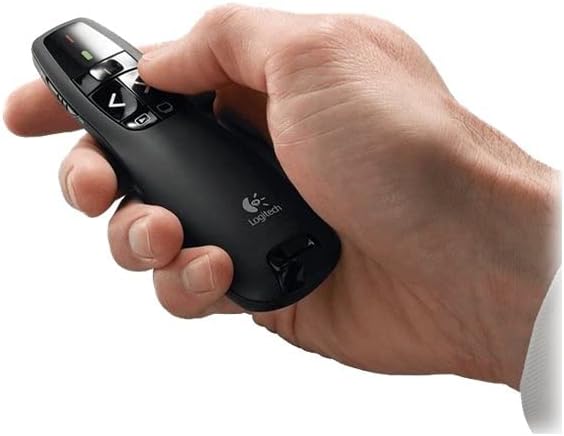
Figure 3.3: A hand comfortably holding the Logitech Wireless Presenter R400, demonstrating its ergonomic design.
4. Itọju
Proper maintenance ensures the longevity and optimal performance of your presenter.
- Rirọpo Batiri: When the battery indicator light (if present) signals low power, or if the presenter's responsiveness decreases, replace the two AAA batteries. Always use fresh, high-quality batteries.
- Ninu: Use a soft, dry cloth to clean the exterior of the presenter. Avoid using abrasive cleaners or solvents, as these can damage the surface.
- Ibi ipamọ: When not in use, turn off the presenter using the ON/OFF switch. Store the USB receiver inside its dedicated slot within the presenter to prevent loss. The included carrying case provides additional protection during transport and storage.
5. Laasigbotitusita
If you encounter issues with your Logitech Wireless Presenter R400, try the following solutions:
| Isoro | Owun to le Fa | Ojutu |
|---|---|---|
| Presenter is unresponsive. | Awọn batiri ti dinku tabi ti dinku. Presenter is off. Olugba USB ko ni asopọ daradara. | Rọpo awọn batiri. Gbe sẹ́ẹ̀tì ON/OFF sí "ON". Rii daju pe olugba USB ti fi sii ni kikun si ibudo USB ti n ṣiṣẹ. Gbiyanju ibudo USB ti o yatọ. |
| Laser pointer is dim or not working. | Awọn batiri kekere. Obstruction in front of laser. | Rọpo awọn batiri. Ensure nothing is blocking the laser output. |
| Limited wireless range or intermittent connection. | kikọlu lati awọn ẹrọ alailowaya miiran. Distance from receiver is too great. | Move closer to the computer. Yago fun gbigbe olugba sunmọ awọn ẹrọ itanna miiran ti o le fa kikọlu. |
| Slide navigation not working in presentation software. | Software not in presentation mode. Incompatibility with specific software. | Ensure your presentation software (e.g., PowerPoint, Keynote) is in slideshow or presentation mode. Check Logitech's support website for compatibility information or software updates. |
6. Awọn pato
| Ẹya ara ẹrọ | Ẹ̀kúnrẹ́rẹ́ |
|---|---|
| Nọmba awoṣe | 910-001356 |
| Asopọmọra | Imọ-ẹrọ alailowaya 2.4 GHz |
| Alailowaya Ibiti | Titi de 50 ẹsẹ (15 mita) |
| Lesa Iru | Atọka lesa pupa |
| Awọn batiri | 2 x AAA batiri (pẹlu) |
| Awọn iwọn (H x W x D) | 1.49 x 4.55 x 1.08 inches (37.8 x 115.5 x 27.4 mm) |
| Iwọn | 2.01 iwon (57 g) |
| System Awọn ibeere | Windows-Based Computer: Windows Vista, Windows 7, Windows 8, Windows 10 or later; USB port |
| Àwọ̀ | Dudu |
| Pataki Ẹya | Apẹrẹ ergonomic |
7. Atilẹyin ọja & Atilẹyin
Alaye Atilẹyin ọja: Specific warranty terms and conditions for the Logitech Wireless Presenter R400 may vary by region and retailer. For detailed warranty information, please refer to the warranty card included with your product or visit the official Logitech webojula.
Atilẹyin Onibara: For further assistance, technical support, or to access frequently asked questions, please visit the official Logitech support website. You can typically find support resources, driver downloads (if applicable), and contact information for customer service there.
Official Logitech Webojula: www.logitech.com


