1. Ifihan
This manual provides comprehensive instructions for the Digitus DA-70156 USB 2.0 to RS232 Serial Adapter. This device is designed to facilitate the connection of serial devices, such as weather stations, sensors, motor controls, set-top boxes, and gaming consoles, to your computer via a standard USB port. It ensures reliable data transfer and broad compatibility across various operating systems.
2. Alaye Aabo
- Keep the adapter away from water and moisture.
- Yẹra fún fífi ohun tí a fi ń ṣe àtúnṣe hàn sí àwọn iwọn otutu tó le koko.
- Ma ṣe gbiyanju lati tunto tabi tun ẹrọ naa funrararẹ. Tọkasi si oṣiṣẹ oṣiṣẹ fun iṣẹ.
- Rii daju pe fentilesonu to dara nigba lilo lati ṣe idiwọ igbona.
3. Package Awọn akoonu
Daju pe gbogbo awọn nkan wa ninu apo rẹ:
- Digitus DA-70156 USB 2.0 to RS232 Serial Adapter
- USB Extension Cable (80cm)
- Product Support CD-ROM (for drivers, if needed)

4. Ọja Ipariview
4.1. Awọn irinše
The Digitus DA-70156 adapter features a USB-A connector on one end and a DB9 male serial connector on the other.

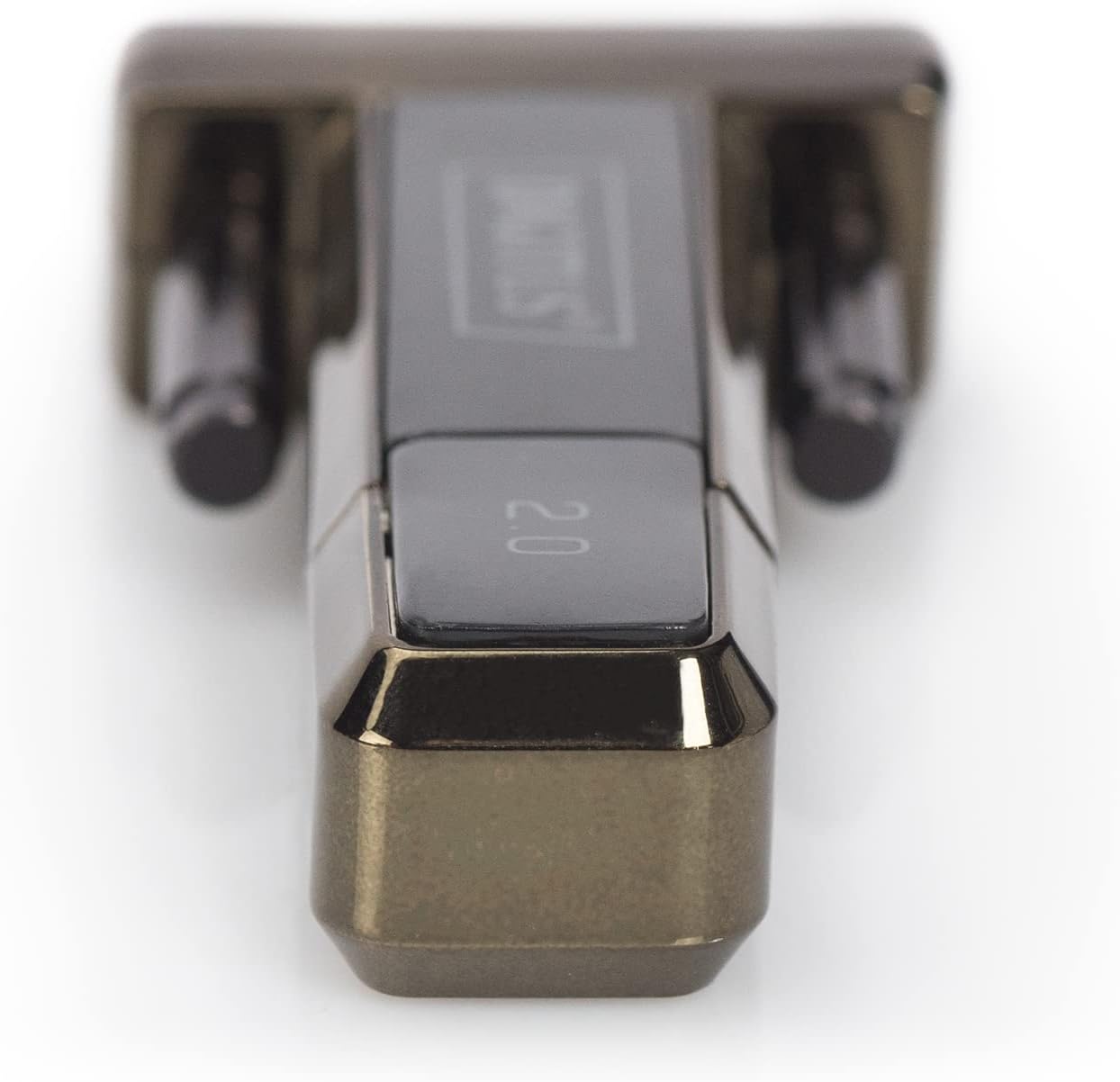
4.2. Key Awọn ẹya ara ẹrọ
- German Technical Design Serial Adapter.
- Supports Windows 10, 8, 7, Vista, XP, Mac OS X, and Linux operating systems.
- Integrated FTDI / FT232RL Chipset for reliable performance.
- Supports remote wake-up and power management functions.
- Compliant with USB 2.0 standards.
- Data transfer rates of 1Mbps and more.
5. Eto
5.1. Fifi sori awakọ
The Digitus DA-70156 adapter utilizes the FTDI / FT232RL chipset. For most modern operating systems (Windows 8/8.1/10/11), drivers are often installed automatically when the device is connected to an active internet connection. For older Windows versions (7, Vista, XP), Mac OS X, or Linux, manual driver installation may be required.
- Automatic Installation (Windows 8/8.1/10/11): Connect the adapter to an available USB port on your computer. If connected to the internet, the operating system should automatically detect and install the necessary drivers.
- Fifi sori ẹrọ pẹlu ọwọ: If automatic installation fails or for other operating systems, insert the provided Product Support CD-ROM. Follow the on-screen instructions to install the FTDI drivers. Alternatively, the latest drivers can be downloaded from the official FTDI webojula.
- After installation, verify the adapter is recognized in your device manager (Windows) or system information (Mac/Linux) as a USB Serial Port.
5.2. Ti ara Asopọ
- Connect the USB-A end of the Digitus DA-70156 adapter to an available USB 2.0 port on your computer. You may use the included USB extension cable for added reach.
- Connect your RS232 serial device (e.g., modem, printer, industrial equipment) to the DB9 male serial connector on the adapter. Ensure the connection is secure by tightening the screws on the DB9 connector.


6. Awọn ilana Iṣiṣẹ
6.1. Connecting Serial Devices
Once the drivers are installed and the adapter is physically connected, your computer will recognize the serial port. You can then use software applications designed for serial communication to interact with your connected devices. ExampÀwọn ẹ̀rọ tó báramu pẹ̀lú ni:
- Awọn ibudo oju ojo
- Awọn sensọ
- Motor idari
- Awọn apoti ṣeto-oke
- Awọn afaworanhan ere
- Awọn modem
- Awọn ẹrọ atẹwe
6.2. Data Gbigbe
The adapter supports data transfer rates of 1Mbps and higher, ensuring efficient communication with your serial devices. Configure your serial communication software with the appropriate baud rate, data bits, parity, and stop bits to match your connected device's requirements.
7. Laasigbotitusita
- Ohun elo Ko Damọ: Ensure the adapter is firmly connected to a working USB port. Reinstall drivers from the CD-ROM or the FTDI website. Try a different USB port or computer.
- Awọn aṣiṣe ibaraẹnisọrọ: Verify that the serial communication settings (baud rate, data bits, parity, stop bits) in your software match those of your connected serial device. Check the physical connection of the DB9 cable.
- Gbigbe Data lọra: Ensure you are using a USB 2.0 compatible port for optimal speed. Check for conflicting drivers or background applications consuming system resources.
- Ko si Agbara: The adapter draws power directly from the USB port. Ensure the USB port is functional.
8. Itọju
- Clean the adapter and cables with a soft, dry cloth. Avoid liquid cleaners.
- Tọju ohun ti nmu badọgba ni itura, aye gbigbẹ nigbati ko si ni lilo.
- Yẹra fún títẹ̀ tàbí yíyí àwọn okùn náà pọ̀ jù láti dènà ìbàjẹ́ inú.
9. Awọn pato
| Sipesifikesonu | Ẹ̀kúnrẹ́rẹ́ |
|---|---|
| Nọmba awoṣe | DA-70156 |
| Brand | Digitus |
| Chipset | FTDI / FT232RL |
| Asopọmọra Iru | USB 2.0 (Type-A), RS232 (DB9 Male) |
| Data Gbigbe Oṣuwọn | 1Mbps and more |
| USB Ipari | 80cm (USB extension cable included) |
| Awọn ọna System Support | Windows 10, 8, 7, Vista, XP, Mac OS X, Linux |
| Iwọn Nkan | 0.035 iwon |
10. Atilẹyin ọja ati Support
This Digitus product is covered by the manufacturer's standard warranty. Please refer to the warranty information provided with your purchase or contact Digitus customer support for details. For technical assistance, consult the Product Support CD-ROM or visit the official Digitus website for updated drivers and support resources.


