Ọja Pariview
The Gear Head 2.4 GHz Wireless Desktop and Optical Mouse (KB5150W) provides a convenient and efficient wireless solution for your computing needs. This combo includes a full-sized wireless keyboard and an optical mouse, designed for seamless connectivity and ease of use. The system utilizes 2.4 GHz wireless technology for a stable connection and includes a compact Nano USB receiver.
Package Awọn akoonu
- 2.4 GHz Wireless Desktop (Keyboard)
- Opitika Asin
- Nano USB olugba
- Awọn batiri AAA 4 (pẹlu)
- Iwe afọwọkọ olumulo (iwe yii)
- Alaye atilẹyin ọja
System Awọn ibeere
- PC and Mac Compatibles
- Windows 2000, XP, Vista, and 7
- Mac OS 10.3 ati loke
- Ibudo USB Wa
Key Awọn ẹya ara ẹrọ
- 2.4 GHz Alailowaya Asopọmọra
- Optical Sensing Technology (for mouse)
- Nano USB olugba
- Automatic Wireless Synchronization
- Spill Resistant Design (for keyboard)
Eto Itọsọna
Follow these steps to set up your wireless desktop and mouse:
- Fi Awọn batiri sii:
Locate the battery compartments on the underside of both the keyboard and the mouse. Insert the included AAA batteries, ensuring correct polarity (+/-). The keyboard requires 2 AAA batteries, and the mouse requires 2 AAA batteries.
- Connect the Nano USB Receiver:
Plug the Nano USB receiver into an available USB port on your computer. The system will automatically detect and install the necessary drivers. This process may take a few moments.
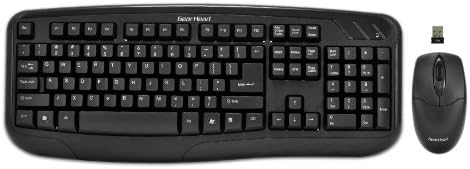
This image displays the complete Gear Head 2.4 GHz Wireless Desktop and Optical Mouse set. It features a full-sized black wireless keyboard on the left, a compact black wireless optical mouse on the right, and a small nano USB receiver positioned above the mouse. The keyboard has a standard QWERTY layout with a numeric keypad and function keys. The mouse is ergonomically shaped for comfortable use.
- Amuṣiṣẹpọ aladaaṣe:
The keyboard and mouse are designed to automatically synchronize with the Nano USB receiver. Once the receiver is plugged in and batteries are installed, the devices should be ready for use. If they do not respond, ensure the mouse's power switch (if present) is in the 'ON' position.
Awọn ilana Iṣiṣẹ
Lilo Keyboard
- The keyboard functions like a standard wired keyboard. Simply begin typing.
- Ensure the keyboard is within the effective wireless range of the USB receiver (typically up to 30 feet or 10 meters).
- The keyboard features a spill-resistant design, offering protection against minor liquid spills. In case of a spill, immediately disconnect the receiver and allow the keyboard to dry completely before reuse.
Asin Lilo
- Gbe eku lati ṣakoso kọsọ loju iboju rẹ.
- Use the left and right click buttons for primary and secondary functions.
- The scroll wheel allows for easy navigation through documents and web awọn oju-iwe.
- Some optical mice may have an on/off switch on the underside to conserve battery life when not in use. Ensure it is in the 'ON' position for operation.
Itoju
- Ninu:
To clean the keyboard and mouse, use a soft, lint-free cloth slightly dampened with water or a mild cleaning solution. Avoid using harsh chemicals, abrasives, or excessive moisture. Do not submerge the devices in liquid.
- Rirọpo Batiri:
When the keyboard or mouse performance degrades (e.g., delayed response, erratic cursor movement), it may be time to replace the batteries. Open the battery compartment, remove the old batteries, and insert new AAA batteries, observing correct polarity. Dispose of used batteries responsibly.
- Ibi ipamọ:
When not in use for extended periods, it is recommended to remove the batteries from the devices to prevent leakage. Store the keyboard and mouse in a cool, dry place away from direct sunlight and extreme temperatures.
Laasigbotitusita
| Isoro | Owun to le Solusan |
|---|---|
| Kííbọọ̀dù tàbí àtùn kò dáhùn. |
|
| Erratic cursor movement or delayed typing. |
|
| Device not recognized by the computer. |
|
Awọn pato
| Ẹya ara ẹrọ | Ẹ̀kúnrẹ́rẹ́ |
|---|---|
| Ọja Mefa | 18.85 x 9.9 x 1.9 inches |
| Iwọn Nkan | 2.49 iwon |
| Nọmba awoṣe | KB5150W |
| Awọn batiri | Awọn batiri AAA 4 nilo (pẹlu) |
| Asopọmọra Technology | Wireless, USB (for receiver) |
| Awọn ẹrọ ibaramu | Personal Computer (PC and Mac) |
| Apejuwe Keyboard | Standard QWERTY, Spill Resistant |
| Asin Iru | Opitika |
| Àwọ̀ | Dudu |
| Olupese | Jia Head |
| Akọkọ Wa Ọjọ | Oṣu Kẹta Ọjọ 13, Ọdun 2011 |
Atilẹyin ọja ati Support
For warranty information and technical support, please refer to the warranty card included in your product package or visit the official Gear Head webojula. Tọju iwe-ẹri rira rẹ bi ẹri rira fun awọn iṣeduro atilẹyin ọja.
Manufacturer: Gear Head
For further assistance, please contact Gear Head customer service.


