1. Ọja Ipariview
The AAXA LED PICO, Pocket projector is an ultra-compact device designed for portable media projection. It integrates long-lasting LED technology with a built-in multimedia player and versatile input options, making it suitable for various mobile projection needs.
Awọn ẹya pataki pẹlu:
- Ultra Bright 25 Lumens: Delivers clear images with High Definition 720p (1280x720) native resolution, supporting up to 1080p.
- Vibrant Color Technology: Equipped with 15,000-hour LEDs for extended lifespan and vivid color reproduction.
- Ultra-portable Design: Features an 80-minute built-in rechargeable Lithium-ion Battery, chargeable via the supplied micro USB cable.
- Olohun ti a dapọ: Built-in speakers provide audio playback.
- Awọn aṣayan Asopọmọra pupọ: Includes mini-HDMI, 3.5mm Aux Audio Out, Composite A/V connections, and Micro SD/USB readers for media playback (supports up to 16GB).
- Plug 'n Play Setup: Designed for instant setup with USB devices, compatible with Apple Mac and PC.
- Large Image Projection: Capable of projecting images up to 60 inches in low-light conditions.

olusin 1: Top-isalẹ view of the AAXA LED Pico Micro Video Projector, highlighting its compact design, control buttons, and projection lens.
2. Ohun ti o wa ninu Apoti
Your AAXA LED Pico Micro Video Projector package should contain the following items:
- AAXA LED Pico Micro Video Projector Unit
- Micro USB Ngba agbara USB
- Composite A/V Cable (3.5mm Jack)
- Mini-HDMI to HDMI Cable
- Small Tripod (may vary by package)
- Adapta Agbara (fun gbigba agbara)
3. Eto Itọsọna
3.1 Gbigba agbara si ẹrọ ifihan
Before initial use, fully charge the projector's built-in Lithium-ion battery. Connect the supplied micro USB cable to the projector's DC 5V port and the other end to a USB power adapter (not always included) or a computer's USB port. The charging indicator light will show the charging status.

Figure 2: The micro USB cable connected to the projector for charging. Ensure the cable is securely inserted into the DC 5V port.
3.2 Titan / Pa a
To power on the projector, press and hold the power button located on the control panel until the device powers up. To power off, press and hold the power button again until the projector shuts down.
3.3 Nsopọ Awọn orisun Input
Pirojekito naa ṣe atilẹyin fun ọpọlọpọ awọn orisun titẹ sii:
- HDMI: Use a mini-HDMI to HDMI cable to connect to laptops, gaming consoles, or other HDMI-enabled devices.
- Composite A/V: Use the 3.5mm Composite A/V cable to connect to older video sources.
- Kaadi SD Micro: Insert a Micro SD card (up to 16GB) into the designated slot for direct media playback.
- USB: Plug a USB memory stick into the USB port for direct media playback.

olusin 3: Apa view of the projector, illustrating the various input ports including HDMI, AV, USB, and Micro SD card slot.
3.4 Siṣàtúnṣe idojukọ
Locate the focus wheel on the side of the projector. Rotate the wheel until the projected image appears clear and sharp on your desired surface. The optimal image size is up to 60 inches in low-light conditions.

Figure 4: The projector mounted on a small tripod, demonstrating how the focus wheel (located near the lens) is used to sharpen the image.
4. Awọn ilana Iṣiṣẹ
4.1 Lilọ kiri lori Akojọ aṣayan
Use the control buttons on the top of the projector to navigate through the on-screen menu. The central "OK" button confirms selections, while the arrow keys (up, down, left, right) move the cursor. The "Menu" or "Back" button (if present) allows you to return to the previous screen or main menu.
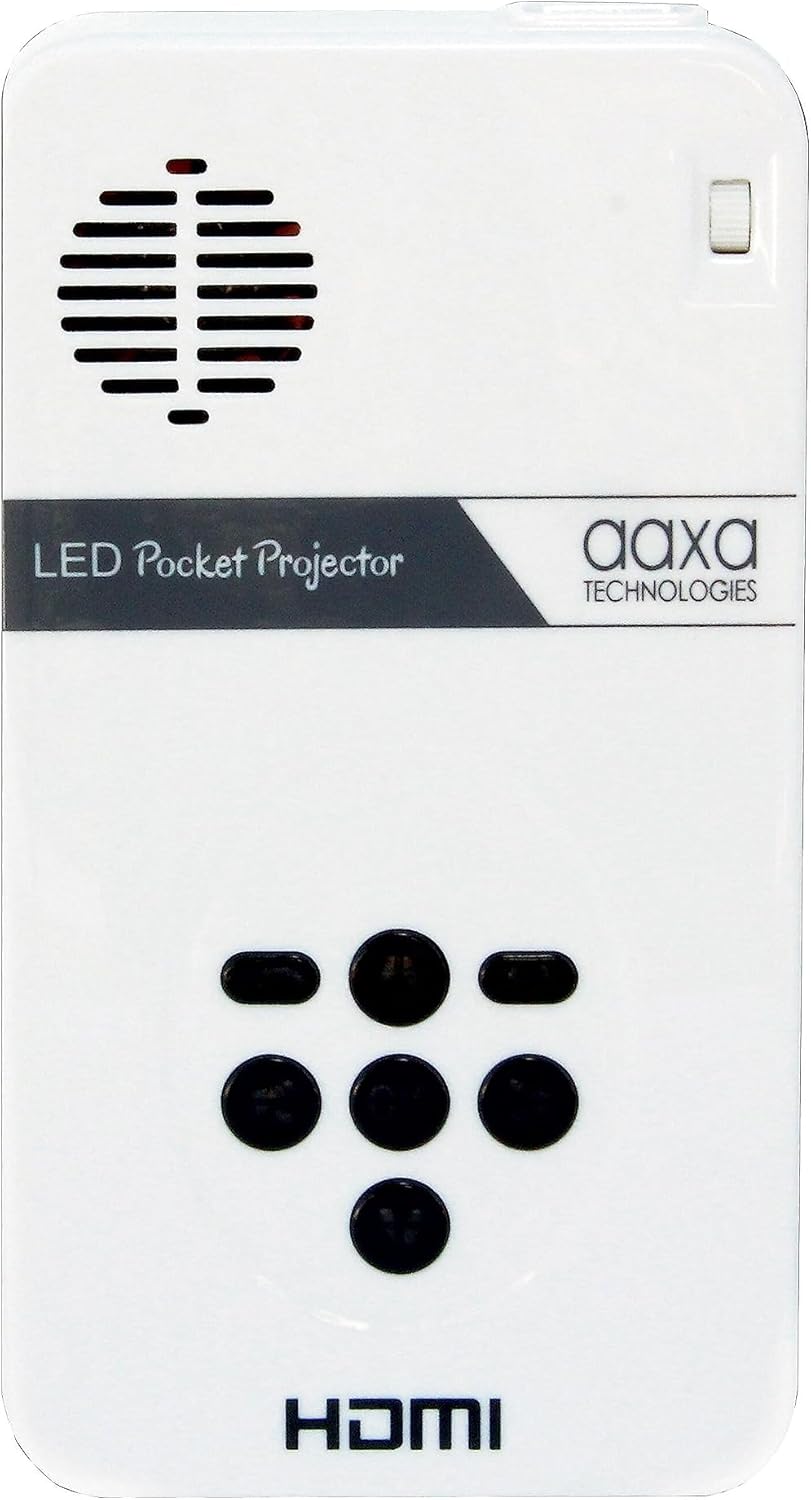
Figure 5: Close-up of the projector's top control panel, detailing the layout of the navigation buttons for menu interaction.
4.2 Media Sisisẹsẹhin
Once a Micro SD card or USB drive is inserted, the projector's built-in media player will typically detect it automatically. Navigate to the "Media" or "Files" section in the menu to browse and select videos, pictures, or text documents for playback.
4.3 Audio wu
The projector has built-in speakers. For a more immersive audio experience, you can connect external speakers or headphones using the 3.5mm Aux Audio Out port.
5. Itọju
- Ninu: Use a soft, dry cloth to clean the projector's exterior. For the lens, use a specialized lens cleaning cloth and solution. Avoid abrasive materials.
- Itọju Batiri: To prolong battery life, avoid fully discharging the battery frequently. Store the projector in a cool, dry place when not in use for extended periods.
- Afẹfẹ: Ensure the projector's ventilation vents are not blocked during operation to prevent overheating.
6. Laasigbotitusita
| Isoro | Owun to le Fa | Ojutu |
|---|---|---|
| Ko si aworan akanṣe / Pirojekito ko ni titan. | Low battery; Power cable not connected; Power button not held long enough. | Charge the projector; Ensure power cable is securely connected; Press and hold the power button for 3-5 seconds. |
| Aworan jẹ blurry. | Out of focus; Projector too close/far from surface. | Adjust the focus wheel; Move the projector closer or further from the projection surface. |
| Ko si ohun afetigbọ. | Volume too low; External speakers/headphones not connected properly; Audio settings. | Increase volume; Check connections of external audio devices; Adjust audio settings in the projector menu. |
| No signal from input source. | Incorrect input selected; Cable not connected properly; Source device issue. | Select the correct input source in the menu; Ensure cables are securely connected to both projector and source device; Check if the source device is outputting a signal. |
7. Awọn pato
| Ẹya ara ẹrọ | Ẹ̀kúnrẹ́rẹ́ |
|---|---|
| Ọja Mefa | 4.25 x 2.36 x 0.7 inches |
| Iwọn Nkan | 6.4 iwon |
| Nọmba Awoṣe Nkan | KP-101-01 |
| Awọn batiri | Awọn batiri Lithium Ion 1 nilo (pẹlu) |
| Ipinnu Ifihan | 1280 x 720 (Abínibí) |
| Asopọmọra Technology | USB, Mini-HDMI, Composite A/V (3.5mm Jack), MicroSD AV |
| Pataki Ẹya | Pico, Speakers |
| Niyanju Lilo | Education, Personal Media Sharing |
| Olupese | AAXA |
| Akọkọ Wa Ọjọ | Oṣu Kẹwa Ọjọ 15, Ọdun 2013 |
8. Atilẹyin ọja ati Support
For detailed warranty information and customer support, please refer to the official AAXA Technologies website or the documentation included with your purchase. You can also find additional resources and FAQs on the AAXA Technologies Store on Amazon.
Ẹ̀dà PDF ti ìwé ìtọ́nisọ́nà olùlò tún lè wà fún ìgbàsílẹ̀: Ilana olumulo (PDF).


