1. Ifihan
This manual provides comprehensive instructions for the setup, operation, and maintenance of your Native Instruments TRAKTOR KONTROL Z1 DJ Mixing Interface. The TRAKTOR KONTROL Z1 is designed to offer a portable and professional 2-channel DJ mixer, controller, and soundcard solution for use with Native Instruments' TRAKTOR DJ and TRAKTOR PRO 3 software.
It features a streamlined workflow, allowing for precise monitoring and mixing of tracks. Dedicated controls provide tactile command over volume, EQ, filters, and effects for two channels. The integrated audio interface ensures high-quality, club-ready sound output.
2. Package Awọn akoonu
Upon unboxing your TRAKTOR KONTROL Z1, please verify that all the following items are included:
- TRAKTOR KONTROL Z1 Unit
- AC Adapter with various plug adapters
- USB Cable (for computer connections)
- USB to 30-pin Apple Cable (for iOS device connections)
- Product Documentation (including software and hardware serial numbers, instructions)
Note: For newer Apple devices with Lightning ports, a separate Apple 30-pin to Lightning adapter may be required, as it is not included in the standard package.
3. Ọja Ipariview
The TRAKTOR KONTROL Z1 is a compact yet powerful DJ controller. Below are key components and their functions:

Nọmba 3.1: Oke view of the TRAKTOR KONTROL Z1, showing the main controls including gain, EQ, filter/FX knobs, channel faders, and the crossfader.

Nọmba 3.2: Igun view of the TRAKTOR KONTROL Z1, highlighting its compact design and the layout of its controls.

Nọmba 3.3: Ẹyìn view of the TRAKTOR KONTROL Z1, displaying the power input (15V), USB port, and main audio outputs (RCA).
3.1. Ilana Iṣakoso
- Àwọn Kọ́nù Jèrè: Ṣatunṣe ipele titẹ sii fun ikanni kọọkan.
- EQ Knobs (High, Mid, Low): Control the equalization for high, mid, and low frequencies on each channel.
- Filter/FX Knobs: Apply filter effects or control other assigned effects.
- Awọn Faders ikanni: Adjust the volume level of individual channels.
- Agbelebu: Blend between Channel A and Channel B.
- Cue Section: Includes Cue Mix and Cue Vol knobs for headphone monitoring.
- Agbekọri Ijade: Jack 3.5mm fun sisopọ awọn agbekọri.
- Ifilelẹ akọkọ: RCA stereo outputs for connecting to a sound system.
- Ibudo USB: For connecting to a computer or iOS device.
- Iṣagbewọle agbara: Fún síso ohun tí a fi sínú rẹ̀ pọ̀ mọ́ ohun tí a fi ń ṣe AC.
4. Eto
Follow these steps to set up your TRAKTOR KONTROL Z1:
- Fifi sori ẹrọ software:
- For computer use, install TRAKTOR PRO 3 (or compatible version) from the Native Instruments website using the provided serial number.
- For iOS device use, download the TRAKTOR DJ app from the Apple App Store.
- Asopọ agbara:
- Connect the included AC adapter to the 15V power input on the rear of the TRAKTOR KONTROL Z1.
- Pulọọgi ohun ti nmu badọgba AC sinu iṣan agbara kan.
- Asopọmọra ẹrọ:
- Si Kọmputa: Use the provided USB cable to connect the TRAKTOR KONTROL Z1's USB port to an available USB port on your computer.
- To iOS Device: Use the provided USB to 30-pin Apple cable to connect the TRAKTOR KONTROL Z1 to your iOS device. If your device has a Lightning port, use an official Apple 30-pin to Lightning adapter (sold separately).
- Asopọ Ijade Olohun:
- Connect the Main Output (RCA) of the TRAKTOR KONTROL Z1 to your amplifier, powered speakers, or sound system.
- Connect your headphones to the 3.5mm headphone output on the front of the unit.
- Ifilọlẹ sọfitiwia:
- Launch the TRAKTOR software (TRAKTOR PRO 3 or TRAKTOR DJ) on your connected device.
- The software should automatically detect the TRAKTOR KONTROL Z1. Verify that the audio settings in the software are configured to use the Z1 as the audio interface.
5. Operating the TRAKTOR KONTROL Z1
The TRAKTOR KONTROL Z1 provides hands-on control over your TRAKTOR software. Here are basic operating instructions:
5.1. Adalu ipilẹ
- Load Tracks: In your TRAKTOR software, load tracks into Deck A and Deck B.
- Ṣatunṣe Ere: Use the Gain knobs for Deck A and Deck B to set appropriate input levels, ensuring the level meters do not peak into the red.
- Monitor Tracks:
- Press the Cue button for the desired channel (A or B) to send its audio to your headphones.
- Lo awọn Cue Vol knob to adjust headphone volume and the Cue Mix knob to blend between the master output and the cued channel.
- Mix Channels:
- Use the Channel Faders to control the volume of each deck.
- Use the Crossfader to blend smoothly between Deck A and Deck B.
- Apply EQ and Effects:
- Adjust the High, Mid, and Low EQ knobs for each channel to shape the sound.
- Engage the Filter/FX button and turn the corresponding knob to apply filter effects or other assigned effects within the TRAKTOR software.
5.2. Integration with TRAKTOR Ecosystem
The TRAKTOR KONTROL Z1 is designed to integrate seamlessly with other Native Instruments TRAKTOR controllers for an expanded setup:
- TRAKTOR KONTROL X1: Can be added to control effects, loops, and transport functions (play, sync).
- TRAKTOR KONTROL F1: Provides creative control over Remix Decks for advanced performance.
6. Itọju
Proper care and maintenance will ensure the longevity and optimal performance of your TRAKTOR KONTROL Z1.
6.1. Ninu
- Always disconnect the power and USB cables before cleaning.
- Use a soft, dry, lint-free cloth to wipe down the unit.
- Fun awọn ami alagidi, die-die dampen the cloth with water. Avoid using harsh chemicals, solvents, or abrasive cleaners, as these can damage the finish and internal components.
- Do not spray cleaning liquids directly onto the unit.
- Pay special attention to the top plate, which can be prone to smudging and surface scratches. Avoid wiping with a dry cloth, as this may cause scratches.
6.2. Ibi ipamọ ati mimu
- Tọju ẹyọ naa ni itura, aye gbigbẹ kuro lati orun taara ati awọn iwọn otutu to gaju.
- Avoid exposing the unit to excessive dust, moisture, or vibrations.
- When transporting, use a protective case or bag to prevent damage. The Z1 is compatible with the TRAKTOR Gig Bag.
- Ma ṣe gbe awọn nkan ti o wuwo si oke ẹyọ.
7. Laasigbotitusita
If you encounter issues with your TRAKTOR KONTROL Z1, refer to the following common problems and solutions:
| Isoro | Owun to le Fa | Ojutu |
|---|---|---|
| No Power/Unit Not Turning On | Adapter agbara ko sopọ mọ tabi o ni abawọn; iṣoro sita agbara. | Ensure AC adapter is securely connected to the unit and a working power outlet. Test the outlet with another device. |
| Ko si Ijade ohun | Incorrect audio settings in TRAKTOR software; cables not connected properly; volume levels too low. |
|
| Unit Not Recognized by Software | USB cable issue; driver not installed (for PC); software not updated; iOS adapter issue. |
|
| Awọn iṣakoso Ko fesi | Software not connected to controller; MIDI mapping issue. |
|
For further assistance, please refer to the Native Instruments support webojula tabi kan si wọn onibara iṣẹ.
8. Awọn pato
Technical specifications for the TRAKTOR KONTROL Z1 (Model: 22180):
| Ẹya ara ẹrọ | Ẹ̀kúnrẹ́rẹ́ |
|---|---|
| Ọja Mefa | 11.54 x 4.72 x 2.01 inches (29.3 x 12 x 5.1 cm) |
| Iwọn Nkan | 0.352 iwon (oun. 0.01 kg) |
| Nọmba ti awọn ikanni | 2 |
| Built-in Soundcard | 24-bit audio interface |
| Asopọmọra Technology | USB (External Line Return) |
| Orisun agbara | Corded Electric (15V DC, 1.2A) |
| Ibamu System isẹ | Windows (and macOS/iOS via TRAKTOR software) |
| Nọmba awoṣe | 22180 |
| Akọkọ Wa Ọjọ | Oṣu Keje 8, Ọdun 2013 |
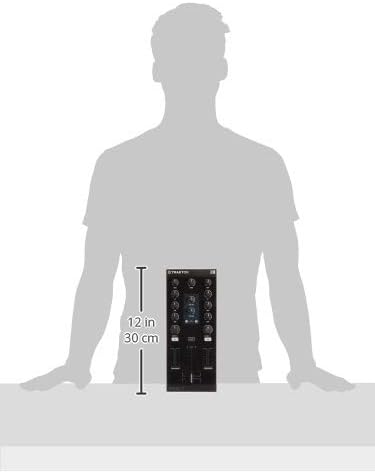
Nọmba 8.1: TRAKTOR KONTROL Z1 dimensions for reference.


