Ọrọ Iṣaaju
This manual provides essential instructions for the proper setup, operation, and maintenance of your Vivitar VX137-BLK 12.1MP Digital Touch Screen Camera. Please read this manual thoroughly before using your camera to ensure optimal performance and longevity.
Ọja Pariview
The Vivitar VX137-BLK is a compact 12.1-megapixel digital camera featuring a 2.4-inch touchscreen display. It includes a 4x digital zoom and an anti-shake feature to assist in capturing clear images. This camera is designed for ease of use and portability.

olusin 1: Iwaju view of the Vivitar VX137-BLK Digital Camera.
Awọn Irinṣẹ Kamẹra
- Lẹnsi: Ó gba àwọn àwòrán.
- Filaṣi: Pese itanna ni awọn ipo ina kekere.
- Bọtini agbara: Yi kamẹra si tan tabi paa.
- Bọtini Yiyọ: Ya awọn fọto.
- 2.4-inch Touch Screen Display: Fun viewing images, navigating menus, and controlling camera functions.
- Bọtini Ile: Returns to the main menu or home screen.
- Abala Batiri: Holds 3 AAA batteries.
- Iho kaadi iranti: For inserting an SD or compatible memory card.
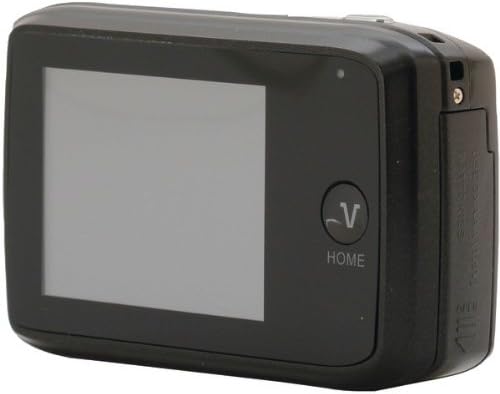
olusin 2: Pada view of the Vivitar VX137-BLK Digital Camera, showing the touchscreen and Home button.
Ṣeto
1. Fifi sori batiri
- Wa ilẹkun yara batiri ni ẹgbẹ tabi isalẹ kamẹra naa.
- Slide the latch to open the compartment.
- Fi awọn batiri AAA mẹta (3) sii, ki o rii daju pe polarity (+/-) tọ gẹgẹ bi a ti fihan ninu yara naa.
- Close the battery compartment door securely until it latches.
Akiyesi: Ko si awọn batiri ati pe o gbọdọ ra lọtọ.
2. Fifi sori kaadi iranti
- Wa iho kaadi iranti, ti o maa n wa nitosi apo batiri naa.
- Ṣii ideri iho kaadi iranti.
- Insert a compatible SD or memory card into the slot with the metal contacts facing the correct direction, usually downwards or towards the front of the camera. Push gently until it clicks into place.
- Pa ideri iho kaadi iranti pa.
Note: A memory card is not included and is highly recommended for storing photos and videos.
Ṣiṣẹ kamẹra
1. Agbara Tan / Paa
- Lati fi agbara tan: Tẹ mọlẹ Bọtini agbara títí tí ìbòjú náà yóò fi tàn.
- Lati fi agbara si pipa: Tẹ mọlẹ Bọtini agbara lẹẹkansi titi iboju yoo wa ni pipa.
2. Gbigba Awọn fọto
- Turn on the camera. The camera will typically start in photo capture mode.
- Frame your shot using the 2.4-inch touchscreen display.
- To zoom in or out, use the digital zoom controls on the touchscreen.
- Tẹ awọn Bọtini oju ní àárín gbùngbùn sí àfiyèsí, lẹ́yìn náà tẹ̀ ẹ́ pátápátá láti ya àwòrán náà.
- The anti-shake feature will automatically engage to help reduce blur.
3. Gbigbasilẹ fidio
- From the main screen, tap the video icon on the touchscreen to switch to video recording mode.
- Tẹ awọn Bọtini oju to start recording. A timer or indicator will appear on the screen.
- Tẹ awọn Bọtini oju lẹẹkansi lati da gbigbasilẹ duro.
4. Ipo Sisisẹsẹhin
- From the main screen, tap the playback icon (usually an arrow in a rectangle) to enter playback mode.
- Swipe left or right on the touchscreen to browse through your captured photos and videos.
- Tap on a photo or video to view o ni kikun iboju.
- To exit playback mode, tap the Bọtini Ile or the appropriate icon on the screen.
5. Touch Screen Usage
The 2.4-inch touchscreen allows for intuitive navigation. Tap icons to select functions, swipe to scroll through images, and use pinch-to-zoom gestures if supported for reviewawọn fọto inu.
Itoju
Ninu Kamẹra
- Ara Kamẹra: Use a soft, dry cloth to wipe the camera body. Do not use liquid cleaners or solvents.
- Lẹnsi: Gently clean the lens with a lens cleaning cloth or a soft brush designed for camera lenses. Avoid touching the lens surface with your fingers.
- Afi ika te: Use a microfiber cloth specifically designed for screens to gently wipe the display.
Ibi ipamọ
- When not in use for extended periods, remove the AAA batteries to prevent leakage.
- Store the camera in a cool, dry place, away from direct sunlight, extreme temperatures, and high humidity.
- Lo apoti kamẹra kan lati daabobo rẹ lati eruku ati awọn imun.
Laasigbotitusita
| Isoro | Owun to le Fa | Ojutu |
|---|---|---|
| Kamẹra ko ṣiṣẹ. | Awọn batiri ti o ku tabi ti ko tọ fi sii. | Ropo pẹlu alabapade AAA batiri, aridaju ti o tọ polarity. |
| Ko le ya awọn fọto. | Kaadi iranti ti kun tabi ko ti fi sii. | Fi kaadi iranti sii tabi paarẹ awọn ti o wa tẹlẹ files to free up space. Ensure the card is properly inserted. |
| Awọn aworan jẹ blurry. | Insufficient light, camera shake, or dirty lens. | Ensure adequate lighting. Hold the camera steady. Clean the lens. The anti-shake feature is automatic, but extreme movement can still cause blur. |
| Iboju ifọwọkan ko dahun. | Temporary software glitch or screen dirt. | Turn the camera off and on again. Gently clean the screen with a microfiber cloth. |
| Kámẹ́rà dì. | Aṣiṣe software. | Remove and reinsert the batteries to reset the camera. |
Awọn pato
| Ẹya ara ẹrọ | Ẹ̀kúnrẹ́rẹ́ |
|---|---|
| Nọmba awoṣe | VX137-BLK |
| Sensọ Aworan | 12.1 Megapiksẹli |
| Ifihan | 2.4-inch Touch Screen LCD |
| Digital Sisun | 4x |
| Iduroṣinṣin Aworan | Optical (Anti-Shake) |
| Orisun agbara | Awọn batiri 3 x AAA (kii ṣe pẹlu) |
| Atilẹyin File Ọna kika | JPEG |
| Fọto sensọ Technology | CMOS |
| Apakan Ipin | 4:3 |
| Iwọn Nkan | 4.8 iwon |
| Ọja Mefa | 7.09 x 8.94 x 1.69 inches |
Alaye atilẹyin ọja
This product is sold AS-IS. Please refer to the original purchase documentation for any specific warranty details provided at the time of sale. For further inquiries regarding product functionality, please consult the support section.
Atilẹyin
For technical assistance or further questions not covered in this manual, please visit the Vivitar official website or contact their customer support. Keep your purchase receipt and product model number (VX137-BLK) available when seeking support.


