Ọrọ Iṣaaju
This manual provides essential information for the proper use and care of your Beats Studio Wireless Over-Ear Headphones. Please read these instructions carefully before using your headphones to ensure optimal performance and longevity. The Beats Studio Wireless headphones offer a premium audio experience with wireless connectivity and Adaptive Noise Canceling technology.
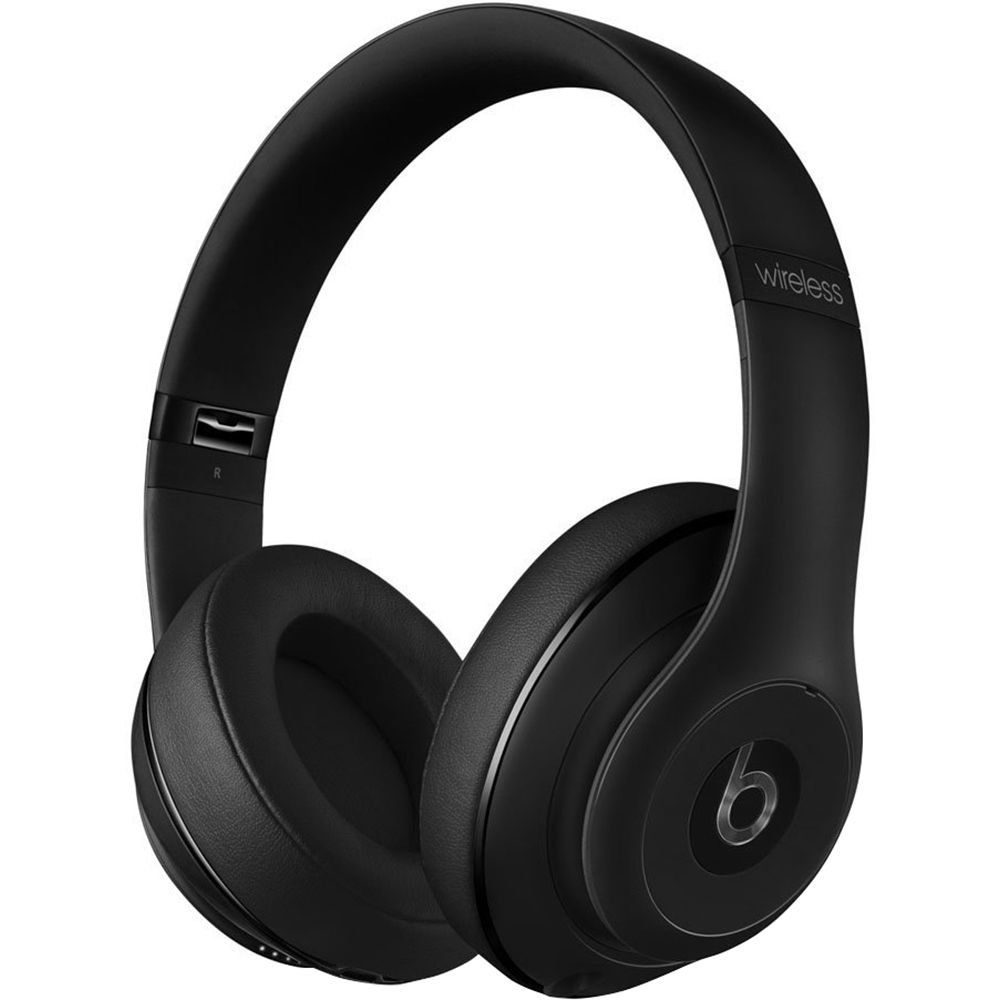
Image: Beats Studio Wireless Over-Ear Headphones in Matte Black, showcasing awọn aso oniru.
Ohun ti o wa ninu Apoti
Daju pe gbogbo awọn nkan wa ninu apo rẹ:
- Beats Studio Wireless over-ear headphones
- 3.5mm audio cable with RemoteTalk (for wired connection and controls)
- Standard 3.5 mm audio cable (for wired connection without RemoteTalk features)
- USB 2.0 cable (USB-A to USB Micro-B) for charging
- Hard-shell carrying case with carabiner clip

Image: The Beats Studio Wireless headphones, hard-shell carrying case, and various cables laid out from the packaging.
Ṣeto
1. Ngba agbara si awọn Agbekọri
Before first use, fully charge your Beats Studio Wireless headphones. A full charge provides approximately 12 hours of wireless playback or 20 hours of wired playback with Adaptive Noise Canceling enabled.
- Connect the small end of the USB 2.0 cable (USB-A to USB Micro-B) to the Micro-USB port on the right earcup of the headphones.
- Connect the larger end of the USB cable to a USB power adapter (not included) or a powered USB port on a computer.
- The Fuel Gauge LEDs on the right earcup will indicate charging status. When all five LEDs are solid white, the headphones are fully charged.
Akiyesi: The headphones cannot be used while charging.
2. Sisopọ Bluetooth
So agbekọri rẹ pọ mọ ẹrọ Bluetooth rẹ fun ohun alailowaya.
- Ensure your headphones are charged and powered off.
- Press and hold the power button on the right earcup for 3-5 seconds until the Fuel Gauge LEDs begin to pulse. This indicates pairing mode.
- Lori ẹrọ rẹ, lọ si awọn eto Bluetooth ki o mu Bluetooth ṣiṣẹ.
- Select "Beats Studio Wireless" from the list of available devices.
- Once paired, the Fuel Gauge LEDs will turn solid white.
The headphones have a Bluetooth range of up to 30 feet (9 meters).
3. Ti firanṣẹ Asopọ
For a wired connection, use the provided 3.5mm audio cables.
- Plug one end of the 3.5mm audio cable into the audio input port on the left earcup.
- So opin keji mọ inu jacki ohun 3.5mm ti ẹrọ rẹ.
The RemoteTalk cable allows for inline control of music and calls when connected to compatible devices.
Awọn ilana Iṣiṣẹ
1. Agbara Tan / Paa
- Lati Fi agbara: Press and hold the power button on the right earcup until the Fuel Gauge LEDs illuminate.
- Lati Paarẹ: Press and hold the power button until the Fuel Gauge LEDs turn off.
2. Controls (Wireless Mode)
The "b" button on the left earcup and the volume buttons control playback and calls.
- Ṣiṣẹ/Daduro: Press the "b" button once.
- Orin t’okan: Press the "b" button twice quickly.
- Tẹlẹ Orin: Press the "b" button three times quickly.
- Iwọn didun Up: Press the top volume button.
- Iwọn didun isalẹ: Press the bottom volume button.
- Idahun/Ipe Ipari: Press the "b" button once during an incoming call or active call.
- Kọ Ipe: Press and hold the "b" button for 2 seconds during an incoming call.
- Mu Oluranlọwọ Ohun ṣiṣẹ: Press and hold the "b" button for 2 seconds (functionality depends on device).
3. Adaptive Noise Canceling (ANC)
The Beats Studio Wireless headphones feature Dual-Mode Adaptive Noise Canceling. ANC is automatically active when the headphones are powered on. There are two modes:
- Full ANC: Engaged when listening to music or media, providing maximum noise reduction.
- ANC Only: When the audio cable is unplugged and the headphones are powered on, ANC will automatically switch to a more aggressive mode to reduce external noise without playing audio.
Itoju
1. Ninu
To maintain the appearance and performance of your headphones:
- Mu awọn afikọti ati ideri ori rẹ kuro pẹlu asọ, gbẹ, asọ ti ko ni lint.
- Maṣe lo awọn afọmọ abrasive, ọti-lile, tabi awọn nkan ti kemikali.
- Yago fun gbigba ọrinrin sinu eyikeyi awọn ṣiṣi.
2. Ibi ipamọ
When not in use, store your headphones in the provided hard-shell carrying case to protect them from damage.
- Fold the headphones carefully to fit into the case.
- Keep headphones away from extreme temperatures and humidity.
3. Itọju batiri
Lati pẹ igbesi aye batiri:
- Yago fun gbigba agbara si batiri ni kikun nigbagbogbo.
- Gba agbara si awọn agbekọri nigbagbogbo, paapaa ti ko ba lo fun awọn akoko ti o gbooro sii.
- Tọju ni itura kan, ibi gbigbẹ.
Laasigbotitusita
If you encounter issues with your Beats Studio Wireless headphones, try the following solutions:
Ko si Agbara / Ko Titan-an
- Rii daju pe awọn agbekọri ti gba agbara ni kikun. So wọn pọ mọ orisun agbara nipa lilo okun USB.
- Ṣayẹwo okun USB ati gbigba agbara ibudo fun eyikeyi bibajẹ.
No Sound / Intermittent Audio
- Ailokun:
- Ensure headphones are paired and connected to your device.
- Check the volume levels on both the headphones and your device.
- Move closer to your device to avoid interference or exceeding Bluetooth range.
- Gbiyanju yiyo ati tun-pipọ awọn agbekọri pẹlu ẹrọ rẹ.
- Ti fiwe:
- Ensure the 3.5mm audio cable is securely plugged into both the headphones and your audio source.
- Try a different 3.5mm audio cable if available.
Awọn Ọrọ Isopọpọ
- Ensure the headphones are in pairing mode (pulsing Fuel Gauge LEDs).
- Pa a ati lẹhinna si Bluetooth ẹrọ rẹ.
- Forget "Beats Studio Wireless" from your device's Bluetooth list and attempt to pair again.
- Rí i dájú pé àwọn ẹ̀rọ Bluetooth mìíràn kò ní dí ìlànà ìsopọ̀ náà lọ́wọ́.
Adaptive Noise Canceling (ANC) Not Working
- Ensure the headphones are powered on. ANC requires power.
- Check for any obstructions around the external microphones on the earcups.
Awọn pato
Key technical specifications for the Beats Studio Wireless Over-Ear Headphones:
- Orukọ awoṣe: Studio
- Imọ-ẹrọ Asopọmọra: Bluetooth (Wireless), 3.5 mm Jack (Wired)
- Imọ-ẹrọ Ibaraẹnisọrọ Alailowaya: Bluetooth
- Ibiti Bluetooth: Titi de 30 ẹsẹ (9 mita)
- Iṣakoso Ariwo: Active Noise Cancellation (Dual-Mode Adaptive Noise Canceling)
- Igbesi aye batiri: Approximately 12 hours (wireless), 20 hours (wired with ANC)
- Iru Batiri: 1 Lithium Ion battery (rechargeable)
- Iru Iṣakoso: Media Control (on-earcup "b" button, volume buttons)
- Gbohungbohun: Ti a ṣe sinu fun awọn ipe laisi ọwọ
- Okunfa Fọọmu: Lori Eti
- Gbigbe Eti: Lori Eti
- Ohun elo: Ṣiṣu
- Ìwọ̀n Nkan: Isunmọ 9.2 iwon (0.26 Kilogram)
- Awọn iwọn ọja: 9.6 x 7.3 x 4.5 inches
- Olupese: Lu Electronics, LLC
- Ọjọ Akọkọ Wa: Oṣu kejila ọjọ 1, ọdun 2013

Aworan: A sunmọ-soke view of the headphone's inner band, displaying the model number B0501.
Atilẹyin ọja ati Support
For warranty information and customer support, please refer to the official Beats webojula tabi kan si wọn onibara iṣẹ taara. Jeki ẹri rira rẹ fun awọn iṣeduro atilẹyin ọja.
Akiyesi: This product is an older model. Specific warranty terms may vary based on purchase date and region. Please consult the manufacturer's official resources for the most accurate and up-to-date information.
Fun iranlọwọ siwaju sii, ṣabẹwo: Lu Atilẹyin


