1. Ifihan
The Tenda 4G630 Wireless N300 4G/3G Router is designed to provide a high-speed wireless network by utilizing a 4G/3G USB modem. It allows multiple users to share a cellular network connection, creating a Wi-Fi hotspot. This router also supports a WAN connection for traditional broadband internet and can function as a universal repeater to extend existing Wi-Fi coverage.
Awọn ẹya pataki pẹlu:
- Plug-and-play support for a wide range of 4G/3G USB modems.
- Automatic connection to cellular networks to create a Wi-Fi hotspot.
- Universal repeater functionality for extending wireless network coverage.
- Multiple LAN ports for wired connections.
2. Package Awọn akoonu
Please verify the following items are included in your package:
- Tenda 4G630 Wireless N300 4G/3G Router
- Adapter agbara
- àjọlò Cable
- Quick Installation Guide (this document serves as a comprehensive guide)
Ti awọn ohun kan ba nsọnu tabi bajẹ, jọwọ kan si alagbata rẹ.
3. Ti ara Loriview
Familiarize yourself with the router's ports, buttons, and LED indicators.
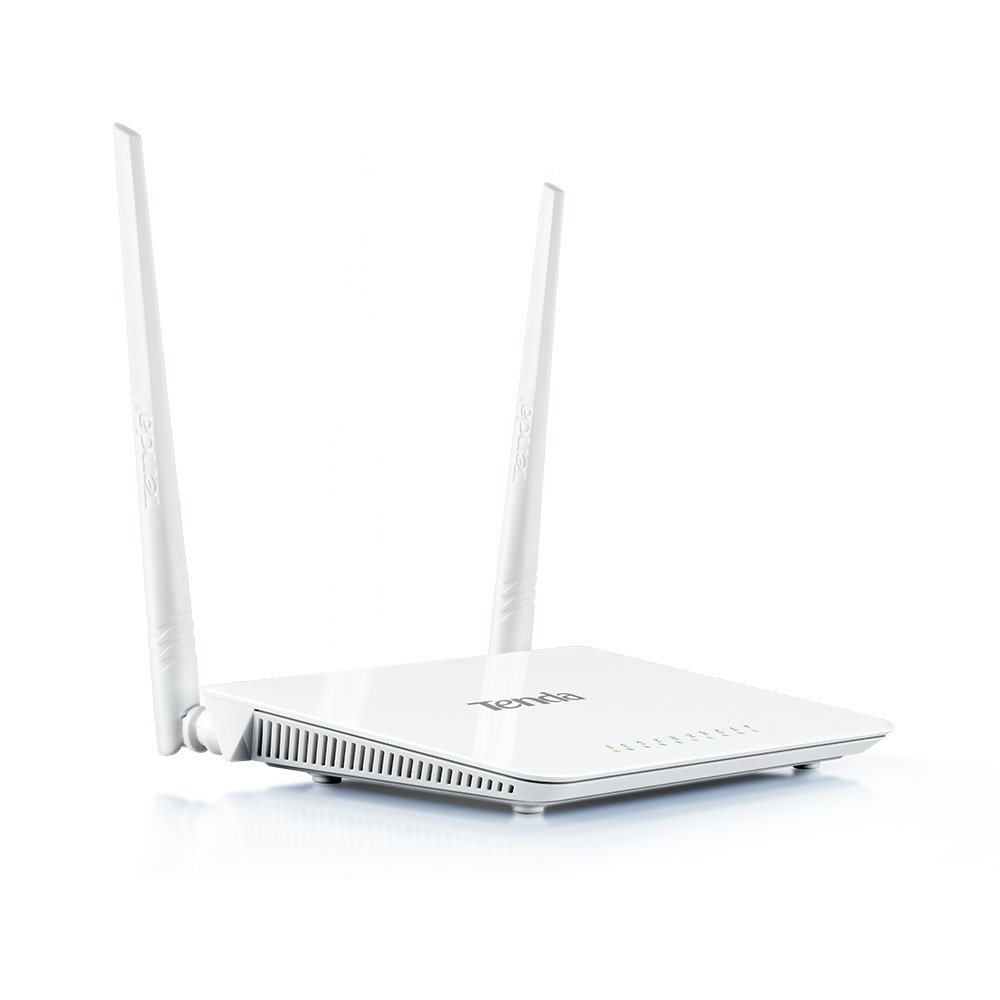
olusin 3.1: Iwaju View of Tenda 4G630 Router. This image shows the front of the Tenda 4G630 router with its two external antennas and a row of LED indicators for power, internet status, Wi-Fi, and LAN ports.

olusin 3.2: Ẹyìn View of Tenda 4G630 Router Ports. This image highlights the rear panel of the Tenda 4G630 router, displaying the WAN port, three LAN ports (LAN1, LAN2, LAN3), a WPS/Reset button, a USB 2.0 port for 4G/3G modems, and the power input.
Awọn itọkasi LED:
- LED agbara: Ṣe afihan ipo agbara.
- SYS LED: Atọka ipo eto.
- LED WLAN: Nọ́mbà ìṣiṣẹ́ nẹ́tíwọ́ọ̀kì aláìlọ́wọ́ tọ́ka sí.
- WAN LED: Ó fi ipò ìsopọ̀ ibudo WAN hàn.
- LAN LEDs (1-3): Indicate activity on respective LAN ports.
- LED USB: Indicates 4G/3G USB modem activity.
Awọn ibudo ati awọn bọtini:
- Ibudo WAN: Connects to a broadband modem (DSL/Cable) for internet access.
- Awọn ibudo LAN (1-3): Connects to wired devices like computers, gaming consoles, or network printers.
- Ibudo USB 2.0: Connects to a compatible 4G/3G USB modem.
- WPS/Bọtini atunto: Press briefly for WPS function; press and hold for 8 seconds to factory reset.
- Iṣagbewọle agbara: Sopọ si ohun ti nmu badọgba agbara ti a pese.
4. Eto
4.1 Hardware Asopọ
- Asopọ agbara: Connect the provided power adapter to the router's power input and plug it into a wall outlet. The Power LED should light up.
- USB Modem Connection (for 4G/3G Internet): Insert your compatible 4G/3G USB modem into the USB 2.0 port on the router. The USB LED should light up and blink, indicating activity.
- WAN Connection (for Wired Internet, optional): If using a wired broadband connection, connect an Ethernet cable from your DSL/Cable modem to the router's WAN port. The WAN LED should light up.
- Wired Device Connection (optional): Connect your computer or other wired devices to any of the LAN ports (LAN1, LAN2, or LAN3) using an Ethernet cable. The corresponding LAN LED should light up.

Figure 4.1: Tenda 4G630 Router Connection Diagram. This diagram illustrates how to connect various devices to the Tenda 4G630 router. It shows a 3G/4G USB modem connected to the USB port, a desktop PC and laptop connected to LAN ports, and wireless devices like laptops, smartphones, and tablets connecting via Wi-Fi to the cellular network provided by the router.
4.2 Iṣeto akọkọ (Web Ọlọpọọmídíà)
- Sopọ si olulana:
- Ti fiwe: Rii daju pe kọmputa rẹ ti sopọ mọ ibudo LAN ti olulana naa.
- Ailokun: Connect your wireless device (laptop, smartphone) to the router's default Wi-Fi network. The default SSID (network name) and password are usually printed on a label on the bottom of the router.
- Wiwọle Web Aṣàwákiri: Ṣii a web browser (e.g., Chrome, Firefox, Edge) and type the default IP address of the router into the address bar. The default IP address is typically
192.168.0.1or192.168.1.1. Press Enter. - Wo ile: A login page will appear. Enter the default username and password. These are usually
adminfor both, or printed on the router's label. - Ṣiṣẹ oluṣeto iṣeto ni kiakia: Upon first login, the router may automatically launch a Quick Setup Wizard. Follow the on-screen instructions to configure your internet connection type (3G/4G, Dynamic IP, Static IP, PPPoE) and wireless network settings (SSID and password).
- Fi Eto pamọ: After completing the wizard, save your settings. The router may restart.
5. Ṣiṣẹ olulana
5.1 4G/3G USB Modem Functionality
When a compatible 4G/3G USB modem is inserted, the router is designed to automatically detect it and establish an internet connection. The USB LED will indicate its status. You can verify the connection status in the router's web management interface under the 'Internet Status' or 'WAN Status' section.
5.2 Wireless Network (Wi-Fi)
To manage your Wi-Fi network:
- Wọle si awọn olulana ká web ni wiwo isakoso.
- Navigate to the 'Wireless Settings' or 'Wi-Fi Settings' section.
- Nibi o le:
- Change the Wi-Fi Network Name (SSID).
- Change the Wi-Fi Password (Security Key).
- Select the Security Mode (WPA2-PSK is recommended for best security).
- Enable/Disable the wireless network.
- Save any changes and restart the router if prompted.
5.3 Universal Repeater Mode
The universal repeater mode allows the Tenda 4G630 to extend the range of an existing Wi-Fi network.
- Wọle si awọn olulana ká web ni wiwo isakoso.
- Go to 'Wireless Settings' > 'Wireless Repeater' or a similar section.
- Select 'Universal Repeater' mode.
- The router will scan for available Wi-Fi networks. Select the network you wish to extend from the list.
- Tẹ ọrọ igbaniwọle sii fun nẹtiwọki Wi-Fi ti o yan.
- Save the settings. The router will reboot and connect to the chosen network, extending its coverage.
6. Itọju
6.1 Igbesoke Famuwia
Regularly updating the router's firmware can improve performance, add new features, and fix bugs.
- Visit the official Tenda website (www.tendacn.com) and navigate to the support page for the 4G630 model.
- Ṣe igbasilẹ famuwia tuntun file to your computer. Do not extract the file if it's a .bin or .trx file.
- Wọle si awọn olulana ká web ni wiwo isakoso.
- Go to 'System Tools' > 'Firmware Upgrade' or a similar section.
- Click 'Browse' or 'Choose File' and select the downloaded firmware file.
- Click 'Upgrade' or 'Start Upgrade'. Do not power off the router during the upgrade process.
- The router will restart automatically after the upgrade is complete.
6.2 Atunto ile-iṣẹ
A factory reset will restore the router to its default settings, erasing all custom configurations.
- Method 1 (Hardware Button): With the router powered on, press and hold the WPS/Reset button on the rear panel for approximately 8 seconds until all LEDs flash. Release the button, and the router will restart with factory default settings.
- Ọna 2 (Web Ni wiwo: Wọle si awọn olulana ká web management interface. Navigate to 'System Tools' > 'Factory Defaults' or 'Backup & Restore'. Click on 'Restore Factory Defaults' and confirm the action. The router will reboot.
7. Laasigbotitusita
Eyi ni awọn ojutu si awọn ọran ti o wọpọ ti o le ba pade:
- Ko si Wiwọle Ayelujara:
- Check if the 4G/3G USB modem is properly inserted and its LED is active.
- Verify the WAN cable connection if using wired internet.
- Wọle si awọn olulana ká web interface and check the 'Internet Status'. Ensure the connection type is correctly configured.
- Restart both the router and your modem (if applicable).
- Ko le wọle si awọn olulana Web Ni wiwo:
- Rii daju pe ẹrọ rẹ ti sopọ mọ olulana nipasẹ Wi-Fi tabi Ethernet.
- Verify your computer's IP settings are set to 'Obtain an IP address automatically'.
- Gbiyanju lati nu kaṣe ẹrọ aṣawakiri rẹ kuro tabi lilo ẹrọ aṣawakiri miiran.
- Confirm you are using the correct IP address (e.g.,
192.168.0.1). - If you forgot the login password, perform a factory reset.
- Wi-Fi Network Not Visible or Cannot Connect:
- Ensure the WLAN LED on the router is lit.
- Check Wi-Fi settings in the web interface to ensure the wireless network is enabled and the SSID is not hidden.
- Daju pe o n tẹ ọrọ igbaniwọle Wi-Fi to tọ sii.
- Move closer to the router to check signal strength.
- Iyara Ayelujara ti o lọra:
- Ṣayẹwo iyara olupese iṣẹ ayelujara rẹ.
- Rii daju pe olulana ti wa ni gbe si aarin ipo, kuro lati awọn idena ati awọn orisun kikọlu (fun apẹẹrẹ, microwaves, awọn foonu alailowaya).
- Limit the number of devices connected to the network or bandwidth-intensive activities.
- Ṣe àtúnṣe firmware ti olulana naa si ẹya tuntun.
8. Awọn pato
| Ẹya ara ẹrọ | Apejuwe |
|---|---|
| Brand | Tenda |
| Orukọ awoṣe | TE-4G630 |
| Iru Asopọmọra | 3G, 4G, Wi-Fi |
| Alailowaya Iru | 802.11b, 802.11g, 802.11n |
| Igbohunsafẹfẹ Band Class | Nikan-Band |
| Nọmba ti Ethernet Ports | 4 (1 WAN, 3 LAN) |
| USB Interface | 1 USB2.0 |
| Eriali | Two fixed 5dBi Omni Directional antennas |
| Awọn iwọn (LxWxH) | 22.1 x 7.1 x 28.4 centimeters |
| Iwọn Nkan | 137 g |
| Eto isesise | RouterOS (firmware based) |
9. Atilẹyin ọja ati Support
The Tenda 4G630 Wireless N300 4G/3G Router typically comes with a manufacturer's warranty. Please refer to the warranty card included with your product or visit the official Tenda webAaye fun awọn ofin atilẹyin ọja alaye ni pato si agbegbe rẹ.
For technical support, firmware updates, or further assistance, please visit the official Tenda support website or contact their customer service. Contact information can usually be found on the Tenda webaaye tabi ni apoti ọja.