Ọrọ Iṣaaju
This manual provides detailed instructions for the setup, operation, maintenance, and troubleshooting of your AOC E2261FWH 21.5-inch monitor. Please read this manual thoroughly before using your monitor to ensure proper installation and optimal performance.
The AOC E2261FWH monitor features a 21.5-inch display with a narrow screen border, a 50,000,000:1 Dynamic Contrast Ratio, and Clear Vision technology for enhanced image quality. It is designed for energy efficiency with LED backlighting.
1. Eto
1.1 Ṣiṣii silẹ
Carefully remove all components from the packaging. Ensure all items listed in the packing list are present. Retain the packaging materials for future transport or storage.
1.2 Nto Iduro
- Gbe atẹle naa si isalẹ lori rirọ, dada ti o mọ lati ṣe idiwọ awọn nkan.
- So ipilẹ iduro si ọrun imurasilẹ, ni aabo pẹlu dabaru ti a pese.
- Align the assembled stand with the mounting slot on the back of the monitor and gently push until it clicks into place.
1.3 Nsopọ Awọn okun
Before connecting any cables, ensure both the monitor and your computer are powered off.
- Cable Agbara: So opin kan ti okun agbara pọ si titẹ agbara atẹle ati opin miiran si iṣan itanna ti ilẹ.
- Okun HDMI: For digital video and audio, connect an HDMI cable from your computer's HDMI output to the monitor's HDMI input.
- Okun VGA: For analog video, connect a VGA cable from your computer's VGA output to the monitor's VGA input.

olusin 1: Iwaju view of the AOC E2261FWH monitor, showing the display and stand.
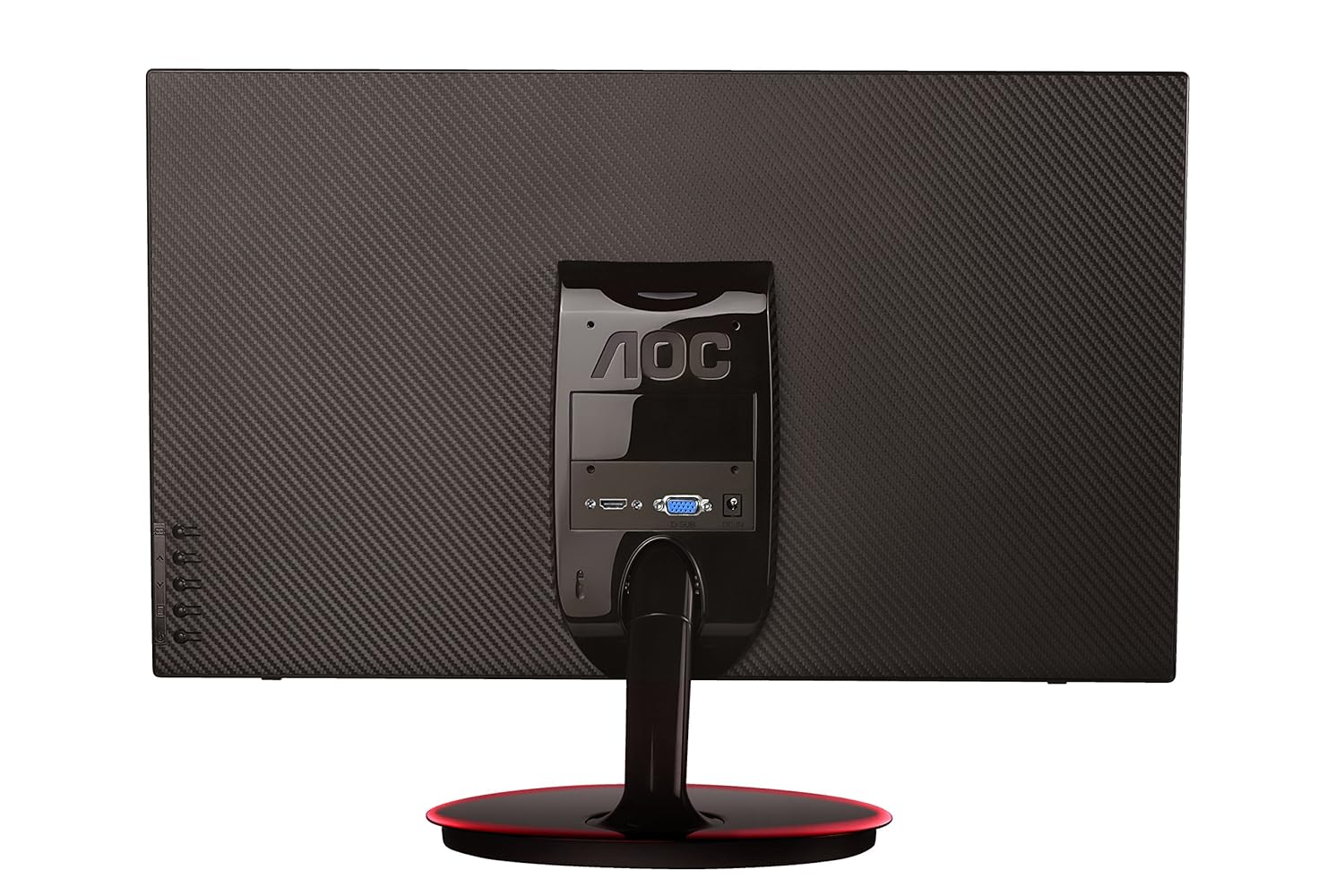
olusin 2: Ẹyìn view of the AOC E2261FWH monitor, highlighting the power, HDMI, and VGA input ports.
1.4 Ibẹrẹ Agbara-On
After connecting all necessary cables, power on your computer, then press the power button on the monitor. The monitor should automatically detect the input signal. If not, you may need to manually select the input source using the OSD menu.
2. Ṣiṣẹ Atẹle
2.1 Agbara Tan / Pa
Press the power button located on the monitor's bezel to turn the monitor on or off. The power indicator light will illuminate when the monitor is on.
2.2 Lori-iboju Ifihan (OSD) Akojọ aṣyn
The OSD menu allows you to adjust various monitor settings. Use the control buttons (usually located on the bottom right or rear of the monitor) to navigate the menu.
- Bọtini Akojọ: Ṣii akojọ aṣayan OSD.
- Awọn bọtini itọka: Lilö kiri nipasẹ awọn aṣayan akojọ aṣayan.
- Enter/Select Button: Jẹrisi yiyan tabi tẹ akojọ aṣayan-ipin sii.
- Bọtini Jade: Jade ni ti isiyi akojọ tabi OSD.
2.3 Siṣàtúnṣe Eto
Awọn eto adijositabulu ti o wọpọ pẹlu:
- Imọlẹ/Itọtọ: Ṣatunṣe itanna gbogbogbo ati iyatọ laarin ina ati awọn agbegbe dudu.
- Eto awọ: Ṣe atunṣe iwọn otutu awọ, gamma, ati awọn ipele RGB kọọkan.
- Aṣayan titẹ sii: Fi ọwọ yipada laarin awọn orisun titẹ sii HDMI ati VGA.
- Ko Oju Ri: Enable or disable Clear Vision technology to enhance image clarity for standard definition content.
- Ipo aworan: Select from preset display modes (e.g., Standard, Text, Internet, Game, Movie, Sports).
3. Itọju
3.1 Ninu Atẹle
- Nigbagbogbo pa atẹwo naa kuro ki o yọọ okun agbara ṣaaju ṣiṣe mimọ.
- Lo asọ rirọ, ti ko ni lint ni sere dampened pẹlu omi tabi ìwọnba, ti kii-abrasive iboju regede.
- Maṣe fun sokiri regede taara sori iboju. Lo akọkọ si asọ.
- Yẹra fún lílo àwọn ohun ìfọmọ́ tí a fi ammonia ṣe, tàbí àwọn ohun èlò ìpara, nítorí pé wọ́n lè ba ibojú jẹ́ tàbí kí wọ́n ba ìbòjú jẹ́.asing.
3.2 Itọju Gbogbogbo
- Yago fun gbigbe atẹle naa sinu imọlẹ orun taara tabi sunmọ awọn orisun ooru.
- Rí i dájú pé afẹ́fẹ́ tó péye wà ní àyíká ẹ̀rọ amóhùnmáwòrán náà.
- Ma ṣe gbe awọn nkan ti o wuwo sori atẹle tabi awọn kebulu rẹ.
- Dáàbò bo iboju naa kuro ninu eruku ati ọrinrin pupọ.
4. Laasigbotitusita
Ti o ba pade awọn ọran pẹlu atẹle rẹ, tọka si awọn iṣoro ti o wọpọ ati awọn ojutu wọnyi:
| Isoro | Owun to le Fa | Ojutu |
|---|---|---|
| Ko si Agbara | Okùn agbára kò sopọ̀ mọ́; ibi tí agbára bá ti bàjẹ́; Atẹle ti pa. | Check power cable connections; Try a different outlet; Press the monitor's power button. |
| Ko si ifihan agbara | Video cable not connected; Incorrect input source selected; Computer not powered on. | Ensure video cable (HDMI/VGA) is securely connected; Select the correct input source via OSD; Power on your computer. |
| Aworan jẹ Blurry/Daru | Incorrect resolution; Loose video cable; Monitor settings. | Set your computer's display resolution to 1920 x 1080; Reconnect the video cable; Adjust OSD settings like phase, clock, brightness, and contrast. |
| Colors are Incorrect | Eto awọ ninu OSD; Okun fidio ti ko ni abawọn. | Adjust color settings in the OSD menu; Try a different video cable. |
If the problem persists after trying these solutions, please contact AOC customer support.
5. Awọn pato
| Ẹya ara ẹrọ | Ẹ̀kúnrẹ́rẹ́ |
|---|---|
| Brand | AOC |
| Awoṣe | E2261FWH |
| Iwon iboju | 21.5 inches |
| Ipinnu iboju | 1920 x 1080 |
| Apakan Ipin | 16:9 |
| Akoko Idahun | 5 Milise-aaya |
| Yiyipo Itansan Ratio | 50,000,000: 1 (aṣoju) |
| Awọn ibudo igbewọle | 1 x HDMI, 1 x VGA |
| Frequency Range (H) | 30-83 kHz |
| Frequency Range (V) | 55-76 Hz |
| Agbara agbara | 22 Wattis (aṣoju) |
| Iwọn Nkan | 3.51 kg (isunmọ.) |
6. Atilẹyin ọja ati Support
6.1 atilẹyin ọja Alaye
AOC monitors are covered by a limited warranty. For specific warranty terms and conditions applicable to your region, please refer to the warranty card included with your product or visit the official AOC webojula. Tọju iwe-ẹri rira rẹ bi ẹri rira fun awọn iṣeduro atilẹyin ọja.
6.2 Onibara Support
For technical assistance, product inquiries, or service requests, please contact AOC customer support. You can typically find contact information (phone numbers, email, or support portals) on the official AOC webojú-òpó wẹ́ẹ̀bù tàbí nínú àwọn ìwé tí a pèsè pẹ̀lú àtẹ̀lé rẹ.
AOC Official Webojula: www.aoc.com


