1. Ifihan
This manual provides detailed instructions for the setup, operation, and maintenance of your Eventide H9 Max Harmonizer Pedal. The H9 Max is a versatile multi-effects processor designed for musicians, offering a comprehensive suite of Eventide algorithms in a compact stompbox format.
2. Alaye Aabo
- Ibi ti ina elekitiriki ti nwa: Use only the specified 9-12VDC power supply (4.5W) to prevent damage to the unit.
- Ọrinrin: Ma ṣe fi ẹrọ naa han si omi tabi ọrinrin pupọ.
- Afẹfẹ: Ensure adequate ventilation around the pedal to prevent overheating.
- Ninu: Clean the unit with a soft, dry cloth. Avoid abrasive cleaners.
- Ṣiṣẹ: Dá gbogbo iṣẹ́ ìtọ́jú náà sí àwọn òṣìṣẹ́ iṣẹ́ tó péye. Má ṣe gbìyànjú láti ṣí tàbí tún ilé iṣẹ́ náà ṣe fúnra rẹ.
3. Package Awọn akoonu
Upon opening your Eventide H9 Max package, you should find the following items:
- Eventide H9 Max Harmonizer Pedal
- Apo Idaabobo
- Power Supply (specific to region)
- Okun USB
- Quick Bẹrẹ Itọsọna
4. Awọn ẹya Ọja
- Includes all 45 algorithms and associated presets from the acclaimed Eventide Stompboxes: Space, TimeFactor, PitchFactor, and ModFactor.
- Features H9 Exclusives: Ultra Tap delay, Resonator, Compressor EQ, CrushStation, SpaceTime, Sculpt, and PitchFuzz.
- More than 600 Factory Presets available (unit ships with 99, others accessible via H9 Control App).
- Ability to share algorithms with up to 4 additional H9 units.
- Built-in tuner for convenient instrument tuning.
- True bypass circuitry to maintain signal integrity when the effect is disengaged.
- MIDI input and output for advanced control and integration with other gear.
- Wireless control via Bluetooth using the H9 Control app on Windows, OSX, or iOS devices.
5. Eto
5.1. Ti ara Awọn isopọ
Properly connecting your H9 Max pedal is crucial for optimal performance. Refer to the images below for connection points.

Nọmba 1: Rear panel connections including Input 1/2, Output 1/2, USB, Expression Pedal (EXP), and 9-12VDC power input.

Nọmba 2: Side panel connections for MIDI In and MIDI Out/Thru.
- Agbara: Connect the provided power supply to the 9-12VDC input on the rear panel.
- Iṣawọle Olohun: Connect your instrument or audio source to the Input 1 or Input 2 jacks.
- Ijade ohun: Connect the Output 1 or Output 2 jacks to your amplifier, mixer, or next pedal in the signal chain.
- Pẹda ìṣípayá (Àṣàyàn): Connect an expression pedal to the EXP jack for real-time control over parameters.
- MIDI (Àṣàyàn): Use the MIDI In and Out/Thru ports for external MIDI control or synchronization.
- USB: Connect the USB port to your computer for software updates and control via the H9 Control app.
5.2. Software Installation and Update
To manage algorithms, presets, and system settings, install the H9 Control app on your computer or iOS device. Ensure you have the latest version for optimal performance.
Fidio 1: This video demonstrates the process of installing new algorithms and updating the H9 Control app on your device.
- Download the H9 Control app from the Eventide website or the App Store (for iOS devices).
- Follow the on-screen installation instructions for your operating system.
- Connect your H9 Max pedal to your computer via USB or wirelessly via Bluetooth.
- Launch the H9 Control app. The app will detect your pedal.
- Navigate to the 'Pedal' tab within the app and select 'Update Stompbox's Software' to ensure your pedal has the latest firmware.
6. Awọn ilana Iṣiṣẹ
6.1. Awọn iṣakoso ipilẹ
The H9 Max features a streamlined one-knob user interface for direct control.
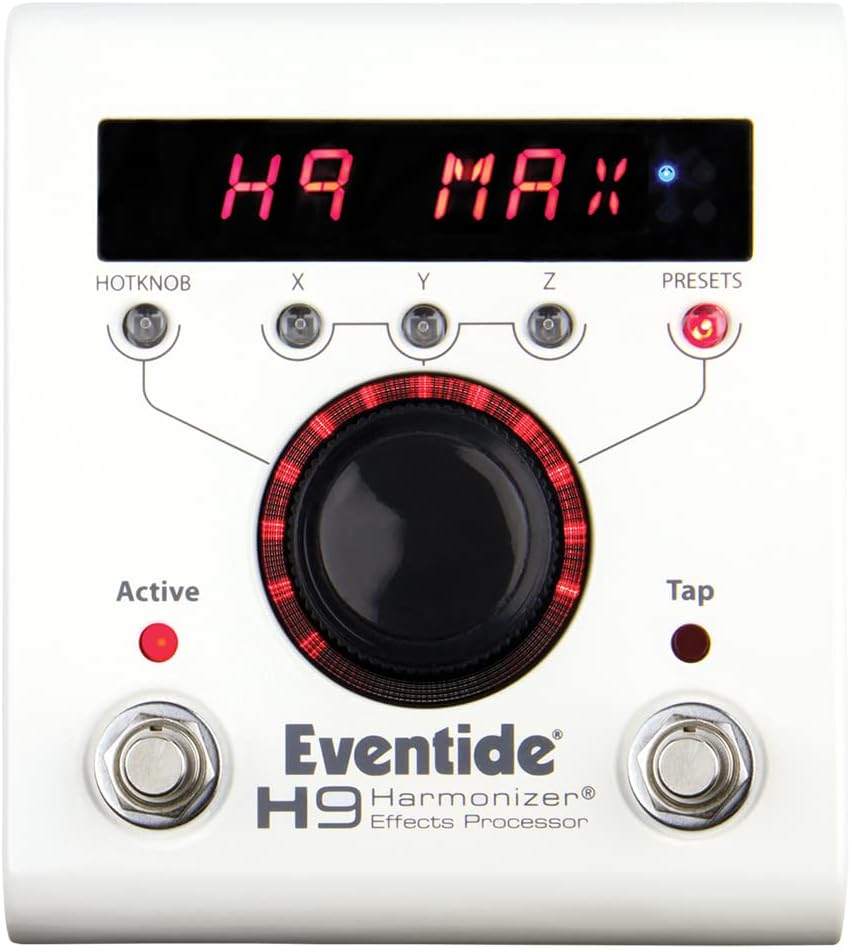
Nọmba 3: Front panel controls of the H9 Max pedal.
- Central Knob: Used for navigating menus, selecting parameters, and adjusting values.
- HOTKNOB Button: Assignable button for quick access to a specific parameter.
- X, Y, Z Buttons: Used for navigating parameters within an algorithm.
- PRESETS Button: Accesses and scrolls through saved presets.
- ACTIVE Footswitch: Yipada ipa si tan/pa.
- TAP Ẹsẹ ẹlẹsẹ: Used for tap tempo or other assigned functions.
6.2. Algorithms and Presets
The H9 Max provides access to a vast library of algorithms and presets.

Nọmba 4: The H9 Max display showing the 'PHASER' algorithm.
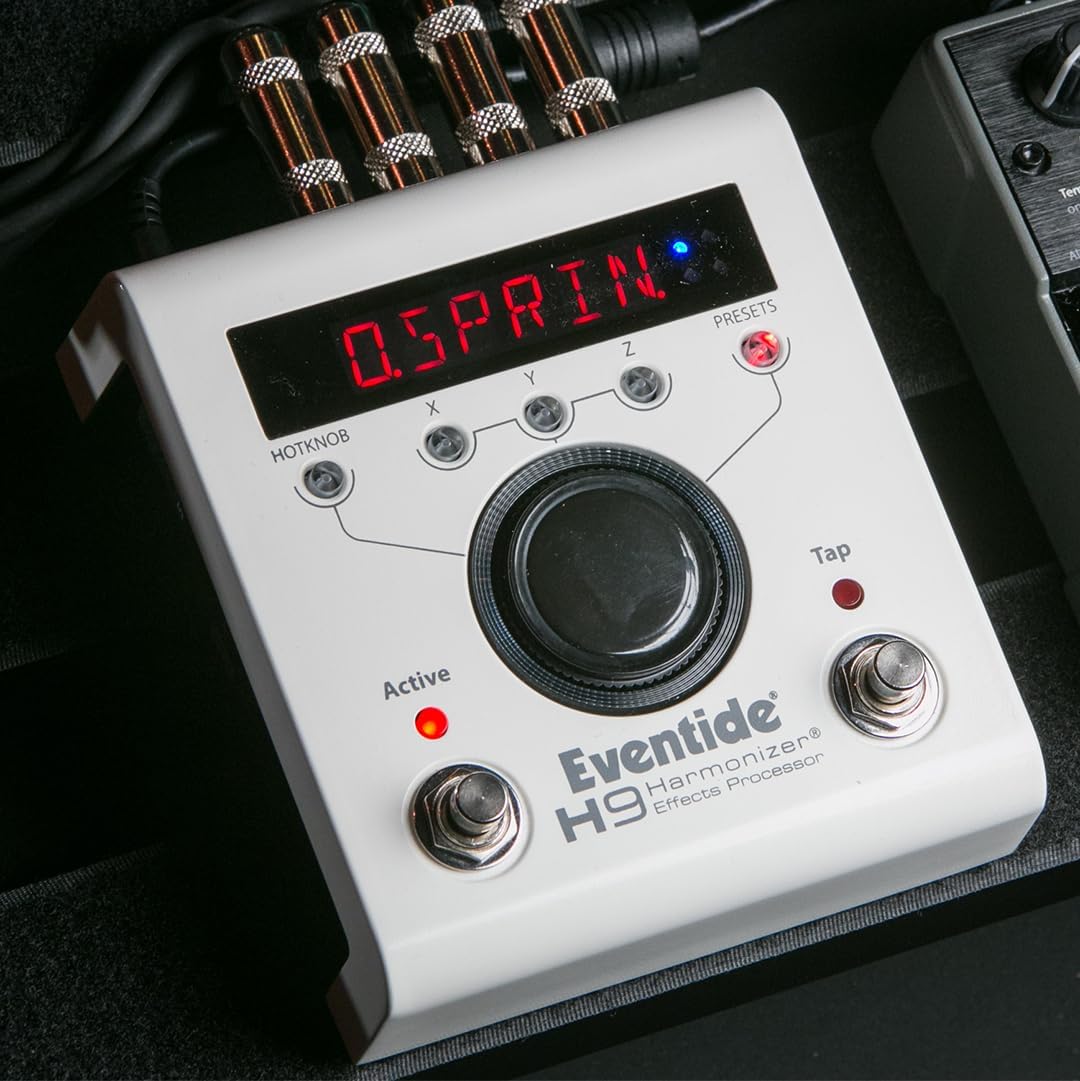
Nọmba 5: The H9 Max display showing a preset for 'SPRING' reverb.
- Selecting Algorithms: Use the H9 Control app to browse and load any of the 52 available algorithms onto your pedal.
- Nkojọpọ awọn tito tẹlẹ: The pedal comes with 99 factory presets. Additional presets (over 500) can be downloaded and managed via the H9 Control app. Use the PRESETS button to scroll through them.
- Awọn Ilana Iṣatunṣe: Once an algorithm is loaded, use the central knob and X, Y, Z buttons to adjust its parameters.
6.3. Wireless Control
The H9 Control app allows for wireless management of your pedal via Bluetooth.
- Ensure Bluetooth is enabled on your device and the H9 Max.
- Open the H9 Control app and connect to your pedal.
- From the app, you can edit parameters, create and save custom presets, manage algorithm installations, and change system settings.
7. Awọn pato
| Ẹya ara ẹrọ | Ẹ̀kúnrẹ́rẹ́ |
|---|---|
| Iwọn Nkan | 1.53 iwon |
| Ọja Mefa | 10.5 x 6.5 x 3 inches |
| Ohun elo ara | Irin |
| Àwọ̀ | Funfun |
| Ni wiwo Hardware | Bluetooth, USB, MIDI |
| Ilana ifihan agbara | Analog |
| Orisun agbara | Okun Itanna |
| Voltage | 9-12 Volts DC |
| Nọmba awoṣe | Iye owo ti H9 |
8. Itọju
- Ninu: Wipe the pedal's exterior with a soft, dry cloth to remove dust and grime. Do not use liquid cleaners or solvents.
- Ibi ipamọ: Store the pedal in a cool, dry place away from direct sunlight and extreme temperatures. When not in use, it is recommended to store it in its protective bag.
- Awọn imudojuiwọn famuwia: Regularly check the Eventide website or the H9 Control app for firmware updates to ensure your pedal has the latest features and bug fixes.
9. Laasigbotitusita
- Ko si Agbara: Ensure the power adapter is correctly connected and supplying the correct voltage (9-12VDC). Check the power outlet.
- Ko si Ohun: Verify all audio cables are securely connected to the correct input/output jacks. Check your instrument and amplifier. Ensure the pedal is 'ACTIVE'.
- Awọn oran Asopọ Bluetooth: Make sure Bluetooth is enabled on both the H9 Max and your control device. Restart both devices and the H9 Control app. Ensure the app is updated to the latest version.
- Iwa airotẹlẹ: Try performing a factory reset (refer to the Eventide website for specific instructions, as this may vary by firmware version). Ensure the pedal's firmware is up to date.
- Algorithm Loading Problems: Ensure your H9 Control app is updated. Check your internet connection if downloading new algorithms.
If you encounter persistent issues, please contact Eventide customer support.
10. Atilẹyin ọja ati Support
The Eventide H9 Max Harmonizer Pedal is covered by a manufacturer's warranty. Please refer to the warranty card included with your product or visit the official Eventide webAaye fun alaye atilẹyin ọja ofin ati ipo.
For technical support, product registration, or further assistance, please visit the Eventide support page:


