Ọrọ Iṣaaju
The Logitech M310 Wireless Mouse is designed for comfortable and reliable everyday use. Its contoured shape with soft rubber side grips ensures a comfortable fit for either hand, even during extended periods of use. Featuring advanced 2.4 GHz wireless connectivity and precise optical tracking, this mouse offers smooth and responsive cursor control. The included plug-and-forget nano-receiver is small enough to remain in your USB port, providing hassle-free connectivity.
Ṣeto
1. Fi Batiri sii
Locate the battery compartment on the underside of the mouse. Slide the cover open and insert one AA battery, ensuring correct polarity. The Logitech M310 is designed for an extended battery life of up to 18 months, though actual life may vary based on usage.
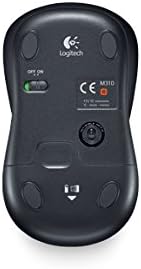
Aworan: Underside view of the Logitech M310 mouse, highlighting the battery compartment and the ON/OFF switch.
2. So USB Nano olugba
Remove the USB nano receiver from its storage slot within the battery compartment (if stored there) or from its packaging. Plug the receiver into an available USB port on your computer (PC, Mac, or Laptop). The mouse should automatically connect to the receiver.

Image: The Logitech M310 Wireless Mouse positioned next to its compact USB nano receiver.
3. Agbara Lori
Slide the ON/OFF switch on the underside of the mouse to the 'ON' position. The mouse is now ready for use.
Ṣiṣẹ Asin
The Logitech M310 provides standard mouse functionality for seamless navigation.
- Titẹ-osi: Tẹ bọtini osi lati yan awọn ohun kan, ṣii files, tàbí mu awọn iṣẹ ṣiṣẹ.
- Titẹ-ọtun: Press the right button to access contextual menus or specific options.
- Yi lọ Kẹkẹ: Yi kẹkẹ soke tabi isalẹ lati yi lọ nipasẹ awọn iwe aṣẹ tabi web pages. The scroll wheel can also be pressed for middle-click functionality, often used to open links in new tabs.
- Titele Opitika: The advanced optical sensor provides smooth and precise cursor control on various surfaces, often eliminating the need for a mouse pad.
- Iwọn Alailowaya: Enjoy reliable wireless connectivity with a range that allows for flexible positioning and movement.
Itoju
Batiri Rirọpo
When the mouse's performance degrades or the indicator light (if present) signals low battery, replace the AA battery. Always use a fresh, high-quality AA battery for optimal performance.
Ninu
To maintain optimal performance, periodically clean the mouse. Use a soft, lint-free cloth slightly dampened with water or a mild cleaning solution to wipe the exterior. For the optical sensor on the underside, use a dry cotton swab to gently remove any dust or debris.
Titoju olugba Nano
The USB nano receiver can be stored inside the mouse's battery compartment when not in use or when transporting the mouse. This helps prevent loss of the small receiver.
Laasigbotitusita
- Asin Ko Dahun:
Ensure the mouse is switched 'ON'. Check the battery and replace it if necessary. Verify that the USB nano receiver is securely plugged into a working USB port on your computer.
- Gbigbe Kọsọ Ainiṣiṣẹ:
Clean the optical sensor on the underside of the mouse. Ensure you are using the mouse on a suitable surface; highly reflective or uneven surfaces can affect tracking performance. Try moving the mouse closer to the USB receiver to rule out interference.
- Awọn oran Asopọmọra:
Unplug the USB nano receiver and plug it back into a different USB port. If possible, try the mouse with another computer to determine if the issue is with the mouse or the computer's USB ports. Ensure no other wireless devices are causing interference.
Awọn pato
| Ẹya ara ẹrọ | Ẹ̀kúnrẹ́rẹ́ |
|---|---|
| Awoṣe | M310 |
| Nọmba Awoṣe Nkan | 910-003986 |
| Asopọmọra Technology | Ailokun (2.4 GHz USB Nano olugba) |
| Imọ-ẹrọ Iwari išipopada | Opitika |
| Orisun agbara | Agbara Batiri |
| Awọn batiri ti a beere | 1 AA (pẹlu) |
| Apapọ batiri Life | Titi di oṣu mẹfa |
| Hardware Platform | PC |
| Ibamu System isẹ | Windows, MacOS, Lainos, Chrome OS |
| Iwọn Nkan | 3.49 iwon |
| Awọn iwọn Ọja (LxWxH) | 4.96 x 3.37 x 1.91 inches |
| Àwọ̀ | Silver Grey (as per product title) |
Atilẹyin ọja ati Support
Alaye atilẹyin ọja
The Logitech M310 Wireless Mouse comes with a three-year limited hardware warranty from the date of purchase. This warranty covers defects in materials and workmanship under normal use. Please retain your proof of purchase for warranty claims.
Onibara Support
Fun iranlọwọ imọ-ẹrọ, laasigbotitusita, tabi awọn ibeere atilẹyin ọja, jọwọ ṣabẹwo si atilẹyin Logitech osise website or contact their customer service. Detailed support resources, FAQs, and driver downloads (if applicable) are available online.
Note: Specific contact details and webojula URLs may vary by region. Please refer to the packaging or Logitech's official webAaye fun alaye atilẹyin lọwọlọwọ julọ.


