1. Ifihan
This manual provides comprehensive instructions for the operation and maintenance of your HTC Desire 612 smartphone. The HTC Desire 612 is designed to offer a robust mobile experience with its advanced features and connectivity options.
It operates on the Verizon 4G LTE network, providing fast data speeds. Please note that a SIM card is not included with the device and must be acquired separately.
2. Key Awọn ẹya ara ẹrọ
- Ifihan: 4.7-inch Super LCD2 Display with 540 x 960 pixel resolution (234 PPI).
- Olupilẹṣẹ: 1.2 GHz Quad-Core Processor for efficient performance.
- Kamẹra: 8MP Rear Camera with f/2.4 Aperture, Auto Flash, Auto Focus, HDR, and 1080p HD Video Capture.
- Asopọmọra: Wi-Fi 802.11 b/g/n/ac (2.4 and 5GHz only) and Bluetooth 4.0.
- Eto isesise: Runs on Android OS with HTC Sense UI.
- Ibi ipamọ: 8 GB internal storage, expandable via microSD card slot.
- Ohun: Front-facing BoomSound speakers for enhanced audio experience.
3. Eto Itọsọna
3.1. Fi kaadi SIM ati batiri sii
The HTC Desire 612 features a unibody design with a non-removable battery. The SIM card slot is located on the edge of the phone. Use the provided SIM ejector tool to open the tray and insert your Nano-SIM card. Ensure the card is correctly oriented as indicated on the tray.
3.2. Agbara akọkọ Lori ati iṣeto ni
Press and hold the Power key located on the side of the device until the HTC logo appears. Follow the on-screen prompts to complete the initial setup, including language selection, Wi-Fi connection, Google account setup, and time zone settings.
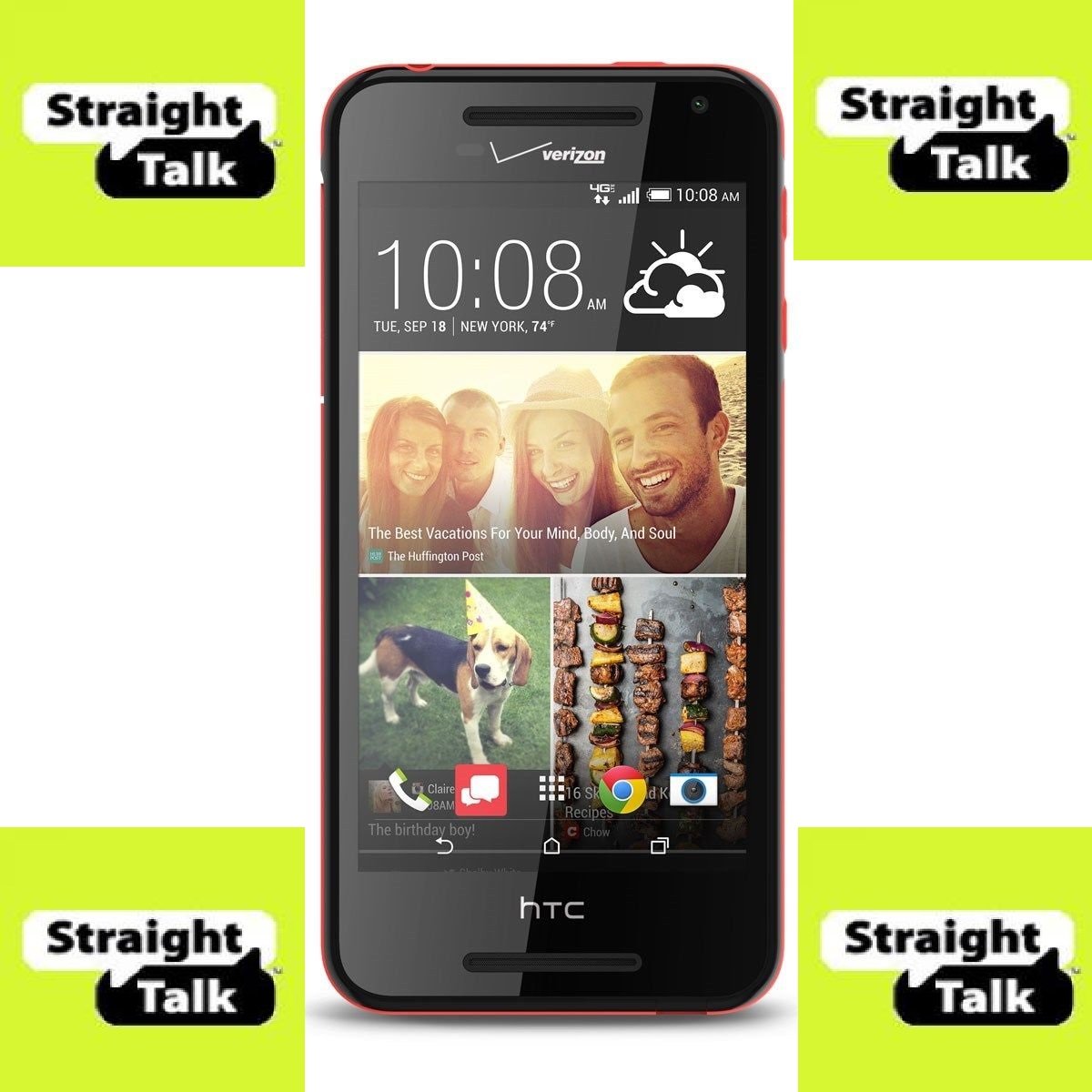
olusin 1: Iwaju view of the HTC Desire 612 smartphone.
4. Awọn ilana Iṣiṣẹ
4.1. Lilọ kiri ni Interface
The HTC Desire 612 utilizes a touchscreen interface. Swipe left or right to navigate between home screens. Tap icons to open applications. Use pinch-to-zoom gestures for zooming in and out of content. Virtual on-screen controls are located at the bottom of the display for navigation (Back, Home, Recent Apps).
4.2. Ṣiṣe Awọn ipe ati Fifiranṣẹ Awọn ifiranṣẹ
Tap the Phone icon to access the dialer. Enter the number or select a contact from your address book. Tap the Messages icon to compose and send text messages. The device supports standard cellular communication over the Verizon 4G LTE network.
4.3. Lilo kamẹra
Open the Camera application to capture photos and videos. The 8MP rear camera supports auto-focus and features an LED flash for low-light conditions. Select HDR mode for improved dynamic range in photos. Video recording is supported at 1080p HD resolution.
4.4. Nsopọ si awọn nẹtiwọki
Access Wi-Fi settings through the Settings menu to connect to available wireless networks. For Bluetooth devices, enable Bluetooth in settings and pair with compatible accessories such as headphones or speakers. The device supports Bluetooth 4.0.
4.5. Sisisẹsẹhin Audio
The HTC Desire 612 features front-facing BoomSound speakers, providing stereo audio output. Connect wired headphones via the 3.5mm headphone jack for private listening. Volume controls are located on the side of the device.
5. Itọju
5.1. Software imudojuiwọn
Regularly check for software updates in the Settings menu to ensure your device has the latest features, security patches, and performance improvements. Updates can enhance the overall stability and functionality of the Android OS and Sense UI.
5.2. Ninu Rẹ Device
Use a soft, lint-free cloth to clean the screen and body of your smartphone. Avoid using abrasive materials or harsh chemicals, which can damage the display or finish. Keep the charging port and headphone jack free of dust and debris.
5.3. Itọju batiri
To maximize battery lifespan, avoid extreme temperatures. While the battery is non-removable, proper charging habits, such as avoiding frequent full discharges, can help maintain its capacity over time. The device's 2000 mAh battery provides decent usage time.
6. Laasigbotitusita
6.1. Device Ko Fesi
If the device becomes unresponsive, press and hold the Power key for approximately 10-15 seconds to force a restart. If the issue persists, ensure the device has sufficient battery charge.
6.2. Asopọmọra Oran
For Wi-Fi or Bluetooth connection problems, try toggling the respective settings off and on. Restarting the device or the router/Bluetooth accessory can also resolve minor connectivity glitches. Verify that your SIM card is properly inserted for cellular network access.
6.3. App Performance
If applications are running slowly or crashing, try clearing the app's cache through the App settings. Excessive background apps can consume RAM and affect performance. Close unused applications to free up resources. For persistent issues, consider a factory reset (backup data first).
7. Imọ ni pato
| Ẹya ara ẹrọ | Sipesifikesonu |
|---|---|
| Brand | Eshitisii |
| Orukọ awoṣe | Ife 612 |
| Eto isesise | Android OS |
| Iwon iboju | 4.7 inches |
| Ipinnu Ifihan | 540 x 960 awọn piksẹli |
| Sipiyu Iyara | 1.2 GHz Quad-mojuto |
| Àgbo | 1 GB |
| Ibi ipamọ inu | 8 GB (faagun nipasẹ microSD) |
| Kamẹra ẹhin | 8 MP |
| Alailowaya Ibaraẹnisọrọ | Bluetooth, Alagbeka, Wi-Fi |
| Cellular Technology | 4G LTE (Verizon) |
| Ọja Mefa | 2.77 x 0.37 x 5.66 inches |
| Iwọn Nkan | 5.2 iwon |
| Àwọ̀ | Dudu |
| Agbara Batiri | Approx. 2000 mAh (non-removable) |
8. Atilẹyin ọja ati Support
Specific warranty details for the HTC Desire 612 are not provided in this manual. For detailed warranty information, technical support, or service inquiries, please refer to the official HTC webojula or contact Verizon customer support. Keep your proof of purchase for warranty claims.
Online resources, including FAQs and troubleshooting guides, may also be available on the manufacturer's or carrier's support pages.


