1. Ifihan
This manual provides detailed instructions for the setup, operation, and maintenance of your Intermec EasyCoder PX4i Thermal Transfer Printer. The PX4i is a robust and flexible industrial printer designed for high-volume label printing, offering monochrome output at a resolution of 203 dpi and speeds up to 12 inches per second. Please read this manual thoroughly before using the printer to ensure safe and efficient operation.
2. Awọn ẹya Ọja
- Titẹ titẹ iyara giga: Capable of printing at speeds up to 12 inches per second.
- Ipinnu giga: Delivers clear monochrome prints at 203 dpi.
- Mimu Media Rọ: Supports various media types including black mark, continuous label, fanfold, gap, general identification label, notch, roll fed, tag, and ticket.
- Asopọmọra Ethernet: Integrated Ethernet for network integration.
- Eto: Designed for optimized printing operations and streamlined deployment.
- Apẹrẹ ti o tọ: Industrial-grade construction for demanding environments.
3. Package Awọn akoonu
Verify that all items listed below are included in your printer package. If any items are missing or damaged, contact your supplier immediately.
- Intermec EasyCoder PX4i Thermal Transfer Printer
- Okun agbara
- Labels (Included Components)
- User Documentation (This manual)
4. Alaye Aabo
Always observe the following safety precautions to prevent injury and damage to the printer:
- Rii daju pe a gbe itẹwe sori iduro, ipele ipele.
- Connect the printer to a grounded power outlet.
- Má ṣe lo ẹ̀rọ ìtẹ̀wé náà níbi tí ó ti rọ̀ tàbí tí ó ti rọ̀ jù.
- Jeki awọn ọwọ ati awọn aṣọ alaimuṣinṣin kuro lati awọn ẹya gbigbe lakoko iṣẹ.
- Ge asopọ agbara ṣaaju ṣiṣe eyikeyi itọju tabi mimọ.
- Lo awọn ẹya aropo ti a fọwọsi nikan ati awọn ẹya ẹrọ.
5. Eto
5.1 Ṣiṣii silẹ
- Fara yọọ itẹwe kuro ninu apoti rẹ.
- Yọ gbogbo ohun èlò ìdìpọ̀, àwọn téèpù, àti àwọn fíìmù ààbò kúrò.
- Ṣe idaduro apoti atilẹba fun irinna ọjọ iwaju tabi ibi ipamọ.
5.2 Nsopọ Agbara
- Ensure the printer's power switch is in the OFF position.
- Connect the power cord to the printer's power inlet.
- Pulọọgi opin miiran ti okun agbara sinu iṣan itanna ti o wa lori ilẹ.
5.3 Ngba awọn ohun elo media (Awọn aami)
The PX4i printer supports various label types. Follow these general steps to load your labels:

Aworan: Iwaju view of the Intermec EasyCoder PX4i printer, showing a label being fed out of the front slot. The control panel with an LCD screen and numeric keypad is visible on the top front.
- Ṣii ideri media ti itẹwe naa.
- Place the roll of labels onto the media supply spindle, ensuring it unwinds correctly.
- Feed the leading edge of the labels through the media guides and under the printhead assembly.
- Adjust the media guides to fit the width of your labels snugly but without binding.
- Close the media cover. The printer may automatically calibrate to the new media.
5.4 Nsopọ si Kọmputa/Nẹtiwọọki kan
The PX4i offers Ethernet connectivity for network integration.
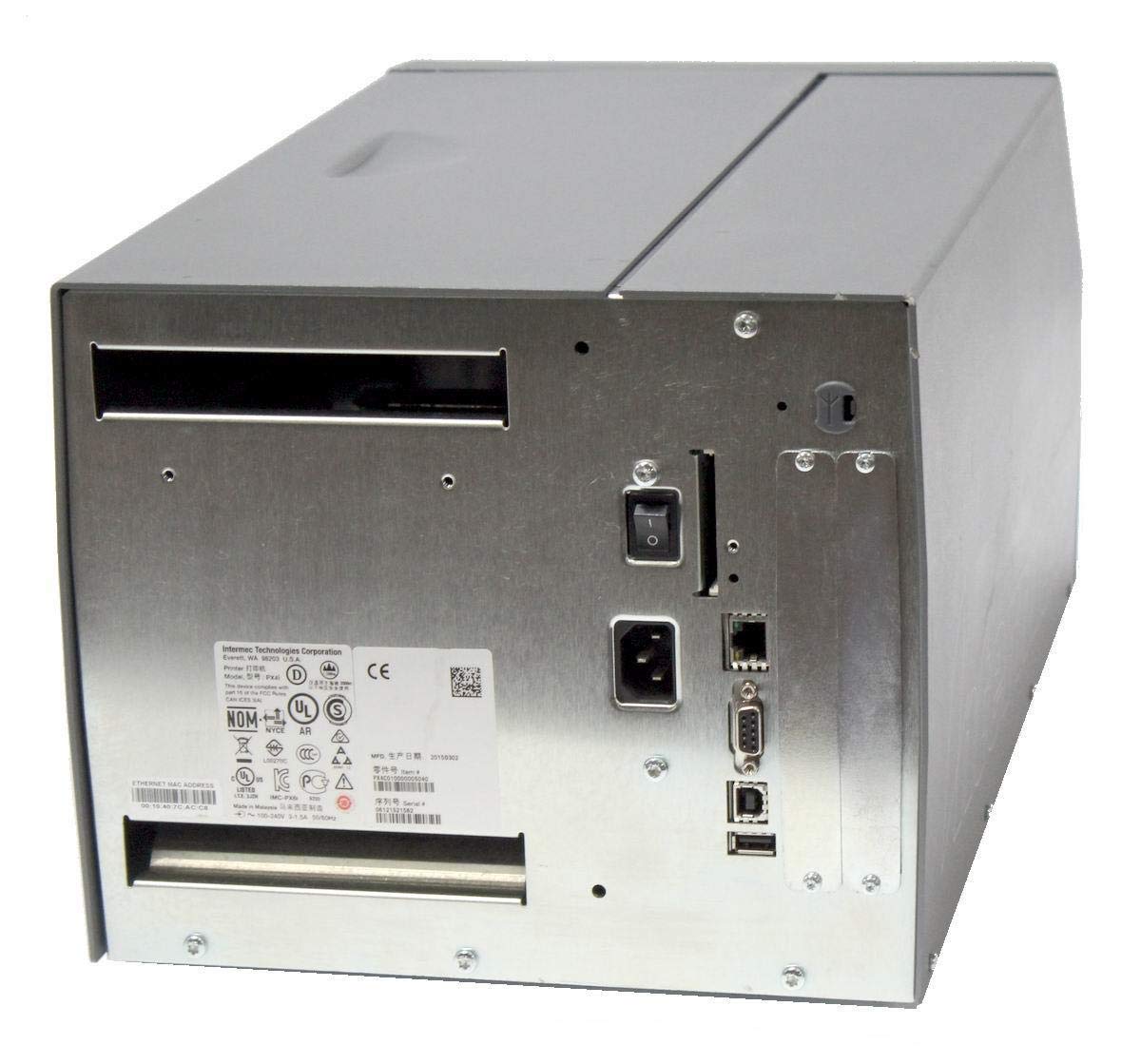
Aworan: Ẹyin view of the Intermec EasyCoder PX4i printer, displaying the power inlet, power switch, Ethernet port, serial ports, and USB ports. The metallic casing is clearly visible.
- Locate the Ethernet port on the rear of the printer.
- Connect a standard Ethernet cable from the printer to your network router or switch.
- For direct connection to a computer, use an appropriate USB or serial cable if supported by your system and printer configuration.
- Refer to the printer's network configuration guide for setting up IP addresses and other network parameters.
6. Isẹ
6.1 Iṣakoso igbimo Loriview
The front control panel provides access to printer functions and status information.
Image: Close-up of the Intermec EasyCoder PX4i control panel, featuring an LCD display, navigation buttons (up, down, left, right, enter), and a numeric keypad with function keys like Pause, Feed, and Clear.
- Ifihan LCD: Shows printer status, menu options, and error messages.
- Awọn bọtini lilọ kiri: Used to scroll through menus and select options.
- Nọmba bọtini foonu: For entering data or selecting numbered options.
- Bọtini idaduro: Temporarily stops printing.
- Bọtini ifunni: Advances one label.
- Bọtini Iṣeto: Accesses printer configuration menus.
6.2 Ipilẹ titẹ sita
- Rii daju pe itẹwe ti wa ni titan ati ti sopọ si kọnputa tabi nẹtiwọki rẹ.
- Open the document or application from which you wish to print labels.
- Select the Intermec PX4i printer from your printer list.
- Configure print settings such as label size, orientation, and quantity as needed.
- Initiate the print job. The printer will begin feeding and printing labels.
6.3 Adjusting Print Settings
Advanced print settings can be adjusted through the printer's control panel or via the printer driver on your computer. These settings include print darkness, print speed, label gap sensing, and more. Consult your printer driver documentation for software-based adjustments.
7. Itọju
Itọju deedee n ṣe idaniloju iṣẹ ṣiṣe to dara julọ ati gigun igbesi aye ẹrọ itẹwe rẹ.
7.1 Cleaning the Printhead
The printhead should be cleaned regularly, especially if print quality degrades.
- Pa ẹ̀rọ ìtẹ̀wé náà kí o sì yọ okùn agbára náà kúrò.
- Ṣii apejọ itẹwe.
- Using a lint-free cloth or a printhead cleaning pen moistened with isopropyl alcohol, gently wipe the printhead surface from center to edge.
- Allow the printhead to dry completely before closing the assembly and reconnecting power.
7.2 Replacing Media and Ribbon
When the label roll or thermal transfer ribbon (if used) runs out, replace it promptly.
- Turn off the printer and open the media cover.
- Remove the empty label roll and/or used ribbon core.
- Install a new roll of labels and/or a new ribbon, following the loading instructions in Section 5.3.
- Ensure media and ribbon are properly tensioned and aligned.
- Pa media ideri.
8. Laasigbotitusita
This section addresses common issues you might encounter with your PX4i printer.
- Itẹwe Ko Ṣiṣẹ Tan-an: Check power cord connection, power outlet, and printer's power switch.
- Ko si Ijade Atẹjade: Verify printer is online, connected to the computer/network, and has media loaded. Check for error messages on the LCD.
- Didara Titẹjade Ko dara: Clean the printhead (Section 7.1). Adjust print darkness settings. Ensure correct media and ribbon are used.
- Àwọn Àmì Tí Kò Fúnni Ní Oúnjẹ Tọ́: Check media loading (Section 5.3) and ensure media guides are properly adjusted. Calibrate media sensors if necessary.
- Awọn ifiranṣẹ aṣiṣe: Refer to the printer's LCD display for specific error codes and consult the full Intermec PX4i technical manual for detailed explanations and solutions.
9. Awọn pato
| Ẹya ara ẹrọ | Apejuwe |
|---|---|
| Orukọ awoṣe | PX4i |
| Nọmba Awoṣe Nkan | PX4C010000000020 |
| Imọ-ẹrọ titẹ sita | Gbigbe Gbigbe |
| Print awọ | Monochrome |
| O pọju Print Speed | 12 in/s (Monochrome) |
| O pọju Print Resolution | 203 dpi |
| Asopọmọra Technology | Àjọlò |
| O pọju Media Iwon | 12 inches |
| Awọn irinše to wa | Awọn akole |
| Adarí Iru | Titari Bọtini |
| Olupese | INTERMEC INDUSTRIAL PRINTERS |
| Package Mefa | 23.25 x 15.5 x 15.25 inches; 36.2 iwon |
10. Atilẹyin ọja ati Support
The Intermec EasyCoder PX4i Thermal Transfer Printer comes with a standard manufacturer's warranty. For specific warranty terms and conditions, please refer to the warranty card included with your product or visit the official Intermec (Honeywell) support website. For technical assistance, troubleshooting beyond this manual, or to inquire about service, please contact Intermec customer support or your authorized dealer.
Awọn orisun Ayelujara: For the latest drivers, firmware updates, and additional documentation, please visit the official Intermec support portal.


