Ọrọ Iṣaaju
This manual provides instructions for setting up, operating, and maintaining your Mercury MW3030R Dual Band Wireless Router. Please read this manual carefully before use to ensure proper installation and optimal performance.
Alaye Aabo
- Ma ṣe fi ẹrọ naa han si omi tabi ọriniinitutu pupọ.
- Ma ṣe gbiyanju lati tunto tabi tun ẹrọ naa funrararẹ.
- Lo oluyipada agbara nikan ti a pese pẹlu ẹrọ naa.
- Rí i dájú pé afẹ́fẹ́ tó yẹ wà ní àyíká rọ́ọ̀tà náà láti dènà ìgbóná jù.
Package Awọn akoonu
Jẹrisi pe package rẹ ni awọn nkan wọnyi ninu:
- Mercury MW3030R Wireless Router
- Adapter agbara
- àjọlò Cable
- Quick Installation Guide (this manual serves as a detailed guide)
Ọja Pariview
Mọ ara rẹ pẹlu awọn paati ati awọn itọkasi ti olulana naa.
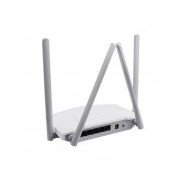
Nọmba 1: Ẹyìn view of the Mercury MW3030R router. This image displays the four external antennas, the WAN port (typically blue), multiple LAN ports (typically yellow), and the power input jack. The reset button and WPS button are also usually located on the rear panel.
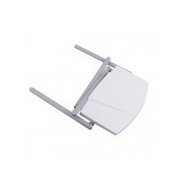
Nọmba 2: Oke-isalẹ view of the Mercury MW3030R router with its antennas folded. This perspective highlights the router's sleek, white casing and its overall compact form factor, suitable for various placements.
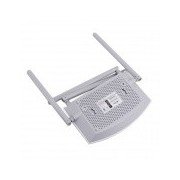
Nọmba 3: Isalẹ view of the Mercury MW3030R router. This image shows the ventilation holes designed for heat dissipation and the product label, which typically contains important information such as the default Wi-Fi name (SSID), password, and web management address.
Awọn itọkasi LED:
- LED agbara: Indicates the power status of the router.
- LED Ayelujara: Indicates the status of the internet connection.
- LED WLAN: Ntọka si iṣẹ alailowaya.
- Awọn LED LAN: Indicate connection status for each LAN port.
Ṣeto
1. Asopọ Hardware
- Agbara Tan: Connect the power adapter to the router's power port and plug it into a wall outlet. Wait for the Power LED to become stable.
- Sopọ si Intanẹẹti (WAN): Connect one end of an Ethernet cable to your modem's LAN port and the other end to the router's WAN port (usually distinctively colored, e.g., blue).
- Connect Devices (LAN): For wired connections, connect your computer or other devices to the router's LAN ports (usually yellow) using Ethernet cables.
- Eriali: Adjust the four antennas for optimal signal coverage.
2. Iṣeto akọkọ (Web Ọlọpọọmídíà)
- Sopọ si olulana: Connect your computer to the router either via an Ethernet cable to a LAN port or wirelessly using the default Wi-Fi SSID and password printed on the router's label (refer to Figure 3).
- Wiwọle Web Aṣàwákiri: Ṣii a web browser (e.g., Chrome, Firefox) and type the default access address (e.g., http://192.168.1.1 or http://tplinkwifi.net) sinu ọpa adirẹsi ki o tẹ Tẹ.
- Wo ile: Tẹ orukọ olumulo ati ọrọ igbaniwọle aiyipada sii (nigbagbogbo abojuto fún àwọn méjèèjì, tàbí gẹ́gẹ́ bí a ṣe sọ ọ́ lórí àmì olùdarí).
- Ṣiṣe Eto Kiakia: Follow the on-screen instructions of the Quick Setup Wizard to configure your internet connection type (e.g., PPPoE, Dynamic IP, Static IP) and wireless settings (SSID, password).
- Yi Ọrọigbaniwọle Aiyipada pada: For security, it is highly recommended to change the default login password for the router's web ni wiwo isakoso.
Awọn ilana Iṣiṣẹ
Nsopọ si Wi-Fi
- On your wireless device (smartphone, laptop), search for available Wi-Fi networks.
- Select your router's Wi-Fi network name (SSID) that you configured during setup.
- Enter the Wi-Fi password you set.
- Ẹrọ rẹ yẹ ki o ni asopọ si intanẹẹti bayi.
Meji Band Isẹ
The MW3030R supports both 2.4GHz and 5.0GHz wireless bands. The 2.4GHz band offers wider coverage, while the 5.0GHz band provides faster speeds with less interference over shorter distances. You can connect your devices to either band based on your needs.
alejo Network
Wọle si awọn olulana web interface to enable and configure a separate guest network. This allows guests to access the internet without accessing your main network resources.
Itoju
- Awọn imudojuiwọn famuwia: Ṣe àyẹ̀wò àwọn olùpèsè déédéé webAaye fun awọn imudojuiwọn famuwia. Ṣiṣe imudojuiwọn firmware le mu iṣẹ ṣiṣe dara si, ṣafikun awọn ẹya tuntun, ati ṣatunṣe awọn ailagbara aabo.
- Tun olulana bẹrẹ: If you experience network issues, try restarting the router by unplugging the power adapter, waiting 10 seconds, and then plugging it back in.
- Ninu: Keep the router clean and free from dust. Use a soft, dry cloth. Do not use liquid cleaners.
- Ibi: Place the router in a central location, away from obstructions and devices that may cause interference (e.g., microwaves, cordless phones).
Laasigbotitusita
Ko si Wiwọle Ayelujara
- Check if the Internet LED on the router is lit or blinking correctly.
- Rí i dájú pé okùn Ethernet láti inú módémù rẹ so mọ́ ibudo WAN ti ráítà náà dáadáa.
- Tun modẹmu rẹ ati olulana bẹrẹ.
- Ṣe idaniloju awọn eto asopọ intanẹẹti rẹ ninu olulana naa web ni wiwo.
Iyara Alailowaya Lọra
- Ensure your device is connected to the 5.0GHz band if it supports it, for faster speeds.
- Move closer to the router or adjust antenna positions.
- Ṣayẹwo fun kikọlu lati awọn ẹrọ itanna miiran.
- Reduce the number of devices connected to the network or bandwidth-intensive activities.
Ko le wọle si awọn olulana Web Ni wiwo
- Rii daju pe ẹrọ rẹ ti sopọ si olulana (firanṣẹ tabi alailowaya).
- Verify the IP address you are typing in the browser is correct (e.g., http://192.168.1.1).
- Gbiyanju lati nu kaṣe ẹrọ aṣawakiri rẹ kuro tabi lilo ẹrọ aṣawakiri miiran.
- If you forgot the login password, you may need to perform a factory reset (Warning: This will erase all your settings).
Awọn pato
| Ẹya ara ẹrọ | Apejuwe |
|---|---|
| Awoṣe | MW3030R |
| Alailowaya Standards | IEEE 802.11ac/n/g/b/a |
| Igbohunsafẹfẹ | 2.4GHz àti 5.0GHz (Ìbánd Méjì) |
| Iyara Alailowaya | Up to 600Mbps (combined) |
| Eriali | 4 Awọn eriali ita |
| Awọn atọkun | 1x WAN Port, Multiple LAN Ports (typically 3 or 4) |
| Ibi ti ina elekitiriki ti nwa | External Power Adapter (provided) |
Atilẹyin ọja ati Support
The Mercury MW3030R router comes with a standard manufacturer's warranty. For detailed warranty information, technical support, or service inquiries, please refer to the official Mercury webaaye tabi kan si atilẹyin alabara wọn. Tọju iwe-ẹri rira rẹ fun awọn ẹtọ atilẹyin ọja.


