1. Ifihan
This manual provides essential information for the installation, operation, maintenance, and troubleshooting of your Western Digital RE WD2000FYYZ 2TB Enterprise Hard Drive. Please read this manual thoroughly before using the product to ensure proper functionality and longevity.
2. Ọja Ipariview
2.1 Key Awọn ẹya ara ẹrọ
- Agbara giga: 2TB storage suitable for demanding enterprise applications.
- Iṣe to gaju: Delivers 6 Gb/s transfer rates, sustained sequential data rates of 171 MB/s, and high random I/O rates.
- Gbẹkẹle: Field-tested 1.2 million hour MTBF for 24x7 operation in up to 100% duty cycle applications.
- Dual Processor: Enhanced processing power for maximized performance.
- Ni wiwo: SATA 6 Gb/s.
- Okunfa Fọọmu: 3.5-inch.
2.2 Kini ni Apoti
- Western Digital RE WD2000FYYZ 2TB Enterprise Hard Drive

Figure 1: The Western Digital RE WD2000FYYZ 2TB Enterprise Hard Drive securely packaged within a cardboard box, cushioned by protective inserts. This illustrates the typical packaging for safe transport.
3. Eto ati fifi sori
This section outlines the general steps for installing your Western Digital RE WD2000FYYZ hard drive into a compatible system. Ensure your system is powered off and disconnected from the power source before proceeding.
3.1 Fifi sori ti ara
- Mura Eto Rẹ: Power down your computer and unplug all cables. Open the computer case to access the drive bays.
- Gbe Drive naa: Slide the hard drive into an available 3.5-inch drive bay. Secure it using screws or the system's tool-less mounting mechanism.
- Awọn okun Sopọ:
- So okun data SATA kan lati inu awakọ naa si ibudo SATA ti o wa lori modaboudu rẹ.
- Connect a SATA power cable from your power supply unit (PSU) to the drive's power connector.
- Ọran pipade: Once secured and connected, close your computer case and reconnect all external cables.

olusin 2: Isalẹ view of the Western Digital RE WD2000FYYZ 2TB Enterprise Hard Drive, highlighting the SATA data and power connectors. The drive's label is clearly visible, displaying model information and a serial number WMC1P0219357.
3.2 Eto Eto Ibẹrẹ
- Iṣeto BIOS/UEFI: Power on your computer and enter the BIOS/UEFI setup. Verify that the newly installed hard drive is detected. Ensure the SATA port mode is set appropriately (e.g., AHCI for optimal performance).
- Idanimọ Eto Iṣiṣẹ: Boot into your operating system. For a new drive, it will likely appear as unallocated space.
- Bibẹrẹ ati Ṣe ọna kika: Use your operating system's disk management utility (e.g., Disk Management in Windows, Disk Utility in macOS,
fdisk/gpartedin Linux) to initialize the drive, create partitions, and format them. This makes the drive ready for data storage.
olusin 3: Angled view of the Western Digital RE WD2000FYYZ 2TB Enterprise Hard Drive, showcasing its metallic casing and product label. The label clearly displays the 'WD Enterprise-class' branding, 2.0TB capacity, and model number WD2000FYYZ.
4. Awọn ilana Iṣiṣẹ
Once installed and formatted, your Western Digital RE WD2000FYYZ hard drive functions like any other storage device. You can use it for:
- Storing operating system files ati awọn ohun elo.
- Saving documents, media, and other personal or business data.
- Acting as a primary or secondary storage drive in a desktop or server environment.
- Integration into RAID arrays for enhanced performance or data redundancy.
Always ensure proper shutdown procedures for your computer to prevent data corruption or drive damage.
5. Itọju
Itọju deede ṣe iranlọwọ fun idaniloju gigun ati iṣẹ ti o dara julọ ti dirafu lile rẹ.
- Afẹyinti data: Regularly back up critical data to another storage device or cloud service. Hard drives can fail, and backups are essential for data recovery.
- Abojuto Ilera Wakọ: Utilize S.M.A.R.T. (Self-Monitoring, Analysis and Reporting Technology) tools to monitor the drive's health status. Many operating systems and third-party utilities offer this functionality.
- Jẹ́ kí ètò rẹ mọ́ tónítóní: Ensure your computer's internal environment is clean and free of dust to maintain proper airflow and prevent overheating, which can impact drive performance and lifespan.
- Awọn imudojuiwọn famuwia: Periodically check the Western Digital support webaaye fun eyikeyi awọn imudojuiwọn famuwia ti o wa fun awoṣe kan pato rẹ. Awọn imudojuiwọn famuwia le mu iṣẹ ṣiṣe dara si, iduroṣinṣin, ati ibaramu.
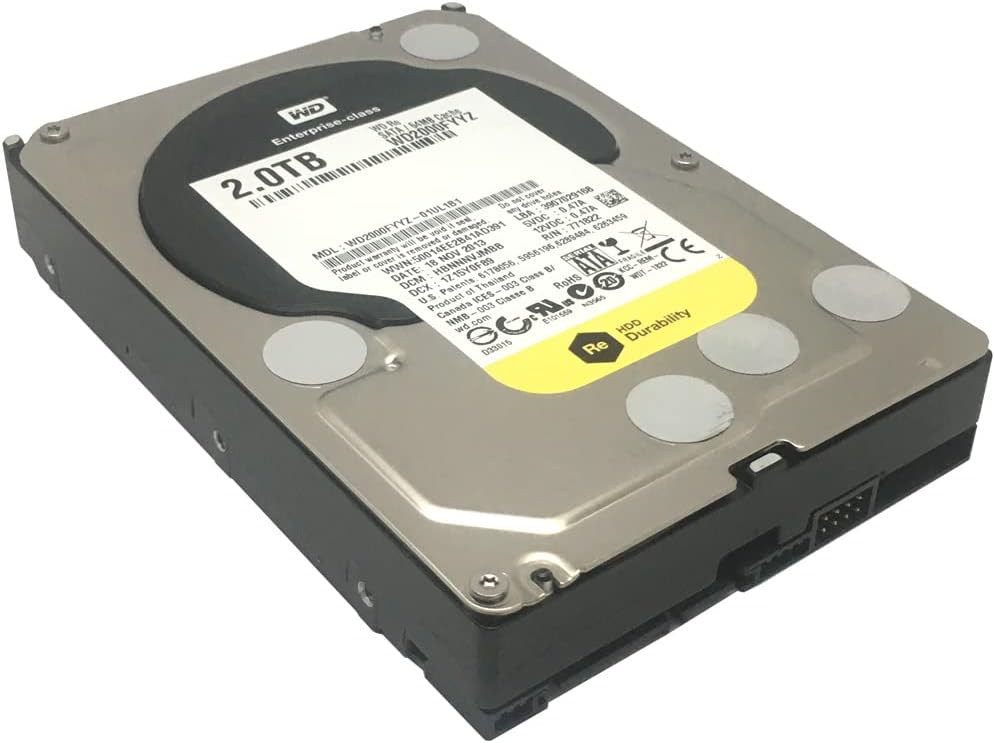
Figure 4: Western Digital RE WD2000FYYZ 2TB Enterprise Hard Drive sealed in an anti-static bag, ready for installation or storage. The product label is visible through the bag, confirming the model and capacity. A serial number WMC1P0219357 is visible on the label.
6. Laasigbotitusita
If you encounter issues with your hard drive, consider the following basic troubleshooting steps:
- Wakọ Ko ṣe awari:
- Ṣayẹwo gbogbo data SATA ati awọn asopọ okun agbara. Rii daju pe wọn joko ni aabo.
- Rii daju pe awakọ naa ti ṣiṣẹ ni awọn eto BIOS/UEFI ti eto rẹ.
- Gbiyanju lati so awakọ pọ si ibudo SATA ti o yatọ tabi lilo awọn kebulu oriṣiriṣi.
- Rii daju pe ẹyọ ipese agbara rẹ (PSU) ni wat totage and available power connectors.
- Iṣẹ ṣiṣe ti o lọra:
- Ṣayẹwo fun awọn ilana isale ti n gba awọn orisun disk.
- Ensure the drive is not excessively fragmented (for HDDs, defragmentation can help).
- Run a S.M.A.R.T. diagnostic to check for potential drive health issues.
- Daju pe awọn awakọ oludari SATA ti wa ni imudojuiwọn.
- Awọn Ariwo Alailẹgbẹ:
- Clicking, grinding, or repetitive beeping sounds can indicate a failing drive. Immediately back up any critical data and consider replacing the drive.
- Data Corruption/Errors:
- Ṣiṣe ohun elo iṣayẹwo disk kan (fun apẹẹrẹ,
chkdskin Windows) to scan for and repair file awọn aṣiṣe eto. - Ensure your operating system and drivers are stable and up to date.
- Ṣiṣe ohun elo iṣayẹwo disk kan (fun apẹẹrẹ,

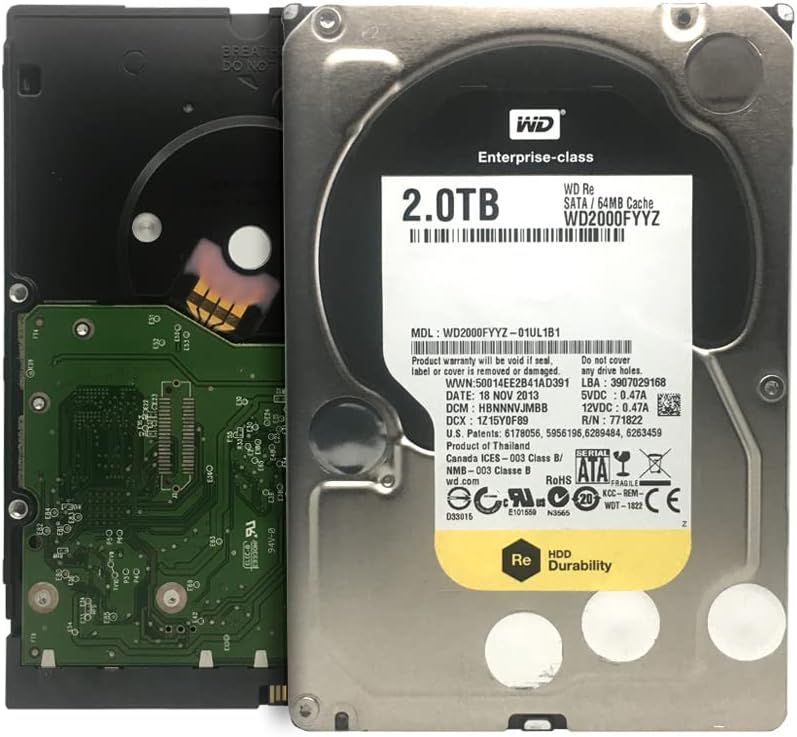
Figure 5: Western Digital RE WD2000FYYZ Hard Drive with PCB exposed. The PCB is green and contains various electronic components. The drive's label is visible on the metal casing, showing model number WD2000FYYZ and other specifications. A serial number WMC1P0219357 is visible on the label.
7. Awọn pato
| Ẹya ara ẹrọ | Sipesifikesonu |
|---|---|
| Nọmba awoṣe | WD2000FYYZ |
| Agbara | 2 TB (2000 GB) |
| Ni wiwo | SATA 6 Gb/s |
| Fọọmù ifosiwewe | 3.5 inches |
| Iyara Yiyipo | 7200 RPM |
| Kaṣe | 64 MB |
| MTBF (Aago Itumọ Laarin Awọn Ikuna) | Wákàtí Mílíọ̀nù 1.2 |
| Awọn ẹrọ ibaramu | Desktop systems |
| Iru fifi sori ẹrọ | Ti abẹnu Lile Drive |
| Iwọn Nkan | Approximately 0.01 ounces (Note: This value seems unusually low and may be a data entry error. Actual weight for a 3.5" HDD is typically around 1.5 lbs / 680g) |
| Package Mefa | 8.86 x 6.06 x 2.95 inches |
8. Atilẹyin ọja ati Support
Western Digital products are backed by a limited warranty. For specific warranty terms and conditions applicable to your region and product, please refer to the warranty information included with your purchase or visit the official Western Digital webojula.
For technical support, driver downloads, firmware updates, and additional resources, please visit the Western Digital Support webojula:
When contacting support, please have your drive's model number (WD2000FYYZ) and serial number (if available, e.g., WMC1P0219357) ready.


