1. Ifihan
This manual provides comprehensive instructions for the proper setup, operation, and maintenance of your Manhattan 13-Port USB 2.0 Hub with Power Adapter, Model 162463. Please read this manual thoroughly before using the device to ensure optimal performance and safety.
The Manhattan 13-Port USB 2.0 Hub is designed to expand the USB connectivity of your computer, offering multiple ports for connecting various USB devices and dedicated high-power ports for charging. Its powered design ensures stable performance for all connected peripherals.

Aworan 1.1: Angled view of the Manhattan 13-Port USB 2.0 Hub, highlighting its compact design and multiple USB ports.
2. Package Awọn akoonu
Verify that all items listed below are present in your product packaging. If any items are missing or damaged, please contact your retailer or Manhattan customer support.
- Manhattan 13-Port USB 2.0 Hub (Model 162463)
- Adapter Agbara (5V, 4A)
- USB 2.0 Type-A to Type-B Cable
- Afowoyi Olumulo (iwe-ipamọ yii)

Image 2.1: The Manhattan 13-Port USB 2.0 Hub and its accessories as typically found in the retail box.
3. Awọn ẹya Ọja
The Manhattan 13-Port USB 2.0 Hub offers a robust solution for expanding your computer's USB capabilities:
- Thirteen (13) USB 2.0 Ports: Pese ample connectivity for multiple peripherals.
- Nine (9) Standard USB 2.0 Ports: For data transfer and standard charging of devices.
- Four (4) High-Power Charging Ports: Delivers up to 2.4A per port for faster charging of smartphones, tablets, and other power-hungry devices. These ports are activated by a dedicated button.
- Iṣẹ ṣiṣe: Includes an external power adapter to ensure stable power delivery to all connected devices, preventing power-related issues.
- Ibamu Agbaye: Works with Windows and macOS operating systems.
- Oṣuwọn Gbigbe Data: Supports USB 2.0 speeds up to 480 Mbps.

Aworan 3.1: Oke view of the hub, illustrating its overall layout and the central power button for high-power charging ports.
4. Awọn ilana iṣeto
Follow these steps to set up your Manhattan 13-Port USB 2.0 Hub:
- So ohun ti nmu badọgba agbara: Insert the barrel connector of the included power adapter into the DC IN port on the back of the USB hub. Plug the power adapter into a standard electrical outlet. The hub requires external power for full functionality.
- Sopọ mọ Kọmputa Rẹ: Use the provided USB 2.0 Type-A to Type-B cable. Connect the Type-B end to the upstream USB port on the hub and the Type-A end to an available USB port on your computer.
- Fifi sori Awakọ (Alaifọwọyi): Your operating system (Windows or macOS) should automatically detect and install the necessary drivers for the USB hub. No manual driver installation is typically required.
- So awọn ẹrọ USB pọ: Once the hub is recognized, you can connect your USB devices (e.g., keyboards, mice, external hard drives, flash drives) to any of the available USB ports on the hub.
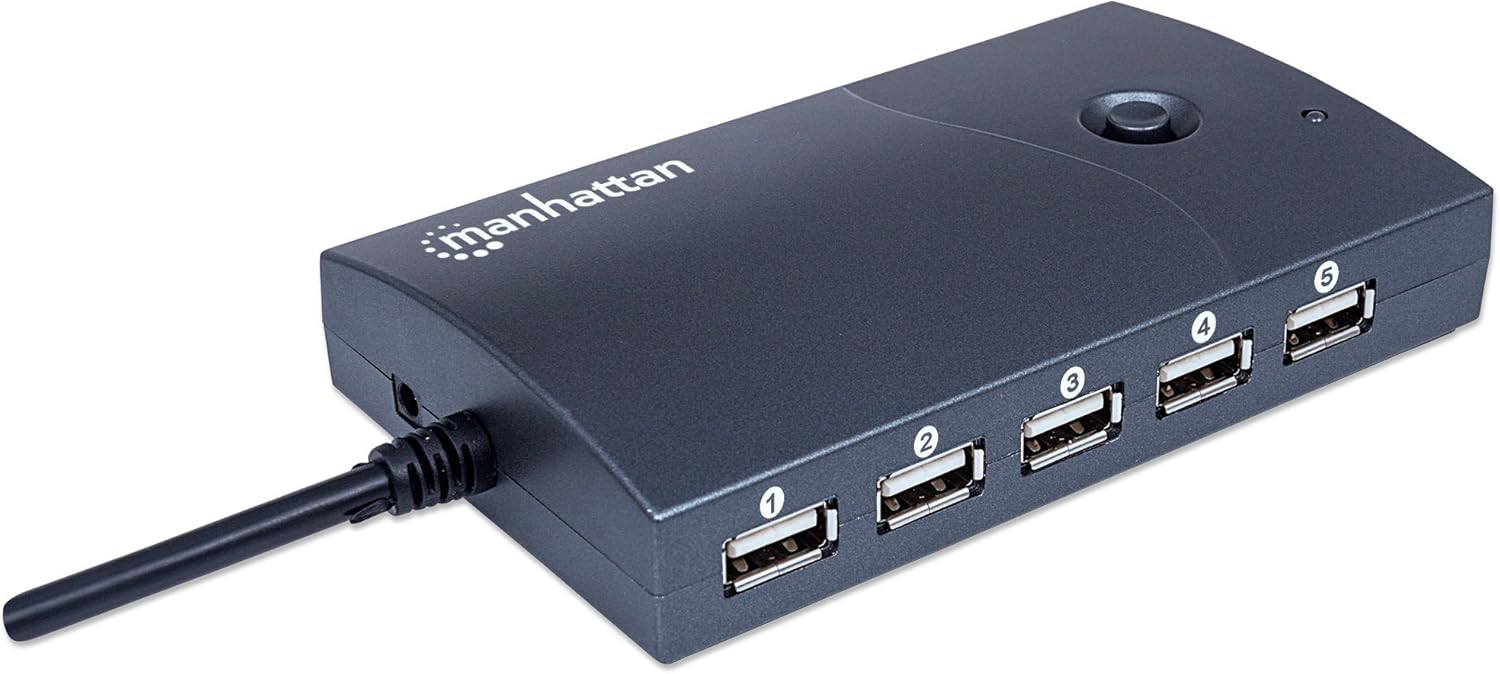
Aworan 4.1: Ẹyin view of the hub, indicating the power input port.

Image 4.2: The hub connected to a computer using the supplied USB cable.
5. Awọn ilana Iṣiṣẹ
Using your Manhattan 13-Port USB 2.0 Hub is straightforward:
- Standard USB Ports (1-9): These ports are suitable for connecting most USB peripherals that require data transfer and standard power. Simply plug your device into an available port.
- High-Power Charging Ports (10-13): These four ports are designed for faster charging of mobile devices. They are identifiable by a lightning bolt icon next to the port. To activate these high-power charging ports, press the dedicated button located on the top of the hub. An indicator light will illuminate when these ports are active.
- Isakoso Agbara: The external power adapter ensures that all connected devices receive sufficient power. Avoid connecting devices that collectively exceed the hub's total power output (20W / 4A at 5V) to prevent instability.
- Gbigbe Data: The hub operates at USB 2.0 speeds (up to 480 Mbps). While suitable for most peripherals, for maximum speed with USB 3.0 or higher devices, connect them directly to your computer's native USB 3.0+ ports if available.

Image 5.1: Detail of the high-power charging ports, indicated by the lightning bolt symbol.
6. Itọju
To ensure the longevity and proper functioning of your USB hub, follow these maintenance guidelines:
- Ninu: Disconnect the hub from power and your computer before cleaning. Use a soft, dry, lint-free cloth to wipe the exterior. Do not use liquid cleaners, aerosols, or abrasive materials.
- Ibi ipamọ: Tí o kò bá lò ó fún ìgbà pípẹ́, tọ́jú ibi ìtọ́jú náà sí ibi gbígbẹ tí ó tutù, tí kò sí ìmọ́lẹ̀ oòrùn tààrà tàbí ooru tó le koko.
- Awọn ipo Ayika: Avoid exposing the hub to moisture, dust, or corrosive environments.
- Iṣakoso USB: Ensure cables are not kinked, pinched, or under excessive strain to prevent damage to the cables and ports.
7. Laasigbotitusita
If you encounter issues with your Manhattan 13-Port USB 2.0 Hub, refer to the following common problems and solutions:
| Isoro | Owun to le Fa | Ojutu |
|---|---|---|
| Hub or connected device not recognized. |
|
|
| Devices are charging slowly or not at all. |
|
|
| Awọn iyara gbigbe data lọra. |
|
|
If the problem persists after trying these solutions, please contact Manhattan customer support for further assistance.
8. Awọn pato
| Nọmba awoṣe | 162463 |
| Brand | Manhattan |
| Standard USB | USB 2.0 |
| Nọmba ti Ports | 13 (9 standard, 4 high-power charging) |
| Data Gbigbe Oṣuwọn | Titi di 480 Mbps |
| Agbara Input | 5V DC, 4A (via included power adapter) |
| High-Power Charging Output | Up to 2.4A per port (for dedicated charging ports) |
| Awọn iwọn (L x W x H) | 12.1 x 2.5 x 7.1 cm (4.76 x 0.98 x 2.8 inches) |
| Iwọn | 147.42 g (0.32 lbs) |
| Àwọ̀ | Dudu |
| Ibamu System isẹ | Windows, macOS |
9. Atilẹyin ọja ati Support
Manhattan products are designed to meet high-quality standards. For information regarding warranty coverage, technical support, or to register your product, please visit the official Manhattan webaaye tabi kan si alagbata agbegbe rẹ. Tọju iwe-ẹri rira rẹ bi ẹri rira.
Atilẹyin Ayelujara: For the latest product information, drivers, and support, please visit www.manhattanproducts.com/support (This is a placeholder URL, please refer to your product packaging for the actual support webaaye).


