Ọrọ Iṣaaju
The Logitech M337 Wireless Bluetooth Mouse is a compact and portable input device designed for use with virtually any Bluetooth-enabled computer, laptop, or tablet. It offers a comfortable curved shape, precise optical tracking, and a long battery life, making it ideal for on-the-go productivity across various operating systems including Mac, Windows, Chrome OS, and Android.
Ṣeto
Ohun ti o wa ninu Apoti
- Logitech M337 Wireless Bluetooth Mouse
- 1 Batiri AA (ti a ti fi sii tẹlẹ tabi pẹlu lọtọ)
- Akosile olumulo
Fifi sori batiri
- Wa yara batiri ni isalẹ ti Asin.
- Ṣii ideri iyẹwu batiri naa.
- Fi batiri AA ti o wa ninu sii, ki o rii daju pe polarity ti o tọ (+/-).
- Pa ideri batiri naa ni aabo.
Asopọ Bluetooth
The M337 mouse connects wirelessly via Bluetooth, freeing up USB ports. Follow these steps to pair your mouse with your device:
- Turn on the mouse using the On/Off switch located on the underside. The LED indicator on the top of the mouse should start blinking rapidly, indicating it's in pairing mode. If not, press and hold the Bluetooth connect button (usually near the battery compartment or on the top, below the scroll wheel) until the LED blinks.
- On your computer, laptop, or tablet, navigate to the Bluetooth settings:
- Windows: Go to Start > Settings > Devices > Bluetooth & other devices. Turn Bluetooth On, then click "Add Bluetooth or other device" and select "Bluetooth".
- MacOS: Go to Apple menu > System Preferences > Bluetooth. Ensure Bluetooth is On.
- Chrome OS: Click the status area (bottom right) > Bluetooth > Enable Bluetooth.
- Android: Go to Settings > Connected devices > Connection preferences > Bluetooth. Turn Bluetooth On.
- In the Bluetooth device list, select "Logitech M337" or a similar name.
- Follow any on-screen prompts to complete the pairing process. The LED indicator on the mouse will turn solid blue for a few seconds and then turn off once successfully connected.
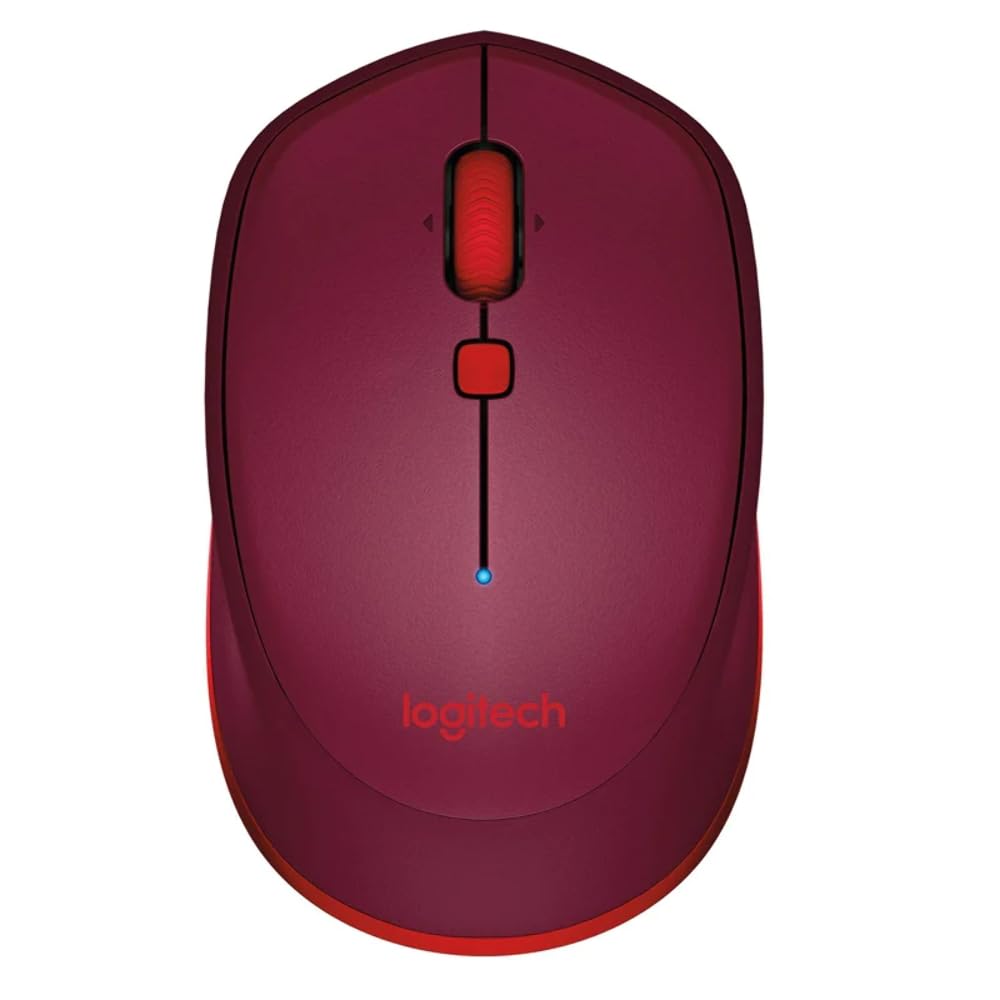
This image displays the Logitech M337 Wireless Bluetooth Mouse from a top-down perspective, highlighting its compact design, the red scroll wheel, and the central navigation button. The Logitech logo is visible at the bottom.
Ṣiṣẹ Asin
Awọn iṣẹ ipilẹ
- Tẹ osi: Primary button for selecting items and interacting with software.
- Tẹ-ọtun: Bọtini keji fun awọn akojọ aṣayan ọrọ ati awọn aṣayan afikun.
- Yi lọ Kẹkẹ: Yi lọ si oke tabi isalẹ nipasẹ awọn iwe aṣẹ ati web awọn oju-iwe.
- Kẹ̀kẹ́ ìtẹ̀sí: Tilt the scroll wheel left or right for horizontal scrolling (if supported by software).
- Bọtini lilọ kiri: The button located below the scroll wheel. By default, this button can be configured to perform various functions, such as opening the task view on Windows or Mission Control on Mac. Customization is available through Logitech Options software.
Itunu ati Gbigbe
The M337 features a comfortable curved shape with rubber grips, designed for extended use by both right and left-handed users. Its compact size allows for easy portability, fitting conveniently into laptop bags or pockets.

An angled view of the Logitech M337 mouse, showcasing its comfortable curved shape and the textured rubber grips on the sides, designed for both right and left-handed users.
Itoju
Batiri Rirọpo
The Logitech M337 mouse boasts an average battery life of up to 19 months. When the battery is low, the LED indicator on the mouse may blink red. To replace the battery, follow the battery installation steps outlined in the Setup section.
Ninu
To maintain optimal performance and hygiene, periodically clean your mouse:
- Lo asọ asọ, ti ko ni lint die-die dampened pẹlu omi tabi kan ìwọnba ninu ojutu.
- Yẹra fun lilo awọn kẹmika lile, awọn olutọpa abrasive, tabi wọ inu asin sinu omi.
- Fi ọwọ́ rẹ nu ojú eku náà pẹ̀lú pẹ̀lẹ́pẹ̀lẹ́, kí o sì kíyèsí àwọn ibi tí ọwọ́ rẹ bá ń kan ara rẹ nígbà gbogbo.
- Fún sensọ̀ opitika, lo aṣọ owú gbígbẹ láti yọ eruku tàbí ìdọ̀tí kúrò pẹ̀lú ìṣọ́ra.
Laasigbotitusita
Awọn oran Asopọmọra
- Asin ko sopọ: Rii daju pe Asin wa ni titan ati pe batiri naa ni idiyele to. Tun bẹrẹ ipo sisopọ lori Asin ki o tun ṣe ayẹwo fun awọn ẹrọ Bluetooth lori kọnputa rẹ.
- Asopọmọra igba diẹ: Move the mouse closer to your device. Ensure there are no large metal objects or other wireless devices causing interference between the mouse and your computer.
- Bluetooth not found on computer: Verify that your computer's Bluetooth is enabled and its drivers are up to date.
Ipasẹ Awọn iṣoro
- Gbigbe kọsọ alaiṣe: Clean the optical sensor on the underside of the mouse. Ensure you are using the mouse on a clean, non-reflective, and uniform surface.
- Ko si iṣipopada kọsọ: Check battery level. Ensure the mouse is properly paired.
Awọn Ọrọ miiran
- Awọn bọtini ko dahun: Check battery. If using Logitech Options software, ensure button assignments are correct.
- Scroll wheel not working: Clean around the scroll wheel to remove any debris.
Awọn pato
| Ẹya ara ẹrọ | Ẹ̀kúnrẹ́rẹ́ |
|---|---|
| Brand | Logitech |
| Nọmba awoṣe | M337 |
| Asopọmọra Technology | Bluetooth |
| Imọ-ẹrọ Iwari išipopada | Opitika |
| Àwọ̀ | Pupa |
| Orisun agbara | Battery Powered (1 AA battery) |
| Apapọ batiri Life | Titi di oṣu 19 |
| Ibamu System isẹ | Android, Chrome OS, Mac, Windows |
| Awọn iwọn Nkan (LxWxH) | 18.6 x 12.6 x 8.3 cm |
| Iwọn Nkan | 82 g |
Atilẹyin ọja ati Support
Alaye atilẹyin ọja
The Logitech M337 Wireless Bluetooth Mouse typically comes with a Atilẹyin Ohun elo Hardware Ọdun 1 lati ọjọ ti o ra. Jọwọ ṣe idaduro ẹri rira rẹ fun awọn iṣeduro atilẹyin ọja. Atilẹyin ọja ni wiwa awọn abawọn ninu awọn ohun elo ati iṣẹ-ṣiṣe labẹ lilo deede.
Onibara Support
Fun iranlọwọ siwaju, atilẹyin imọ-ẹrọ, tabi awọn iṣeduro atilẹyin ọja, jọwọ ṣabẹwo si atilẹyin Logitech osise website or contact their customer service. You can usually find detailed FAQs, troubleshooting guides, and driver downloads on their webojula.
Logitech Atilẹyin Webojula: support.logi.com


