LEFON Multifunction Digital FM Radio Media Speaker MP3 Music Player
Model: Y618 Radio
Ọrọ Iṣaaju
This manual provides detailed instructions for the operation and maintenance of your LEFON Multifunction Digital FM Radio Media Speaker. This device combines an FM radio, MP3 music player, and speaker into a compact, portable unit, supporting various audio sources including TF cards, USB drives, and AUX input. Please read this manual thoroughly before use to ensure proper functionality and longevity of your device.

The LEFON Multifunction Digital FM Radio Media Speaker, showcasing its front panel with LED display, control buttons, and dual speakers.
Ọja Awọn ẹya ara ẹrọ
- Iṣẹ Redio FM: Enjoy clear reception of FM radio stations with an extendable antenna.
- Didara Ohun Didara: Equipped with dual speakers for rich and clear stereo sound.
- Erọ orin MP3: Supports playback from TF (Micro SD) cards and USB flash drives.
- Iṣawọle AUX: Connect external audio devices via the 3.5mm AUX jack.
- Ifihan Iboju LED: Large, easy-to-read LED screen for displaying frequency, track information, and time.
- Batiri gbigba agbara: Built-in 1200mAh Li-ion battery provides 6-12 hours of playtime.
- Timing Shutdown Function: Set an auto-off timer for convenient use, especially for falling asleep.
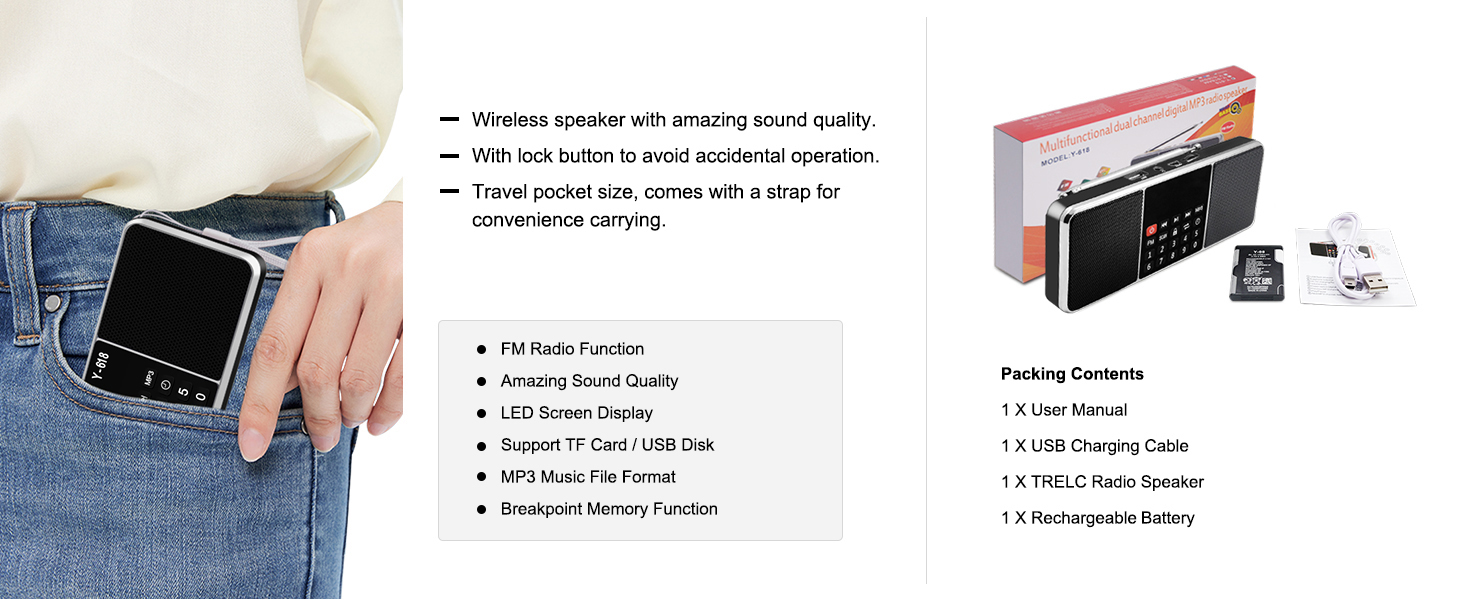
- Iwapọ ati Gbigbe: Lightweight design with a strap for easy carrying.

Illustration of the dual speaker system providing stereo surround sound.

Ohun exploded view demonstrating the internal components of the speaker for superior sound.
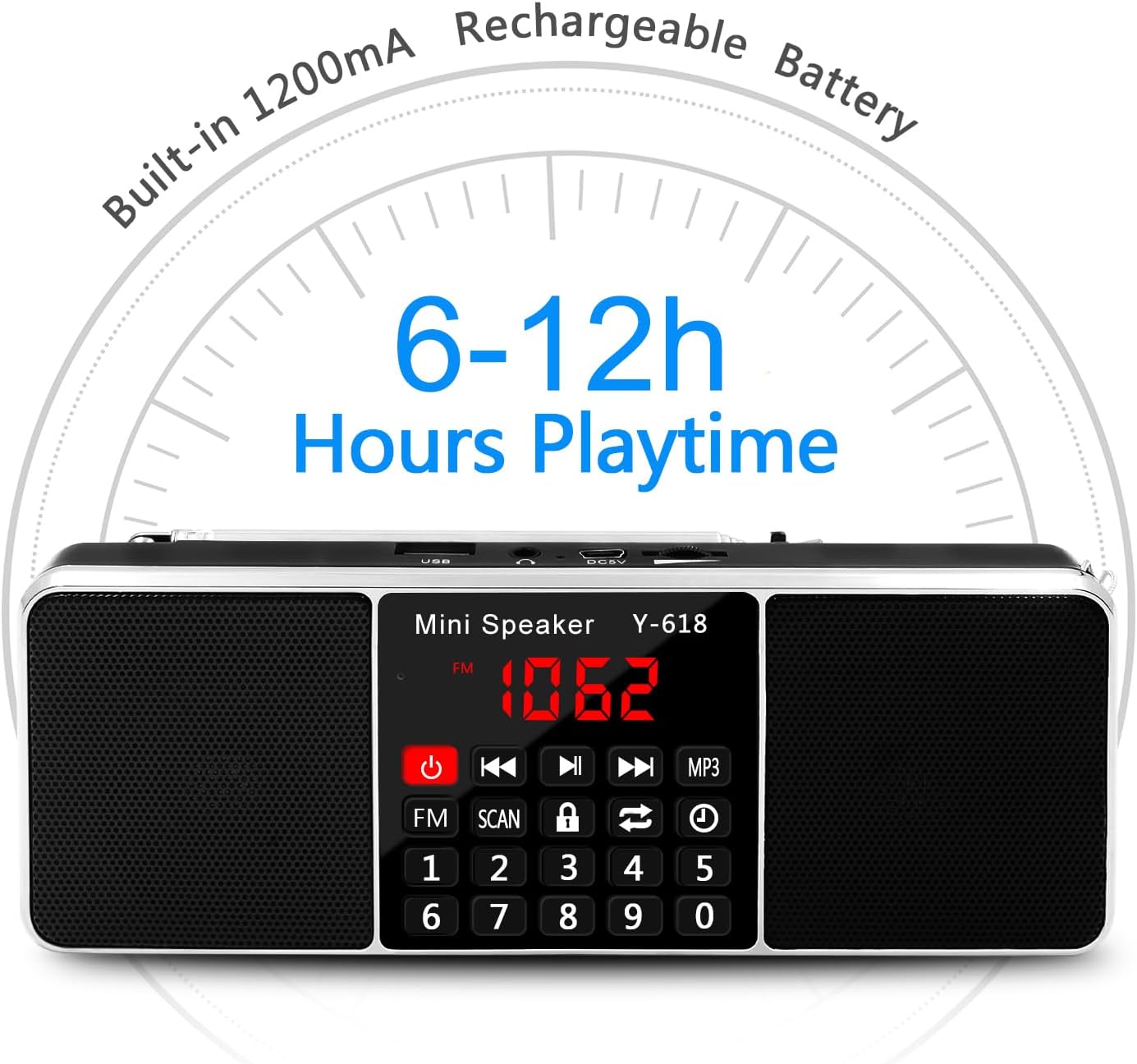
Visual representation of the built-in 1200mAh rechargeable battery, offering 6-12 hours of playtime.
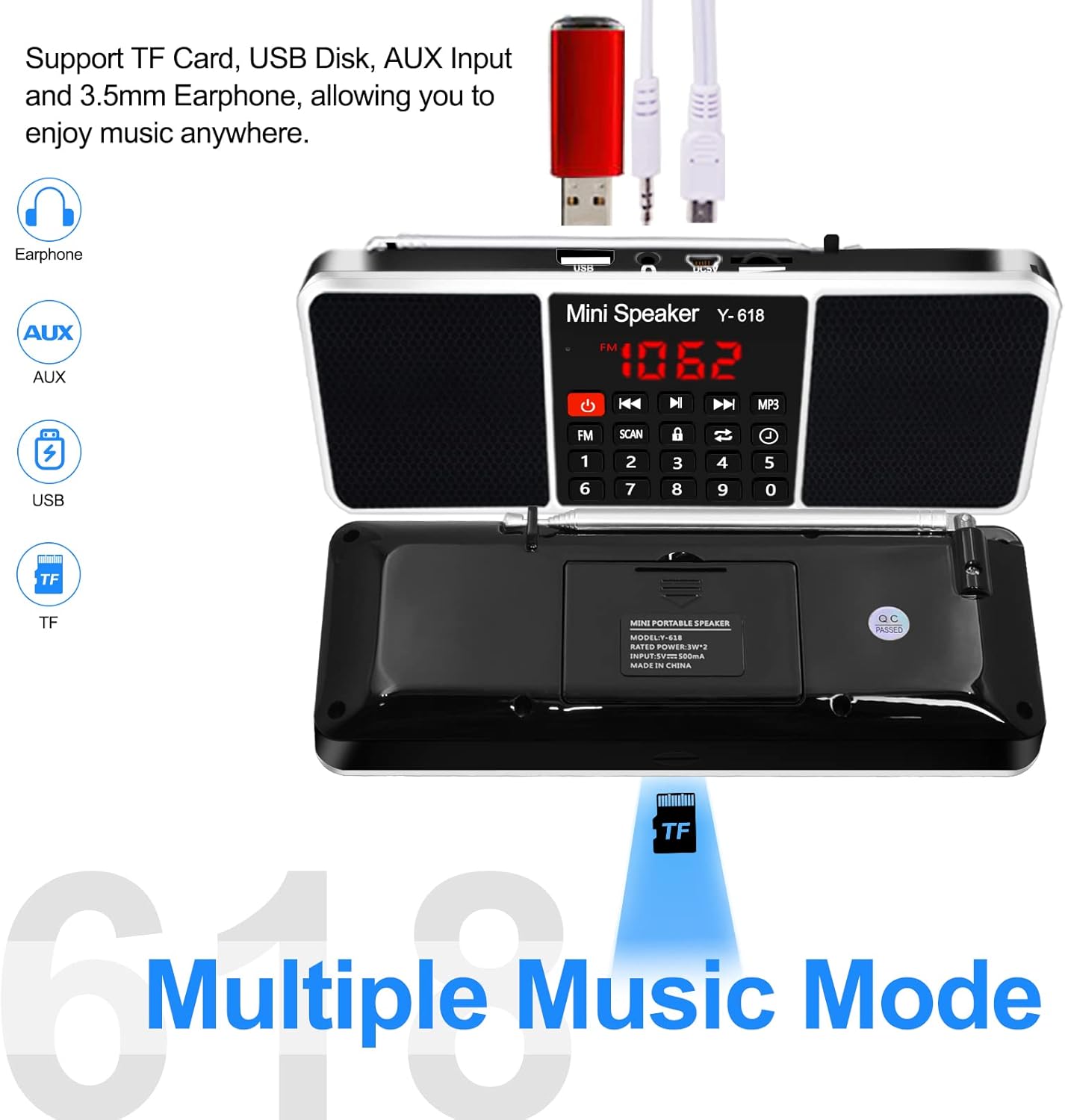
Diagram showing support for TF Card, USB Disk, AUX Input, and 3.5mm Earphone connectivity.
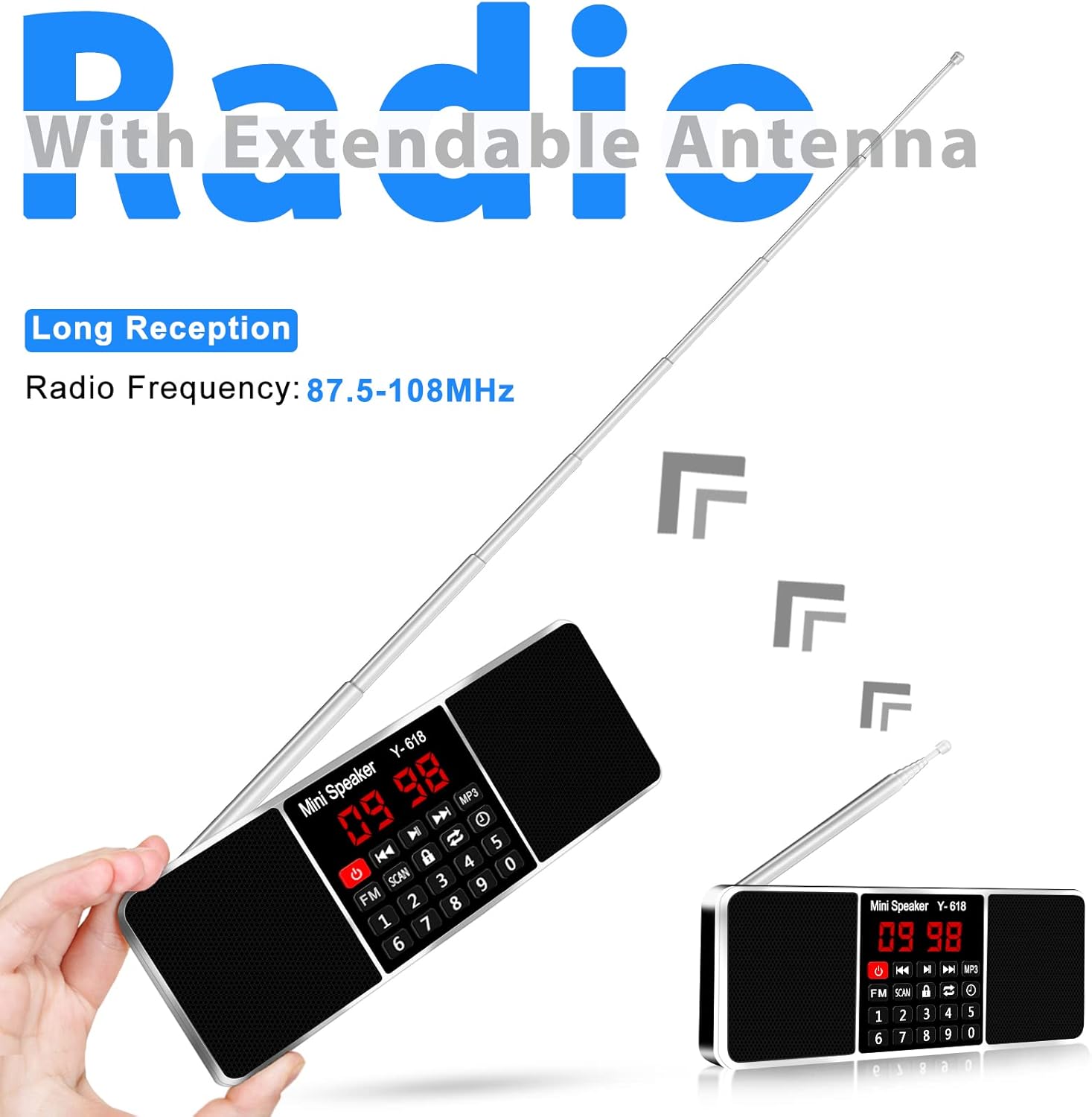
The device with its extendable antenna, highlighting its long reception capabilities for FM radio.
Close-up of the large LED screen display, convenient for use at night.
Ṣeto
Ngba agbara si Batiri naa
The device comes with a built-in rechargeable Li-ion battery. Before first use, fully charge the battery.
- Connect the provided USB cable to the DC5V port on the speaker.
- So opin keji okun USB pọ mọ adapter agbara USB 5V/1A (ko si ninu rẹ) tabi ibudo USB kọmputa kan.
- The charging indicator light will illuminate during charging and change color or turn off when charging is complete.
Akiyesi: A full charge typically takes a few hours. Battery life varies depending on volume level and usage.
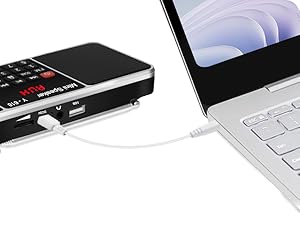
The radio connected to a laptop via USB for charging.
Awọn ilana Iṣiṣẹ
Titan / Paa
- Tẹ mọlẹ Bọtini agbara (
 ) lati tan tabi pa ẹrọ naa.
Iṣakoso iwọn didun
- Use the dedicated volume up (+) and volume down (-) buttons to adjust the audio level.
FM Radio isẹ
- Yipada si Ipo FM: Tẹ awọn Bọtini FM to switch to FM radio mode. The LED display will show the current FM frequency.
- Auto-Scan and Store Stations: Tẹ mọlẹ Bọtini ọlọjẹ (
 ) for approximately 3 seconds. The radio will automatically scan for available FM stations and store them as presets. The frequency numbers on the display will jump during scanning. Do not perform other operations during this process.
 - Manual Tuning/Preset Selection: Use the number pad (0-9) to directly input a frequency or a preset station number. Alternatively, use the Previous/Next track buttons to cycle through stored stations or fine-tune the frequency.
- Atunṣe Antenna: Extend the telescopic antenna fully for optimal FM reception. Adjust its angle and position if reception is weak.
MP3 Music Player Operation (TF Card / USB Drive)
- Fi Media sii: Insert a TF (Micro SD) card or a USB flash drive containing MP3 audio files into the respective slot. The device will automatically switch to MP3 playback mode.
- Ṣiṣẹ/Daduro: Tẹ awọn Bọtini ṣiṣẹ/Sinmi lati bẹrẹ tabi da idaduro ṣiṣiṣẹsẹhin.
- Itele / Tẹlẹ Orin: Tẹ awọn Next Track or Ti tẹlẹ Track buttons to skip between songs.
- Tun/Dapọ: Tẹ awọn Repeat/Shuffle button (
 ) to cycle through playback modes (e.g., repeat one, repeat all, shuffle).
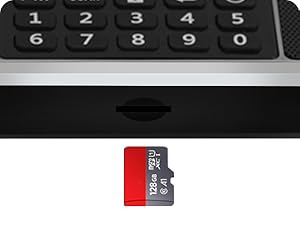
Close-up of the TF (Micro SD) card slot.

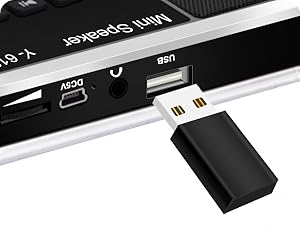
A USB flash drive inserted into the USB port for MP3 playback.
Apọju AX
- Connect an external audio device (e.g., smartphone, tablet) to the AUX input jack using a 3.5mm audio cable (not included). The speaker will automatically switch to AUX mode.
- Control playback and volume from the connected external device.
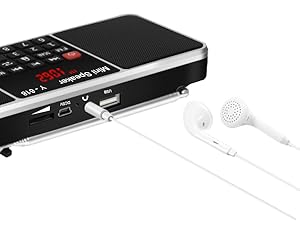
Earphones connected to the 3.5mm audio jack for private listening.
Timing Shutdown Function (Sleep Timer)
- Tẹ awọn Bọtini aago () repeatedly to cycle through available sleep timer settings (e.g., 15 minutes, 30 minutes, 60 minutes, up to 240 minutes).
- The device will automatically turn off after the selected time period.
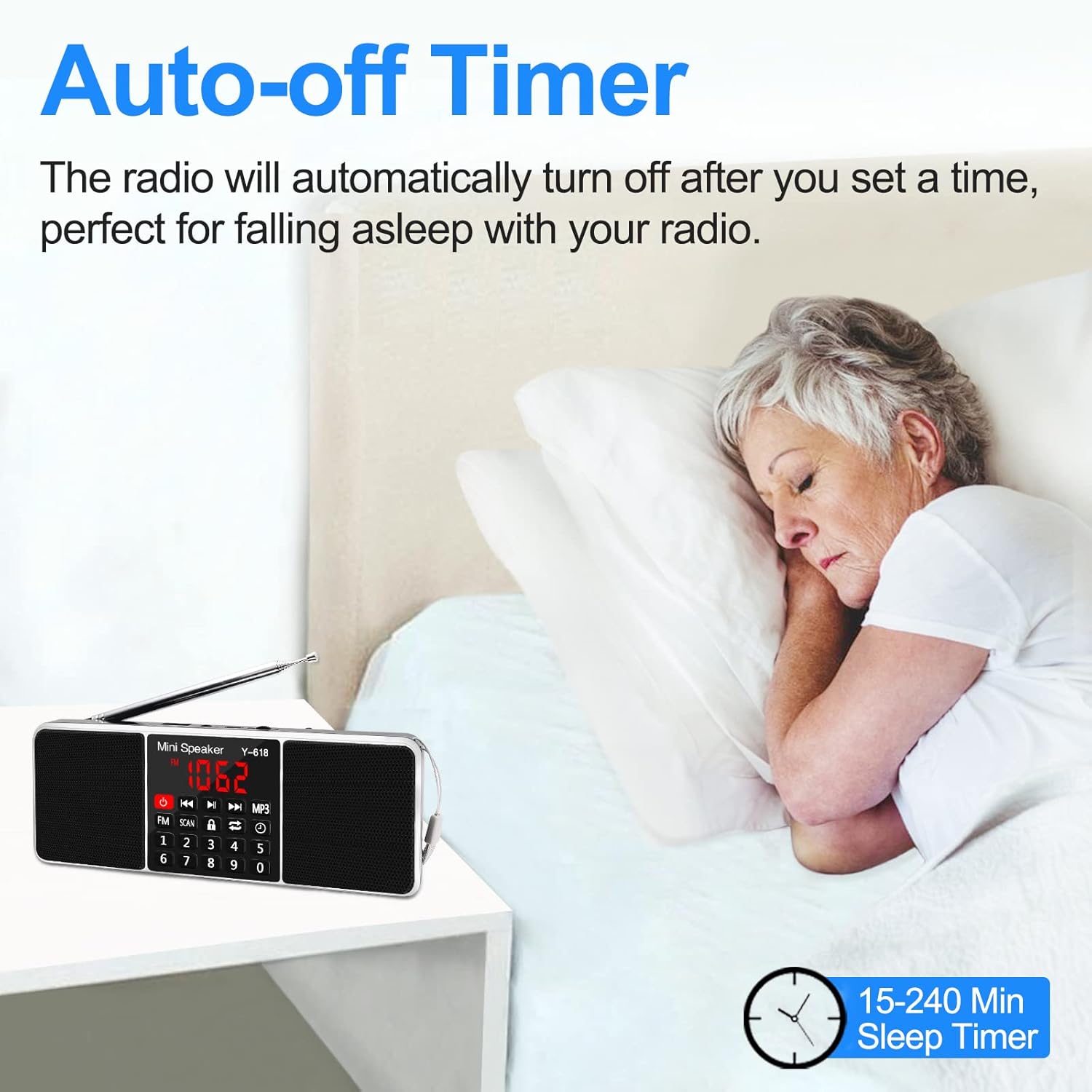
The auto-off timer feature, ideal for falling asleep while listening to the radio.
Iṣẹ Titiipa
- Tẹ awọn Bọtini titiipa (
 ) to lock the buttons and prevent accidental operation. Press it again to unlock.
Itoju
- Ninu: Use a soft, dry cloth to clean the surface of the device. Do not use abrasive cleaners or solvents.
- Ibi ipamọ: Nigbati o ko ba wa ni lilo fun awọn akoko ti o gbooro sii, tọju ẹrọ naa ni itura, aye gbigbẹ kuro lati orun taara ati awọn iwọn otutu to gaju.
- Itọju Batiri: Láti mú kí batiri pẹ́ sí i, má ṣe jẹ́ kí batiri náà máa jáde nígbà gbogbo. Gba agbára ẹ̀rọ náà déédéé, kódà bí kò bá tiẹ̀ wà ní ìlò.
- Eriali: Mu eriali telescopic mu pẹlu iṣọra lati ṣe idiwọ atunse tabi fifọ.
Laasigbotitusita
If you encounter issues with your device, please refer to the following common solutions:
- Weak Radio Signals:
- Eriali: Try adjusting the antenna's length and angle for better reception.
- Awọn batiri: Weak batteries can affect signal strength. Ensure the radio is fully charged.
- Yiyi: Manually tune the radio slightly above or below the desired frequency to see if the signal improves.
- Ibi: Move the radio to a different location, preferably near a window or higher up, to improve signal reception. Avoid placing the radio near electronic devices that might cause interference.
- Cannot Play Songs from USB Drive / TF Card:
- File Ilana: Ṣe idaniloju ohun ohun files wa ni ọna kika MP3.
- USB/TF Card Condition: The USB port or TF card slot may be damaged or dirty. Try cleaning the port/slot or using a different USB drive/TF card to rule out issues with the current one.
- Ko le gba agbara:
- Please ensure you are using a 5V/1A adapter for charging. Check the USB cable for damage and try a different cable if necessary.
- How to Auto-Scan FM Channels:
- Tẹ awọn Bọtini FM to change to FM radio mode. The symbol "FM" will appear on the display screen.
- Completely pull out the radio antenna, then long press the Bọtini ọlọjẹ for over 3 seconds. The numbers on the display screen will jump up quickly from 87.5, indicating auto-scanning. Do not perform any other operations during this time.
- After 2-3 minutes, the product will finish scanning at 108.0. Once scanning is complete, it will automatically play the first channel found.

Visual representation of common troubleshooting steps for the radio.
Awọn pato
| Ẹya ara ẹrọ | Ẹ̀kúnrẹ́rẹ́ |
|---|---|
| Nọmba awoṣe | Y618 Radio |
| Ọja Mefa | 6.93 x 2.58 x 0.98 inches (17.6 x 6.55 x 2.49 cm) |
| Iwọn Nkan | 7.8 iwon (220 Giramu) |
| Asopọmọra Technology | USB |
| Tuner Technology | FM |
| Awọn ẹgbẹ Redio Atilẹyin | FM (87.5-108 MHz) |
| Orisun agbara | Battery Powered (Rechargeable Li-ion Battery) |
| Awọn irinše to wa | USB cable, Rechargeable Li-ion Battery |
| Olupese | LEFON |
| Ilu isenbale | China |
Atilẹyin ọja ati Support
For warranty information and customer support, please refer to the product packaging or contact the retailer where you purchased the device. Keep your purchase receipt as proof of purchase for any warranty claims.