Ọrọ Iṣaaju
This manual provides essential information for the installation, operation, maintenance, and troubleshooting of your NVIDIA 699-51030-0501-101 graphics card. This component is designed for desktop computer systems to enhance graphics processing capabilities. Please read this manual thoroughly before proceeding with installation or use.
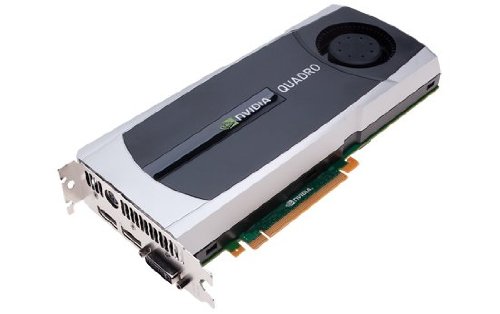
Image: NVIDIA 699-51030-0501-101 Graphics Card. This image displays the graphics card from an angled perspective, showing the cooling fan, heatsink, and the PCIe connector.
Awọn Itọsọna Aabo
Ṣe akiyesi awọn iṣọra aabo wọnyi lati yago fun ibajẹ si ọja tabi ipalara si ara rẹ:
- Máa yọ agbára kúrò lórí kọ̀ǹpútà rẹ kí o tó fi àwọn èròjà tàbí àwọn ohun èlò mìíràn sí i.
- Wọ okun ọwọ-atako-aimi tabi fi ọwọ kan ohun elo irin ti o wa lori ilẹ nigbagbogbo lati fi ina aimi silẹ.
- Mu kaadi eya aworan mu nipasẹ awọn egbegbe rẹ lati yago fun fifọwọkan awọn paati ifura.
- Rii daju pe fentilesonu to dara laarin ọran kọnputa rẹ lati ṣe idiwọ igbona pupọ.
- Jeki ọja naa kuro ni ọrinrin ati awọn iwọn otutu to gaju.
Ṣeto
1. Awọn Ayẹwo Ṣaaju Fifi sori ẹrọ
- Rí i dájú pé ẹ̀rọ ìpèsè agbára rẹ (PSU) ní omi tó tótage and appropriate connectors for the graphics card.
- Ensure your motherboard has an available PCI Express (PCIe) x16 slot.
- Confirm your computer case has adequate space for the graphics card dimensions.
- Kó àwọn irinṣẹ́ pàtàkì jọ: Phillips head screwdriver, okùn ọwọ́ tí kò dúró (a ṣeduro rẹ̀).
2. Hardware fifi sori
- Paa ati Ge asopọ: Pa kọmputa rẹ patapata ki o si yọọ okun agbara lati inu iṣan ogiri.
- Ẹran Ṣii: Yọ ẹgbẹ ẹgbẹ ti ọran kọnputa rẹ lati wọle si modaboudu.
- Wa PCIe Iho: Identify an available PCI Express x16 slot on your motherboard. This is typically the longest slot.
- Yọ Ideri Iho kuro: Remove the metal slot cover(s) from the back of your computer case corresponding to the PCIe slot you will use.
- Fi Kaadi Awọn aworan sii: Carefully align the graphics card with the PCIe slot. Press down firmly and evenly on both ends of the card until it is fully seated in the slot. You should hear a click from the retention clip.
- Kaadi to ni aabo: Secure the graphics card to the computer case using the screw(s) removed from the slot cover(s).
- Agbára Sopọ̀ (tí ó bá wúlò): If your graphics card requires additional power, connect the appropriate PCIe power cables from your PSU to the graphics card. This model (NVIDIA 699-51030-0501-101) may not require external power, but always check the card itself for connectors.
- Ọran pipade: Rọpo ẹgbẹ ẹgbẹ ti ọran kọnputa rẹ.
- Reconnect Peripherals: Reconnect your monitor cable to one of the display outputs on the new graphics card. Reconnect all other peripherals and the power cord.
3. Fifi sori awakọ
- Agbara Tan: Tan kọmputa rẹ.
- Ṣe igbasilẹ Awọn Awakọ: Lilö kiri si NVIDIA osise webAaye (www.nvidia.com/drivers) and download the latest drivers compatible with your NVIDIA 699-51030-0501-101 graphics card and operating system.
- Fi Awọn awakọ sii: Run the downloaded driver installer and follow the on-screen instructions. It is recommended to perform a clean installation if prompted.
- Tun bẹrẹ: Tun kọmputa rẹ bẹrẹ lẹhin fifi sori ẹrọ iwakọ naa ti pari.
Ṣiṣẹ
Once installed and drivers are updated, your NVIDIA 699-51030-0501-101 graphics card will automatically handle graphics processing for your system. You can verify its operation through your operating system's device manager or NVIDIA Control Panel.
- Igbimọ Iṣakoso NVIDIA: Access the NVIDIA Control Panel (usually via right-click on desktop or through Windows Control Panel) to adjust display settings, 3D settings, and monitor various aspects of your graphics card.
- Awọn imudojuiwọn Awakọ: Ṣayẹwo NVIDIA nigbagbogbo website for driver updates to ensure optimal performance and compatibility with new software and games.
Itoju
Itọju to dara ṣe idaniloju igbesi aye gigun ati iṣẹ ti o dara julọ ti kaadi awọn aworan rẹ.
- Yiyọ eruku kuro: Periodically (e.g., every 6-12 months), power off and unplug your computer. Open the case and use compressed air to gently clear dust from the graphics card's heatsink and fan. Hold the fan blades to prevent over-spinning during cleaning.
- Awọn ipo Ayika: Operate your computer in a clean, dry, and well-ventilated environment. Avoid extreme temperatures and humidity.
Laasigbotitusita
Ti o ba pade awọn ọran, tọka si awọn igbesẹ laasigbotitusita ti o wọpọ wọnyi:
- Ko si Abajade Ifihan:
- Rí i dájú pé okùn àtẹ̀lé náà so mọ́ káàdì àwòrán àti àtẹ̀lé náà dáadáa.
- Verify the monitor is set to the correct input source.
- Check if the graphics card is fully seated in its PCIe slot.
- If applicable, ensure all PCIe power connectors are securely attached.
- Ṣe idanwo pẹlu atẹle oriṣiriṣi tabi okun ti o ba ṣeeṣe.
- Awọn ọran Awakọ:
- Reinstall the latest drivers from the NVIDIA webojula.
- Try rolling back to a previous driver version if issues started after an update.
- Use Display Driver Uninstaller (DDU) in Safe Mode to completely remove old drivers before installing new ones.
- Awọn Iṣoro Iṣe-ṣiṣe (FPS kekere, Ikọlu):
- Rii daju pe awọn awakọ ti wa ni imudojuiwọn.
- Check for overheating using monitoring software (e.g., MSI Afterburner, HWMonitor). Clean dust if necessary.
- Verify that your system meets the minimum requirements for the applications or games you are running.
- Check power supply unit (PSU) wattage; an insufficient PSU can cause performance issues.
- System Instability (Crashes, Blue Screens):
- Check for driver conflicts or corruption.
- Monitor temperatures to rule out overheating.
- Ensure the graphics card is properly seated and secured.
- Ṣiṣẹ awọn irinṣẹ ayẹwo iranti lati ṣayẹwo fun awọn iṣoro Ramu.
Imọ ni pato
Key specifications for the NVIDIA 699-51030-0501-101 graphics card:
| Nọmba awoṣe | NVIDIA 699-51030-0501-101 |
| Brand | NVIDIA |
| Olupilẹṣẹ Graphics | NVIDIA 699-51030 |
| Eya isise isise | NVIDIA |
| Awọn ẹrọ ibaramu | Ojú-iṣẹ |
| ASIN | B01NBI92VC |
| Ọjọ Akọkọ Wa | Oṣu kejila ọjọ 8, ọdun 2016 |
Atilẹyin ọja ati Support
This NVIDIA graphics card is covered by the manufacturer's standard warranty. For specific warranty terms, duration, and to register your product, please refer to the official NVIDIA website or contact NVIDIA customer support directly.
For technical assistance, driver downloads, and further support resources, visit the official NVIDIA support portal:
- NVIDIA atilẹyin: www.nvidia.com/support


