Ọrọ Iṣaaju
The SanDisk iXpand Mini Flash Drive is designed to provide additional storage and easy file transfer between your iPhone, iPad, and computers. Featuring both a Lightning connector and a USB 3.0 connector, this compact device simplifies backing up photos, videos, and other files, freeing up space on your mobile devices.

Image: The SanDisk iXpand Mini Flash Drive, showcasing its dual-connector design with a Lightning connector on one end and a USB 3.0 connector on the other, enabling versatile connectivity.
Ṣeto
- Download the iXpand Drive App: For iPhone and iPad, download the free SanDisk iXpand Drive app from the Apple App Store. This app is essential for managing files, backing up content, and utilizing the drive's features.
- Connect to iPhone/iPad: Plug the Lightning connector of the iXpand Mini Flash Drive directly into your iPhone or iPad's Lightning port. The iXpand Drive app should launch automatically. If not, open it manually.
- Sopọ si Kọmputa: Plug the USB 3.0 connector of the iXpand Mini Flash Drive into an available USB port on your Mac or PC. The drive will appear as a removable storage device.

Aworan: A sunmọ-soke view of the SanDisk iXpand Mini Flash Drive with its Lightning connector inserted into an iPhone, demonstrating direct mobile device connectivity.
Awọn ilana Iṣiṣẹ
File Transfer (iPhone/iPad to iXpand Drive)
- Open the iXpand Drive app on your iOS device.
- Select the option to 'Copy Files' or 'Backup Photos'.
- Choose the photos, videos, or other files ti o fẹ lati gbe.
- Confirm the transfer to the iXpand Mini Flash Drive.
File Transfer (iXpand Drive to Computer)
- Plug the USB 3.0 connector into your computer.
- Open the drive folder (e.g., 'iXpand Drive' or 'Removable Disk').
- Fa ati ju silẹ files from the iXpand Drive to your computer, or vice versa.
Playing Media Directly from Drive
O le mu media ṣiṣẹ files (photos, videos, music) stored on the iXpand Mini Flash Drive directly from the iXpand Drive app on your iPhone or iPad without transferring them to the device's internal storage.

Image: The SanDisk iXpand Mini Flash Drive with both its Lightning and USB 3.0 connectors extended, illustrating its readiness for connection to various devices.
Itoju
- Dáàbò bo àwọn asopọ̀: Always ensure the connectors are retracted or covered when not in use to prevent dust, dirt, or damage.
- Yiyọ kuro lailewu: Always safely eject the drive from your computer before unplugging it to prevent data corruption. For iOS devices, simply unplugging is generally safe after transfers are complete.
- Yago fun awọn ipo to gaju: Má ṣe fi ìwakọ̀ náà hàn sí àwọn iwọn otutu tó le koko, ọrinrin, tàbí àwọn pápá mànàmáná tó lágbára.
- Awọn Afẹyinti deede: While the iXpand Mini is great for transfers, it is recommended to regularly back up critical data to multiple locations (e.g., cloud storage, computer hard drive) for maximum security.
Laasigbotitusita
- Drive Not Recognized (iOS): Ensure the iXpand Drive app is installed and updated. Try unplugging and re-plugging the drive. Restart your iOS device if the issue persists.
- Drive Not Recognized (PC/Mac): Ensure the USB connector is fully inserted. Try a different USB port. Check your computer's Disk Management (Windows) or Disk Utility (Mac) to see if the drive is detected but unformatted.
- Awọn iyara Gbigbe lọra: Ensure you are using a USB 3.0 port on your computer for optimal speeds. Large file transfers may naturally take longer.
- Awọn ọrọ App: If the iXpand Drive app crashes or behaves unexpectedly, try force-closing and reopening it. Ensure your iOS is up to date.
Awọn pato
| Ẹya ara ẹrọ | Ẹ̀kúnrẹ́rẹ́ |
|---|---|
| Nọmba awoṣe | SDIX40N-128G-GN6NE |
| Agbara ipamọ | 128 GB |
| Asopọmọra Technology | USB, Imọlẹ |
| Ni wiwo Hardware | USB 3.0, Lightning |
| Ka Iyara | Titi di 45 MB / s |
| Kọ Iyara | Titi di 60 MB / s |
| Hardware Platform | Mac, PC, iPhone, iPad |
| Iwọn Nkan | 0.159 iwon |
| Ọja Mefa | 0.48 x 2.09 x 0.18 inches |
| Pataki Ẹya | Ìwúwo Fúyẹ́ |
| UPC | 619659153113 |
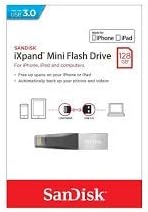
Image: The retail packaging for the SanDisk iXpand Mini Flash Drive, highlighting its USB 3.0 compatibility and suitability for iPhone and iPad devices.
Atilẹyin ọja ati Support
SanDisk products typically come with a limited warranty. Please refer to the warranty information included with your product packaging or visit the official SanDisk website for detailed warranty terms and conditions. For technical support, product registration, or frequently asked questions, please visit the SanDisk support portal online.
For additional information or assistance, you may visit the SanDisk Store on Amazon.


