1. Ifihan
Thank you for choosing the Logitech MK275 Wireless Keyboard and Mouse Set. This combo provides a reliable 2.4 GHz wireless connection, offering convenience and efficiency for your computing needs. The full-size keyboard features quiet, low-profile keys and dedicated multimedia controls, while the compact mouse ensures comfortable and precise navigation. This manual will guide you through the setup, operation, and maintenance of your new wireless set.

Image: The Logitech MK275 Wireless Keyboard and Mouse Set, showcasing both devices.
2. Package Awọn akoonu
Rii daju pe gbogbo awọn nkan wa ninu apo rẹ:
- Keyboard Alailowaya Logitech MK275
- Asin Alailowaya Logitech
- Olugba Nano USB
- Akosile olumulo
- AA and AAA Batteries (pre-installed or included)

Image: The USB Nano Receiver, typically found within the product packaging or a dedicated slot.
3. Eto Itọsọna
3.1. Fifi sori batiri
The keyboard requires two AAA batteries, and the mouse requires one AA battery. Batteries are typically included with the product. If not already installed, open the battery compartments on the underside of both the keyboard and mouse, insert the batteries according to the polarity indicators (+/-), and close the compartments. Remove any plastic pull tabs if present.
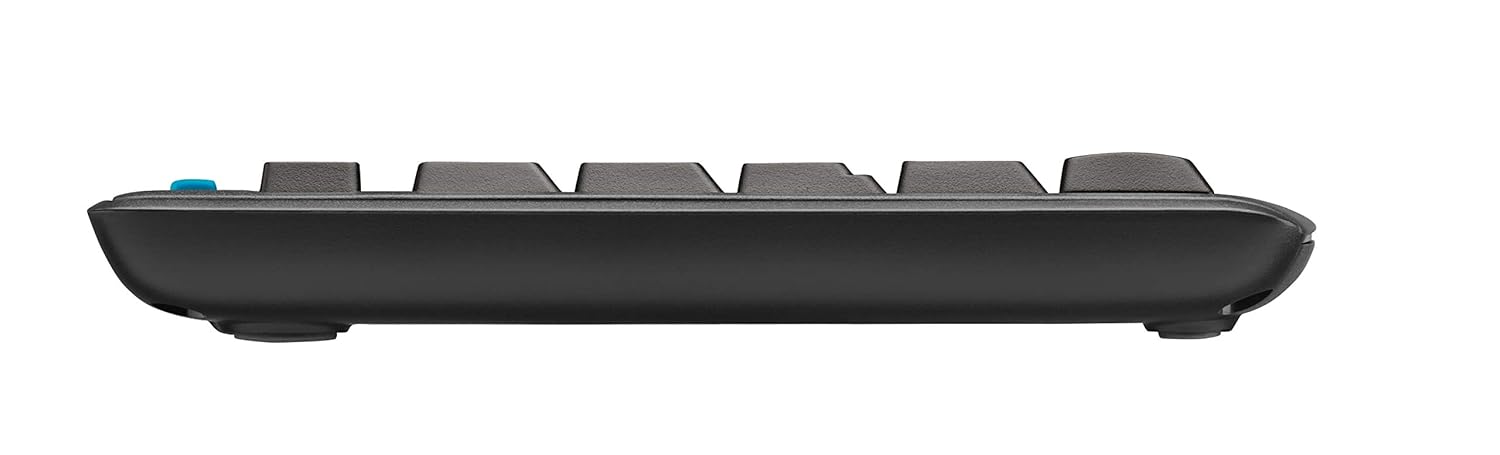
Aworan: Ẹgbẹ profile of the keyboard, showing its slim design and indicating the location of the battery compartment on the underside.
3.2. Nsopọ Olugba
The Logitech MK275 uses a single USB Nano Receiver for both the keyboard and mouse. This allows you to use only one USB port on your computer.
- Locate the USB Nano Receiver. It is small and designed to be left in your computer.
- Plug the USB Nano Receiver into an available USB port on your desktop PC or laptop.
- Turn on the keyboard and mouse using their respective On/Off switches, usually located on the underside of each device.
- Your computer should automatically detect and install the necessary drivers. No software installation is typically required for Windows XP, Vista, Windows 7, and Windows 8.
4. Awọn ilana Iṣiṣẹ
4.1. Ipilẹ Lilo
Once the USB Nano Receiver is connected and the devices are powered on, your keyboard and mouse are ready for immediate use. The 2.4 GHz wireless connection provides a strong and reliable signal, minimizing lag and interference.
4.2. Multimedia ati Awọn bọtini Ọna abuja
The Logitech MK275 keyboard features 8 convenient multimedia and shortcut keys located above the function keys (F1-F12). These keys provide quick access to frequently used functions:
- Ile: Ṣii aiyipada rẹ web ojú ìwé àkọ́kọ́ ẹ̀rọ aṣàwárí náà.
- Imeeli: Launches your default email client.
- PC orun: Ó fi kọ̀ǹpútà rẹ sí ipò oorun.
- Pa ẹnu mọ́: Ó pa ohùn rẹ́ tàbí ó yọ ohùn kúrò.
- Iwọn didun isalẹ: Din iwọn didun ohun silẹ.
- Iwọn didun Up: Ṣe alekun iwọn didun ohun.
- Ṣiṣẹ/Daduro: Ṣiṣakoso ṣiṣiṣẹsẹhin media.
- Ẹrọ iṣiro: Opens the calculator application.

Image: The Logitech MK275 keyboard, highlighting the dedicated multimedia and shortcut keys for quick access to common functions.
5. Itọju ati Itọju
To ensure the longevity and optimal performance of your Logitech MK275 set, follow these maintenance guidelines:
- Ninu: Lo asọ asọ, ti ko ni lint die-die dampened with water or a mild cleaning solution to clean the surfaces of the keyboard and mouse. Avoid harsh chemicals or abrasive materials.
- Atako Idasonu: The keyboard is designed to be spill-resistant. In case of accidental spills, immediately turn off the keyboard, disconnect it, and allow it to dry completely before reuse. Do not immerse the keyboard in liquid.
- Igbesi aye batiri: The keyboard offers up to 24 months of battery life, and the mouse up to 12 months. Battery life may vary based on usage. Replace batteries when performance degrades.
- Ibi ipamọ: When not in use for extended periods, turn off both the keyboard and mouse to conserve battery life. Store the USB Nano Receiver in the dedicated slot within the mouse (if available) or in a safe place to prevent loss.
- Ayika: Avoid exposing the devices to extreme temperatures, direct sunlight, or high humidity.
6. Laasigbotitusita
If you encounter issues with your Logitech MK275 set, try the following solutions:
- Ko si Asopọ / aisun:
- Ensure the USB Nano Receiver is securely plugged into a working USB port.
- Verify that both the keyboard and mouse are turned on.
- Replace the batteries in both devices. Low battery can cause connection issues.
- Move the keyboard and mouse closer to the receiver. The effective range is approximately 10 meters (33 feet).
- Try plugging the receiver into a different USB port or a different computer to rule out port issues.
- Avoid placing the receiver near other electrical devices that might cause interference (e.g., cordless phones, Wi-Fi routers).
- Awọn bọtini Ko Dahun:
- Ṣayẹwo awọn ipele batiri.
- Rii daju pe keyboard ti wa ni titan.
- If specific keys are not working, check for debris under the keycaps.
- Kọsọ Asin Fo tabi Aiṣe:
- Nu sensọ opitika ni isalẹ ti Asin naa.
- Lo awọn Asin lori mimọ kan, ti kii ṣe afihan.
- Ṣayẹwo awọn ipele batiri.
7. Imọ ni pato
| Ẹya ara ẹrọ | Ẹ̀kúnrẹ́rẹ́ |
|---|---|
| Awoṣe | MK275 |
| Asopọmọra | Alailowaya 2.4 GHz (Olugba Nano USB) |
| Alailowaya Ibiti | Titi de awọn mita 10 (33 ẹsẹ) |
| Keyboard Batiri Life | Titi di oṣu mẹfa |
| Mouse batiri Life | Titi di oṣu mẹfa |
| Keyboard Batiri Iru | 2 x AAA (Alkaline) |
| Asin Batiri Iru | 1 x AA (Alkaline) |
| Ibamu Awọn ọna ṣiṣe | Windows XP, Windows Vista, Windows 7, Windows 8, Windows 10, Windows 11 |
| Awọn iwọn Keyboard (LxWxH) | Isunmọ 50 x 15.6 x 4.4 cm |
| Iwọn Nkan | Isunmọ. 726 g |
| Àwọ̀ | Dudu |
8. Atilẹyin ọja ati Support
Logitech products are manufactured to the highest quality standards. For detailed warranty information and technical support, please visit the official Logitech webojula:
Lori awọn website, you can find product registration, FAQs, driver downloads, and contact information for customer service.


