Ọrọ Iṣaaju
This manual provides comprehensive instructions for the CHERRY MX Keyboard 1.0 TKL. This wired keyboard features a compact design, allowing for more desk space. It includes nonslip mounting feet for adjustable height and a comfortable typing experience. Dimmable illumination ensures convenient visibility in dark settings. The abrasion-resistant, laser-etched key caps are designed to prevent fading through extended use, and anti-ghosting technology helps eliminate input errors for reliable performance.
Ṣeto
To set up your CHERRY MX Keyboard 1.0 TKL, follow these steps:
- Yọ Keyboard kuro: Farabalẹ yọ keyboard kuro lati apoti rẹ.
- Sopọ si Kọmputa: Locate the USB-A connector on the keyboard's cable. Insert the USB-A connector into an available USB port on your computer. The keyboard is plug-and-play and should be recognized automatically by most operating systems.
- Ṣatunṣe Giga Keyboard: The keyboard features adjustable non-slip mounting feet. Gently flip out the feet located on the underside of the keyboard to raise its angle for a more comfortable typing position. Ensure both feet are extended evenly.

Figure 1: The CHERRY MX Keyboard 1.0 TKL with its USB cable, ready for connection.

Figure 2: Illustration of the adjustable non-slip feet on the underside of the keyboard, allowing for ergonomic height adjustment.
Awọn ilana Iṣiṣẹ
Basic Typing and Functionality
The CHERRY MX Keyboard 1.0 TKL operates as a standard QWERTY keyboard. Its tenkeyless (TKL) design provides a compact footprint while retaining all essential alphanumeric and function keys.
Dimmable Itanna
The keyboard features dimmable white backlighting for enhanced visibility in various lighting conditions. You can adjust the brightness and lighting modes using the function keys in combination with the FN bọtini.
- FN + F5: Din ina backlight din.
- FN + F6: Mu imọlẹ ina ẹhin pọ si.
- FN + F7: Cycle through backlight modes (e.g., static, breathing).
- FN + F8: Adjust backlight effect speed.
- FN + F9: Titiipa/Ṣii bọtini Windows.

Figure 3: Comparison showing the keyboard with its backlight off (left) and with the white backlight illuminated (right).

Figure 4: Diagram illustrating the multi-function keys and their combinations with the FN key for controlling multimedia, backlight, and Windows key lock.
Anti-Ghosting Technology
The CHERRY MX Keyboard 1.0 TKL features full N-key rollover (NKRO) anti-ghosting technology. This ensures that every key press is registered accurately, even when multiple keys are pressed simultaneously, which is beneficial for fast typing and gaming.

Figure 5: Visual representation of the full key anti-ghosting feature, highlighting the keyboard's ability to register multiple simultaneous key presses accurately.
Itoju
Proper maintenance will extend the lifespan of your CHERRY MX Keyboard 1.0 TKL.
- Ninu:
- Ge asopọ keyboard kuro lati kọnputa rẹ ṣaaju ṣiṣe mimọ.
- Lo asọ asọ, ti ko ni lint die-die dampened pẹlu omi tabi ojutu mimọ mimọ lati parẹ awọn bọtini bọtini ati dada keyboard.
- Fun eruku ati idoti laarin awọn bọtini, lo afẹfẹ fisinuirindigbindigbin.
- Avoid using harsh chemicals, abrasive cleaners, or excessive moisture, as these can damage the keyboard's finish and internal components.
- Itọju bọtini bọtini: The keycaps are abrasion-resistant and laser-etched to prevent fading. Avoid scratching or picking at the key legends.
- Ibi ipamọ: Nigbati o ko ba wa ni lilo fun awọn akoko ti o gbooro sii, tọju keyboard ni mimọ, agbegbe gbigbẹ kuro lati orun taara ati awọn iwọn otutu to gaju.

olusin 6: A sunmọ-soke view of the keyboard's keycaps, highlighting their texture and laser-etched legends.
Laasigbotitusita
If you encounter issues with your CHERRY MX Keyboard 1.0 TKL, please refer to the following common troubleshooting steps:
- Keyboard Ko Dahun:
- Rii daju pe okun USB ti sopọ ni aabo si keyboard mejeeji ati kọnputa naa. Gbiyanju ibudo USB ti o yatọ.
- Tun kọmputa rẹ bẹrẹ.
- Check your computer's device manager to see if the keyboard is recognized and if there are any driver issues.
- Ina ẹhin ko ṣiṣẹ tabi dinku:
- Lo awọn FN + F5 ati FN + F6 key combinations to adjust brightness.
- Ensure the backlight is not turned off via FN + F7 or FN + F8.
- Keys Not Registering or "Ghosting":
- While the keyboard has anti-ghosting, ensure no debris is lodged under the keycap preventing proper actuation.
- Ṣe idanwo keyboard lori kọnputa miiran lati ṣe akoso awọn ọran kan pato eto.
- Modifier Keys (Shift, Ctrl, Alt) Intermittent:
- Ensure no software conflicts are interfering with key inputs.
- Check for physical obstructions or damage to the key switch.
Awọn pato
| Ẹya ara ẹrọ | Ẹ̀kúnrẹ́rẹ́ |
|---|---|
| Brand | ṣẹẹri |
| Orukọ awoṣe | MX Keyboard 1.0 TKL |
| Nọmba Awoṣe Nkan | G803811LYAE2 |
| Asopọmọra Technology | Wired, USB-A |
| Apejuwe Keyboard | Tenkeyless (TKL) |
| Àwọ̀ | Dudu |
| Iwọn Nkan | 1.43 iwon |
| Awọn iwọn Ọja (LxWxH) | 14.92 x 5.83 x 1.18 inches |
| Pataki Ẹya | Itanna |
| Awọn ẹrọ ibaramu | PC |
| Awọn irinše to wa | Keyboard wired |
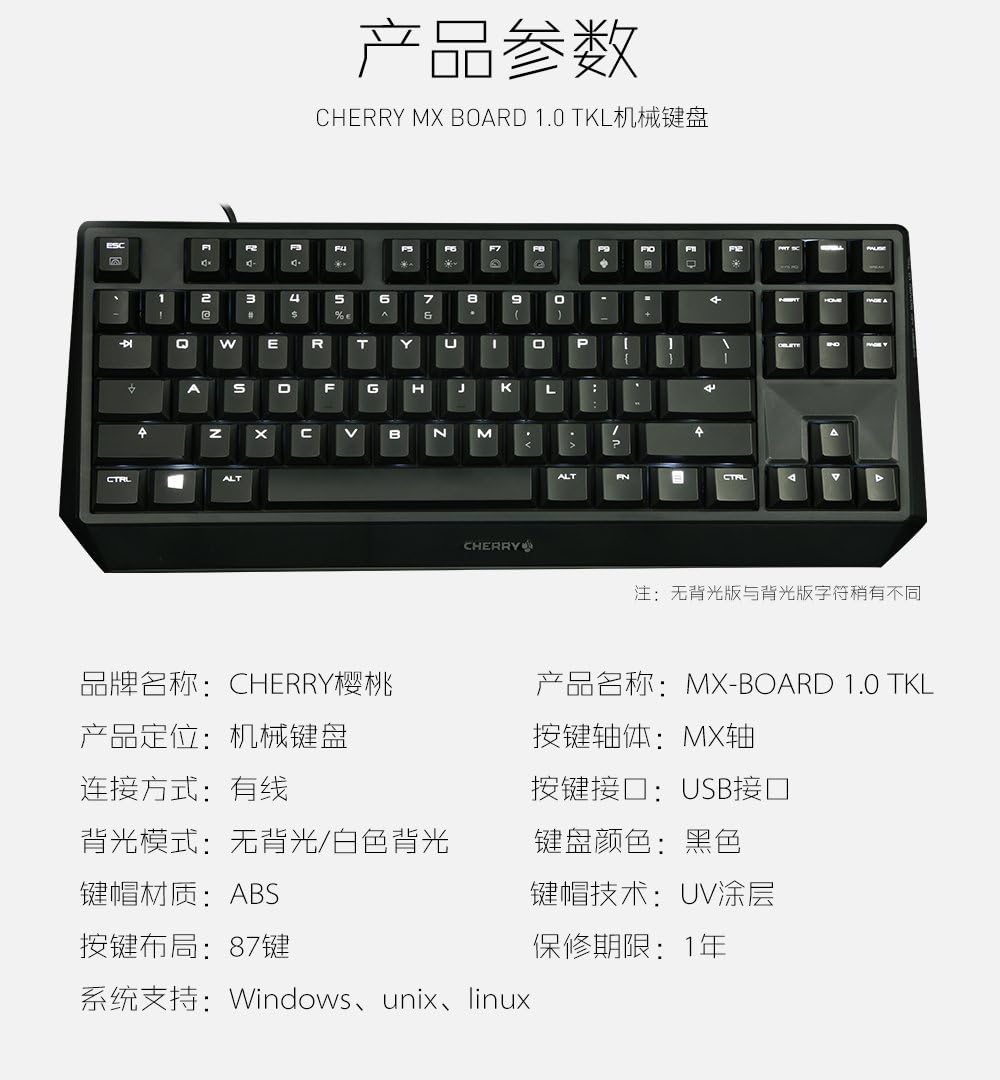
Figure 7: A detailed table outlining the technical specifications and parameters of the CHERRY MX Keyboard 1.0 TKL.
Atilẹyin ọja ati Support
Alaye atilẹyin ọja
The CHERRY MX Keyboard 1.0 TKL typically comes with a 1-odun lopin atilẹyin ọja lati ọjọ ti o ra. Atilẹyin ọja yi ni wiwa awọn abawọn iṣelọpọ labẹ lilo deede. Jọwọ ṣe idaduro ẹri rira rẹ fun awọn iṣeduro atilẹyin ọja.
For specific warranty terms and conditions, please refer to the documentation included with your product or visit the official Cherry webojula.
Onibara Support
If you require technical assistance, have questions about your product, or need to initiate a warranty claim, please contact Cherry customer support. Contact information can usually be found on the official Cherry webaaye tabi lori apoti ọja.
For more information, visit the official Cherry store: Cherry Store on Amazon.


