1. Ọja Ipariview
The Intel Core i3-8100 is an 8th Generation desktop processor designed for mainstream computing. It features 4 processing Cores and 4 Threads, providing enhanced processing power for various applications. This processor integrates Intel UHD Graphics 630 for visual experiences and supports two-channel DDR4 memory technology, allowing up to 64 GB of memory with transfer speeds up to 2400 MT/s. It is compatible with motherboards based on the Intel 300 series chipset.
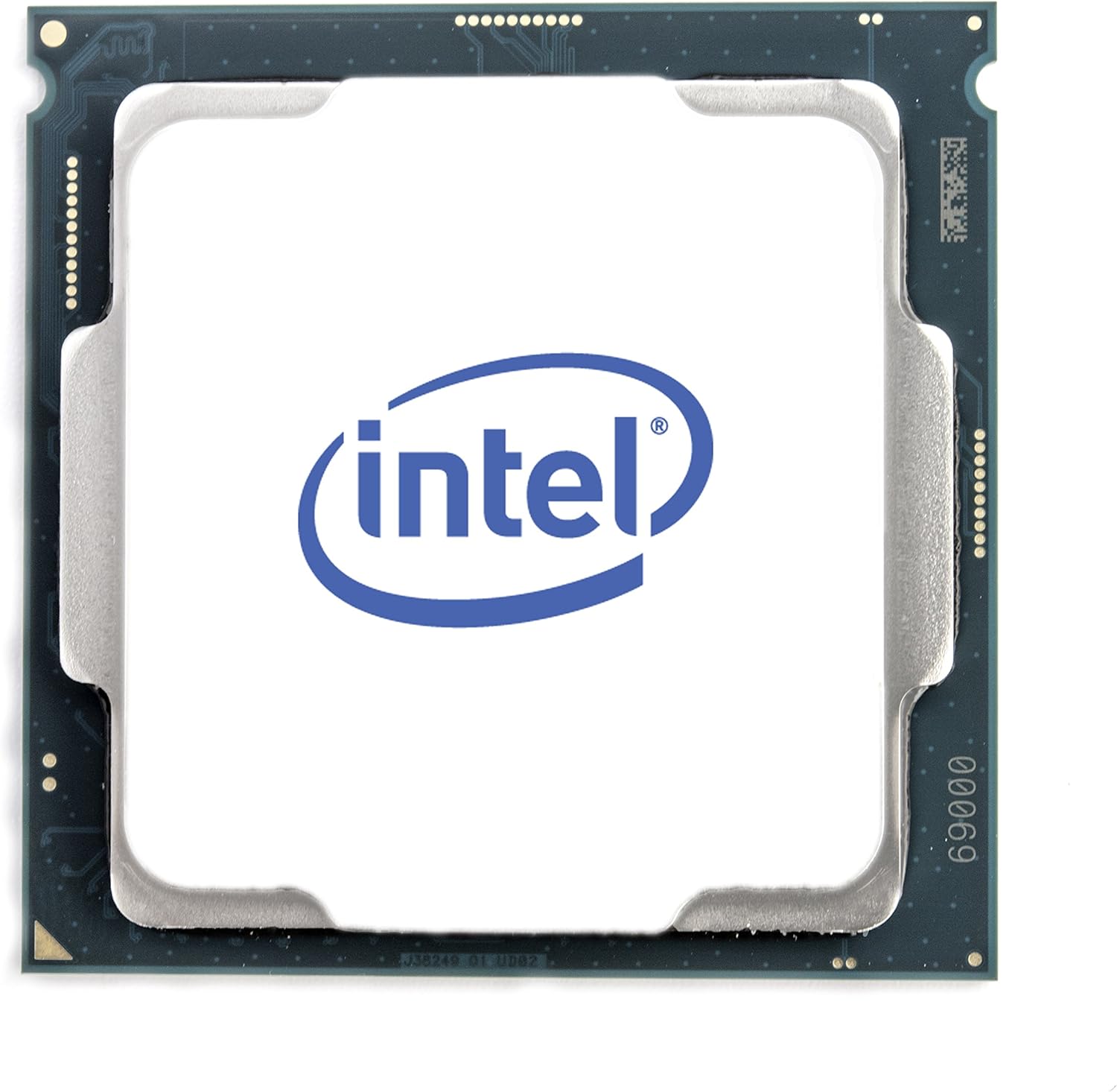
olusin 1.1: Top view of the Intel Core i3-8100 Processor, showing the integrated heat spreader with the Intel logo.
Awọn ẹya pataki:
- Awọn aworan Intel UHD 630: Integrated graphics for a rich visual experience.
- 4 Cores, 4 Threads: Provides efficient multitasking and processing capabilities.
- 3.60 GHz Base Frequency: Delivers consistent performance for daily tasks.
- Kaṣe 6 MB: Enhances data access speed for improved responsiveness.
- Iranti Intel Optane ti a ṣe atilẹyin: Enables system acceleration when paired with compatible memory and a 2.5" HDD.
- DDR4 SDRAM Support: Compatible with two-channel DDR4 memory up to 64 GB at 2400 MT/s.
- Ibamu: Designed for motherboards based on Intel 300 Series Chipsets.
Awọn akoonu idii:
- Isise Intel Core i3-8100
- Fan/Heatsink (Stock Cooler)
- Ilana itọnisọna

Figure 1.2: Retail packaging for the Intel Core i3-8100 Processor, highlighting key features.
2. Eto ati fifi sori
Ṣaaju ki o to bẹrẹ:
- Ensure your motherboard is compatible with the Intel Core i3-8100 processor (Intel 300 Series Chipset, LGA 1151 socket).
- Gather necessary tools: Phillips head screwdriver, thermal paste (if not pre-applied on cooler).
- Take anti-static precautions (e.g., use an anti-static wrist strap or touch a grounded metal object) to prevent damage to components.
- Refer to your motherboard manual for specific CPU installation instructions, as procedures may vary slightly.
Processor Installation Steps:
- Mura modaboudu: Ṣí ìdènà ìdúró CPU socket lórí módọ́ọ̀dù rẹ. Gbé àwo ẹrù sókè.
- Orient the Processor: Carefully align the notches on the processor with the keys on the CPU socket. The golden triangle on the processor should match the triangle on the socket.
- Fi ero isise sii: Gently place the processor straight down into the socket. Do not force it. If it does not seat easily, re-check the alignment.
- Ṣe aabo fun ero isise naa: Close the load plate over the processor and push the retention lever back down until it clicks into place.
- Apply Thermal Paste (if necessary): If your heatsink does not have pre-applied thermal paste, apply a small pea-sized amount to the center of the processor's integrated heat spreader.
- Install the Heatsink/Fan: Place the stock heatsink/fan assembly onto the processor, aligning the mounting pins with the holes on the motherboard. Press down firmly on each pin until it clicks, ensuring it is securely attached. Connect the fan's power cable to the CPU_FAN header on the motherboard.

olusin 2.1: Isalẹ view of the Intel Core i3-8100 Processor, showing the contact pads for the LGA 1151 socket.

Figure 2.2: Combined image showing both the top and bottom views of the Intel Core i3-8100 Processor for orientation reference.
3. Awọn ilana Iṣiṣẹ
Ibamu eto:
The Intel Core i3-8100 processor requires a motherboard with an Intel 300 series chipset (e.g., Z370, H370, B360, H310). Ensure your motherboard's BIOS is updated to support 8th Generation Intel Core processors if necessary. Consult your motherboard manufacturer's website for the latest BIOS versions and compatibility lists.
Integrated Graphics (Intel UHD Graphics 630):
This processor includes integrated Intel UHD Graphics 630, which provides display output without the need for a discrete graphics card. Connect your monitor to the appropriate video output port on your motherboard (e.g., HDMI, DisplayPort, DVI, VGA). Install the latest graphics drivers from the Intel website or your motherboard manufacturer's webojula fun ti aipe išẹ.
Atilẹyin Iranti:
The Core i3-8100 supports DDR4 SDRAM in a dual-channel configuration. For best performance, install memory modules in matched pairs according to your motherboard's recommendations. The maximum supported memory capacity is 64 GB, with speeds up to 2400 MT/s. Using memory modules faster than 2400 MT/s may require enabling XMP (Extreme Memory Profile) in your motherboard's BIOS.
4. Itọju ati Itọju
- Jeki o tutu: Ensure proper airflow within your computer case. Regularly clean dust from the CPU heatsink and case fans using compressed air. Excessive dust can impede cooling and lead to higher operating temperatures.
- Lẹẹ igbona: The thermal paste between the CPU and heatsink should be replaced if the heatsink is removed for any reason. Over time, thermal paste can dry out, reducing its effectiveness.
- Awọn imudojuiwọn sọfitiwia: Keep your operating system, drivers (especially chipset and graphics drivers), and BIOS updated to ensure optimal performance and stability.
- Mimu ti ara: Avoid touching the gold contact pads on the bottom of the processor to prevent damage from static electricity or oils from your skin.
5. Laasigbotitusita wọpọ oran
| Isoro | Owun to le Fa | Ojutu |
|---|---|---|
| System does not power on or display video. | Improper CPU installation, incompatible motherboard, power supply issue. | Verify CPU is correctly seated and secured. Ensure motherboard is compatible and BIOS is updated. Check all power connections. |
| Ètò náà ń ṣiṣẹ́, àmọ́ kò sí ìfihàn kankan. | Incorrect monitor connection, faulty RAM, integrated graphics driver issue. | Ensure monitor is connected to motherboard video output. Reseat RAM modules. Install or update integrated graphics drivers. |
| High CPU temperatures. | Improper heatsink installation, insufficient thermal paste, poor case airflow. | Verify heatsink is securely mounted. Reapply thermal paste if necessary. Improve case airflow by adding or cleaning fans. |
| Aisedeede eto tabi ipadanu. | Outdated drivers, incompatible RAM, overheating. | Update all system drivers and BIOS. Ensure RAM is compatible and correctly installed. Monitor CPU temperatures. |
6. Imọ ni pato
| Ẹya ara ẹrọ | Sipesifikesonu |
|---|---|
| Awoṣe isise | Intel mojuto i3-8100 |
| Nọmba ti Onise | i3-8100 |
| Awọn ohun kohun / Awọn ila | Àwọn kọ́ọ̀bù mẹ́rin / Okùn mẹ́rin |
| Iyara aago mimọ | 3.60 GHz |
| Kaṣe | 6 MB Smart Cache |
| Iho Iru | LGA 1151 |
| Ese Eya | Awọn aworan Intel UHD 630 |
| Igbohunsafẹfẹ Ipilẹ Aworan | 350 MHz |
| Àwòrán Ìgbohùngbà Oníyípadà Púpọ̀ jùlọ | 1.10 GHz |
| Iwọn Iranti Max | 64 GB |
| Awọn Ẹrọ iranti | DDR4-2400 |
| Max Memory Channels | 2 |
| TDP | 65 W |
| Lithography | 14nm |
| Ọja Mefa | 4.57 x 2.76 x 3.98 inches |
| Iwọn Nkan | 3.5 iwon |
Figure 6.1: Official Intel Core i3 8th Gen logo.
7. Atilẹyin ọja ati Support
Atilẹyin ọja to lopin:
Intel processors typically come with a limited warranty covering defects in materials and workmanship. The duration and terms of the warranty may vary by region and retailer. Please retain your proof of purchase for warranty claims. For detailed warranty information, refer to the official Intel warranty documentation included with your product or visit the Intel support webojula.
Oluranlowo lati tun nkan se:
For technical assistance, troubleshooting, or driver downloads, please visit the official Intel support website. You can find comprehensive resources, FAQs, and contact information for Intel customer service there. When contacting support, have your processor model (Core i3-8100) and serial number ready.


