Ọrọ Iṣaaju
The Beats Studio3 Wireless Noise Cancelling Over-Ear Headphones are designed to provide a premium listening experience with advanced features. This manual will guide you through the setup, operation, and maintenance of your headphones.
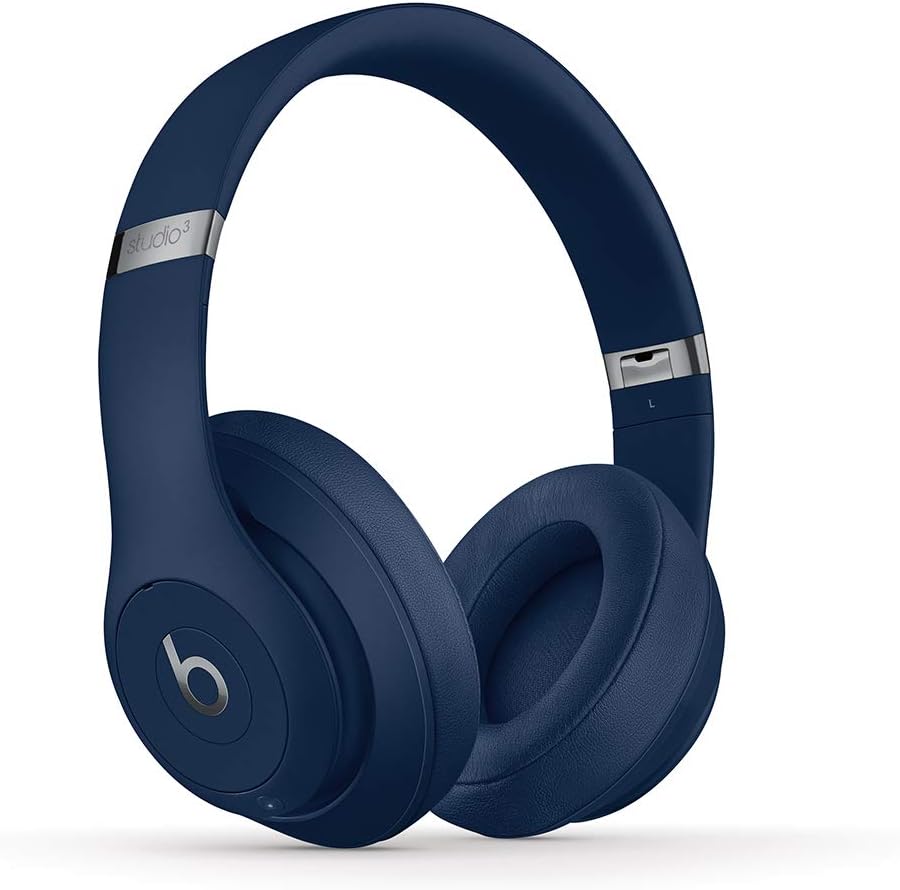
Image: Beats Studio3 Wireless Noise Cancelling Over-Ear Headphones in Blue.
Ohun ti o wa ninu Apoti
- Beats Studio3 Wireless Noise Canceling Over-Ear Headphones - Blue
- Micro USB Ngba agbara USB
- 3.5mm RemoteTalk Cable
- Ọran gbigbe
- Quick Bẹrẹ Itọsọna
- Kaadi atilẹyin ọja

Image: Contents of the Beats Studio3 Wireless Headphones box, including headphones, cables, and carrying case.
Ṣeto
1. Ngba agbara rẹ Agbekọri
Before first use, fully charge your Beats Studio3 Wireless headphones. Use the provided Micro USB cable to connect the headphones to a power source. The Fuel Gauge LEDs on the right ear cup will indicate the battery level.
- Epo ti o yara: A 10-minute charge provides 3 hours of playback.
- Full charge provides up to 22 hours of battery life with Pure ANC on, or up to 40 hours with Pure ANC off.
2. Sisopọ pẹlu Ẹrọ Rẹ
Your Beats Studio3 Wireless headphones utilize the Apple W1 chip for seamless pairing with Apple devices and Class 1 Bluetooth for other devices.
For Apple Devices (iOS):
- Ensure your iOS device is unlocked and Bluetooth is enabled.
- Hold your Beats Studio3 headphones near your unlocked iOS device.
- Follow the on-screen instructions to connect.
For Other Devices (Android, etc.):
- Press and hold the power button on your headphones for 5 seconds until the Fuel Gauge flashes.
- On your device, go to Bluetooth settings and select "Beats Studio3" from the list of available devices.
Ṣiṣẹ Awọn Agbekọri Rẹ
Titan / Paa
Press and hold the power button on the right ear cup for 1 second to turn the headphones on or off.
Ifagile Ariwo Adaptive Pure (ANC Pure)
Pure ANC actively blocks external noise and uses real-time audio calibration to preserve a premium listening experience. Pure ANC is enabled by default when you power on the headphones.
- To toggle Pure ANC on/off, double-press the power button.
Lori-Eti idari
The 'b' button on the left ear cup and the volume rockers provide control over your audio and calls.
- Ṣiṣẹ/Daduro: Press the 'b' button once.
- Rekọja Orin: Press the 'b' button twice for next, three times for previous.
- Iṣakoso iwọn didun: Use the volume up/down buttons above and below the 'b' button.
- Idahun/Ipe Ipari: Press the 'b' button once.
- Mu Oluranlọwọ Ohun ṣiṣẹ: Press and hold the 'b' button.

Aworan: Alaye view of the on-ear controls for music and calls.
Itoju
Ninu
Regularly clean your headphones with a soft, dry, lint-free cloth. Avoid using harsh chemicals or abrasive materials. Keep the charging port free of debris.
Ear Cup Replacement
Over time, ear cup cushions may show signs of wear, especially with frequent use or exposure to sweat. Replacement ear cups are available and can be easily installed. Refer to official Beats support for replacement instructions and parts.
Video Description: This video demonstrates the process of replacing ear cup covers on Beats headphones, highlighting the adhesive nature of the covers and the ease of replacement.
Awọn pato
| Ẹya ara ẹrọ | Ẹ̀kúnrẹ́rẹ́ |
|---|---|
| Orukọ awoṣe | Beats Studio3 Wireless Noise Canceling Over-Ear Headphones - Blue |
| Asopọmọra Technology | Bluetooth (Apple W1 chip, Class 1 Wireless Bluetooth) |
| Ariwo Iṣakoso | Active Noise Cancellation (Pure ANC) |
| Igbesi aye batiri | Up to 22 hours (with ANC), Up to 40 hours (without ANC) |
| Epo ti o yara | 10-minute charge provides 3 hours of playback |
| On-Ear Control | Audio playback, volume, phone call controls |
| Gbohungbohun | Internal and external microphones |
| Fọọmù ifosiwewe | Lori Eti |
| Awọn agbekọri Jack | 3.5 mm Jack (for wired use) |
| Gbigba agbara Port | Micro USB |
| Iwọn Nkan | 9.17 oz / 260 g (Product), 2.2 pounds (Shipping) |
| Ọja Mefa | 6.3 x 4.7 x 8.9 inches |
| Olupese | Apu |
Laasigbotitusita
Wọpọ Oran ati Solusan
- Ko si Agbara: Ensure headphones are charged. Connect to a power source using the Micro USB cable.
- Awọn oran Isopọpọ: Ensure Bluetooth is enabled on your device and headphones are in pairing mode (flashing Fuel Gauge). Try restarting both devices.
- Awọn ọran Didara Ohun: Check the audio source. Ensure ear cups are properly seated. If using wired connection, ensure the 3.5mm cable is fully inserted.
- Fagilé Ariwo Ko Ṣiṣẹ: Double-press the power button to toggle Pure ANC. Ensure ear cups form a good seal around your ears.
Atilẹyin ọja ati Support
Your Beats Studio3 Wireless headphones are manufactured by Apple and come with a standard limited warranty. For detailed warranty information, product registration, or technical support, please visit the official Beats or Apple support webojula.
Jeki ẹri rira rẹ fun awọn iṣeduro atilẹyin ọja.


