1. Ifihan
This manual provides essential instructions for the installation, operation, and maintenance of the CDVI BIOSYS1 Biometric Fingerprint Reader. The BIOSYS1 is a standalone, surface-mount access control device capable of storing up to 500 fingerprint templates. Please read this manual thoroughly before installation and use to ensure proper functionality and safety.
2. Ọja Ipariview
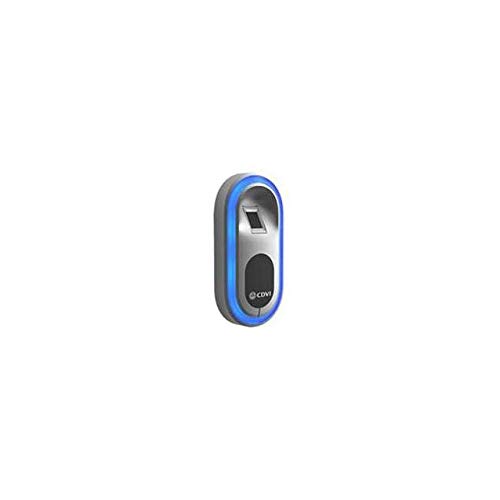
Nọmba 1: CDVI BIOSYS1 Biometric Fingerprint Reader. This image displays the CDVI BIOSYS1 Biometric Fingerprint Reader, a compact, oval-shaped device designed for surface mounting. It features a silver-colored fingerprint scanning area at the top, surrounded by a blue LED light indicating its operational status. Below the scanner is a black button with the CDVI logo, likely used for administrative functions or user interaction. The device has a sleek, modern design suitable for various access control environments.
The CDVI BIOSYS1 is a robust biometric fingerprint reader designed for secure access control. Its standalone operation means it does not require a constant connection to a computer for daily use, making it suitable for various applications. Key features include:
- Biometric fingerprint recognition for enhanced security.
- Capacity to store up to 500 fingerprint templates.
- Designed for surface mounting.
- Standalone operation for simplified installation and management.
3. Eto
3.1 Iṣagbesori ẹrọ
- Select a suitable, flat surface for mounting, ensuring it is free from excessive moisture or direct sunlight.
- Use the provided mounting template (if applicable) to mark drilling points for screws.
- Drill pilot holes and secure the mounting bracket (if separate) or the device directly to the surface using appropriate screws.
- Rí i dájú pé ẹ̀rọ náà so mọ́ ara rẹ̀ dáadáa àti pé ó dúró ṣinṣin.
3.2 Wiwa ati Asopọ agbara
Connect the power supply and any necessary control wiring according to the wiring diagram provided with your product packaging. Typically, this involves a low-voltage DC power input and connections for door strike/lock, exit button, and alarm (if supported). Ensure all connections are secure and insulated.
3.3 Ibẹrẹ Agbara-soke
Once all wiring is complete, apply power to the device. The LED indicator should illuminate, typically blue, indicating the device is powered on and ready for initial configuration.
4. Awọn ilana Iṣiṣẹ
4.1 Administrator Enrollment
Before enrolling regular users, an administrator fingerprint must be registered. Refer to the specific programming guide for your device, but generally, this involves:
- Entering programming mode (often by pressing and holding the admin button or entering a default code).
- Selecting the 'Add Admin' option.
- Placing the chosen administrator's finger on the scanner multiple times as prompted until enrollment is successful.
4.2 User Fingerprint Enrollment
Once an administrator is set up, they can enroll regular users:
- Enter programming mode using the administrator fingerprint.
- Select the 'Add User' option.
- Instruct the user to place their finger on the scanner multiple times until the device confirms successful enrollment.
- Jade ipo siseto.
4.3 Granting Access
To gain access, a registered user simply places their enrolled finger on the fingerprint scanner. If the fingerprint is recognized, the device will activate the connected door lock/strike, granting access. The LED indicator may change color (e.g., from blue to green) to confirm successful verification.
4.4 Npa awọn olumulo
To remove a user's access:
- Enter programming mode using the administrator fingerprint.
- Select the 'Delete User' option.
- Follow the prompts to delete a specific user's fingerprint or all user fingerprints.
- Jade ipo siseto.
5. Itọju
5.1 Ninu
Regularly clean the fingerprint scanner surface with a soft, dry, lint-free cloth. Avoid using abrasive cleaners, solvents, or excessive moisture, as these can damage the sensor. Ensure the device is powered off before cleaning.
5.2 Ayika riro
The BIOSYS1 is designed for indoor use. Protect the device from extreme temperatures, direct sunlight, and high humidity. Ensure proper ventilation if installed in an enclosed space.
6. Laasigbotitusita
- Ẹrọ ko ṣiṣẹ lori: Check power supply connections and ensure the power source is active. Verify wiring integrity.
- Titẹ ika ọwọ ko mọ:
- Rí i dájú pé ìka ọwọ́ náà mọ́ tónítóní, ó sì gbẹ.
- Place the entire pad of the finger firmly on the scanner.
- Gbìyànjú láti tún fi ìka ọwọ́ sílẹ̀ tí ìṣòro ìdámọ̀ bá ń bá a lọ.
- Ensure the user's fingerprint is actually enrolled in the system.
- Ilẹ̀kùn kò ṣí:
- Verify that the fingerprint is recognized (check LED indicator).
- Check wiring to the door lock/strike.
- Ensure the lock mechanism is functioning correctly.
- Cannot enter programming mode: Ensure you are using an enrolled administrator fingerprint or the correct administrative procedure.
If issues persist after attempting these troubleshooting steps, please contact CDVI technical support.
7. Awọn pato
| Awoṣe | BIOSYS1 F0106000019-A |
| Iru | Biometric Fingerprint Reader |
| Iṣagbesori | Oke Oke |
| Template Capacity | Up to 500 Fingerprint Templates |
| Ipo Isẹ | Iduroṣinṣin |
| Olupese | CDVI |
| Package Mefa | 1 x 1 x 1 inches |
| Iwọn | 12 iwon |
8. Atilẹyin ọja ati Support
For warranty information, please refer to the documentation included with your purchase or visit the official CDVI website. For technical support, assistance with installation, or troubleshooting beyond the scope of this manual, please contact CDVI customer service directly. Ensure you have your product model number (BIOSYS1 F0106000019-A) available when contacting support.


