1. Ifihan
This manual provides essential instructions for the proper setup, operation, and maintenance of your PAX S300 v2 PIN Pad/Card Reader. The S300 v2 is an integrated retail payment solution designed for secure transaction processing, supporting contactless, e-Signature, magnetic stripe, and EMV Chip & PIN payments. Please read this manual thoroughly before using the device to ensure optimal performance and security.
2. Alaye Aabo
- Do not disassemble, repair, or modify the device. Unauthorized modifications may void the warranty and pose safety risks.
- Lo oluyipada agbara nikan ati awọn kebulu ti olupese ti pese.
- Avoid exposing the device to extreme temperatures, direct sunlight, dust, or moisture.
- Jeki ẹrọ naa kuro ni awọn aaye oofa ti o lagbara.
- Rí i dájú pé a gbé ẹ̀rọ náà sí orí ilẹ̀ tí ó dúró ṣinṣin nígbà tí a bá ń ṣiṣẹ́.
- If the device is damaged or malfunctions, discontinue use immediately and contact customer support.
3. Package Awọn akoonu
Jẹrisi pe gbogbo awọn ohun kan wa ninu package:
- PAX S300 v2 PIN Pad/Card Reader
- Adapter agbara
- Connectivity Cable (e.g., USB, Ethernet, RS232)
- Stylus (for signature capture)
- Itọsọna Ibẹrẹ kiakia (ti o ba wulo)
4. Ọja Ipariview
4.1. Key Awọn ẹya ara ẹrọ
- Secure Payment Processing: PCI PTS 3.x and SRED certified for enhanced security.
- Multiple Payment Options: Supports EMV Chip & PIN, magnetic stripe, and contactless (NFC) transactions.
- Iboju Fọwọkan Awọ: Large display for clear transaction prompts and e-Signature capture.
- Iṣe to gaju: Equipped with a 32-bit ARM11 processor for efficient operation.
- Asopọmọra: Offers USB, Ethernet (LAN), and RS232 connectivity options.
4.2. Device irinše

- Iboju Fọwọkan Awọ: Displays transaction information and allows for signature capture.
- Bọtini foonu: For PIN entry and menu navigation.
- Oluka Stripe Magnetic: Located on the side for swiping cards.
- EMV Chip Card Slot: Located at the bottom for inserting chip cards.
- Oluka Alaibarakan: Integrated into the screen area for NFC payments.
- Awọn ibudo Asopọmọra: Located at the rear for power, USB, Ethernet, and RS232 connections.
5. Eto
5.1. Nsopọ ẹrọ naa
- So agbara: Plug the power adapter into the power port on the back of the S300 v2, then plug the adapter into a wall outlet.
- Sopọ si Eto Gbalejo:
- USB: Connect the USB cable from the S300 v2 to an available USB port on your point-of-sale (POS) system or computer.
- Àjọlò (LAN): Connect an Ethernet cable from the S300 v2's LAN port to your network router or switch.
- GBU232: Connect the RS232 cable from the S300 v2 to the serial port on your POS system or computer.
- Agbara Tan: The device should power on automatically once connected to power. If not, press and hold the power button (if available) until the screen illuminates.
- Iṣeto ni Sọfitiwia: Follow the instructions provided by your payment processor or POS software vendor to configure the S300 v2 with your system. This typically involves selecting the correct communication port and device type within the POS application.
6. Awọn ilana Iṣiṣẹ
The PAX S300 v2 supports various transaction types. Always follow the prompts displayed on the device screen.
6.1. EMV Chip Card Transactions
- When prompted by the POS system, instruct the customer to insert their EMV chip card into the slot at the bottom of the S300 v2.
- Ensure the chip faces upwards and is fully inserted.
- The device will process the transaction. The customer may be prompted to enter their PIN or provide a signature.
- Once the transaction is complete, the device will prompt the customer to remove their card.
6.2. Magnetic Stripe Card Transactions
- When prompted, instruct the customer to swipe their magnetic stripe card through the reader slot on the side of the S300 v2.
- Ensure the magnetic stripe faces the device.
- If the swipe is unsuccessful, try again at a consistent speed.
- The customer may be prompted for a signature.
6.3. Contactless (NFC) Transactions
- When prompted, instruct the customer to tap their contactless card or NFC-enabled device (e.g., smartphone, smartwatch) near the contactless symbol on the S300 v2 screen.
- Hold the card/device steady until the transaction is confirmed.
- A beep or visual confirmation on the screen will indicate a successful read.
6.4. PIN Entry
- When the device prompts for PIN entry, the customer should use the physical keypad to enter their Personal Identification Number.
- After entering the PIN, press the green WOLE bọtini.
- Ensure the customer's privacy during PIN entry.
6.5. Signature Capture
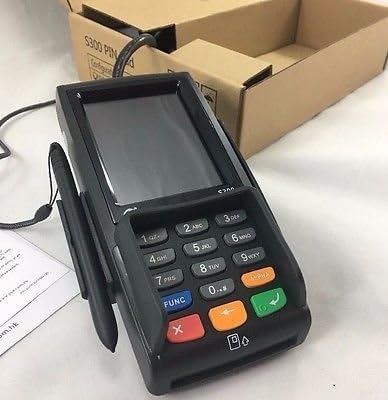
- If a signature is required, the S300 v2 screen will display a signature line.
- Instruct the customer to use the provided stylus or their finger to sign on the touch screen.
- After signing, the customer should tap the GBA or OK bọtini loju iboju.
7. Itọju ati Cleaning
- Ninu: Lo asọ asọ, ti ko ni lint die-die dampened with water or a mild, non-abrasive cleaner to wipe the device's exterior. Do not use harsh chemicals, solvents, or abrasive materials.
- Itọju iboju: For the touch screen, use a screen-specific cleaner and a microfiber cloth. Avoid excessive pressure.
- Awọn ibudo: Keep all ports free of dust and debris. Do not insert foreign objects into any slots or ports.
- Ibi ipamọ: When not in use for extended periods, store the device in a cool, dry place, away from direct sunlight.
8. Laasigbotitusita
| Isoro | Owun to le Fa | Ojutu |
|---|---|---|
| Ẹrọ naa ko ṣiṣẹ. | No power connection or faulty power adapter. | Rii daju pe ohun ti nmu badọgba agbara ti sopọ ni aabo si ẹrọ ati iṣan agbara iṣẹ kan. Gbiyanju iṣan ti o yatọ. |
| Transaction fails. | Incorrect card insertion/swipe, communication error, or card issue. | Ensure the card is inserted/swiped correctly. Check cable connections to the POS system. Contact your payment processor for network or card-specific issues. |
| Iboju ko dahun. | Ibùgbé software glitch. | Restart the device by disconnecting and reconnecting power. If the issue persists, contact support. |
| Stylus not working for signature. | Stylus damage or screen calibration issue. | Ensure the stylus tip is intact. Try using a finger. If the screen is generally unresponsive, refer to the "Screen is unresponsive" solution. |
9. Awọn pato
- Awoṣe: PAX S300 v2
- Olupilẹṣẹ: 32-bit ARM11
- Aabo: PCI PTS 3.x, SRED
- Awọn oluka kaadi: EMV Chip Card, Magnetic Stripe, Contactless (NFC)
- Asopọmọra: RS232, Ethernet (LAN), USB Type A
- Ifihan: Awọ Fọwọkan iboju
- Awọn iwọn: (Refer to product packaging or official PAX documentation for exact dimensions)
- Iwọn Iṣiṣẹ: (Refer to product packaging or official PAX documentation)
10. Atilẹyin ọja ati Support
For warranty information and technical support, please refer to the documentation provided with your purchase or contact your authorized PAX distributor or reseller. Keep your purchase receipt and product serial number handy when seeking support.
You can also visit the official PAX Technology webAaye fun alaye gbogbogbo ọja ati awọn orisun atilẹyin.


