Ọja Pariview
The KuWFi Long Range Outdoor WiFi Network Adapter, Model N218, is designed to provide extended wireless network access. It features a built-in high-gain 14dBi antenna for enhanced signal reception and coverage. This device supports IEEE 802.11b/g/n standards and connects via USB 2.0. It is suitable for outdoor installation to receive signals and can also function as a soft AP for sharing network access.

Image: The KuWFi Long Range Outdoor WiFi Network Adapter N218, showing its white rectangular housing and adjustable stand with a blue USB cable connected.
Package Awọn akoonu
- KuWFi Long Range Outdoor WiFi Network Adapter (Model N218)
- 5-meter USB 2.0 Cable (integrated)
- Installation CD (containing drivers)

Image: The KuWFi N218 adapter, its 5-meter blue USB cable, and the product packaging, indicating "Long Range" and "Indoor/Outdoor 14dBi Engineering Standard Adapter".
Awọn pato
| Ẹya ara ẹrọ | Ẹ̀kúnrẹ́rẹ́ |
|---|---|
| Nọmba awoṣe | N218 |
| Eriali Iru | Built-in 14dBi High-Gain Internal Antenna |
| Awọn ajohunše | IEEE 802.11b/g/n |
| Data Gbigbe Oṣuwọn | Titi di 150 Mbps |
| Ni wiwo | USB 2.0 |
| USB Ipari | 5 mita |
| Awose Iru | PBCC, CCK, DQPSK, DBPSK |
| Ipo Iṣẹ | Ad-Hoc infrastructure, 1T1R, AP mode |
| Alailowaya Aabo | WPS, 64/128bit WEP, WPA/WPA2, WPA-PSK/WPA2-PSK (TKIP/AES) |
| OS ibaramu | Windows, Linux, MacOS (driver support may vary) |
| Awọn iwọn | 140 x 12 x 3 cm (isunmọ. 11.85 x 5.35 x 2.76 inches) |
| Iwọn | 365g (isunmọ 14.1 iwon) |
Eto ati fifi sori
Follow these steps to install and set up your KuWFi N218 adapter:
- Fi CD Awakọ sii: Before connecting the outdoor WiFi adapter, insert the provided CD into your computer's CD/DVD drive.
- Fi sori ẹrọ Awakọ naa: Open the "Setup.exe" file from the CD and follow the on-screen instructions to install the necessary drivers. If your computer lacks a CD drive, please obtain the drivers from the official KuWFi support webojula.
- So Adapter: Once the driver installation is complete, plug the KuWFi outdoor WiFi adapter's USB cable into an available USB 2.0 port on your computer.
- Position the Adapter: Position the adapter outdoors for optimal signal reception. The adjustable stand allows for 160° rotation to fine-tune the antenna direction.

Aworan: Ẹyin view of the KuWFi N218 adapter, showing the USB cable connection point and the adjustable stand for positioning.
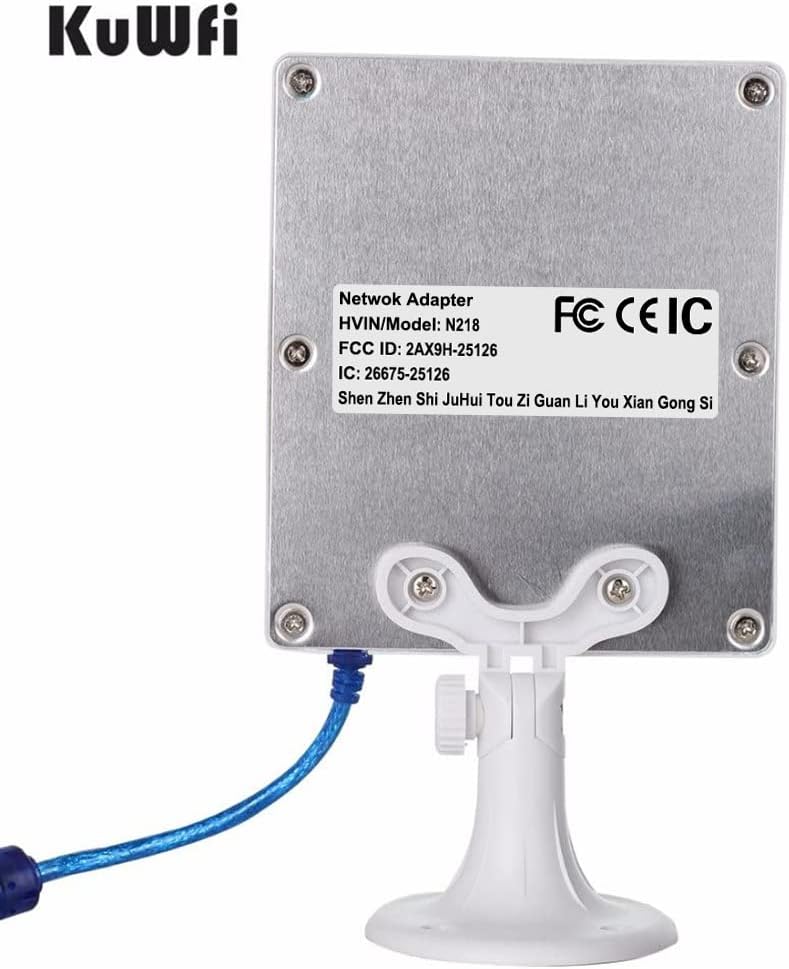
Image: Back of the KuWFi N218 adapter, displaying regulatory labels including FCC and CEIC, along with model number N218.
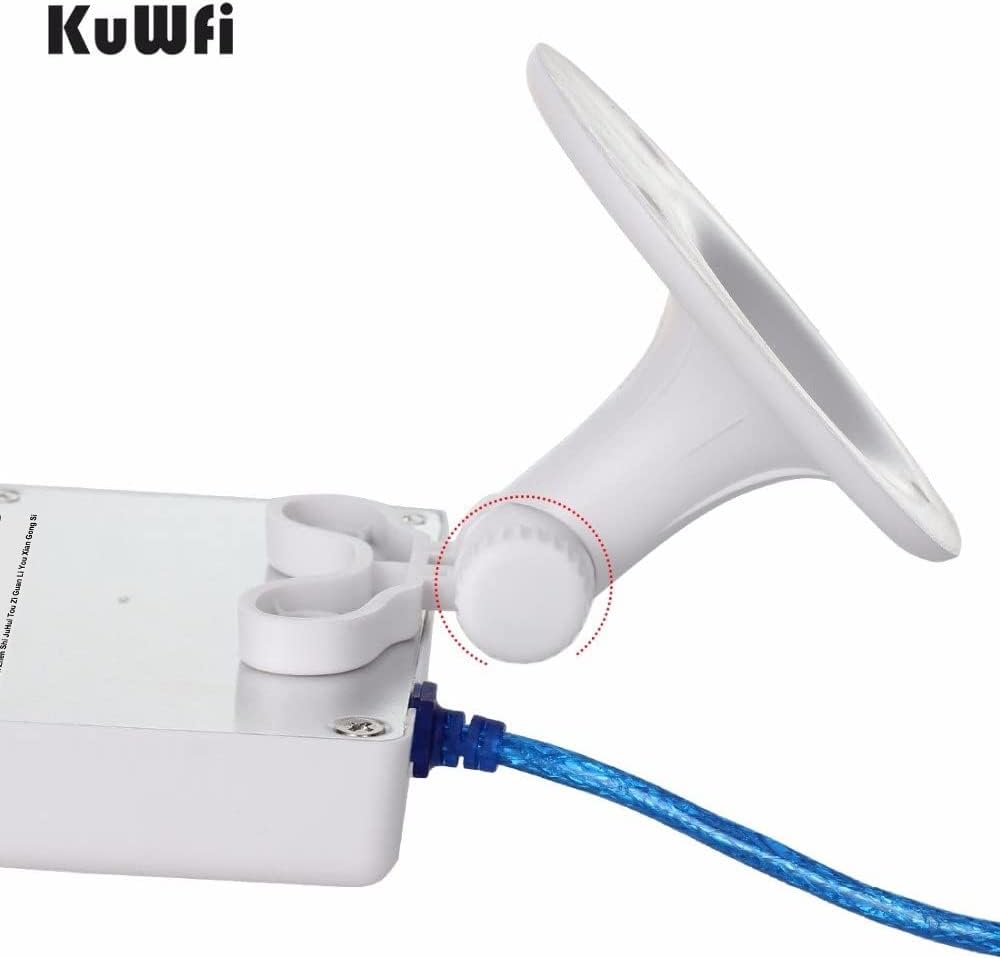
Image: Close-up of the KuWFi N218 adapter's adjustable stand, highlighting the 160° rotation capability for flexible positioning.
Awọn ilana Iṣiṣẹ
Connecting to a Wireless Network (Client Mode)
- After successful driver installation and adapter connection, your computer should detect the new wireless adapter.
- Open your operating system's network settings or Wi-Fi utility.
- Scan for available wireless networks. The N218 adapter will help detect networks with stronger signals due to its high-gain antenna.
- Yan nẹtiwọki ti o fẹ ki o tẹ ọrọ igbaniwọle sii ti o ba nilo.
- Jẹrisi asopọ.
Using as a Soft AP (Access Point Mode)
The N218 adapter supports Soft AP functionality, allowing you to share your computer's internet connection with other devices like mobile phones, notebooks, or tablets.
- Rii daju pe kọmputa rẹ ni asopọ intanẹẹti ti nṣiṣe lọwọ (fun apẹẹrẹ, nipasẹ Ethernet).
- Access the wireless utility software installed with the adapter drivers.
- Locate the "AP Mode" or "Soft AP" setting within the utility.
- Configure the network name (SSID) and security password for your new wireless hotspot.
- Activate the Soft AP mode. Other devices can now connect to the network created by your N218 adapter.
Laasigbotitusita
- A ko rii Adapter: Ensure the USB cable is securely connected. Try a different USB port. Verify that the drivers are correctly installed.
- No Wireless Networks Found: Check if the adapter is positioned correctly, ideally outdoors and facing the general direction of the Wi-Fi source. Ensure Wi-Fi is enabled on your computer.
- Iyara Asopọmọra: Reposition the adapter to improve signal strength. Ensure there are no major obstructions (walls, metal objects) between the adapter and the Wi-Fi source. Check for interference from other 2.4GHz devices.
- Awọn ọran fifi sori awakọ: If the CD drive is unavailable, download the latest drivers from the official KuWFi website. Ensure compatibility with your operating system (Windows, Linux, MacOS). Some users reported issues with Windows 11 drivers; check for specific updates.
- Asopọmọra Laarin: This could be due to signal fluctuations. Try adjusting the adapter's angle. Ensure the USB cable is not damaged.
- Water Ingress (for outdoor use): While designed for outdoor use, ensure the adapter is installed in a location that minimizes direct exposure to heavy rain or consider additional weather protection if necessary. If water ingress occurs, disconnect immediately, dry thoroughly, and seal any potential entry points with silicone.
Itoju
- Ninu: Gently wipe the adapter's exterior with a soft, dry cloth. Do not use liquid cleaners or solvents.
- Ayẹwo USB: Periodically check the USB cable for any signs of wear, cuts, or damage, especially if installed outdoors.
- Àwọn àtúnṣe Famuwia/Awakọ̀: Check the KuWFi official website for any updated drivers or firmware that may improve performance or compatibility.
- Idaabobo Ayika: Although designed for outdoor use, extreme weather conditions (e.g., prolonged heavy rain, direct sunlight, extreme temperatures) can affect longevity. Consider sheltered placement where possible.
Atilẹyin ọja ati Support
The KuWFi N218 Long Range Outdoor WiFi Network Adapter typically comes with a 3-odun atilẹyin ọja. For technical support, driver downloads, or warranty claims, please visit the official KuWFi website or contact their customer service. Keep your purchase receipt for warranty validation.
KuWFi aims to provide competitive wireless network devices and solutions. For further assistance, refer to the contact information provided with your product or on the KuWFi official webojula.
Alaye ilana
This device complies with FCC and CEIC standards. For detailed regulatory information, refer to the labels on the product or the official product documentation.
Awọn ọna ṣiṣe atilẹyin
The KuWFi N218 adapter supports the following operating systems:
- Windows
- Lainos
- MacOS (Note: Driver support for newer MacOS versions may require specific downloads or updates from the manufacturer.)

Image: Icons representing compatibility with Windows, Linux, and MacOS operating systems.


