Ọrọ Iṣaaju
This manual provides detailed instructions for the setup, operation, maintenance, and troubleshooting of your Jaycar Composite AV to HDMI Converter (Model AC-1722). Please read this manual thoroughly before using the device to ensure proper functionality and to prevent damage.
Key Awọn ẹya ara ẹrọ
- Converts Composite Video and Stereo Audio (RCA) to HDMI output.
- Supports HDMI 1080p or 720p output resolutions.
- Compatible with NTSC and PAL video systems.
- Plug and play operation.
Package Awọn akoonu
Jọwọ rii daju pe gbogbo awọn ohun kan wa ninu apo rẹ:
- Jaycar Composite AV to HDMI Converter (AC-1722)
- Adapter Agbara (5V DC)
- Afowoyi Olumulo (iwe-ipamọ yii)
Ọja Pariview
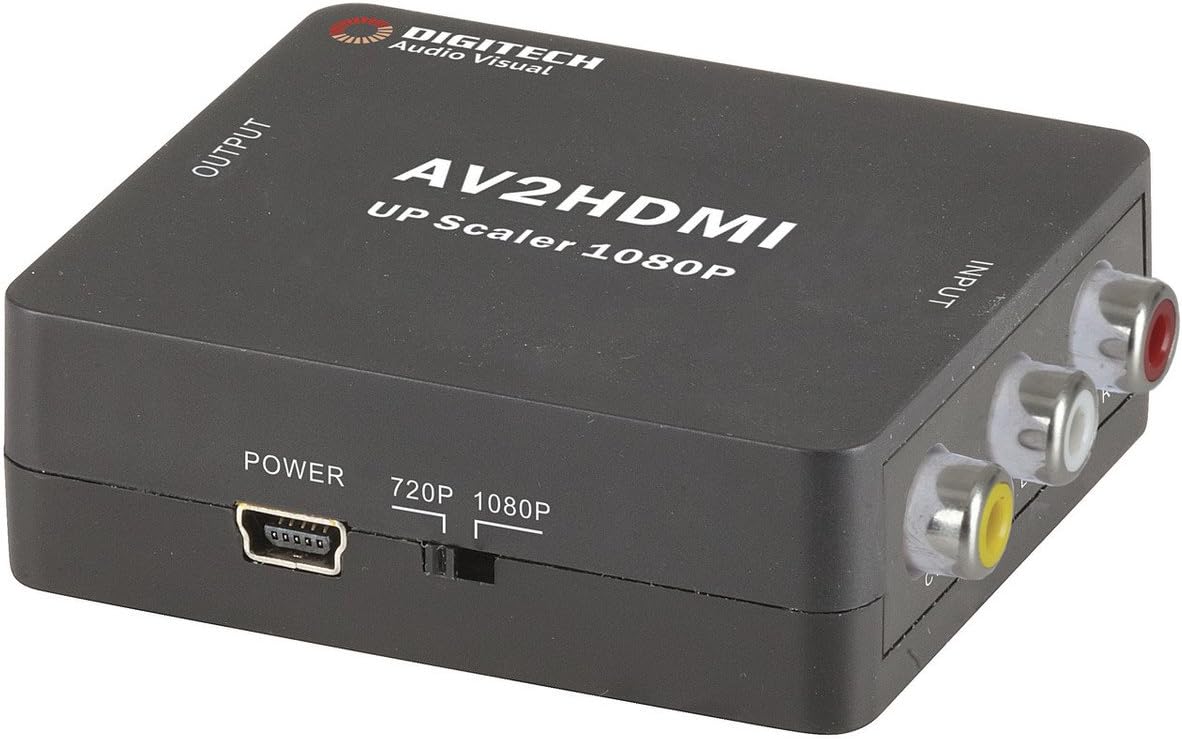
Aworan 1: Iwaju view of the Jaycar Composite AV to HDMI Converter. This image displays the top and front of the converter, showing the "AV2HDMI UP Scaler 1080P" label, "OUTPUT" and "INPUT" indicators, the power input, and the 720p/1080p resolution switch. The Composite AV input ports (yellow, white, red) are visible on the right side.

Aworan 2: Apa view of the converter showing the HDMI output port. This port is labeled "HDMI" and is where the HDMI cable connects to your display device.

Aworan 3: Apa view of the converter showing the Composite AV input ports. These ports are labeled "CVBS" (yellow for video), "L" (white for left audio), and "R" (red for right audio).

Aworan 4: Apa view of the converter showing the power input port and the 720p/1080p resolution switch. The power port is a mini-USB type, and the switch allows selection between 720p and 1080p output resolutions.
Awọn ilana iṣeto
- Sopọ Orisun Ẹrọ: Connect your Composite AV source device (e.g., DVD player, VCR, game console) to the converter's input ports. Match the yellow RCA cable to the "CVBS" port, the white RCA cable to the "L" (Left Audio) port, and the red RCA cable to the "R" (Right Audio) port.
- Connect Display Device: Connect an HDMI cable from the converter's "HDMI" output port to an available HDMI input on your display device (e.g., TV, monitor, projector).
- Select Output Resolution: Use the 720p/1080p switch on the converter to select your desired output resolution. For most modern displays, 1080p is recommended. If you experience issues, try 720p.
- So agbara: Connect the provided 5V DC power adapter to the converter's "POWER" input port, then plug the adapter into a wall outlet. The converter will power on automatically.
- Yan Ìbáwọlé lórí Ìfihàn: Turn on your display device and select the corresponding HDMI input channel to view the converted signal.
Awọn ilana Iṣiṣẹ
The Jaycar Composite AV to HDMI Converter is designed for plug-and-play operation. Once all connections are made and power is supplied, the converter will automatically scale the analog AV signal to the selected HDMI output resolution (720p or 1080p).
- Ensure your source device is powered on and outputting a Composite AV signal.
- Verify your display device is set to the correct HDMI input.
- If no image appears, check all cable connections and the power supply.
- Experiment with the 720p/1080p switch if the image is distorted or not displayed correctly.
Itoju
The converter requires minimal maintenance. Follow these guidelines to ensure longevity:
- Keep the device in a dry, well-ventilated area, away from direct sunlight, high temperatures, and humidity.
- Yago fun sisọ silẹ tabi tẹriba ẹrọ si awọn ipa to lagbara.
- Mọ ode pẹlu asọ ti o gbẹ. Ma ṣe lo awọn olutọpa olomi tabi awọn olomi.
- Rí i dájú pé gbogbo àwọn okùn wa ni a so pọ̀ dáadáa ṣùgbọ́n má ṣe fipá mú wọn.
Laasigbotitusita
| Isoro | Owun to le Fa | Ojutu |
|---|---|---|
| Ko si fidio tabi idajade ohun. |
|
|
| Àwòrán tí ó yípadà tàbí tí ó ń tàn yòò. |
|
|
| No audio, but video is present. |
|
|
Awọn pato
| Iru igbewọle | Composite Video and Audio (3 RCA) |
| Ojade Irisi | HDMI Iru-A |
| Awọn ipinnu atilẹyin | 1080p (1920 x 1080), 720p |
| Awọn ọna fidio | NTSC, PAL |
| Agbara ibeere | DC 5V (Adapọ agbara wa pẹlu) |
| Awọn iwọn Ọja (L x W x H) | 54mm x 60mm x 20mm (isunmọ. 2.13" x 2.36" x 0.79") |
| Iwọn Ọja | 80g |
Alaye atilẹyin ọja
This Jaycar product comes with a 1-odun atilẹyin ọja Láti ọjọ́ tí a rà á. Àtìlẹ́yìn yìí bo àwọn àbùkù nínú àwọn ohun èlò àti iṣẹ́ ọwọ́ lábẹ́ lílò déédéé. Kò bo ìbàjẹ́ tí ó ṣẹlẹ̀ nípasẹ̀ àìlòkulò, jàmbá, àtúnṣe tí a kò fún ní àṣẹ, tàbí fífi sori ẹrọ tí kò tọ́.
For warranty claims, please retain your proof of purchase and contact Jaycar customer support.
Onibara Support
If you require further assistance or have questions not covered in this manual, please contact Jaycar customer support through their official webojula tabi alagbata ti o ti ra ọja naa.
For the latest support information, please visit the official Jaycar webojula: www.jaycar.com.au


