Ọrọ Iṣaaju
This manual provides essential instructions for the safe and efficient operation of your Fujitsu FS-6160ZLA Document Scanner. Please read this manual thoroughly before using the scanner and retain it for future reference. Following these guidelines will ensure optimal performance and longevity of your device.
Ọja Pariview
The Fujitsu FS-6160ZLA is a high-performance document scanner designed for efficient paper handling and digital conversion. It features an Automatic Document Feeder (ADF) for batch scanning and a user-friendly control panel.
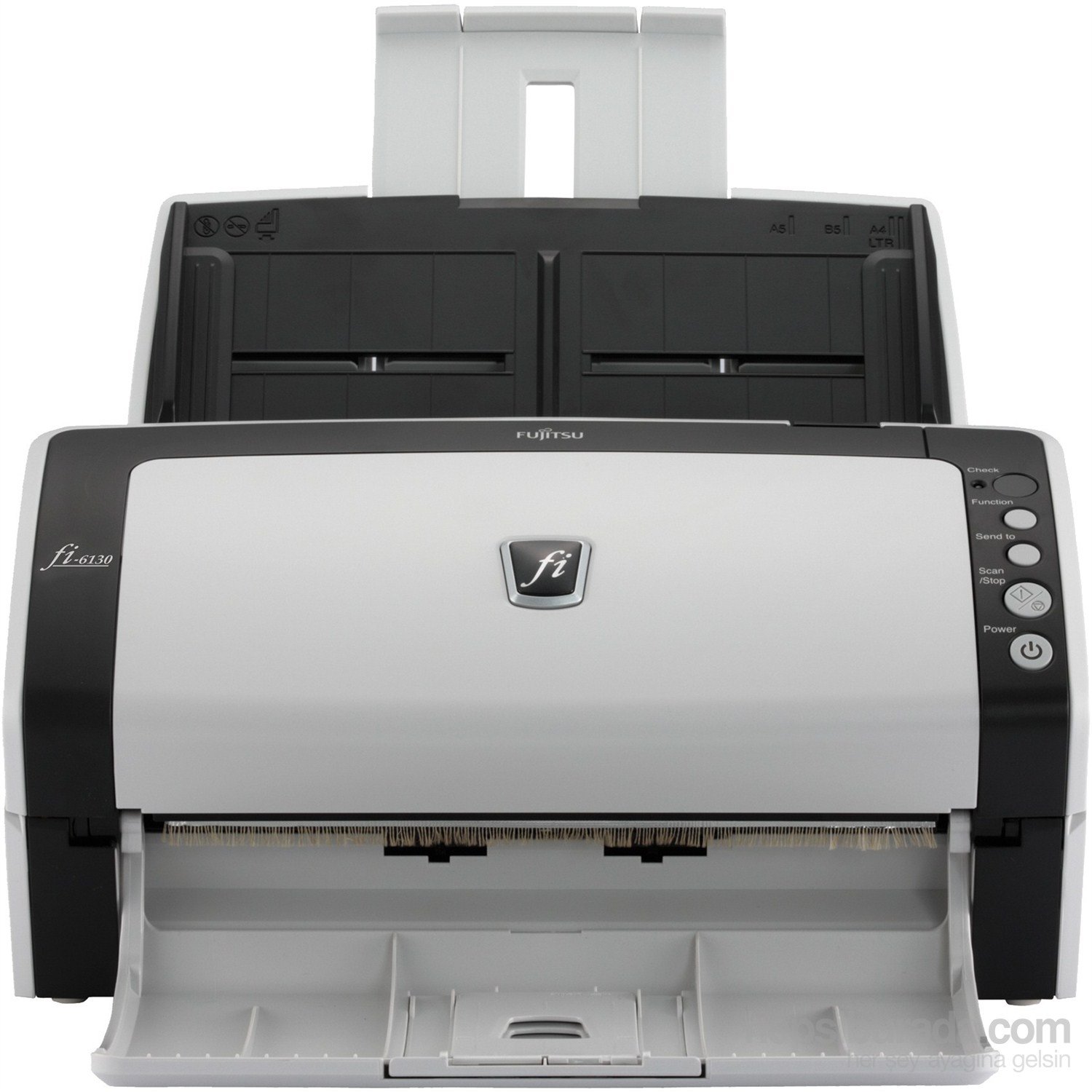
Nọmba 1: Iwaju view of the Fujitsu fi-6130 document scanner, showing the automatic document feeder (ADF) input tray at the top, the control panel on the right, and the output tray at the bottom. The scanner is white and black.
Awọn eroja pataki:
- Ifunni iwe aladaaṣe (ADF): For loading multiple documents for continuous scanning.
- Ibi iwaju alabujuto: Buttons for various functions including power, scan, and job selection.
- Atẹjade Ijade: Gba awọn iwe aṣẹ ti ṣayẹwo.
- USB/Power Ports: Located at the rear for connectivity and power supply.
Ṣeto
- Ṣii silẹ: Carefully remove the scanner and all accessories from the packaging. Ensure all components are present: scanner unit, AC adapter, USB cable, and software CD/DVD (if included).
- Ibi: Place the scanner on a stable, flat surface with adequate space for document feeding and output. Ensure proper ventilation.
- So agbara: Connect the AC adapter to the scanner's power input and then plug it into a wall outlet.
- Sopọ si Kọmputa:
- Asopọ USB: Connect one end of the USB cable to the scanner's USB port and the other end to an available USB port on your computer.
- Asopọ Wi-Fi: Refer to the separate network setup guide or the scanner's display (if applicable) for instructions on connecting to your wireless network.
- Fifi sori ẹrọ software: Insert the provided software CD/DVD into your computer's drive, or download the latest drivers and scanning software from the official Fujitsu support webojula. Tẹle awọn ilana loju iboju lati pari fifi sori ẹrọ.
Awọn ilana Iṣiṣẹ
- Agbara Tan: Tẹ awọn Agbara button on the control panel to turn on the scanner. Wait for the scanner to initialize.
- Awọn iwe aṣẹ fifuye:
- Fan the stack of documents to separate pages and align edges.
- Place documents face-down in the Automatic Document Feeder (ADF) input tray. Adjust the side guides to fit the width of your documents.
- Ensure documents are within supported sizes (e.g., A4, A5, B5, Letter, Legal).
- Yan Eto Ṣiṣayẹwo: Open your scanning software on the computer. Select the desired scan profile, resolution, color mode (e.g., color, grayscale, black & white), and destination folder.
- Bẹrẹ Ṣiṣayẹwo:
- Tẹ awọn Ṣayẹwo/Duro button on the scanner's control panel, or initiate the scan from your computer software.
- The scanner will feed and scan the documents.
- Review ati Fipamọ: Lẹ́yìn ìwòran, tún ṣeview the digitized images on your computer. Save them to your preferred location and format.
- Awọn iṣẹ igbimọ Iṣakoso:
- Ṣayẹwo: Verifies scanner status or settings.
- Iṣẹ: Cycles through predefined scan jobs or settings.
- Firanṣẹ si: Directs scanned documents to a specific application or destination.
- Scan/Stop: Starts or stops the scanning process.
- Agbara: Tan-an tabi pa ẹrọ ọlọjẹ naa.
Itoju
Regular maintenance ensures consistent scan quality and extends the life of your scanner.
- Cleaning the Rollers:
- Pa a kuro ki o yọọ ẹrọ ọlọjẹ naa.
- Open the scanner cover to access the feed rollers.
- Gently wipe the rollers with a lint-free cloth dampened with isopropyl alcohol or a specialized roller cleaner. Allow to dry completely before closing the cover.
- Fifọ Gilasi naa:
- Locate the glass scanning surface inside the scanner.
- Lo asọ rirọ, ti ko ni lint dampened with glass cleaner (non-abrasive) to clean the glass. Avoid spraying cleaner directly onto the glass.
- Ode Ninu: Wipe the exterior of the scanner with a soft, dry cloth. Do not use abrasive cleaners or solvents.
- Awọn ohun elo: Periodically check the condition of feed rollers and separation pads. Replace them as recommended by Fujitsu to maintain optimal performance. Refer to the Fujitsu support webaaye fun alaye apakan rirọpo.
Laasigbotitusita
This section addresses common issues you might encounter with your Fujitsu FS-6160ZLA scanner.
- Scanner Ko Ni Agbara Lori:
- Ensure the power cable is securely connected to both the scanner and a working power outlet.
- Rii daju pe ohun ti nmu badọgba agbara n ṣiṣẹ ni deede.
- Documents Jamming:
- Remove all jammed documents carefully, following the scanner's internal guides.
- Ensure documents are properly fanned and aligned in the ADF.
- Check for worn-out feed rollers or separation pads and replace if necessary.
- Avoid loading creased, stapled, or damaged documents.
- Poor Scan Quality (Streaks, Blurs, Dots):
- Clean the glass scanning surface and feed rollers as described in the Maintenance section.
- Adjust scan settings (e.g., resolution, brightness) in your scanning software.
- Ensure documents are clean and free of debris.
- Scanner Not Detected by Computer:
- Verify the USB or Wi-Fi connection is secure and active.
- Tun ẹrọ-ẹrọ ati kọmputa rẹ tun bẹrẹ.
- Reinstall the scanner drivers and software.
- Gbiyanju ibudo USB miiran tabi okun USB.
Awọn pato
| Ẹya ara ẹrọ | Ẹ̀kúnrẹ́rẹ́ |
|---|---|
| Brand | Fujitsu |
| Awoṣe | FS-6160ZLA |
| Scanner Iru | Iwe aṣẹ |
| Asopọmọra Technology | Wi-Fi |
| Opitika sensọ Technology | CIS |
| Ipinnu | 200 dpi |
| Bit Ijinle | 24-bit |
| Iwọn | 4.2 kg |
| Awọn iwọn (W x D x H) | 301 mm x 160 mm x 158 mm |
| O pọju iwe Iwon | A4 Vertical: 210 mm x 297 mm, Legal: 216 mm x 355.6 mm (8.5 in x 14 in) |
Atilẹyin ọja ati Support
For detailed warranty information, technical support, or to purchase replacement parts and consumables, please visit the official Fujitsu website or contact your local Fujitsu service provider. Keep your purchase receipt as proof of purchase for warranty claims.
Awọn orisun Ayelujara:


