1. Ifihan
This manual provides detailed instructions for the installation, configuration, and operation of your xmartO Hybrid Wireless Security Camera System, model WPK13822-1TB. This system includes an 8-channel 1080p Network Video Recorder (NVR), two 960p wireless Pan-Tilt (PT) cameras with built-in audio, and two 960p fixed-angle WiFi bullet cameras. Please read this manual thoroughly before use to ensure proper setup and optimal performance.
2. Package Awọn akoonu
Verify that all items listed below are present in your package. If any components are missing or damaged, please contact xmartO customer support.
- 1x 8-Channel 1080p NVR with 1TB Hard Drive
- 2x 960p Wireless Pan-Tilt (PT) Cameras
- 2x 960p Fixed-Angle WiFi Bullet Cameras
- Awọn Adapters Agbara fun NVR ati Awọn kamẹra
- Asin USB
- àjọlò Cable
- Iṣagbesori dabaru Kits
- Itọsọna olumulo

Aworan 2.1: Pariview of the xmartO Hybrid Wireless Security Camera System package contents, including the NVR, four cameras, power adapters, mouse, and cables.
3. Eto Eto
3.1 Ibẹrẹ Asopọ
- Connect NVR: Connect the NVR to a power outlet using the provided power adapter. Connect the NVR to a monitor via HDMI or VGA cable. Connect the USB mouse to the NVR.
- Sopọ Awọn kamẹra: Plug each camera into a power outlet using its respective power adapter. The cameras will automatically attempt to pair with the NVR.
- Asopọ Nẹ́tíwọ́ọ̀kì (Àṣàyàn ṣùgbọ́n a ṣeduro rẹ̀): Fun latọna jijin viewing and firmware updates, connect the NVR to your home router using the supplied Ethernet cable.

Aworan 3.1: The xmartO NVR and four cameras, illustrating the main components of the security system.
3.2 Camera Placement and Wi-Fi Range
Optimal camera placement is crucial for effective surveillance and stable wireless connection. Consider the following:
- Laini Oju: For best signal strength, position cameras with a clear line of sight to the NVR or to other cameras acting as Wi-Fi relays.
- Wi-Fi Relays (Dream Liner Tech): The system supports cameras acting as Wi-Fi repeaters. If a camera is too far from the NVR, placing another camera between them can extend the signal range.

Aworan 3.2: Diagram illustrating the xmartO Dream Liner Wi-Fi Relay Technology, where cameras can extend the wireless range by acting as signal repeaters.

Aworan 3.3: Illustration of the xmartO NVR's built-in router, which creates a dedicated wireless network for the cameras, reducing reliance on home Wi-Fi.
4. Awọn ọna System
4.1 NVR Interface Overview
Upon booting, the NVR will display the live view from connected cameras. Use the USB mouse to navigate the on-screen menu. Right-click to access the main menu for settings, playback, and system configuration.
4.2 Pan-Tilt (PT) Camera Control
The two PT cameras offer flexible viewing angles. From the NVR interface or mobile app, you can remotely control the pan (horizontal) and tilt (vertical) movements of these cameras.
- Ẹya Pan: Approximately 180 degrees.
- Ẹya onina: Approximately 55 degrees.

Aworan 4.1: Diagram illustrating the 180-degree pan and 55-degree tilt capabilities of the xmartO PT cameras.
4.3 Gbigbasilẹ ati Sisisẹsẹhin
The NVR is equipped with a 1TB hard drive, capable of storing approximately 30 days of continuous 24/7 recording. Motion-activated recording is also available to conserve storage space.
- Igbasilẹ Gbigbawọle: Awọn igbasilẹ footage nigbagbogbo.
- Gbigba Iwari išipopada: Records only when motion is detected, saving disk space and making event review o rorun gan.
- Sisisẹsẹhin: Wiwọle gba silẹ footage through the NVR's menu or the mobile application.

Aworan 4.2: Visual representation of the 1TB HDD inside the NVR and a mobile phone screen showing playback options for recorded video.
4.4 Audio Awọn ẹya ara ẹrọ
The PT cameras include built-in microphones for audio recording. The fixed-angle bullet cameras are audio compatible, meaning they can support external microphones (not included) if desired.

Aworan 4.3: Close-up of an xmartO PT camera lens, highlighting the built-in microphone for HD video with audio capabilities.
4.5 Mobile Application (WallPixel)
Download the "WallPixel" app from your smartphone's app store (available on iOS and Android) to access live view, playback, and control your cameras remotely.

Aworan 4.4: A smartphone displaying the WallPixel app interface, showing live camera feed and control options, with app store icons for download.
5. Itọju
- Ninu: Regularly clean camera lenses with a soft, dry cloth to ensure clear image quality. Do not use harsh chemicals.
- Awọn imudojuiwọn famuwia: Lojoojumọ ṣayẹwo osise xmartO website or your NVR's system settings for available firmware updates to ensure optimal performance and security.
- Išakoso Wakọ lile: The 1TB HDD will automatically overwrite the oldest footage when full. Back up important recordings as needed.
6. Laasigbotitusita
| Isoro | Owun to le Fa | Ojutu |
|---|---|---|
| No camera image on NVR. | Camera not powered, out of Wi-Fi range, or not paired. | Ensure camera is powered. Relocate camera closer to NVR or another camera (for relay). Manually pair camera via NVR menu if necessary. |
| Ko dara Wi-Fi ifihan agbara. | Obstructions (walls, metal), distance. | Utilize Dream Liner Wi-Fi Relay technology by positioning cameras strategically. Reduce obstructions. |
| Ko le wọle si eto latọna jijin. | NVR not connected to internet, incorrect app settings. | Ensure NVR is connected to your home router via Ethernet. Verify network settings on NVR and app. Check router firewall settings. |
| PT camera not responding to controls. | Power issue, network lag, mechanical obstruction. | Check camera power. Ensure stable network connection. Inspect for physical obstructions. |
7. Awọn pato
| Ẹya ara ẹrọ | Ẹ̀kúnrẹ́rẹ́ |
|---|---|
| Nọmba awoṣe | WPK13822-1TB |
| Awọn ikanni NVR | 8-Channel (Supports up to 8 cameras) |
| NVR Video Resolution | 1080p |
| Ipinnu kamẹra | 960p |
| Included Cameras | 2x 960p Wireless PT Cameras, 2x 960p Fixed-Angle WiFi Bullet Cameras |
| PT Camera Pan Range | 180 iwọn |
| PT Camera Tilt Range | 55 iwọn |
| Ibi ipamọ | 1TB HDD (ti a ti fi sori ẹrọ tẹlẹ) |
| Awọn igbasilẹ Gbigbasilẹ | Ìwádìí Ìṣípopadà Títẹ̀síwájú |
| Ohun | Built-in mic on PT cameras, audio compatible fixed cameras |
| Asopọmọra | Wireless (NVR built-in router), Ethernet |
| Pataki Awọn ẹya ara ẹrọ | Motion Sensor, Dream Liner Wi-Fi Relay Technology |
| Orisun agbara | 12V DC (via power adapters) |
| Awọn ọna Voltage | 12 Volts |
| Infurarẹẹdi Night Iran | Bẹẹni |
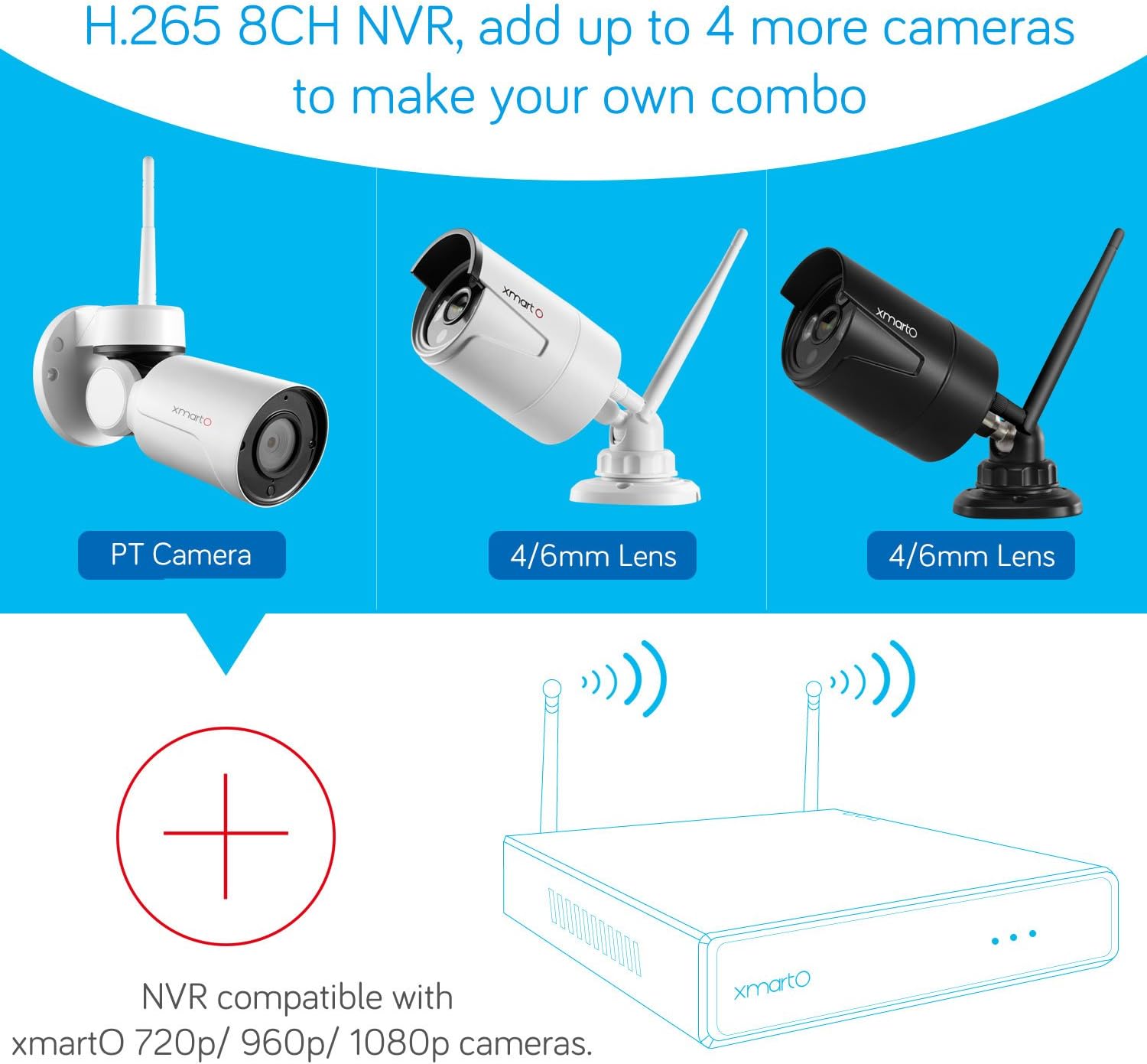
Aworan 7.1: Diagram showing the xmartO 8-channel NVR's compatibility with various xmartO camera types (PT, 4/6mm lens bullet cameras) and its expandability to add up to 4 more cameras.
8. Atilẹyin ọja ati Support
For warranty information, technical support, or service inquiries, please refer to the official xmartO webojula tabi kan si wọn onibara iṣẹ taara. Tọju iwe-ẹri rira rẹ fun awọn ẹtọ atilẹyin ọja.
Awọn orisun Ayelujara: Ṣabẹwo si osise xmartO webaaye fun awọn FAQs, awọn iwe afọwọkọ imudojuiwọn, ati alaye olubasọrọ atilẹyin.


