1. Ọja Ipariview
The ZEBRONICS Zeb-Dash is a 4-button USB wireless optical mouse designed for comfortable and efficient use. It features a high-precision optical sensor and 2.4GHz wireless technology for stable connectivity. This mouse is engineered for ease of use with a plug-and-play mechanism and smart energy-saving capabilities.

Aworan 1.1: Oke-isalẹ view of the ZEBRONICS Zeb-Dash Wireless Optical Mouse, showcasing its ergonomic design and the Zebronics logo.
2. Awọn ilana iṣeto
Follow these steps to set up your Zeb-Dash wireless mouse:
- Fi Batiri sii: Open the battery compartment located on the underside of the mouse. Insert one AAA battery, ensuring correct polarity.
- Wa olugba USB: The nano USB receiver is typically stored inside the battery compartment or alongside the mouse in the packaging. Carefully remove it.
- Olugba Sopọ: Plug the nano USB receiver into an available USB port on your laptop or desktop computer.
- System Sync: Allow approximately 6 to 7 seconds for the mouse to automatically sync with your system. No additional drivers are usually required for basic functionality.

Image 2.1: The underside of the Zeb-Dash mouse, showing the battery compartment and the nano USB receiver being inserted or removed. This illustrates the battery and receiver placement for setup.
3. Awọn ilana Iṣiṣẹ
The Zeb-Dash mouse features four buttons for various functions:
- Bọtini Tẹ osi: Standard aṣayan ati ibere ise.
- Ọtun Tẹ Bọtini: Wọle si awọn akojọ aṣayan ọrọ-ọrọ.
- Yi lọ Kẹkẹ: Lilọ kiri ni inaro nipasẹ awọn iwe aṣẹ ati web pages. Also functions as a middle click button.
- Bọtini Yipada DPI: Adjusts the mouse sensitivity (DPI) between 800, 1200, and 1600 DPI. Press to cycle through settings.
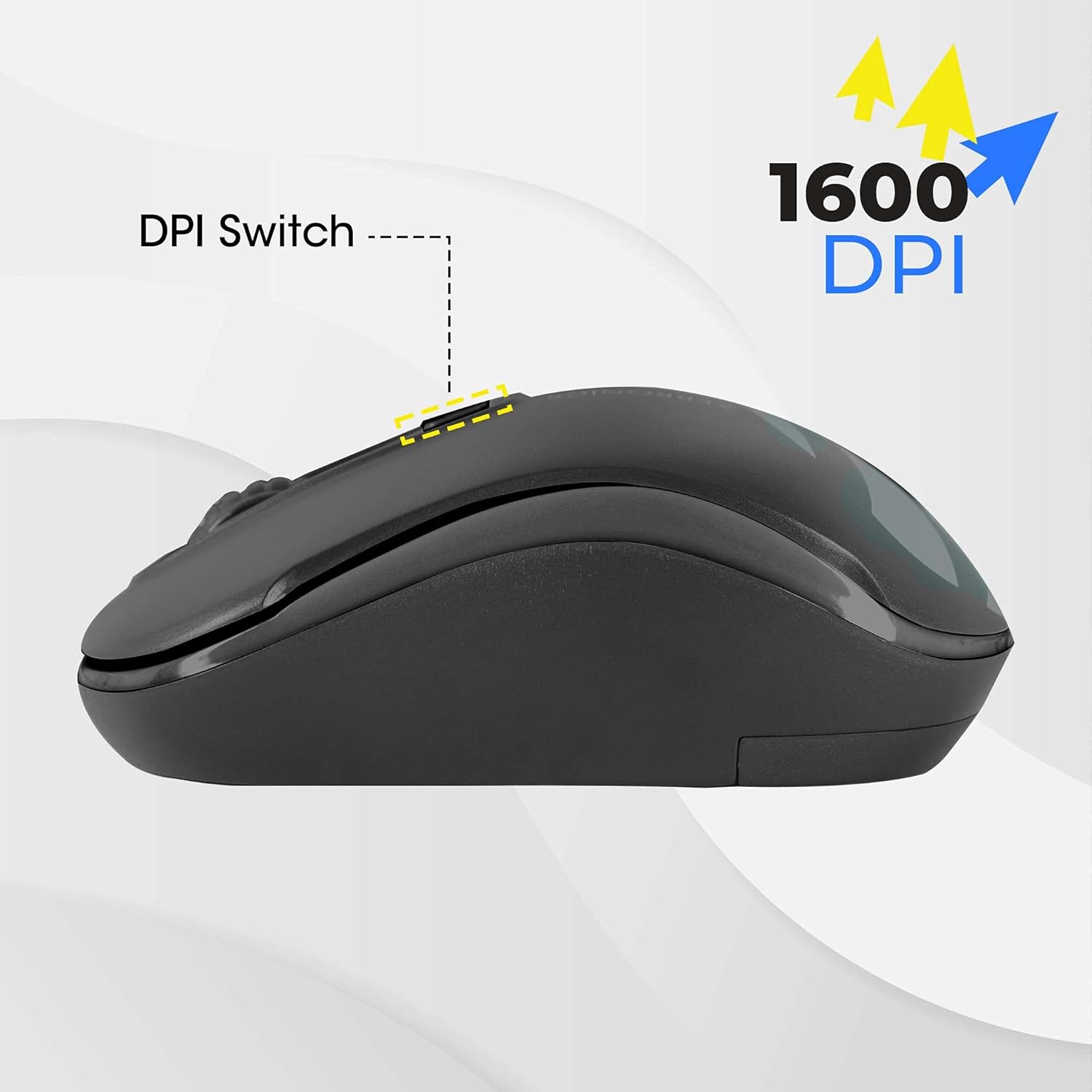
Image 3.1: A diagram highlighting the four buttons on the Zeb-Dash mouse: Left Click (1), Scroll Wheel (2), Right Click (3), and DPI Switch (4).
Agbara Nfi Ẹya
The Zeb-Dash mouse incorporates a smart energy-saving feature. It automatically enters a sleep mode when not in use, conserving battery power. There is no manual on/off switch; the mouse manages power consumption automatically.

Aworan 3.2: Apa kan view of the Zeb-Dash mouse, emphasizing its ergonomic shape and the smart energy-saving capability.
4. Awọn alaye ọja
| Ẹya ara ẹrọ | Ẹ̀kúnrẹ́rẹ́ |
|---|---|
| Brand | SEBRRONNÌSÌ |
| Awoṣe | ZEB-DASH |
| Asopọmọra Technology | USB Wireless (2.4GHz) |
| Imọ-ẹrọ Iwari išipopada | Opitika |
| Ipinnu DPI | 800/1200/1600 DPI |
| Nọmba ti Awọn bọtini | 4 |
| Button Strokes Life | 3 million iyipo |
| Munadoko Ibiti | 20 mita |
| Orisun agbara | Battery Powered (AAA battery, not included) |
| Awọn iwọn (LxWxH) | 10 x 4 x 6 cm |
| Iwọn Nkan | 110 g |
| System Awọn ibeere | IBM PC compatible system, Windows XP/Vista/7/8/10, Mac OS, or Android OS |
| Awọn irinše to wa | 1 mouse, 1 nano receiver (inside the mouse) |
5. Laasigbotitusita
- Asin Ko Dahun:
- Ensure the AAA battery is correctly inserted and has sufficient charge. Replace if necessary.
- Verify that the nano USB receiver is securely plugged into a functional USB port on your computer. Try a different USB port.
- Restart your computer to re-establish the connection.
- Ìsopọ̀/Ìdínà Lẹ́sẹ̀kẹsẹ̀:
- Move the mouse closer to the USB receiver to minimize interference.
- Ensure no other 2.4GHz wireless devices are causing interference in close proximity.
- Check the surface you are using the mouse on. Optical mice perform best on non-reflective, uniform surfaces.
- Àtúnṣe DPI kò ṣiṣẹ́:
- Press the DPI switch button firmly. Each press should cycle through the available DPI settings (800/1200/1600).
6. Atilẹyin ọja ati Support
The ZEBRONICS Zeb-Dash USB Wireless Optical Mouse comes with a 1-odun atilẹyin ọja from the date of purchase. For warranty claims or technical support, please contact ZEBRONICS customer service. Keep your purchase receipt as proof of purchase.
For further assistance, you may visit the official ZEBRONICS webaaye tabi tọka si alaye olubasọrọ ti a pese ninu apoti ọja rẹ.


