Ọrọ Iṣaaju
The Rexing V1P Pro Dual Dash Cam is a high-definition recording device designed for vehicles, offering comprehensive front and rear surveillance. Equipped with advanced features such as built-in GPS, Wi-Fi connectivity, and a supercapacitor, it ensures reliable performance and secure recording in various driving conditions.
Awọn ẹya pataki:
- FULL HD DUAL CHANNEL RECORDING: Front and rear cameras each record 1080p video @ 30fps. WIDE DYNAMIC RANGE allows each camera to perform optimally in low-light situations by carefully fine-tuning the exposure. 170 DEGREE ULTRA WIDE ANGLE LENSES on both cameras open up to capture sweeping views of their surroundings.
- BUILT-IN GPS: Internal GPS Logger allows you to mark time, date, location, and speed information to all your recordings without the need for a separate accessory.
- WI-FI CONNECT: View, save, and share dash cam recordings wirelessly on your mobile device with the use of an app interface.
- SUPERCAPACITOR: Power is delivered by a supercapacitor, a premium alternative to a lithium-ion battery which features an enhanced temperature resistance to hot and cold climates.
- SECURE RECORDING: Recordings are split into segments. When the storage limit is reached on the memory card, new recordings will automatically overwrite oldest recordings. When the G-sensor detects a collision, the current video is locked, ensuring important footage is kept protected. Supports class 10 or higher micro SD cards up to 256GB in size (not included).
Ohun ti o wa ninu Apoti
- Rexing V1P Pro Front Dash Cam
- Kamẹra ẹhin
- Car Power Cable (Mini-USB)
- Rear Camera Connection Cable (Mini-USB to Mini-USB)
- USB Data Cable (Mini-USB to USB-A)
- 3M Adhesive Mounts (2 sets)
- Clips Management Clips
- Ọpa Pry
- Quick Bẹrẹ Itọsọna
- Memory Card (as per product specifications, though often sold separately)
Note: A Micro SD card (Class 10 or higher, up to 256GB) is required for operation and is not always included. Please check product packaging for exact contents.
Eto Itọsọna
1. Fi sori ẹrọ Dash Cam
Mount the front dash cam on your windshield, ideally behind the rearview mirror, using the provided 3M adhesive mount. Ensure the lens has a clear view of the road. Connect the rear camera to the front unit using the provided cable and mount it on your rear windshield.

Image: Rexing V1P Pro Dash Cam and rear camera setup with mobile app interface.
2. Asopọ agbara
Connect the car power cable to the dash cam's power port and plug the other end into your vehicle's 12V power outlet. The dash cam will automatically power on and begin recording when your vehicle starts.

Image: Rexing V1P Pro Dash Cam installed on a car windshield, showing power cable connection.
3. Fi Micro SD Kaadi
Insert a Class 10 or higher Micro SD card (up to 256GB) into the designated slot on the side of the dash cam. The device requires a memory card to store recordings.

Image: A Micro SD card, essential for storing dash cam footage.
4. Awọn Eto ibẹrẹ
Upon first use, navigate the dash cam menu using the physical buttons to set the correct date, time, and preferred recording resolution. Ensure Loop Recording and G-Sensor are enabled for optimal performance.
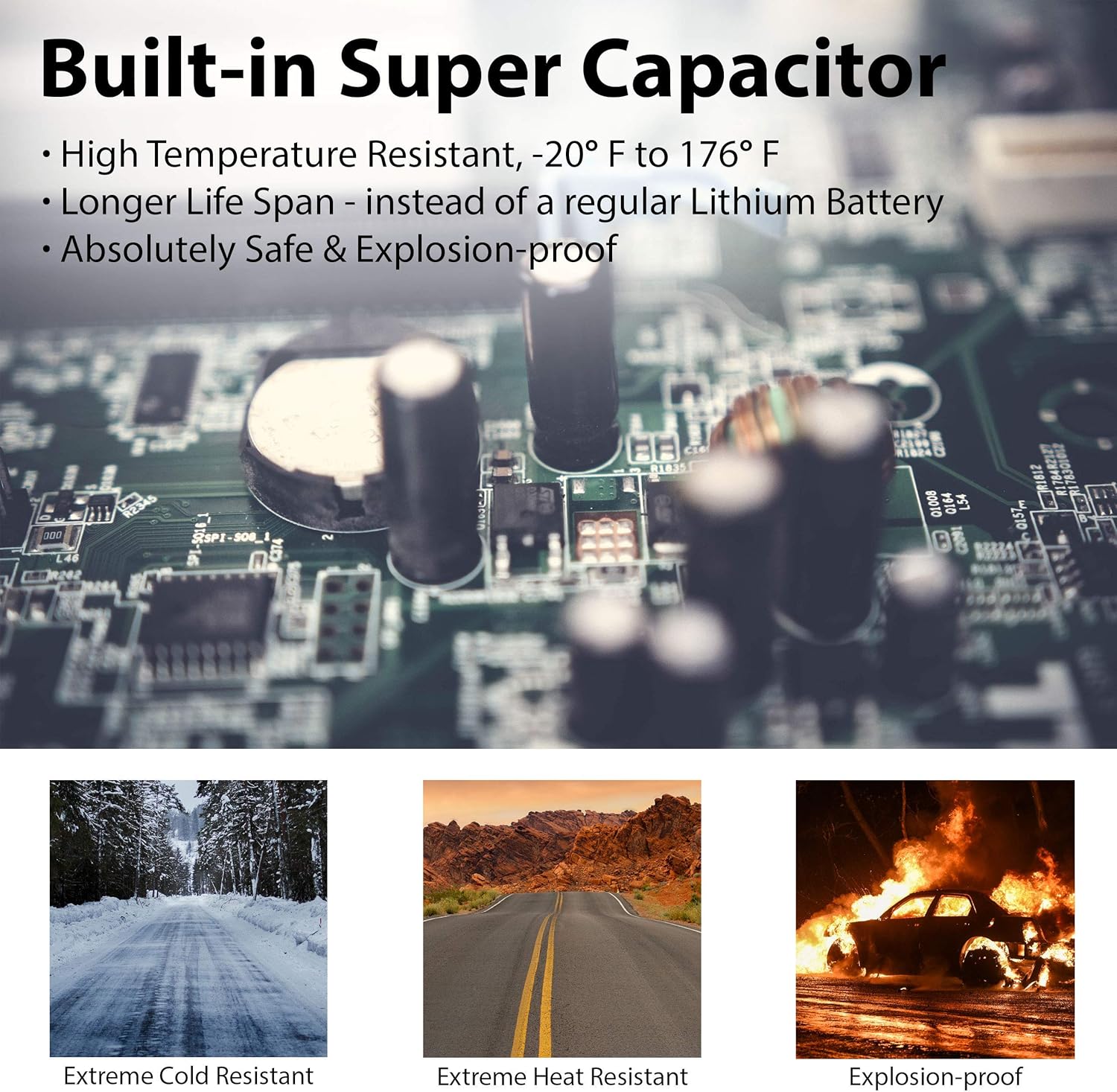
Image: Close-up of the Rexing V1P Pro Dash Cam's 2.4" LCD screen displaying menu options.
Awọn ilana Iṣiṣẹ
Awọn igbasilẹ Gbigbasilẹ
The dash cam automatically starts recording when powered on. Footage is saved in segments (e.g., 1, 3, or 5 minutes) due to loop recording. In case of an impact, the G-Sensor will automatically lock the current video segment to prevent it from being overwritten.

Image: Icon representing Loop Recording functionality.

Image: Icon representing G-Sensor functionality for collision detection.
Wi-Fi Connectivity & Mobile App
Download the "Rexing Connect" app from your smartphone's app store. Enable Wi-Fi on your dash cam via the menu. Connect your phone to the dash cam's Wi-Fi network (SSID and password displayed on the dash cam screen). Once connected, you can view gbe footage, playback recordings, and download files taara si foonu rẹ.

Image: Icon representing Wi-Fi Connect feature.
Video: Official introduction to the Rexing V1P Pro dash cam, highlighting its features and connectivity.
Logger GPS ti a ṣe sinu
The integrated GPS module records your vehicle's speed, location, date, and time, embedding this data directly into your video files. This information can be viewed using the Rexing GPS Player software on your computer.

Image: Illustration of the built-in GPS Logger, showing route and speed tracking on a map interface.
Supercapacitor Technology
The V1P Pro uses a supercapacitor instead of a traditional lithium-ion battery. This provides enhanced temperature resistance, allowing the dash cam to operate reliably in extreme hot or cold climates (-20°F to 176°F) and offers a longer lifespan with reduced risk of overheating.

Image: Icon representing the Supercapacitor technology.
Alẹ Iranran
Equipped with a Sony sensor and WDR (Wide Dynamic Range) technology, the dash cam provides clear video quality even in low-light conditions, enhancing visibility during nighttime driving.

Image: Illustration highlighting the Super Night Vision capabilities of the dash cam.
Itoju
SD Card Management
Regularly format your Micro SD card (at least once a month) to ensure optimal performance and prevent data corruption. This can typically be done through the dash cam's menu settings.
Ninu
Keep the dash cam lenses clean using a soft, dry cloth. Avoid using harsh chemicals that could damage the lens coating.
Famuwia Awọn imudojuiwọn
Check the Rexing website periodically for firmware updates. Keeping your dash cam's firmware up-to-date ensures you have the latest features and bug fixes.
Laasigbotitusita
Awọn oran Asopọ Wi-Fi
If you experience difficulty connecting to the Wi-Fi or using the mobile app, ensure your phone is not simultaneously connected to another Wi-Fi network. Some users report needing to disconnect from their home Wi-Fi before connecting to the dash cam's network. If the app crashes, try restarting both the dash cam and the app, and ensure you have the latest app version.
Dash Cam Randomly Turns Off/On
This issue might be related to insufficient power supply or G-Sensor sensitivity. Ensure the dash cam is receiving stable power. Adjust the G-Sensor sensitivity to a lower setting via the menu to prevent it from triggering recordings too frequently, which can cause interruptions.
Unable to Retrieve Files via App
If the app cannot retrieve files, try restarting the dash cam and the app. Ensure your phone is connected directly to the dash cam's Wi-Fi. If issues persist, try downloading files by connecting the SD card directly to a computer.
Awọn pato
| Ẹya ara ẹrọ | Sipesifikesonu |
|---|---|
| Ọja Mefa | 4.5 x 2.5 x 2 inches |
| Iwọn Nkan | 4.8 iwon |
| Nọmba Awoṣe Nkan | Rexing V1P Pro |
| Awọn ọna ẹrọ Asopọmọra | Wi-Fi |
| Pataki Awọn ẹya ara ẹrọ | G-Sensor, Built-In GPS |
| Àwọ̀ | dudu |
| Olupese | Atunṣe |
| Ilu isenbale | China |
| Ọjọ Akọkọ Wa | Oṣu Kẹsan Ọjọ 5, Ọdun 2018 |
| Iṣalaye | Iwaju & Ru |
| Ipinnu Yaworan fidio | 1080p |
| Iṣagbesori Iru | Dasibodu Oke |
| Aaye Ti View | Awọn iwọn 170 |
Atilẹyin ọja & Atilẹyin
The Rexing V1P Pro comes with an 18-month warranty. For product support, firmware updates, or to register your product for warranty extension, please visit the official Rexing webojula tabi kan si wọn onibara iṣẹ.
Osise Webojula: www.rexingusa.com


