Ọrọ Iṣaaju
Thank you for choosing the Adonit Wireless Fast Charging Stand. This device is designed to provide convenient and efficient wireless charging for your Qi-enabled smartphones. It includes a QC3.0 adapter for optimal fast charging performance. Please read this manual carefully before use to ensure proper operation and to maximize the lifespan of your product.
Package Awọn akoonu
Daju pe gbogbo awọn nkan ti a ṣe akojọ rẹ si isalẹ wa ninu package rẹ:
- Wireless Fast Charging Stand (x1)
- QC 3.0 USB Power Adapter (x1)
- Fast Charging USB Cable (x1)
- Itọsọna olumulo (x1)
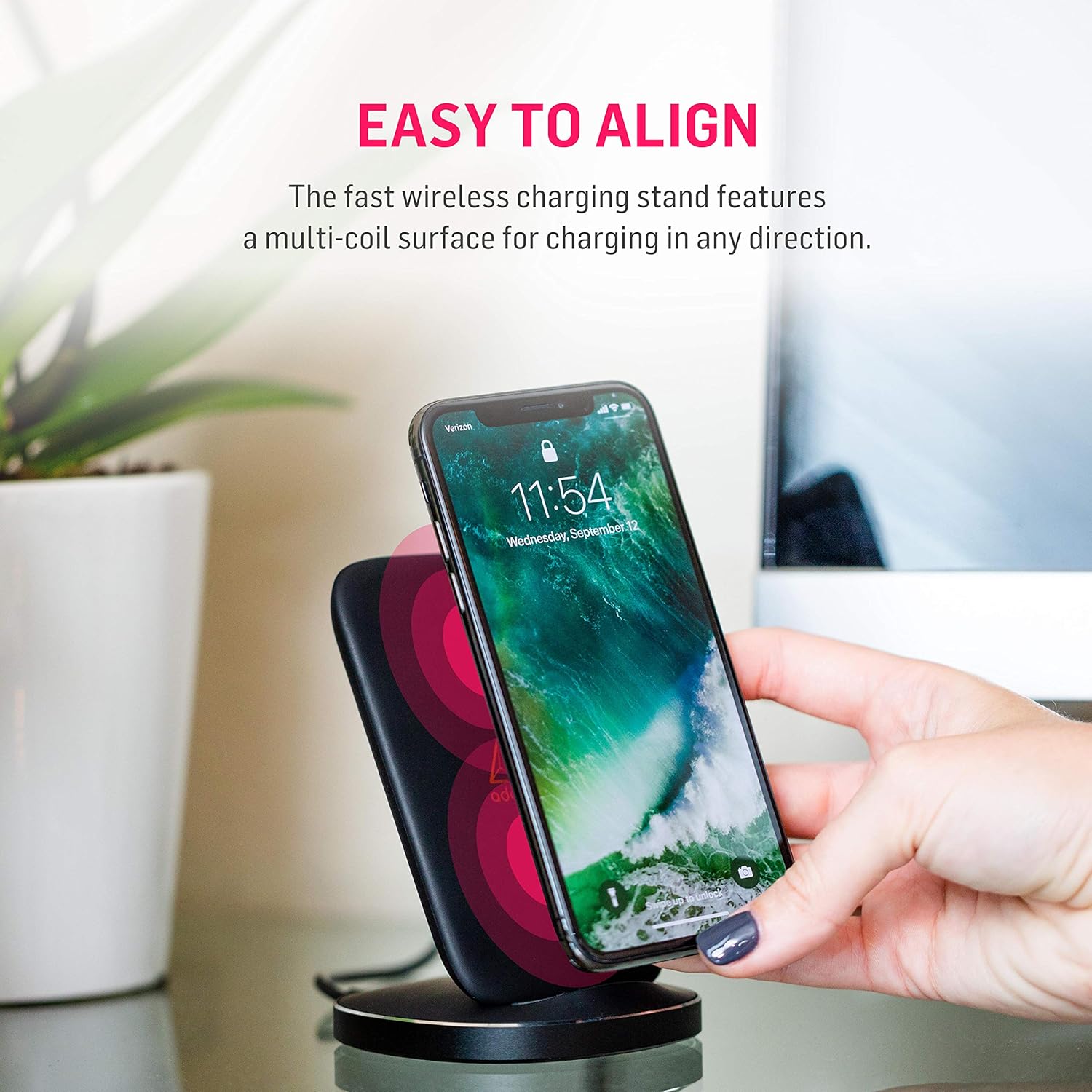
Image: Contents of the Adonit Wireless Fast Charging Stand package.
Awọn ilana iṣeto
- So Adapter: Plug the QC 3.0 USB Power Adapter into a wall outlet.
- So okun pọ: Insert one end of the Fast Charging USB Cable into the QC 3.0 USB Power Adapter and the other end into the USB port on the Adonit Wireless Fast Charging Stand.
- Ibi: Gbe iduro gbigba agbara sori iduro, dada alapin.
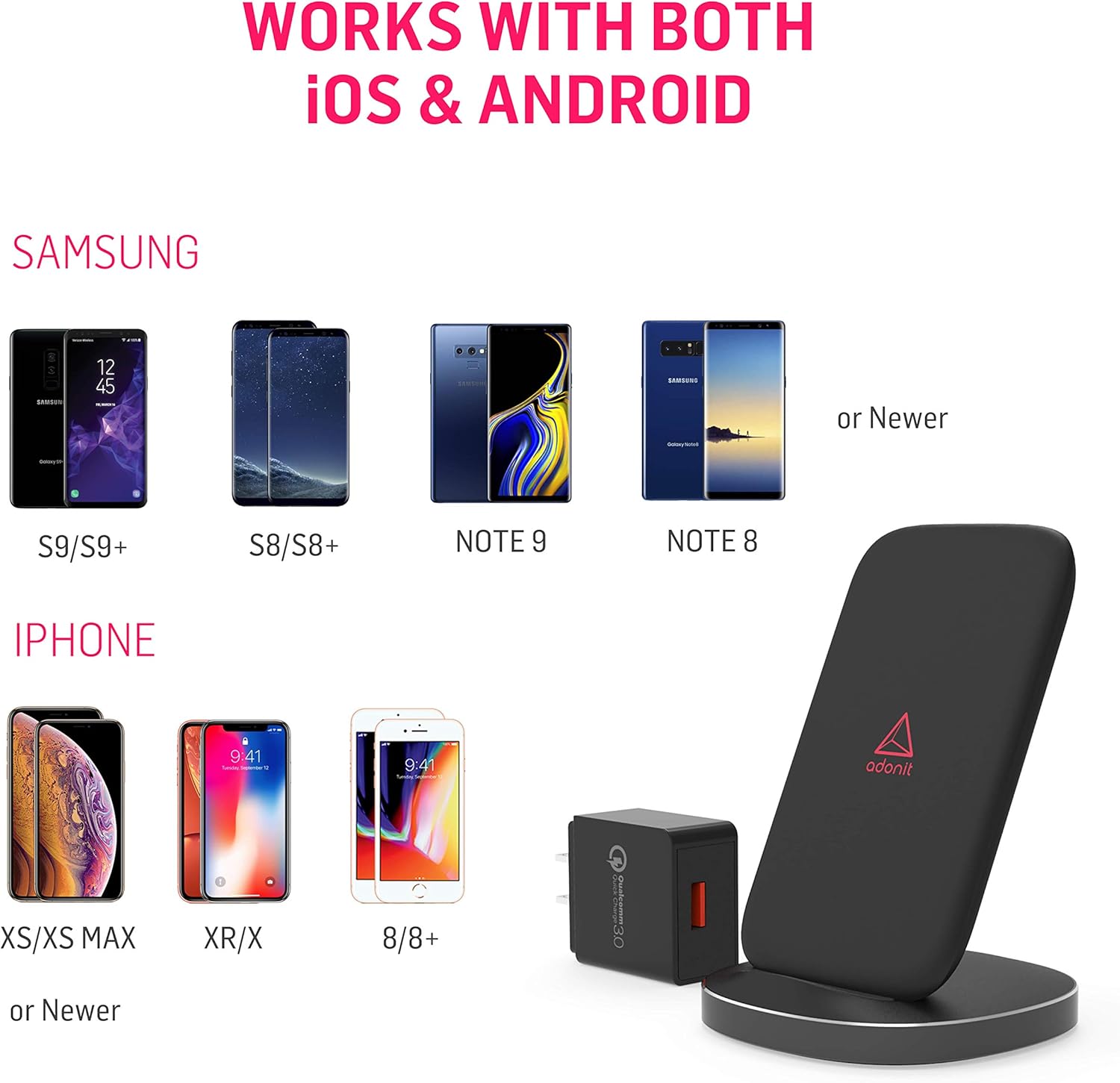
Image: The QC 3.0 USB Power Adapter and USB cable included with the charging stand.
Awọn ilana Iṣiṣẹ
Gbigba agbara ẹrọ rẹ
- Ensure the charging stand is properly connected to power.
- Place your Qi-enabled smartphone directly onto the charging surface of the stand. The stand features a multi-coil surface, allowing for flexible placement in any direction (vertical or horizontal).
- A green LED light located at the base of the stand will illuminate to indicate that your phone is correctly aligned and charging. This LED is designed to be non-disruptive.
- For optimal fast charging, ensure your phone supports Qi fast charging and is placed centrally on the stand.

Image: Easy alignment of a smartphone on the multi-coil charging surface.
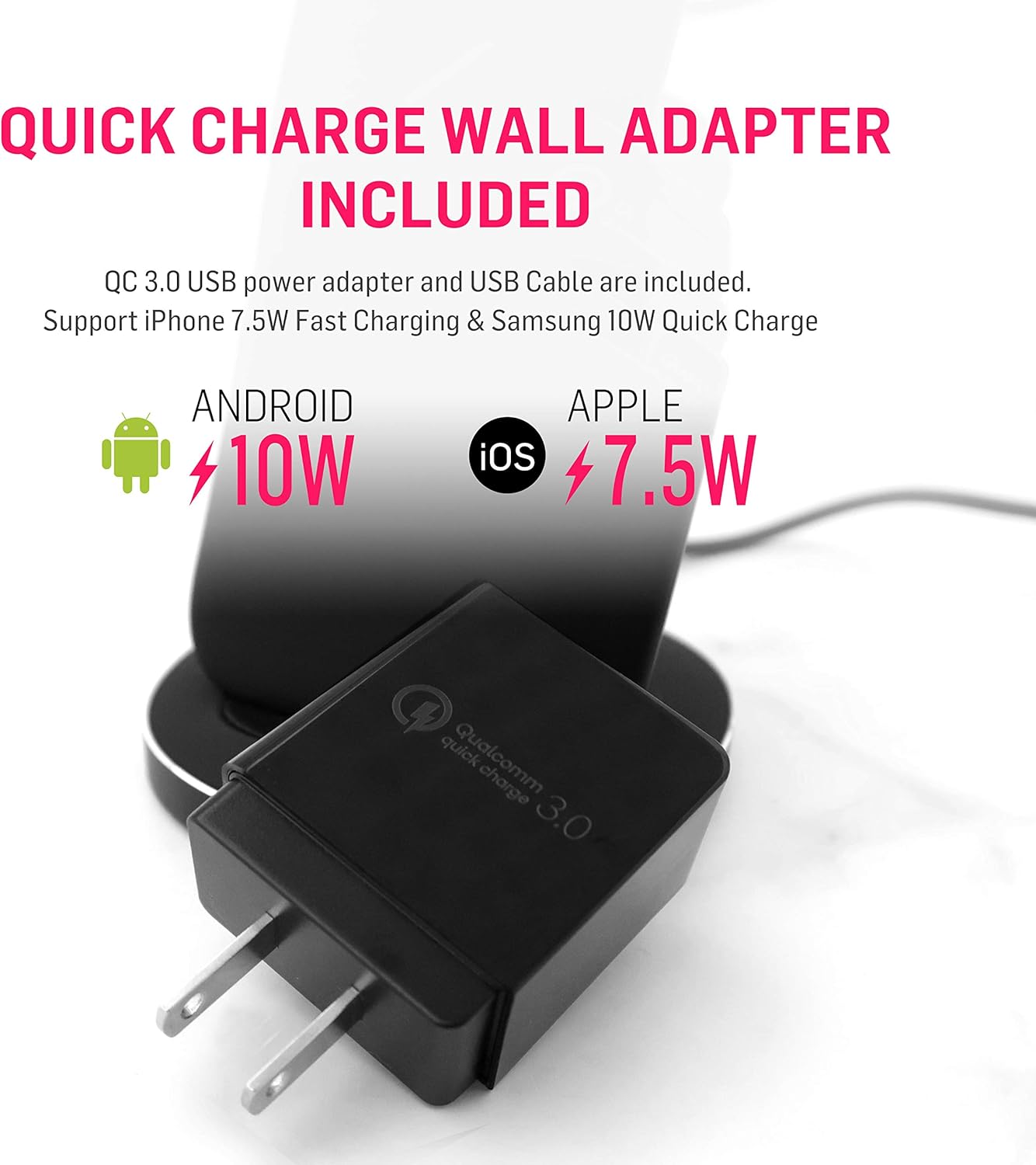
Image: The charging stand supports both portrait and landscape orientations for charging.

Image: The non-disruptive green LED light at the base indicates charging status.
Ibamu
The Adonit Wireless Fast Charging Stand is Qi-certified and compatible with a wide range of Qi-enabled smartphones, including but not limited to:
- iPhone: iPhone 13, 13 Pro Max, 13 Pro, 13 Mini, 12, 12 Pro, 11, 11 Pro, Pro Max, XR, XS, X, 8, 8 Plus, and newer Qi-enabled models.
- Samusongi Agbaaiye: S20, S10, S9, S8, Note 10, Note 9, Note 8, and newer Qi-enabled models.
- Other Qi-enabled devices.
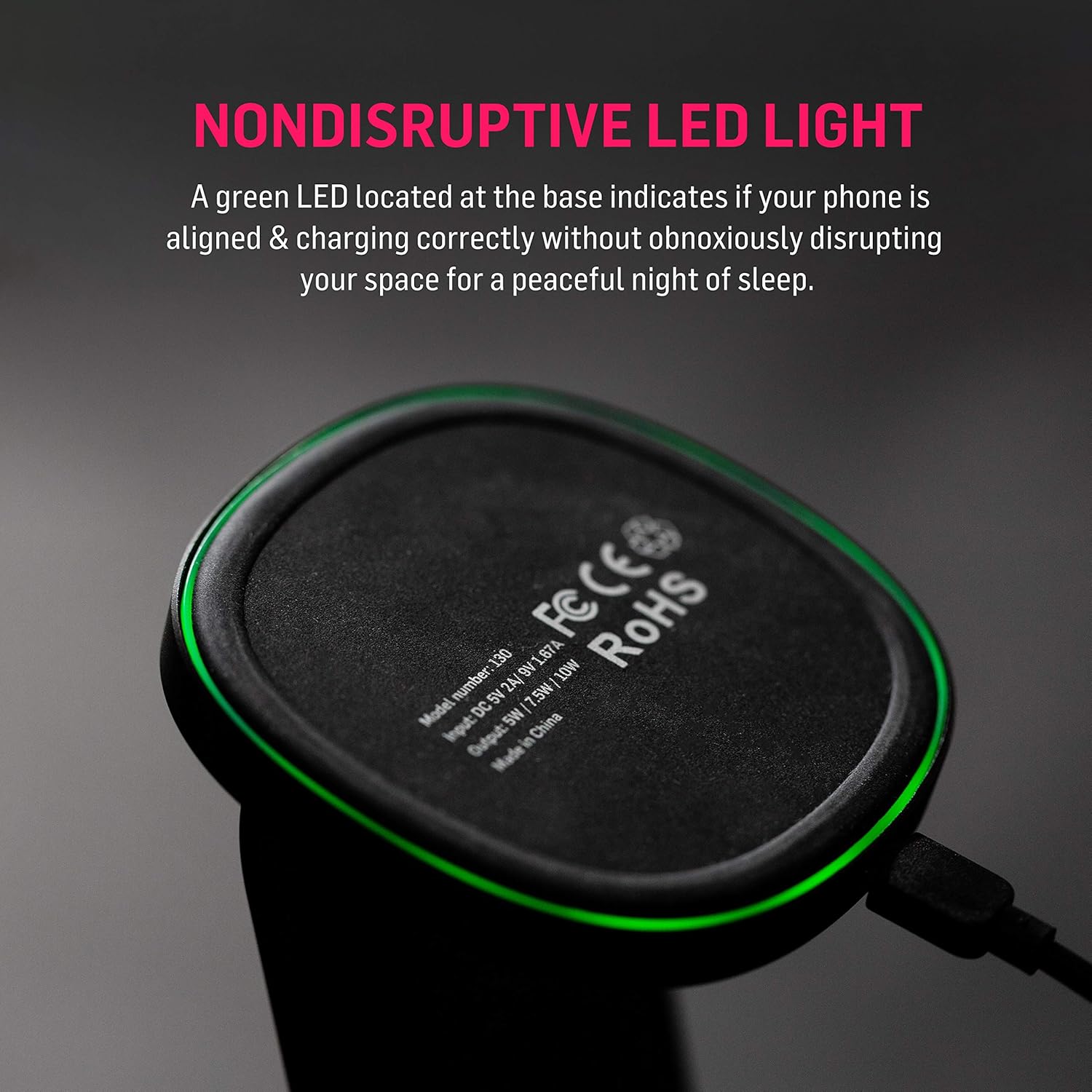
Image: Compatibility chart for iOS and Android devices.
Itoju
- Keep the charging stand clean by wiping it with a soft, dry cloth.
- Yẹra fun lilo awọn kẹmika lile tabi awọn afọmọ abrasive.
- Ensure the charging stand is disconnected from power before cleaning.
- Ma ṣe fi ẹrọ naa han si awọn iwọn otutu to gaju, ọriniinitutu, tabi awọn olomi.
Laasigbotitusita
- Ẹrọ ko gba agbara:
- Ensure the charging stand is properly connected to the QC 3.0 adapter and a working power outlet.
- Verify that your smartphone is Qi-enabled.
- Adjust the position of your phone on the charging stand. The green LED should illuminate when charging correctly.
- Yọ eyikeyi awọn ọran foonu ti o nipọn ti o le dabaru pẹlu gbigba agbara alailowaya.
- Try using a different USB cable or power adapter (ensure it's QC 3.0 compatible).
- Gbigba agbara lọra:
- Ensure you are using the included QC 3.0 USB Power Adapter. Standard adapters may not provide fast charging.
- Confirm your phone supports fast wireless charging.
- Ensure your phone is centered on the charging stand.
- Avoid charging in very hot environments, as this can trigger thermal protection and slow down charging.
- Imọlẹ LED ko tan imọlẹ:
- Ṣayẹwo awọn asopọ agbara.
- Reposition your phone on the stand.
- Ensure no foreign objects are between the phone and the charging surface.
Awọn pato
| Nọmba awoṣe | ADWFCSUSB |
| Ọja Mefa | 3.3 x 3.3 x 4.6 inches |
| Iwọn Nkan | 4.2 iwon |
| Asopọmọra Technology | Ailokun |
| Pataki Awọn ẹya ara ẹrọ | Wireless Charging, Multi-Coil Surface, Non-Disruptive LED |
| Input (from image) | DC 5V 2A | 9V 1.67A |
| Output (from image) | 5W | 7.5W | 10W |
| Àwọ̀ | Dudu |
| Olupese | Adonit Creative |
Alaye Aabo
This device is optimized for safe and reliable wireless charging. It includes multi-protection features to safeguard your device from:
- Lori-voltage
- Lori-lọwọlọwọ
- Loju iwọn otutu
- Yiyi kukuru
Lati rii daju iṣiṣẹ ailewu, jọwọ ṣe akiyesi atẹle naa:
- Ma ṣe tuka tabi yi ọja pada.
- Jeki kuro lati omi ati awọn miiran olomi.
- Avoid placing metal objects or magnetic cards between your phone and the charging stand, as this can interfere with charging or damage the device.
- Use only the provided QC 3.0 adapter and USB cable for optimal performance and safety.
Atilẹyin ọja ati Support
Adonit products are designed for durability and performance. For warranty information or technical support, please refer to the official Adonit website or contact their customer service directly. Details are typically available on the product packaging or the official Adonit support page.
Official Adonit Store: Adonit Store on Amazon


