1. Ifihan
The Cisco Aironet 1142N Access Point is an indoor access point designed for business environments, focusing on simple deployment and energy efficiency. This device supports dual-band 802.11n wireless standards and features integrated antennas. It can also be configured with a single-band 802.11g/n (2.4-GHz) radio for regions where 802.11a (5-GHz) operation is not permitted. A compatible WLAN Controller is required for operation (sold separately).

olusin 1: Iwaju view of the Cisco Aironet AIR-LAP1142N-A-K9 Wireless Access Point.
2. Eto ati fifi sori
The Cisco Aironet 1142N Access Point is designed for straightforward installation. It supports Power over Ethernet (PoE), allowing both power and data to be transmitted over a single Ethernet cable, simplifying deployment, especially in locations without nearby power outlets.
2.1 Ṣiṣii ẹrọ naa
Carefully remove all components from the packaging. Ensure the access point and the mounting kit are present.
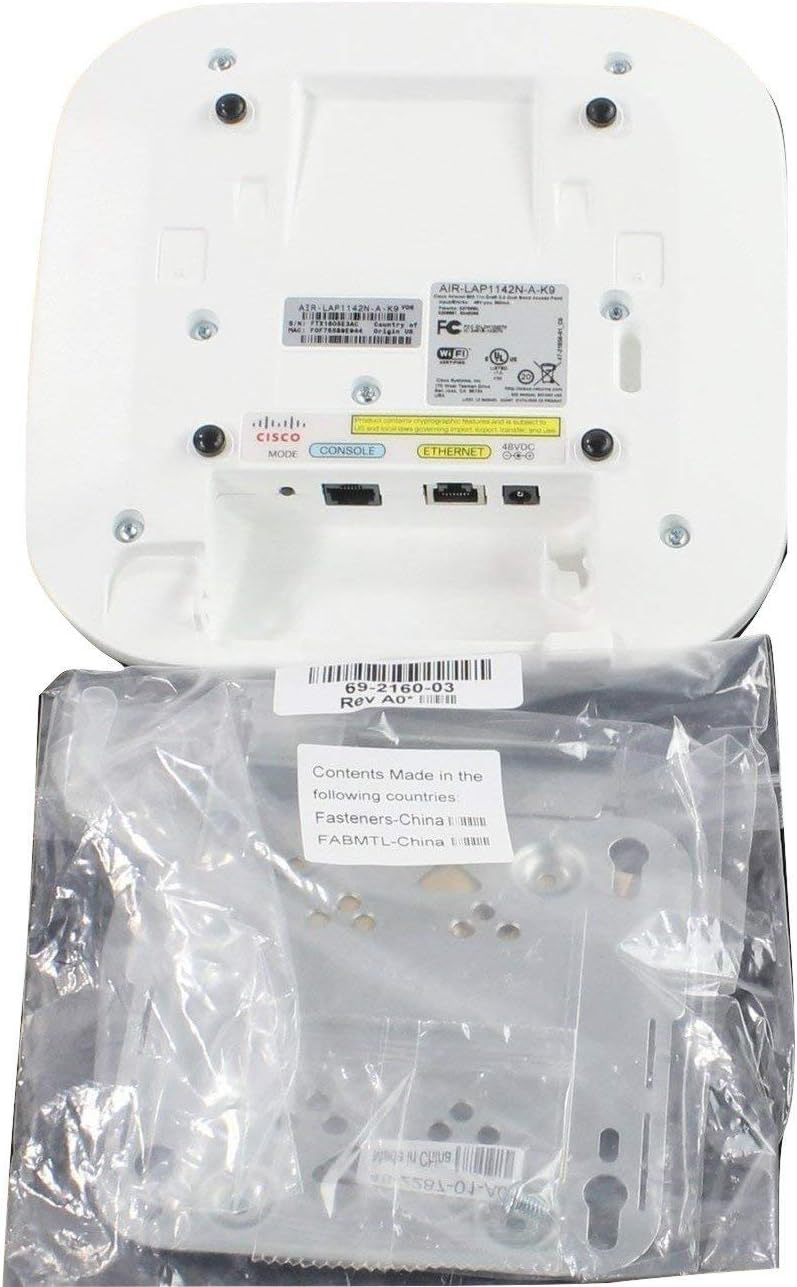
Figure 2: Cisco Aironet AIR-LAP1142N-A-K9 Wireless Access Point with included mounting kit components.
2.2 Connecting the Access Point
- Asopọ agbara: Connect an Ethernet cable from a PoE-enabled switch or PoE injector to the Ethernet port on the back of the access point. This will provide both power and data connectivity.
- Isopọ nẹtiwọki: Ensure the PoE switch or injector is connected to your network infrastructure (e.g., router, WLAN controller).
- Ibudo Iṣakoso: The access point also features a dedicated management port (RJ-45) for direct console access, if needed for advanced configuration.

olusin 3: Ẹyìn view of the Cisco Aironet AIR-LAP1142N-A-K9 Wireless Access Point showing Ethernet and console ports.
2.3 Iṣagbesori ẹrọ
The included mounting kit allows for flexible installation on walls or ceilings. Refer to the mounting kit instructions for detailed steps on securing the access point in your desired location.
3. Ṣiṣẹ́ ojú ọ̀nà ìwọ̀lé
Once powered on and connected to a compatible WLAN controller, the Cisco Aironet 1142N Access Point will begin broadcasting wireless networks. The dual-band 802.11a/g/n capabilities ensure broad compatibility and high-speed connectivity for various devices.
3.1 Asopọmọra Alailowaya
- Atilẹyin Ẹgbẹ-meji: The access point operates on both 2.4 GHz (802.11g/n) and 5 GHz (802.11a/n) frequencies, providing flexibility for client devices and reducing interference.
- Iṣe-iyara giga: With 802.11n and MIMO technology, the access point delivers strong and stable wireless speeds, supporting multiple connected devices simultaneously for smooth streaming, browsing, and online work.
- Aabo: Supports various security protocols including AES, TLS, PEAP, TTLS, TKIP, WPA, and WPA2 to ensure secure wireless communication.

olusin 4: Top-isalẹ view of the Cisco Aironet AIR-LAP1142N-A-K9 Wireless Access Point.
3.2 Ti firanṣẹ Asopọmọra
The integrated 1000Base-T (Gigabit Ethernet) port provides a high-speed wired connection for devices requiring maximum throughput or for connecting to the network backbone.
4. Itọju
To ensure optimal performance and longevity of your Cisco Aironet 1142N Access Point, follow these general maintenance guidelines:
- Jeki mimọ: Regularly wipe the exterior of the device with a soft, dry cloth to remove dust. Avoid using liquid cleaners or abrasive materials.
- Ṣe idaniloju Afẹfẹ: Make sure the ventilation holes are not obstructed to prevent overheating.
- Awọn imudojuiwọn famuwia: Lorekore ṣayẹwo Cisco support website for firmware updates. Keeping the firmware up-to-date ensures the latest features, security patches, and performance improvements.
- Awọn ipo Ayika: Operate the device within its specified environmental ranges (temperature, humidity) to prevent damage.
5. Laasigbotitusita
If you encounter issues with your access point, consider the following basic troubleshooting steps:
- Ko si Agbara/Awọn LED Pipa: Verify that the Ethernet cable is securely connected to both the access point and the PoE source. Ensure the PoE source is powered on and functioning correctly.
- No Wireless Signal: Check the access point's status indicators. Confirm that the device is online and configured correctly via your WLAN controller. Ensure there are no physical obstructions blocking the signal.
- Iṣẹ ṣiṣe ti o lọra: Check for network congestion. Ensure the access point's firmware is up-to-date. Consider adjusting channel settings on the WLAN controller to avoid interference.
- Ko le Sopọ si Nẹtiwọọki: Verify wireless network settings (SSID, password) on client devices. Ensure the WLAN controller is properly managing the access point.
- Atunto Ẹrọ naa: If issues persist, a factory reset may be necessary. Refer to the device's specific documentation or your WLAN controller's guide for instructions on performing a reset.
6. Awọn pato
| Ẹya ara ẹrọ | Ẹ̀kúnrẹ́rẹ́ |
|---|---|
| Brand | Sisiko |
| Nọmba awoṣe | AIR-LAP1142N-A-K9 |
| Alailowaya Iru | 802.11abg, 802.11ag, 802.11n |
| Àgbo | 128 MB |
| Flash Memory Iwon | 32 MB |
| Awọn ibudo | 1 x 1000Base-T (RJ-45), 1 x Management (RJ-45) |
| Orisun agbara | PoE Injection |
| Voltage | 50 Volts |
| Iwọn Nkan | 2.55 iwon |
| Ọja Mefa | 8.7 x 8.7 x 1.9 inches |
| Àwọ̀ | Funfun |
7. atilẹyin ọja Information
Please note the following regarding warranty and returns:
- Returns for non-defective items are generally not accepted. Any merchandise returned for repair and found not to be defective by technicians may incur a 25% restocking fee.
- By placing an order, you acknowledge and accept these procedures.
- Additional warranty length may be available; contact the seller directly for more details.
8. Atilẹyin
For further assistance, technical support, or inquiries regarding your Cisco Aironet AIR-LAP1142N-A-K9 Wireless Access Point, please refer to the official Cisco support resources or contact your product vendor.
- Visit the official Cisco website for documentation, drivers, and support forums.
- Contact your reseller or distributor for product-specific support and service.


