1. Ifihan
This manual provides detailed instructions for the installation, operation, maintenance, and troubleshooting of your TENVIS T3875D WiFi IP Camera. Please read this manual thoroughly before using the product to ensure proper setup and optimal performance. Keep this manual for future reference.
The TENVIS T3875D is a Full HD 1080P outdoor motorized IP camera featuring 5X optical zoom, speaker, microphone, and MicroSD card support, compatible with ONVIF protocols.
2. Ọja Ipariview
2.1 Package Awọn akoonu
- TENVIS T3875D WiFi IP Camera
- Power Adapter (AC 220V with Italian socket, output DC 12V 1A)
- Iṣagbesori skru ati Plugs
- Okun Ethernet (fun eto ibẹrẹ tabi asopọ waya)
- Afowoyi Olumulo (iwe-ipamọ yii)
2.2 Awọn ohun elo kamẹra
Familiarize yourself with the main components of your TENVIS T3875D camera:

Shows the camera lens, infrared LEDs, and light sensor. The camera is mounted on a wall bracket with an antenna visible at the top.

Another perspective of the front, highlighting the dome shape and the array of infrared lights around the central lens.

Displays the back of the camera, revealing the speaker grille and the covered MicroSD card slot at the bottom.

Shows the camera from a side angle, emphasizing the wall mount arm and the antenna connection point.
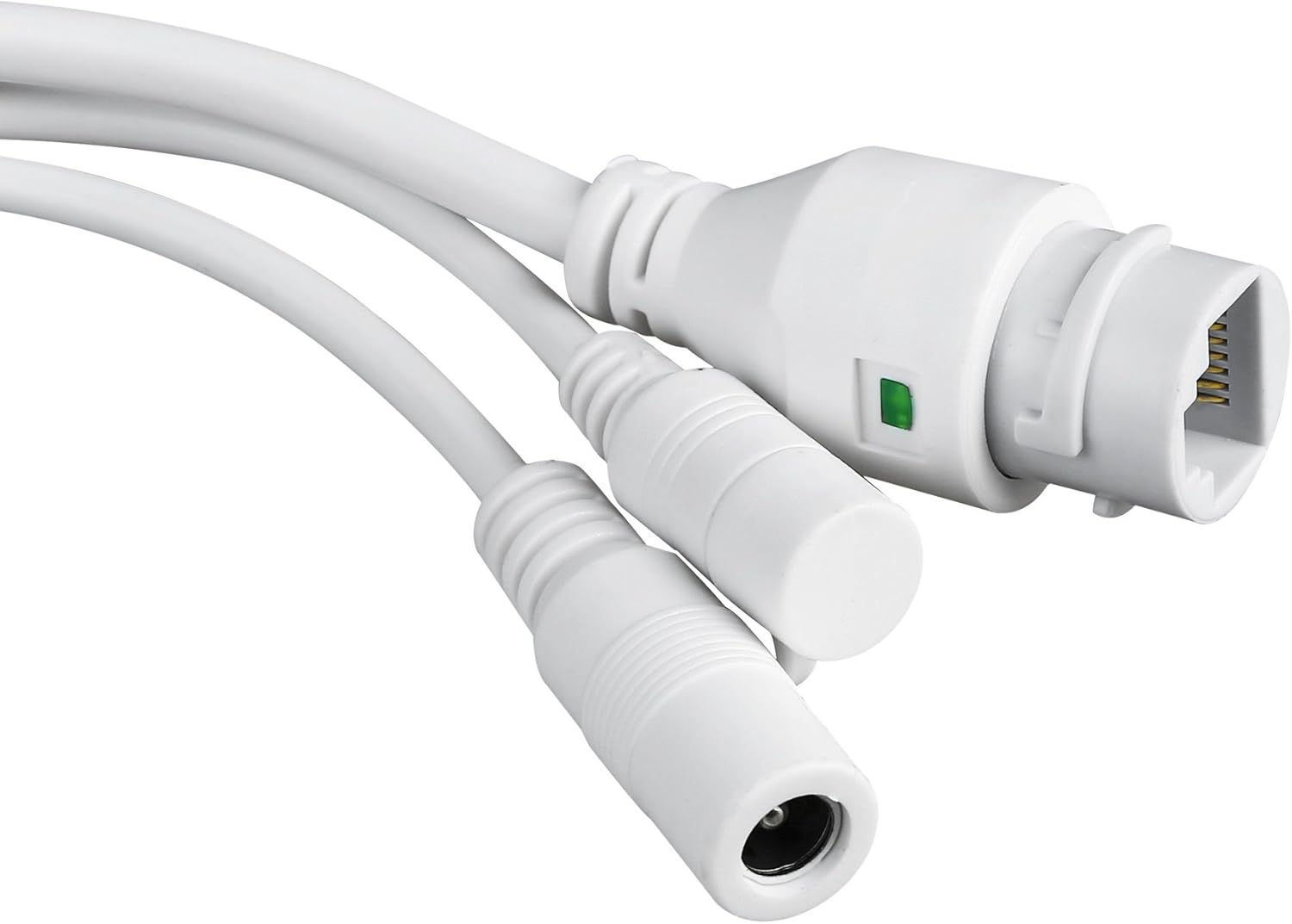
Close-up of the camera's power input and Ethernet port, essential for connectivity.
3. Eto ati fifi sori
3.1 Iṣagbesori Kamẹra
The TENVIS T3875D is designed for outdoor use and is IP66 weatherproof. Choose a suitable location for mounting, ensuring a clear field of view and access to a power source.
- Samisi awọn aaye liluho lori ogiri nipa lilo akọmọ iṣagbesori bi awoṣe.
- Lu ihò ki o si fi awọn ti pese odi plugs.
- So àkọlé ìfìkọ́lé mọ́ ògiri nípa lílo àwọn skru náà.
- So kamẹra pọ si akọmọ iṣagbesori.
- Adjust the camera's angle as needed after initial setup.
3.2 Agbara Lori
Connect the provided power adapter to the camera's power input and then plug it into a suitable electrical outlet. The camera will initiate its self-test sequence.
3.3 Asopọ Nẹtiwọọki
The camera supports both Wi-Fi (802.11n, WPA, WPA2) and Ethernet (10/100M) connections.
3.3.1 Wired Connection (Recommended for initial setup)
- So opin kan ti okun Ethernet pọ mọ ibudo Ethernet kamẹra naa.
- So awọn miiran opin ti awọn àjọlò USB si rẹ olulana tabi nẹtiwọki yipada.
- Ensure your router has DHCP enabled for automatic IP address assignment.
3.3.2 Asopọ Alailowaya
Wireless setup is typically done via the mobile application after the camera is initially connected to the network (either wired or via P2P QR code setup).
- P2P (Plug & Play) Setup: Download the "TENVISTY" app (available for Android and iOS). Scan the QR code on the product to quickly connect the camera to your smartphone/tablet. This method simplifies network configuration.
- Manual Wi-Fi Configuration: Ti o ba nlo awọn web interface or a different app, you may need to manually select your Wi-Fi network (SSID) and enter the password.
3.4 MicroSD Kaadi fifi sori
The camera supports MicroSD cards up to 128GB for local storage of recordings.
- Locate the MicroSD card slot on the camera (refer to Figure 2.2.3). It is usually protected by a cover.
- Ṣí ìbòrí náà dáadáa.
- Insert the MicroSD card into the slot with the contacts facing down until it clicks into place.
- Close the cover securely to maintain the camera's weather resistance.
- Format the MicroSD card via the camera's settings in the app or web ni wiwo fun ti aipe išẹ.
4. Ṣiṣẹ kamẹra
4.1 Wíwọlé sí Kámẹ́rà
You can access and control your camera using the official TENVISTY app or a web kiri ayelujara.
4.1.1 Using the TENVISTY App
- Download "TENVISTY" from the App Store (iOS) or Google Play Store (Android).
- Register an account or log in.
- Add your camera by scanning the QR code or manually entering its ID.
- Ni kete ti o ba ṣafikun, o le view live feed, control pan/tilt/zoom, access recordings, and configure settings.
4.1.2 Lilo a Web Aṣàwákiri
The camera supports Internet Explorer 11. Other browsers may have limited functionality.
- Rí i dájú pé kọ̀ǹpútà rẹ wà lórí nẹ́tíwọ́ọ̀kì kan náà pẹ̀lú kámẹ́rà náà.
- Find the camera's IP address (can be found via your router's connected devices list or a network scanner tool).
- Open Internet Explorer 11 and enter the camera's IP address in the address bar.
- Enter the default username and password (refer to the camera's label or initial setup guide for defaults).
4.2 Pan, Pulọọgi, ati Sun (PTZ) Iṣakoso
The T3875D features motorized pan (355° horizontal), tilt (90° vertical), and 5x optical autofocus zoom.
- In the TENVISTY app or web interface, use the directional controls to move the camera's view.
- Use the zoom controls to optically zoom in or out. The camera will automatically focus.
4.3 Wiwa išipopada ati Awọn itaniji
Configure motion detection settings to receive alerts and record events.
- Navigate to "Alarm Settings" or "Motion Detection" in the app/web ni wiwo.
- Enable motion detection.
- Adjust sensitivity levels and define detection regions to minimize false alarms.
- Configure alarm actions:
- Titari Awọn iwifunni: Receive real-time alerts on your smartphone/tablet via the TENVISTY app.
- Ìkìlọ̀ Ìmeeli: Send emails with attached captured images to specified recipients.
- Gbigbasilẹ fidio: Automatically record video to the MicroSD card, NVR, or FTP server upon motion detection.
4.4 Gbigbasilẹ ati Sisisẹsẹhin
The camera supports continuous, scheduled, or alarm-triggered recording.
- Gbigbasilẹ agbegbe: Recordings are saved to the installed MicroSD card (up to 128GB).
- NVR/FTP Recording: Compatible with ONVIF 2.1 NVRs or FTP servers (NAS, hard drive connected to router).
- Sisisẹsẹhin: Wiwọle gba silẹ footage through the TENVISTY app or web interface. Select the date and time to review iṣẹlẹ.
5. Itọju
5.1 Ninu kamẹra
Regularly clean the camera lens and housing to ensure clear image quality and proper operation.
- Lo asọ, damp aṣọ láti nu ara kamera náà.
- For the lens, use a lens cleaning cloth and solution designed for optical surfaces. Avoid abrasive materials.
- Má ṣe lo àwọn ohun ìfọṣọ tó lágbára tàbí àwọn ohun olómi.
5.2 famuwia imudojuiwọn
Periodically check for firmware updates to improve camera performance, add new features, and enhance security. Firmware updates are typically available through the TENVISTY app or the manufacturer's webojula.
- Tẹ̀lé àwọn ìlànà tí a pèsè pẹ̀lú àtúnṣe firmware náà dáadáa.
- Ensure the camera remains powered during the entire update process to prevent damage.
5.3 MicroSD Card Management
To maintain recording efficiency, it is recommended to format the MicroSD card periodically (e.g., every few months) through the camera's settings. Back up any important footage ṣaaju ki o to kika.
6. Laasigbotitusita
| Isoro | Owun to le Fa | Ojutu |
|---|---|---|
| Kamẹra ko ṣiṣẹ. | Ko si agbara, ohun ti nmu badọgba ti ko tọ, asopọ alaimuṣinṣin. | Check power outlet, ensure adapter is securely connected to camera and power source. Try a different outlet. |
| Ko le sopọ si Wi-Fi. | Incorrect Wi-Fi password, camera too far from router, Wi-Fi interference. | Double-check Wi-Fi password. Move camera closer to router or use a Wi-Fi extender. Reduce interference from other devices. Try wired connection for initial setup. |
| Didara aworan ti ko dara. | Dirty lens, low network bandwidth, incorrect resolution settings. | Clean the camera lens. Ensure stable internet connection. Adjust video resolution settings in the app/web ni wiwo. |
| Wiwa išipopada ko ṣiṣẹ. | Motion detection disabled, sensitivity too low, incorrect detection area. | Enable motion detection in settings. Increase sensitivity. Adjust detection regions. |
| Kaadi MicroSD kii ṣe igbasilẹ. | Card not inserted correctly, card full, card not formatted, faulty card. | Reinsert card. Check storage space. Format the card via camera settings. Try a different MicroSD card. |
| Camera offline frequently. | Unstable Wi-Fi signal, power interruptions, network issues. | Improve Wi-Fi signal strength. Ensure stable power supply. Check router and internet connection. |
If the problem persists, please contact TENVIS customer support.
7. Awọn pato
| Ẹya ara ẹrọ | Ẹ̀kúnrẹ́rẹ́ |
|---|---|
| Nọmba awoṣe | T3875D |
| Sensọ | CMOS with IR Cut Filter |
| Lẹnsi | f:2.7-13.5 mm F:2.0 |
| Viewigun igun | 25° si 96° |
| Ipinnu | Up to 1920 x 1080p (2.0 megapixels) |
| Ifaminsi fidio | H.264 |
| Iwọn fireemu | Titi di 25fps |
| WDR ọna ẹrọ | Bẹẹni |
| Resistance Oju ojo | IP66 bošewa |
| Pan & pulọọgi | Petele 355°, Inaro 90° |
| Sun-un | 5x optical Auto Focus |
| Awọn LED infurarẹẹdi | 6 powerful IR LED flashlights |
| Ibiti Iran Night | Ti o to awọn mita 60 |
| IR-Ge Ajọ | Bẹẹni |
| Micro SD Iho | Titi di 128GB |
| Wi-Fi | 802.11n (WPA, WPA2) |
| LAN | Àjọlò 10/100M |
| P2P | Yes (QR code setup) |
| Video sisanwọle | Two streams (main for local, sub for remote) |
| Wiwa išipopada | Customizable sensitivity and ranges |
| Ifitonileti Itaniji | TENVISTY app (push), Email with attachments |
| Gbigbasilẹ | On alarms, continuous, programmable (MicroSD, NVR, FTP) |
| Awọn aṣawakiri ti o ni atilẹyin | Internet Explorer 11 |
| App | TENVISTY (Android, iOS), TinyCam Monitor (Android), LiveCams (iOS) |
| Awọn Ilana atilẹyin | ONVIF 2.1, RTSP, RTMP |
| Awọn iwọn otutu ti nṣiṣẹ | -10 ℃ ~ 50 ℃ |
| Ọriniinitutu | 10% ~ 80% (laisi ifunmọ) |
| Awọn iwọn (L x W x H) | 18 x 17 x 10 cm |
| Iwọn | 1.28 kg |
| Ibi ti ina elekitiriki ti nwa | AC 220V input, DC 12V 1A output |
| Agbara agbara | 5W (day), 12W (night) |
8. Atilẹyin ọja ati Support
8.1 atilẹyin ọja Alaye
Specific warranty details may vary by region and retailer. Please refer to your purchase documentation or the TENVIS official webAaye fun deede julọ ati eto imulo atilẹyin ọja to-ọjọ.
8.2 Onibara Support
For technical assistance, troubleshooting beyond this manual, or warranty inquiries, please contact TENVIS customer support:
- Imeeli: support@tenvis.com
- Webojula: www.tenvis.com
- For support in Italy, you may also contact DM Soluzioni ICT s.r.l. at info@dm-ict.it tabi ibewo www.dm-ict.it.
When contacting support, please have your product model (T3875D) and purchase information ready.


