1. Ọja Ipariview
The PAKITE PAT-590 is a wireless HDMI AV sender system designed to transmit audio and video signals between rooms without the need for cables. It consists of a transmitter and a receiver unit, enabling wireless sharing of content from devices such as DVD players, DVRs, CCTV cameras, IPTV, satellite receivers, or digital TV set-top boxes to TV sets in different locations.
This system utilizes smart 2.4/5GHz dual-band Wi-Fi wireless transmission, offering a long transmission distance, strong anti-interference capabilities, and high mobility. It also supports IR remote control functionality, allowing users to control the source device from the receiver end.
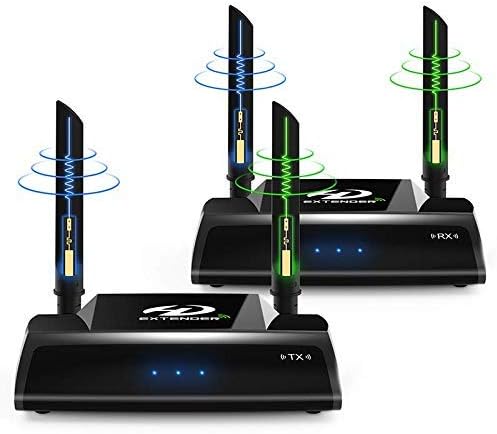
Image 1.1: The PAKITE PAT-590 Wireless HDMI Extender system, showing the transmitter and receiver units with their dual antennas.
2. Package Awọn akoonu
Jọwọ rii daju pe gbogbo awọn nkan ti a ṣe akojọ rẹ si isalẹ wa ninu package rẹ:
- 1 x Ẹka Atagba
- 1 x Unit olugba
- 2 x Awọn oluyipada agbara (DC 5V/2A)
- 2 x HDMI Awọn okun
- 1 x IR Extender Cable
- 1 x Itọsọna olumulo (iwe yii)
3. Awọn ilana iṣeto
Follow these steps to set up your PAKITE PAT-590 Wireless HDMI Extender system. Ensure all devices are powered off before making connections.
3.1 Idanimọ paati

Aworan 3.1: alaye view of the transmitter and receiver units, highlighting ports such as HDMI Input/Output, IR Extension Interface, Power Input, Reset Button, and Power Switch.
3.2 Asopọ Igbesẹ
- So Atagba (TX):
- Connect one end of an HDMI cable to the HDMI output of your source device (e.g., DVD player, set-top box).
- Connect the other end of this HDMI cable to the Input ifihan agbara HDMI port on the PAKITE PAT-590 Transmitter unit.
- If you wish to monitor the source locally, connect a second HDMI cable from the HDMI ifihan agbara wu port on the Transmitter to an HDMI input on a local display (optional).
- Connect the IR Extender Cable to the IR Extension Interface on the Transmitter. Position the IR emitter head near the IR sensor of your source device.
- Connect one power adapter to the Agbara Input port of the Transmitter and plug it into an electrical outlet.
- So olugba (RX):
- So ọkan opin ti ẹya HDMI USB si awọn HDMI ifihan agbara wu port on the PAKITE PAT-590 Receiver unit.
- Connect the other end of this HDMI cable to an HDMI input on your remote display (e.g., TV, monitor, projector).
- Connect the second power adapter to the Agbara Input port of the Receiver and plug it into an electrical outlet.
- Agbara Tan: Once all connections are secure, switch on the power for both the Transmitter and Receiver units using their respective Power Switches. Then, power on your source device and display.

Image 3.2: Diagram illustrating the connection flow from an HDMI signal source to the transmitter, and wirelessly to the receiver and a remote display, including IR remote control setup.
Important Safety Hint: To prevent damage, always ensure the product is powered off before connecting or disconnecting any cables. Only power on the units after all connections are firmly established. Avoid plugging or unplugging cables while the units are powered on. If the product will not be used for an extended period, please turn it off.
4. Awọn ilana Iṣiṣẹ
4.1 Ipilẹ isẹ
After successful setup and powering on, the transmitter will automatically send the HDMI signal wirelessly to the receiver. The receiver will then output the signal to your connected display. The system supports HDMI resolutions from 480i/576i up to 1080P at 50/60Hz.
4.2 Dual-Band Transmission
The PAT-590 utilizes both 2.4GHz and 5GHz ISM bands for wireless transmission. This dual-band capability helps in achieving faster transmission speeds and improved anti-interference performance. The system automatically manages frequency selection to optimize signal quality.

Image 4.1: Illustration of the 2.4G and 5G dual-frequency transmission capabilities, indicating flexible frequency switching to avoid signal interference.
4.3 IR Remote Control Functionality
The built-in IR signal extension feature allows you to control your source device (e.g., DVD player, set-top box) remotely from the location of your receiver. Ensure the IR Extender Cable is properly connected to the transmitter and its emitter head is positioned correctly near the IR sensor of your source device. Point your original remote control towards the receiver, and the IR signal will be relayed back to the source.
4.4 OSD Display and Web Iṣeto ni
The device supports an On-Screen Display (OSD) to monitor device status. Additionally, a web configuration interface is available for advanced settings, providing a simple way to manage the system.
5. Itọju
To ensure the longevity and optimal performance of your PAKITE PAT-590 Wireless HDMI Extender, follow these general maintenance guidelines:
- Ninu: Use a soft, dry cloth to clean the units. Avoid using liquid cleaners or abrasive materials.
- Ayika: Keep the units in a dry environment, away from direct sunlight, extreme temperatures, and high humidity.
- Agbara Pa: If the system will not be used for an extended period, power off both the transmitter and receiver units and unplug their power adapters from the electrical outlets.
- Afẹfẹ: Rii daju pe fentilesonu to dara ni ayika awọn ẹya lati ṣe idiwọ igbona. Ma ṣe dina eyikeyi awọn ṣiṣi atẹgun.
6. Laasigbotitusita
If you encounter issues with your PAKITE PAT-590, please refer to the following troubleshooting tips:
- Ko si ifihan agbara tabi Didara Aworan Ko dara:
- Verify that all HDMI cables are securely connected to both the source device, transmitter, receiver, and display.
- Ensure both the transmitter and receiver units are powered on and their indicator lights are active.
- Check the distance between the transmitter and receiver. The maximum transmission distance is 100 meters in open space. Walls and other obstacles will reduce this range.
- Minimize obstructions between the transmitter and receiver.
- Check for potential interference from other wireless devices operating on 2.4GHz or 5GHz frequencies.
- Try repositioning the units or their antennas for better signal reception.
- IR Remote Control Not Working:
- Ensure the IR Extender Cable is firmly connected to the transmitter.
- Verify that the IR emitter head is correctly positioned directly over or very close to the IR sensor of your source device.
- Check the batteries in your original remote control.
- Video Delay/Lag:
- A slight delay of less than 0.2 seconds may occur due to data compression. This is normal for wireless transmission.
- This product is not recommended for PC gaming or other real-time applications where minimal latency is critical.
- Ẹrọ Ko Dahun:
- Locate the Reset Button on the unit (refer to Image 3.1). Use a small, pointed object (like a paperclip) to press and hold the reset button for a few seconds to restart the unit.
- Power cycle the units by unplugging them from power for 30 seconds, then plugging them back in and powering them on.
7. Awọn pato
| Ẹya ara ẹrọ | Sipesifikesonu |
|---|---|
| Jack ìṣíwọlé/ìjáde | HDMI 1.4 / HDCP 1.4 |
| Output Image Resolution | 720/1080P at 50/60Hz |
| HDMI Audio kika | 1080P HQ |
| HDMI Max Transmission Standard | IEEE 802.11a / b / g / n |
| Igbohunsafẹfẹ Ṣiṣẹ | 2.4GHz, 5GHz ISM Band |
| Oṣuwọn Gbigbe Alailowaya to pọ julọ | 2.4G 150Mbps, 5G 300Mbps |
| Ijinna gbigbe | 50-100m (open space accessibility) |
| Iye Igbohunsafẹfẹ IR | 38 kHz |
| DC Input | AC 100V-240V 50 / 60Hz |
| DC Iṣelọpọ | DC 5V/2A |
| Awọn iwọn otutu ti nṣiṣẹ | -10 ℃ si + 50 ℃ |
| Ọriniinitutu isẹ | 10-80% RH (ti kii ṣe itọlẹ) |
| Ọja Mefa | 158mm x 128mm x 37mm |
8. Atilẹyin ọja ati Support
Alaye nipa atilẹyin ọja ati atilẹyin alabara ko si ninu data ọja ti a pese. Jọwọ tọka si apoti ọja tabi osise olupese. website for details on warranty coverage and how to contact customer support.


