1. Ifihan
This manual provides essential information for the installation, operation, and maintenance of your GIGABYTE GeForce GTX 1660 Ti Windforce OC 6G graphics card. Please read this manual thoroughly before installation and retain it for future reference.
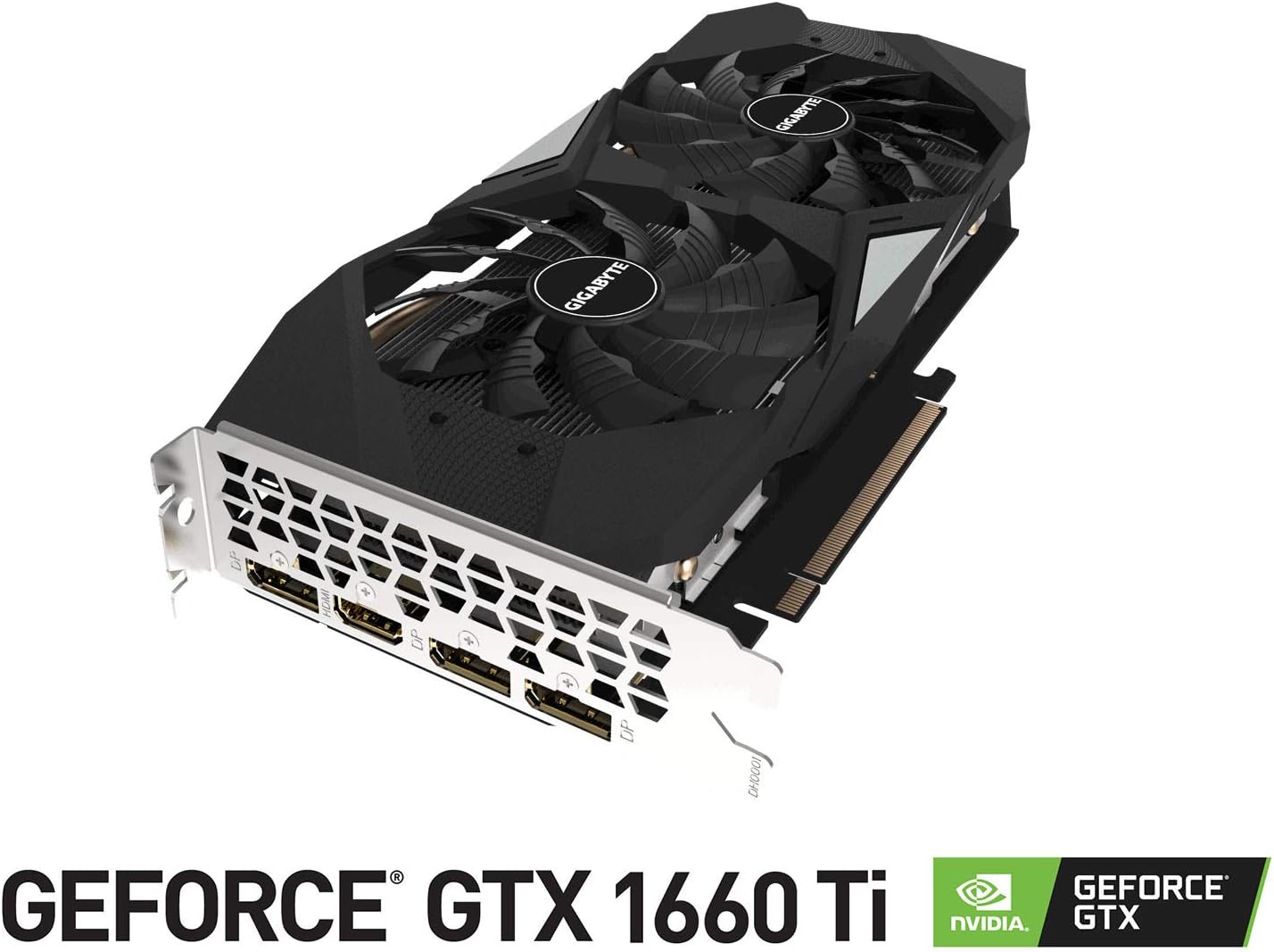
The GIGABYTE GeForce GTX 1660 Ti Windforce OC 6G is designed for enhanced graphics performance, featuring:
- Powered by GeForce GTX 1660 Ti integrated with 6GB GDDR6
- Windforce 2x cooling system with alternate spinning fans
- Intuitive controls with AORUS engine
- 6GB 192-bit GDDR6 memory interface
- Multiple display outputs: 1 x HDMI, 3 x DisplayPort
- PCI Express 3.0 x16 interface
2. Ohun ti o wa ninu Apoti
Jẹrisi pe gbogbo awọn ohun kan wa ninu package:
- GIGABYTE GeForce GTX 1660 Ti Windforce OC 6G Graphics Card
- Itọsọna olumulo
3. Awọn pato
| Ẹya ara ẹrọ | Sipesifikesonu |
|---|---|
| Eya Processing Unit | NVIDIA GeForce GTX 1660 Ti |
| Video Iranti | 6 GB GDDR6 |
| Iyara Iranti | 12000 MHz |
| Iranti Interface | 192-bit |
| Ipinnu Iboju ti o pọju | 7680x4320 |
| Awọn ibudo ti njade | 1 x HDMI 2.0B, 3 x DisplayPort 1.4 |
| Bọ ọkọ ayọkẹlẹ | PCI Express 3.0 x16 |
| Itutu System | WINDFORCE 2X pẹlu awọn onijakidijagan alayipo omiiran |
| Awọn iwọn (LxWxH) | 10.43 x 4.76 x 1.57 inches |
| Iwọn Nkan | 15.9 iwon |
4. Eto ati fifi sori
Before proceeding with the installation, ensure your system meets the minimum requirements and that your power supply unit (PSU) has sufficient wattage and the necessary PCIe power connectors.
4.1 Pre-fifi sori sọwedowo
- Agbara Pa: Pa kọmputa rẹ kuro ki o yọọ okun agbara lati inu iṣan ogiri.
- Ẹran Ṣii: Yọ ẹgbẹ ẹgbẹ ti ọran kọnputa rẹ kuro.
- Yiyọ Aimi: Ground yourself by touching a metal part of your computer chassis to discharge any static electricity.
- Iyọkuro: Ensure there is enough physical space in your case for the graphics card.
4.2 Fifi sori ti ara
- Wa aaye PCI Express 3.0 x16 ti o wa lori modaboudu rẹ.
- Remove any expansion slot covers that correspond to the graphics card's size (typically two slots).
- Fi ìṣọ́ra so káàdì àwòrán pọ̀ mọ́ ihò PCIe kí o sì tẹ̀ ẹ́ mọ́lẹ̀ dáadáa títí tí yóò fi dúró dáadáa. A lè gbọ́ ìtẹ̀ kan.
- Ṣe aabo kaadi awọn eya aworan si ọran pẹlu awọn skru.
- Connect the appropriate PCIe power cable(s) from your power supply to the graphics card. This model typically requires an 8-pin connector.
- Ropo awọn kọmputa irú ẹgbẹ nronu.
4.3 Driver fifi sori
- Connect your monitor to one of the graphics card's output ports (HDMI or DisplayPort).
- Agbara lori kọmputa rẹ.
- Once the operating system loads, download the latest drivers from the official GIGABYTE or NVIDIA webojula.
- Tẹle awọn ilana loju iboju lati pari fifi sori awakọ.
- Tun kọmputa rẹ bẹrẹ lati lo awọn ayipada.
5. Ṣiṣẹ Kaadi Graphics
Once installed and drivers are updated, your GIGABYTE GeForce GTX 1660 Ti is ready for use. It will automatically handle graphics processing for applications and games. For optimal performance, ensure your operating system and game titles are up-to-date.
You can use NVIDIA's control panel or GIGABYTE's AORUS Engine software to monitor performance, adjust fan curves, and customize settings for specific applications or games.
6. Itọju
Itọju to dara ṣe idaniloju igbesi aye gigun ati iṣẹ ti o dara julọ ti kaadi awọn aworan rẹ.
- Pipa eruku: Regularly clean dust from the fans and heatsink using compressed air. Ensure the computer is powered off and unplugged before cleaning.
- Awọn imudojuiwọn Awakọ: Keep your graphics drivers updated to benefit from performance improvements and bug fixes.
- Abojuto iwọn otutu: Use monitoring software to keep an eye on the GPU temperature, especially during heavy loads. Ensure adequate airflow within your PC case.
- Ayewo ti ara: Periodically check for any loose cables or connections.
7. Laasigbotitusita
Ti o ba pade awọn iṣoro pẹlu kaadi fidio rẹ, gbiyanju awọn igbesẹ laasigbotitusita wọnyi:
- Ko si Ifihan: Ensure the monitor cable is securely connected to the graphics card and the monitor is powered on. Verify the graphics card is fully seated in the PCIe slot and power cables are connected.
- Awọn ọran Awakọ: Reinstall the latest drivers from the official GIGABYTE or NVIDIA website. Try using Display Driver Uninstaller (DDU) to completely remove old drivers before installing new ones.
- Igbóná púpọ̀: Check for proper airflow in your PC case. Clean dust from the graphics card fans and heatsink. Ensure fan speeds are adequate using monitoring software.
- Awọn Iṣoro Iṣe: Ensure your game or application settings are not excessively high for the card's capabilities. Check for background applications consuming resources.
- Aiduroṣinṣin eto: If your system crashes or freezes, ensure your power supply unit (PSU) is sufficient for the graphics card and other components. Check for any conflicts with other hardware.
8. Awọn aworan ọja



9. Awọn fidio ọja
10. Atilẹyin ọja ati Support
Awọn ọja GIGABYTE ni aabo nipasẹ atilẹyin ọja to lopin. Fun alaye awọn ofin ati ipo atilẹyin ọja, jọwọ tọka si GIGABYTE osise naa webaaye tabi kaadi atilẹyin ọja ti o wa pẹlu ọja rẹ. Jeki ẹri rira rẹ fun awọn iṣeduro atilẹyin ọja.
For technical support, driver downloads, and further assistance, visit the official GIGABYTE support page. You can also find FAQs and community forums for common issues and solutions.


