Ọrọ Iṣaaju
This manual provides essential instructions for setting up, operating, maintaining, and troubleshooting your Microsoft Surface Pro 2017. The Surface Pro 2017 is a versatile 2-in-1 device designed to function as both a powerful laptop and a portable tablet, offering a seamless computing experience.
Please read this manual thoroughly to ensure proper use and to maximize the lifespan of your device. Keep this manual for future reference.
Ohun ti o wa ninu Apoti
Upon unboxing your Microsoft Surface Pro 2017, verify that all components are present:
- Microsoft Surface Pro 2017 device
- Adaparọ Agbara AC
Note: Additional accessories such as the Surface Pen, Type Cover, or Surface Dial are sold separately and may not be included with your device.
Ṣeto
1. Agbára àti Gbigba agbara àkọ́kọ́
- So ohun ti nmu badọgba agbara: Plug the AC power adapter into a wall outlet and then connect the magnetic charging connector to the charging port on your Surface Pro. The LED indicator on the connector will illuminate when charging.
- Agbara Tan: Press and hold the power button located on the top edge of the device for a few seconds until the Microsoft logo appears on the screen.
2. Windows Oṣo
Follow the on-screen prompts to complete the initial Windows setup. This process typically includes:
- Yiyan agbegbe ati ede rẹ.
- Nsopọ si Wi-Fi nẹtiwọki.
- Gbigba adehun iwe-aṣẹ.
- Ṣíṣẹ̀dá tàbí wíwọlé pẹ̀lú àkọọ́lẹ̀ Microsoft kan.
- Setting up security features like Windows Hello (facial recognition) or a PIN.
3. Nsopọ si Wi-Fi
- During Windows setup, you will be prompted to connect to a network. Select your desired Wi-Fi network from the list and enter the password if required.
- If you need to connect later, go to Bẹrẹ > Eto > Nẹtiwọọki & Intanẹẹti > Wi-Fi. Turn Wi-Fi on, select your network, and click Sopọ.
Awọn ilana Iṣiṣẹ
Basic Device Orientation and Controls
The Surface Pro 2017 features a 12.3-inch PixelSense display with multi-touch support. Key physical controls include:
- Bọtini agbara: Located on the top edge, used to turn the device on/off, sleep, or wake.
- Awọn bọtini iwọn didun: Ti o wa ni ẹgbẹ, ti a lo lati ṣatunṣe iwọn didun ohun.
- Ibẹrẹ: Integrated on the back, allows for multiple viewing awọn igun.
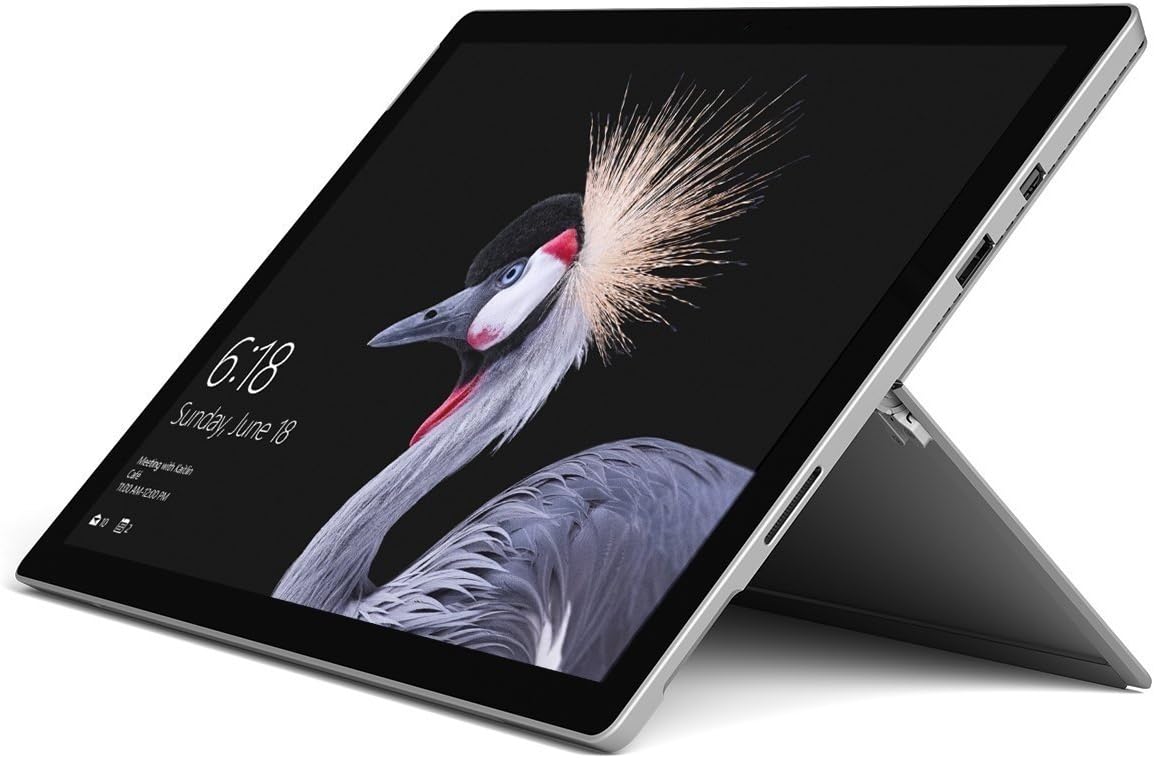
Image: Microsoft Surface Pro 2017 in laptop mode with its kickstand extended, showcasing the device's display.
Lilo Kickstand
The integrated kickstand allows you to position your Surface Pro at various angles for comfortable viewing, typing, or drawing. Gently pull the kickstand out from the back of the device until it reaches your desired angle.
Isakoso agbara
- Ipo orun: Briefly press the power button to put the Surface Pro into sleep mode. Press it again to wake the device.
- Paade: Lọ si Bẹrẹ > Agbara > Paade.
- Tun bẹrẹ: Lọ si Bẹrẹ > Agbara > Tun bẹrẹ.
Asopọmọra Peripherals
The Surface Pro 2017 includes various ports for connecting external devices:
- Ibudo USB 3.0: For connecting USB drives, keyboards, mice, and other compatible accessories.
- Mini DisplayPort: Fun sopọ si ita diigi tabi pirojekito.
- Oluka kaadi microSD: Fun ibi ipamọ ti o gbooro tabi gbigbe files lati awọn kaadi iranti.
- Ibudo Isopọ Ilẹ: For power and connecting to Surface Dock accessories.
- Jack agbekọri 3.5mm: Fun igbejade ohun.
Bluetooth: To connect Bluetooth devices (e.g., headphones, mice), go to Bẹrẹ > Eto > Awọn ẹrọ > Bluetooth & awọn ẹrọ miiran. Ensure Bluetooth is turned on, then select "Add Bluetooth or other device" and follow the pairing instructions.

Aworan: Ẹgbẹ profile of the Microsoft Surface Pro 2017, highlighting the various ports available for connectivity.
Itoju
Cleaning Your Surface Pro
- Iboju: Lo asọ asọ, ti ko ni lint die-die dampened with water or an approved screen cleaner. Avoid harsh chemicals or abrasive materials.
- Ara: Wipe the exterior with a soft, dry cloth. Do not allow liquids to enter openings.
- Awọn ibudo: Keep ports free of dust and debris. Use compressed air carefully if needed, holding the can upright.
Itọju Batiri
- Yago fun awọn iwọn otutu to gaju, nitori wọn le ba igbesi aye batiri jẹ.
- Fun ilera batiri ti o dara julọ, yago fun gbigba agbara batiri nigbagbogbo tabi tọju rẹ ni idiyele 100% fun awọn akoko ti o gbooro sii.
- Use only the official Microsoft AC power adapter or a compatible charger.
Awọn imudojuiwọn Software
Regularly update your Windows operating system and device drivers to ensure optimal performance, security, and compatibility. Go to Bẹrẹ > Eto > Imudojuiwọn & Aabo > Imudojuiwọn Windows lati ṣayẹwo ati fi awọn imudojuiwọn sori ẹrọ.
Laasigbotitusita
This section addresses common issues you might encounter with your Surface Pro 2017.
Device Will Not Turn On
- Ensure the device is charged. Connect the power adapter and wait a few minutes before attempting to power on.
- Perform a two-button shutdown: Press and hold the volume-up button and the power button simultaneously for at least 15 seconds, then release both. Wait 10 seconds, then press the power button again to turn on the Surface.
Screen Not Responding to Touch
- Tun ẹrọ naa bẹrẹ.
- Rii daju pe iboju jẹ mimọ ati laisi idoti.
- Check for available Windows updates, as driver updates can resolve touch issues.
Awọn ọrọ Asopọmọra Wi-Fi
- Rii daju pe Wi-Fi ti ṣiṣẹ ninu Eto > Nẹtiwọọki & Intanẹẹti > Wi-Fi.
- Restart your Surface Pro and your Wi-Fi router.
- Forget the network and reconnect: Go to Eto > Nẹtiwọọki & Intanẹẹti > Wi-Fi, click on your network, then Gbagbe. Reconnect and enter the password.
Awọn pato
| Ẹya ara ẹrọ | Sipesifikesonu |
|---|---|
| Orukọ awoṣe | Dada Pro 2017 |
| Nọmba Awoṣe Nkan | 7Y30 |
| Iwon iboju | 12.3 inches |
| Ipinnu iboju | 2736 x 1824 awọn piksẹli |
| isise | Intel Core m3-7Y30 (1 GHz Intel_Mobile_CPU) |
| Àgbo | 4 GB DDR4 SDRAM |
| Ibi ipamọ | 128 GB SSD |
| Kaadi eya aworan | Integrated (Intel) |
| Eto isesise | Windows |
| Alailowaya Iru | 802.11 abg |
| Iwọn Nkan | 1.89 iwon |
| Ọja Mefa | 11.5 x 7.9 x 0.3 inches |
| Àwọ̀ | Fadaka |
Atilẹyin ọja ati Support
For detailed warranty information, please refer to the warranty card included with your purchase or visit the official Microsoft support website. Warranty terms and conditions may vary based on region and retailer.
For technical support, driver downloads, and additional resources, please visit the official Microsoft Support webojula: support.microsoft.com/surface


