1. Ifihan
This manual provides essential instructions for setting up, operating, and maintaining your Epson EcoTank L3156 Wi-Fi All-in-One Printer. This compact 3-in-1 device offers printing, scanning, and copying functionalities, along with Wi-Fi Direct connectivity for convenient mobile printing. The EcoTank system utilizes high-capacity ink tanks designed for efficient and mess-free refilling.
2. Ọja Ipariview
The Epson EcoTank L3156 is designed for home and small office use, featuring an integrated ink tank system that eliminates the need for traditional cartridges. Its compact design and front-facing ink tanks allow for easy monitoring of ink levels and simplified refilling.
Awọn ẹya pataki:
- 3-in-1 Iṣẹ-ṣiṣe: Print, Scan, and Copy.
- Wi-Fi and Wi-Fi Direct: Enables wireless printing from computers and mobile devices.
- Titẹ sita Ọfẹ: Utilizes high-capacity ink tanks for reduced running costs.
- Enhanced Ink Filling System: Designed to minimize spills and ensure correct color filling.
- Borderless Photo Printing: Supports 10x15cm borderless photo prints.
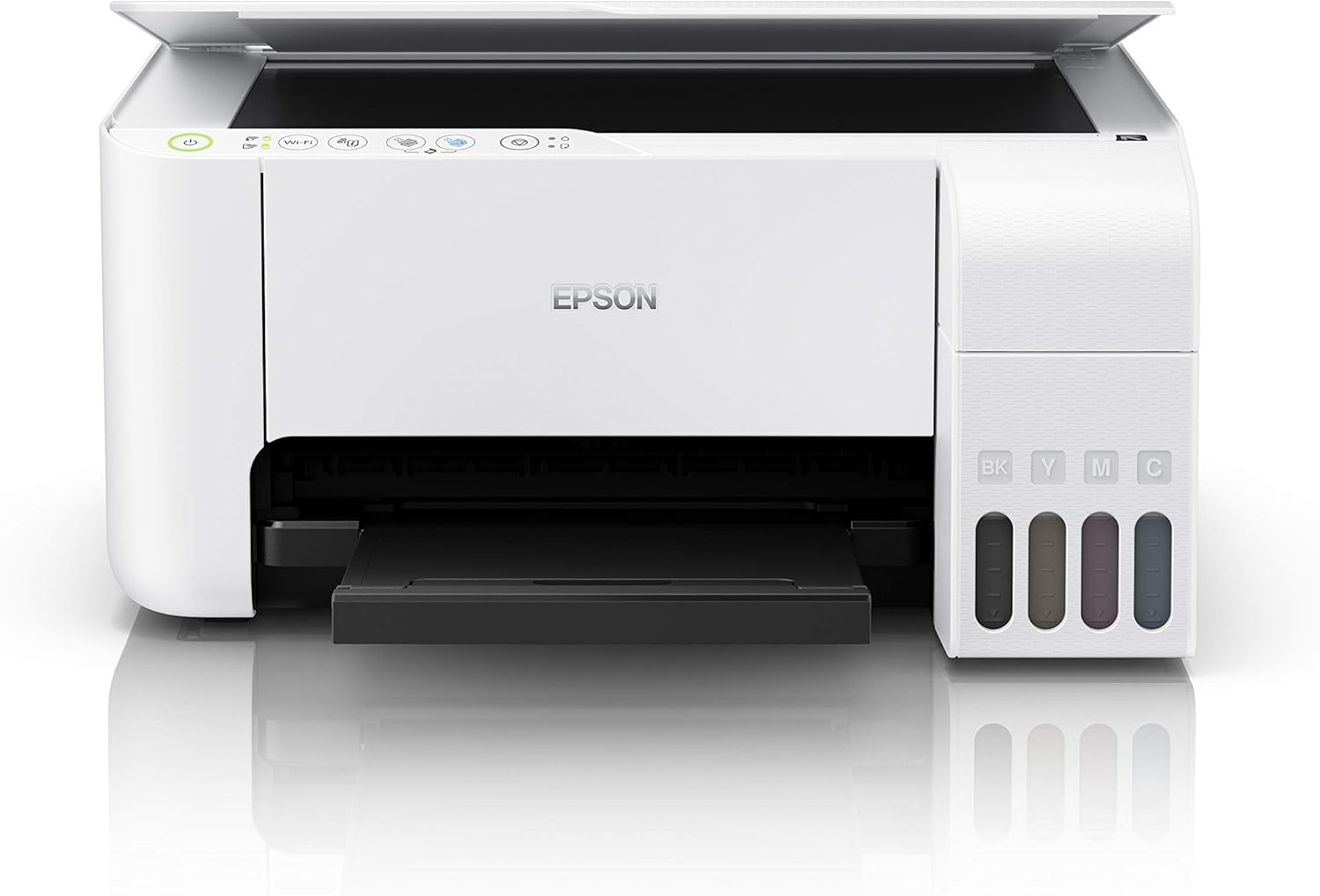
Nọmba 2.1: Iwaju view of the Epson EcoTank L3156 printer, showing the control panel and output tray.

Nọmba 2.2: Igun view of the printer, highlighting the paper input tray and ink tanks.
3. Awọn ilana iṣeto
3.1 Ṣiṣii itẹwe
- Yọ itẹwe kuro ninu apoti rẹ.
- Yọ gbogbo awọn teepu aabo ati awọn ohun elo iṣakojọpọ lati ita ati inu ti itẹwe naa.
- Gbé ẹ̀rọ ìtẹ̀wé náà sí orí ilẹ̀ tí ó dúró ṣinṣin, tí ó tẹ́jú.
3.2 Àgbáye awọn Tanki Inki
The EcoTank L3156 features an innovative ink filling system designed to prevent incorrect color filling and spills.
- Ṣii ideri ẹyọ ojò inki ni ẹgbẹ ti itẹwe naa.
- Open the cap for the black ink tank (BK).
- Uncap the black ink bottle and insert it into the filling port. The ink will automatically start filling. Do not squeeze the bottle.
- Once the tank is full, the ink flow will stop. Remove the bottle and recap the ink tank.
- Repeat the process for the Cyan (C), Magenta (M), and Yellow (Y) ink tanks.
- Pa inki ojò kuro ideri.
3.3 Asopọ agbara
- So okùn agbára pọ̀ mọ́ ẹ̀rọ ìtẹ̀wé náà, lẹ́yìn náà so mọ́ ibi tí iná mànàmáná wà.
- Tẹ bọtini agbara lati tan itẹwe.
3.4 Software fifi sori
- Insert the provided software CD into your computer's CD/DVD drive. If your computer does not have a CD/DVD drive, download the latest drivers and software from the official Epson support webojula.
- Tẹle awọn ilana loju iboju lati fi awọn awakọ itẹwe ati sọfitiwia ohun elo sori ẹrọ.
3.5 Wi-Fi Oṣo
The printer supports both Wi-Fi and Wi-Fi Direct connectivity.
3.5.1 Standard Wi-Fi Connection (via Router)
- Ensure your wireless router is turned on.
- On the printer's control panel, press and hold the Wi-Fi button until the Wi-Fi indicator starts flashing.
- Follow the instructions in the printer's software utility on your computer to connect the printer to your wireless network. You may need to enter your network password (SSID).
3.5.2 Wi-Fi Direct Connection (Direct to Device)
- On the printer's control panel, press the Wi-Fi Direct button. The Wi-Fi Direct indicator will light up.
- On your mobile device or computer, go to your Wi-Fi settings and select the printer's Wi-Fi Direct network (e.g., DIRECT-xx-EpsonL3156).
- Enter the password displayed on the printer's control panel or in the network status sheet.
4. Awọn ilana Iṣiṣẹ
4.1 ikojọpọ Iwe
- Ṣí àtìlẹ́yìn ìwé náà kí o sì fa àtìlẹ́yìn náà jáde.
- Slide the edge guides to their outermost positions.
- Gbe iwe titẹ sita soke si itọsọna eti ọtun.
- Fọ ìwé ìtọ́ni tó wà ní etí òsì sí ara ìwé náà, ṣùgbọ́n má ṣe fi gbogbo ara rẹ̀ rọ̀ jù.
4.2 Titẹ sita lati Kọmputa kan
- Ṣí ìwé tàbí àwòrán tí o fẹ́ tẹ̀ sí orí kọ̀ǹpútà rẹ.
- Yan Titẹ sita lati inu akojọ ohun elo (fun apẹẹrẹ, File > Titẹjade).
- Yan ẹ̀rọ ìtẹ̀wé Epson EcoTank L3156 rẹ.
- Adjust print settings such as paper size, type, orientation, and quality as needed.
- Tẹ Titẹ sita.

Nọmba 4.1: The Epson EcoTank L3156 printer in operation, delivering a printed document.
4.3 Printing from a Mobile Device (Epson iPrint App)
- Download and install the Epson iPrint app from your device's app store.
- Ensure your mobile device is connected to the same Wi-Fi network as the printer, or directly to the printer via Wi-Fi Direct.
- Open the Epson iPrint app and select your printer.
- Choose the document or photo you want to print from within the app.
- Adjust settings and tap Titẹ sita.
4.4 Awọn iwe-iṣayẹwo
- Gbe ideri scanner naa soke.
- Fi ìwé náà sí ojú ìsàlẹ̀ lórí gíláàsì ẹ̀rọ ìwádìí, kí o sì so ó pọ̀ mọ́ àmì igun náà.
- Pa ideri scanner rọra.
- On your computer, open the Epson Scan utility or use the Epson iPrint app on your mobile device.
- Select scan settings (e.g., document type, resolution, destination).
- Tẹ Ṣayẹwo.
4.5 Awọn iwe aṣẹ didakọ
- Gbe iwe-ipamọ naa si-isalẹ lori gilasi ọlọjẹ naa.
- Pa ideri ọlọjẹ naa.
- On the printer's control panel, press the Black & White copy button for a monochrome copy, or the Color copy button for a color copy.
- Láti ṣe àwọn àdàkọ púpọ̀, tẹ bọ́tìnì ìdákọ tí ó yẹ ní ọ̀pọ̀ ìgbà fún iye àwọn àdàkọ tí o fẹ́.
5. Itọju
5.1 Atunkun Inki
When an ink tank level is low, refill it using genuine Epson ink bottles. Refer to section 3.2 for detailed ink filling instructions.
5.2 Print Head Cleaning
If print quality declines (e.g., missing lines, faded prints), perform a print head cleaning using the printer utility software on your computer. This process clears clogged nozzles.
5.3 Print Head titete
If prints appear blurry or misaligned, perform a print head alignment using the printer utility software. This adjusts the print head position for optimal quality.
5.4 Ninu gilasi Scanner
To ensure clear scans, regularly clean the scanner glass with a soft, lint-free cloth moistened with a mild glass cleaner. Avoid abrasive materials.
6. Laasigbotitusita
6.1 Itẹwe Ko fesi
- Ṣayẹwo boya itẹwe ba wa ni titan ati ti sopọ si kọnputa tabi nẹtiwọki.
- Ensure there are no error messages on the printer's control panel.
- Restart both the printer and your computer/mobile device.
- Verify that the correct printer is selected in your application's print dialog.
6.2 Ko dara Print Didara
- Ṣayẹwo awọn ipele inki ati ṣatunkun eyikeyi awọn tanki kekere.
- Ṣe ìfọmọ́ orí ìtẹ̀wé (wo abala 5.2).
- Ṣe ìtòlẹ́sẹẹsẹ orí ìtẹ̀wé (wo abala 5.3).
- Rii daju pe o nlo awọn eto iwe ti o yẹ fun iṣẹ titẹ rẹ.
6.3 Wi-Fi Asopọ oran
- Rii daju pe olulana rẹ n ṣiṣẹ daradara ati laarin ibiti o wa.
- Re-enter your Wi-Fi network password if prompted.
- Restart your router, printer, and connecting device.
- If using Wi-Fi Direct, ensure the printer's Wi-Fi Direct mode is active.
7. Awọn pato
| Ẹya ara ẹrọ | Sipesifikesonu |
|---|---|
| Orukọ awoṣe | L3156 |
| Awọn iṣẹ | Tẹjade, Ṣayẹwo, Daakọ |
| Imọ-ẹrọ titẹ sita | Inkjet (Micro Piezo printhead) |
| Asopọmọra | Wi-Fi, Wi-Fi Direct, USB 2.0 |
| O pọju Media Iwon | 4 x 6 inch (Photo), A4 (Document) |
| O pọju Input dì Agbara | 200 iwe |
| Scanner Iru | Ibusun pẹlẹbẹ |
| O pọju Awọ Print Resolution | 600 x 600 dpi |
| Titẹ-apa-meji | Afowoyi |
| Awọn iwọn Ọja (W x D x H) | 34.7 x 34.7 x 17.9 cm |
| Iwọn Nkan | 3.9 kilo |
| Orisun agbara | AC 100-240V, 50/60Hz |
8. Atilẹyin ọja ati Support
A one-year limited warranty is provided as standard with your Epson EcoTank L3156 printer. Promotional warranties may offer extended coverage; please refer to your purchase documentation or the official Epson website for the latest warranty offers and terms and conditions.
Fun atilẹyin imọ-ẹrọ, awọn igbasilẹ awakọ, ati awọn orisun afikun, jọwọ ṣabẹwo si atilẹyin Epson osise webojula tabi olubasọrọ Epson iṣẹ onibara.


