1. Ifihan
This manual provides instructions for the safe and efficient use of your KOAMTAC KDC280CJPH 2D Imager Data Collector. Please read this manual thoroughly before operating the device and keep it for future reference.
The KDC280CJPH is a compact and powerful 2D barcode scanner and data collector, designed for various applications requiring efficient data capture. It features Bluetooth v4.1 BLE connectivity, supporting both SPP and HID profiles, and is compatible with iOS devices.
2. Alaye Aabo
- Ma ṣe fi ẹrọ naa han si awọn iwọn otutu to gaju, imọlẹ orun taara, tabi ọriniinitutu giga.
- Avoid dropping the device or subjecting it to severe impacts, although it is rated for 1.5m drops.
- Ma ṣe gbiyanju lati tunto tabi yi ẹrọ naa pada. Eyi yoo sọ atilẹyin ọja di ofo.
- Lo awọn okùn gbigba agbara ati awọn adapter ti a fọwọsi nikan.
- Keep the device away from water and other liquids. The IP65 rating provides protection against dust and splashes, but not immersion.
- Sọ awọn batiri ati ẹrọ naa sọnu ni ibamu si awọn ilana agbegbe.
3. Package Awọn akoonu
Daju pe gbogbo awọn nkan wa ninu apo rẹ:
- KDC280CJPH 2D Imager Data Collector
- Communication Dongle (KBLED41)
- Single Charging Base
- Okun Ọrun
- Pairing Sheet
- Okun gbigba agbara (USB Micro)
- Communication Cable (Micro USB)
- AC Adapter
Optional accessories (sold separately): 4-slot charging base, finger trigger glove, ring scanner, custom front panel colors/logo printing.
4. Ẹrọ Loriview
The KDC280CJPH is designed for ergonomic handling and ease of use. Below are key components and their functions.

Figure 1: KDC280CJPH Device Front View. This image shows the front of the KDC280CJPH data collector, highlighting its display screen and control buttons. The screen displays menu options such as "KDC Mode", "Data Display", "Barcode Settings", and "Code Options". Below the screen, there are three circular buttons: a central selection button and two directional buttons. The device also features "KOAMTAC" branding and a "BLE" indicator.
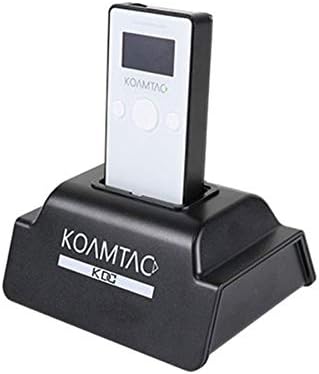
Figure 2: KDC280CJPH in Charging Base. This image displays the KDC280CJPH data collector securely docked in its black charging base. The device is white with a black screen, showing the "KOAMTAC" logo. The charging base also features the "KOAMTAC KDC" logo on its front.
Awọn eroja pataki:
- Iboju ifihan: Shows operational status, menu options, and scanned data.
- Bọtini Ṣiṣayẹwo: Pilẹṣẹ kooduopo ọlọjẹ.
- Awọn bọtini lilọ kiri: Ti a lo fun lilọ kiri akojọ aṣayan ati yiyan.
- Ibudo USB Micro: For charging and wired data communication.
- Imager Window: The area through which barcodes are scanned.
5. Eto
5.1 Ngba agbara si Ẹrọ
- Connect the charging cable to the Micro USB port on the KDC280CJPH.
- Connect the other end of the charging cable to the AC adapter, then plug the AC adapter into a power outlet. Alternatively, connect the charging cable to a computer's USB port.
- The device will begin charging. A full charge typically takes approximately 3-4 hours.
For convenience, you can also place the KDC280CJPH into the single charging base (included) or the optional 4-slot charging base for charging.
5.2 Ibẹrẹ Agbara Lori
Press and hold the power button (usually located on the side or top) for a few seconds until the display screen illuminates.
5.3 Using the Communication Dongle
The KDC280CJPH can be used with the included communication dongle (KBLED41) for easy pairing with a host device.
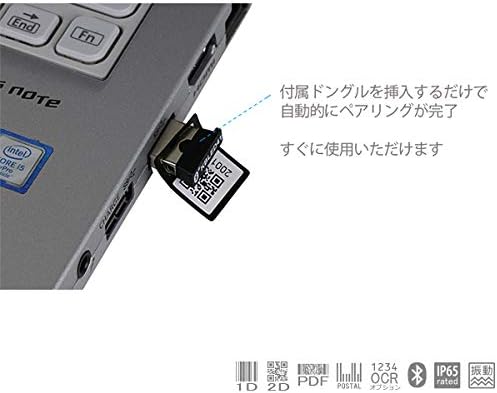
Figure 3: Communication Dongle in Use. This image illustrates the communication dongle (KBLED41) being inserted into a USB port of a laptop. The dongle has a QR code printed on it, indicating its pairing function. The accompanying text states that inserting the dongle automatically completes pairing, making the device ready for immediate use.
- Insert the KBLED41 communication dongle into an available USB port on your computer or host device.
- The KDC280CJPH will automatically detect and pair with the dongle, establishing a connection.
- Once paired, the device is ready for data transmission.
6. Isẹ
6.1 Sisopọ Bluetooth
The KDC280CJPH supports Bluetooth v4.1+EDR with SPP (Serial Port Profile) and HID (Human Interface Device) profiles, allowing connection to various devices including iOS.
- Ensure Bluetooth is enabled on your host device (smartphone, tablet, computer).
- On the KDC280CJPH, navigate to the Bluetooth pairing menu using the navigation buttons.
- Select the desired Bluetooth profile (SPP or HID) if prompted.
- On your host device, search for available Bluetooth devices and select "KDC280CJPH" from the list.
- Follow any on-screen prompts to complete the pairing process. You may need to enter a PIN, which is usually "0000" or "1234".
- Once paired, the KDC280CJPH will indicate a successful connection on its display.
Note: Your connecting device must be Bluetooth v4.1 BLE compatible to connect with the KDC280CJPH.
6.2 Barcode Scanning
The KDC280CJPH can read a wide array of 1D and 2D barcodes, OCR fonts, and postal codes.
- Lati Ṣayẹwo: Point the imager window at the barcode and press the scan button. A successful scan will typically be indicated by a beep and/or a green LED light.
- Optimal Scanning Distance: The reading distance for Code39 is 4-246mm. Adjust the distance for other barcode types as needed.
- Awọn aami atilẹyin:
- Ọdun 1: EAN, UPC, Code 11, Code 39, Code 93, Code 128, Codabar/NW-7, Interleaved 2 of 5, GS1-128(EAN 128), GS1 DataBar(RSS), IATA, Industrial 2 of 5, ISBN-ISSN-ISMN, Matix 2 of 5, MSI/Plessy, S-Code, Telepen, Tri-Optic, UK/Plessy.
- Ọdun 2: Aztec Code, Aztec Runes, Codablock F, Composite Codes, Data Matrix, Maxi Code, Chinese Sensible, Micro PDF, PDF417, QR Code, Micro QR Code.
- OCR: OCR-A, OCR-B (ISBN codes).
- Awọn koodu ifiweranse: Various international postal codes.
6.3 Data Collection and Storage
The device has 8MB of user data area, capable of storing over 400,000 UPC codes. Scanned data can be stored internally and then transferred to a host device.
- Ipo Itaja: Data is saved to the device's internal memory.
- Ipo Gbigbe: Data is immediately transmitted to the connected host device.
- Akokoamping: The built-in Quartz RTC provides timestamps for collected data.
6.4 KTSync Software and SDK
KOAMTAC provides free software and SDKs to enhance the functionality of your KDC280CJPH.
- KTSync Software: Available for download, KTSync allows for KDC device settings configuration, data synchronization, and matching functions.
- SDKs: Software Development Kits are available for Android, iOS, and Windows platforms, enabling custom application development and integration with the KDC280CJPH.
7. Itọju
7.1 Ninu
- Nu ẹrọ naa pẹlu asọ, damp asọ. Ma ṣe lo abrasive ose tabi epo.
- Ensure the imager window is clean and free of dust or smudges for optimal scanning performance.
7.2 batiri Itọju
- Lati pẹ aye batiri, yago fun gbigba agbara si batiri ni kikun nigbagbogbo.
- If storing the device for an extended period, charge the battery to approximately 50% and store it in a cool, dry place.
7.3 Ibi ipamọ Awọn ipo
Store the device within the specified temperature range of -20℃ to 60℃ and humidity of 5% to 95% (non-condensing).
8. Laasigbotitusita
| Isoro | Owun to le Fa | Ojutu |
|---|---|---|
| Ẹrọ naa ko ṣiṣẹ. | Batiri ti dinku. | Charge the device using the provided charging cable and AC adapter. |
| Ko le sopọ nipasẹ Bluetooth. | Bluetooth is not enabled on host device; host device is not BLE v4.1 compatible; device is out of range. | Ensure Bluetooth is on. Verify host device compatibility. Move KDC280CJPH closer to the host device. Re-attempt pairing. |
| Barcodes are not scanning. | Barcode is damaged or poorly printed; imager window is dirty; incorrect scanning distance. | Try scanning a different barcode. Clean the imager window. Adjust the distance between the device and the barcode. |
| Data is not transmitting to host. | Device is in store mode; connection is lost; incorrect application settings. | Switch the device to transfer mode. Re-establish Bluetooth connection. Check KTSync or custom application settings. |
9. Awọn pato
| Ẹya ara ẹrọ | Ẹ̀kúnrẹ́rẹ́ |
|---|---|
| Nọmba awoṣe | KDC280CJPH |
| Eto isesise | Dedicated OS |
| Sipiyu | ARM7, 32-bit |
| Iranti | RAM: 64KB, Flash ROM: 256KB (Data Area), 8MB (User Data Area, stores over 400,000 UPC codes) |
| Scanner Iru | 2D Imager, 640x480 CMOS, 100fps |
| Ijinna kika | 4-246mm (Code39) |
| Aago gidi-akoko | Quartz RTC for timestamp |
| Ni wiwo | Micro USB |
| Ibaraẹnisọrọ Bluetooth | Bluetooth v4.1+EDR, SPP/HID |
| Awọn iwọn (W x L x H) | 40 x 82 x 18 mm |
| Iwọn | 57.5 g |
| Batiri | Litiọmu-Iọn (650mAh) |
| Awọn iwọn otutu ti nṣiṣẹ | -20 ℃ si 50 ℃ |
| Ibi ipamọ otutu | -20 ℃ si 60 ℃ |
| Ọriniinitutu | 5% si 95% (ti kii ṣe itọlẹ) |
| Dust/Splash Protection | Ifọwọsi IP65 |
| Ju Specification | 1.5m drop resistance |
| Ibamu Ilana | UL 60950-1; EN/IEC 60950-1; EN/IEC 60825-1, EMI/RFI; R&TTE, FCC, KC, TELEC, RoHS |
| Awọn Ilana Abo | IEC 62471:2006 |
10. Atilẹyin ọja & Atilẹyin
10.1 atilẹyin ọja Alaye
The KOAMTAC KDC280CJPH comes with a 1-odun atilẹyin ọja from the date of purchase. This warranty covers manufacturing defects but excludes damage caused by misuse, accidents, unauthorized modifications, or normal wear and tear. Cables are not covered under this warranty.
Jọwọ ṣe idaduro ẹri rira rẹ fun awọn iṣeduro atilẹyin ọja.
10.2 Imọ Support
For technical assistance, troubleshooting, or inquiries regarding your KDC280CJPH, please refer to the official KOAMTAC webaaye tabi kan si atilẹyin alabara wọn.
Additional resources, including the KTSync software and SDKs for various platforms (Android, iOS, Windows), are available for download from the KOAMTAC support portal.