Ọrọ Iṣaaju
The Logitech MX Keys is an advanced wireless illuminated keyboard designed for efficiency, stability, and precision. It features spherically dished keys for comfortable typing and smart backlighting that adjusts to your environment. This manual provides instructions for setting up, operating, maintaining, and troubleshooting your MX Keys keyboard.
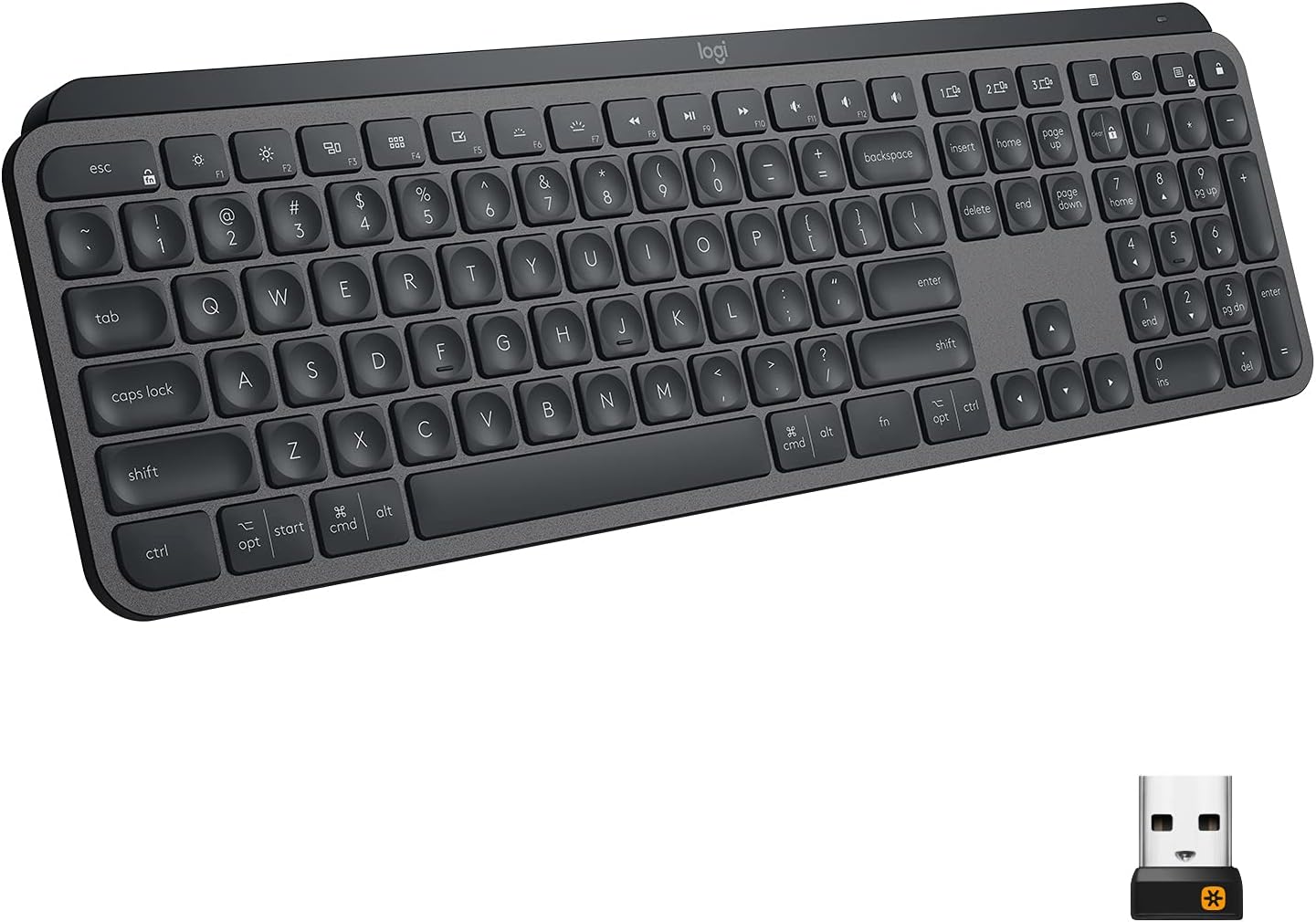
Image: The Logitech MX Keys Illuminated Wireless Keyboard, showcasing ipilẹ rẹ ni kikun ati apẹrẹ didan.
Ṣeto
Your MX Keys keyboard can be connected to your device using either the included Unifying USB Receiver or via Bluetooth Low Energy technology.
Connecting via Unifying USB Receiver
- Locate the Unifying USB Receiver. It is a small USB dongle.
- Plug the Unifying USB Receiver into an available USB port on your computer.
- Turn on the keyboard using the power switch located on the back edge.
- The keyboard should automatically connect to the receiver. If not, use the Logitech Options software to pair the devices.
Image: The Logitech MX Keys keyboard with its accompanying Unifying USB receiver, which enables wireless connectivity.
Nsopọ nipasẹ Bluetooth
- Rii daju pe ẹrọ rẹ ti ṣiṣẹ Bluetooth.
- Tan-an keyboard nipa lilo agbara yipada.
- Tẹ mọlẹ ọkan ninu awọn bọtini Irọrun-Yipada (1, 2, tabi 3) fun iṣẹju-aaya mẹta titi ti ina LED lori bọtini yoo bẹrẹ si pawa ni iyara. Eyi tọkasi keyboard wa ni ipo sisopọ.
- On your device, go to Bluetooth settings and select "MX Keys" from the list of available devices to complete the pairing process.

Image: A close-up of the Logitech MX Keys keyboard highlighting the Easy-Switch buttons (1, 2, 3) used for connecting to multiple devices.
Awọn ilana Iṣiṣẹ
Pipe Stroke Keys
Awọn bọtini jẹ apẹrẹ pẹlu ounjẹ iyipo ti o baamu apẹrẹ ti ika ọwọ rẹ, pese itunu ati iriri titẹ deede. Iduroṣinṣin bọtini ti o pọ si dinku ariwo ati mu idahun ṣiṣẹ.

Aworan: A sunmọ-soke view of the Logitech MX Keys' spherically dished keys, designed for comfortable and precise typing.
Imọlẹ Smart
The keyboard features smart backlighting that automatically adjusts to ambient light conditions. The backlighting also lights up when your hands approach the keyboard and fades when you move away, conserving battery life.

Image: The Logitech MX Keys keyboard with its smart backlighting illuminated, demonstrating how it adapts to the environment.
Sisan Cross-Computer Iṣakoso
If you use multiple computers, the MX Keys keyboard supports Logitech Flow, allowing you to type on multiple computers in one fluid workflow. This feature requires a Logitech Flow-enabled mouse and the Logitech Options software.

Image: A setup showing the Logitech MX Keys keyboard and a Logitech Flow-enabled mouse seamlessly controlling multiple computers, illustrating the cross-computer control feature.
Ibamu pẹlu Ẹrọ pupọ ati OS pupọ
The keyboard can be paired with up to three devices and easily switched between them using the Easy-Switch keys. It is compatible with Windows, macOS, Linux, iOS, and Android systems.

Image: An illustration demonstrating the Logitech MX Keys' compatibility with various operating systems and its ability to connect to multiple devices simultaneously.
Function Keys and Customization
The top row of keys includes media controls, brightness adjustments, and other function keys. These can be customized using the Logitech Options software to suit your workflow.
Itoju
Ngba agbara si Keyboard
The MX Keys keyboard is USB-C rechargeable. A full charge can last up to 10 days with backlighting on, or up to 5 months with backlighting turned off. Connect the included USB-C cable to the keyboard's USB-C port and the other end to a USB power source.
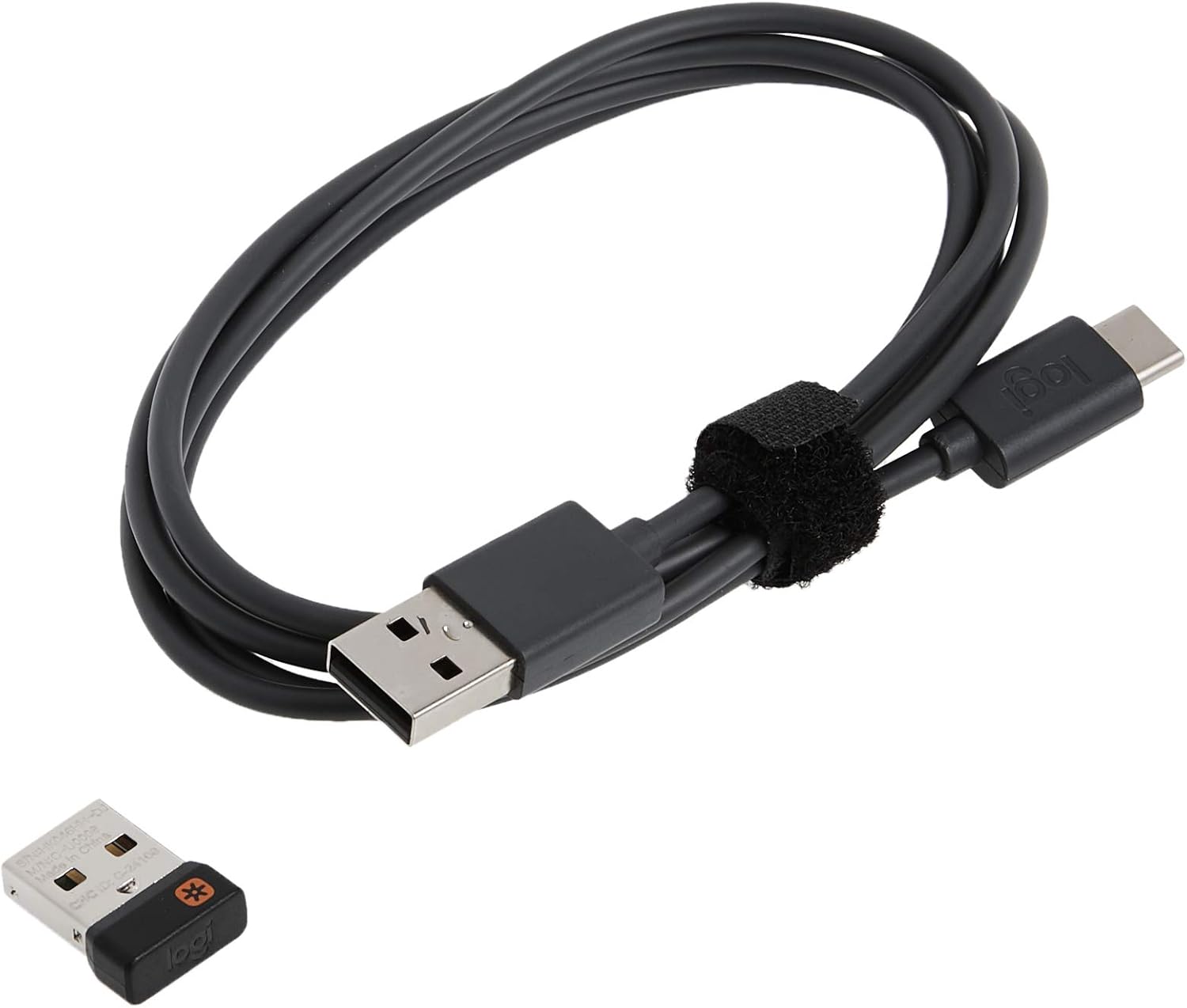
Image: The USB-C charging cable included with the Logitech MX Keys keyboard, used for recharging the internal battery.

Image: A close-up of the Logitech MX Keys keyboard's USB-C port, illustrating the quick charging capability.
Ninu
Lati nu keyboard rẹ, lo asọ ti ko ni lint. Fun idoti alagidi, die-die dampen aṣọ pẹlu omi. Yago fun lilo awọn kẹmika lile tabi awọn ohun elo abrasive.
Laasigbotitusita
Keyboard Ko Sopọ
- Rii daju pe keyboard ti wa ni titan ati gbigba agbara ni kikun.
- If using the Unifying Receiver, try plugging it into a different USB port.
- If using Bluetooth, ensure your device's Bluetooth is on and the keyboard is in pairing mode (blinking LED on Easy-Switch key).
- Gbiyanju lati tun kọmputa tabi ẹrọ rẹ bẹrẹ.
- Re-pair the keyboard using the Logitech Options software.
Ìmọ́lẹ̀ ẹ̀yìn kò ṣiṣẹ́
- Ṣayẹwo ipele batiri; kekere batiri le mu backlighting.
- Rii daju pe sensọ ina ibaramu ko ni idiwọ.
- Adjust backlighting brightness using the function keys (F5/F6 or OPT+F6/F7 depending on OS).
Awọn bọtini Ko Fesi
- Mọ ni ayika awọn bọtini ti o kan lati yọ eyikeyi idoti kuro.
- Rí i dájú pé keyboard so pọ̀ dáadáa.
- Tí ìṣòro náà bá ń bá a lọ, kan si atilẹyin Logitech.
Awọn pato
| Ẹya ara ẹrọ | Ẹ̀kúnrẹ́rẹ́ |
|---|---|
| Brand | Logitech |
| Orukọ awoṣe | Awọn bọtini MX |
| Nọmba Awoṣe Nkan | 920-009294 |
| Asopọmọra Technology | Bluetooth, USB (Olugba Isokan) |
| Awọn ẹrọ ibaramu | Laptop, PC, Tablet (Windows, macOS, Linux, iOS, Android) |
| Apejuwe Keyboard | Multi Functional, Membrane |
| Pataki Ẹya | Ergonomic, Low-Profile Key, Rechargeable, Smart Illumination, Flow Compatible |
| Àwọ̀ | Lẹẹdi |
| Nọmba ti Awọn bọtini | 104 |
| Iwọn Nkan | 1.9 iwon |
| Awọn iwọn Ọja (LxWxH) | 16.9 x 0.8 x 5.1 inches |
| Orisun agbara | Agbara Batiri (Batiri litiumu polima 1 to wa) |
| Igbesi aye batiri | Titi di ọjọ mẹwa 10 (itanna ẹhin titan), to oṣu 5 (ina ẹhin ni pipa) |
| Alailowaya Ibiti | 10 mita (33 ẹsẹ) |
Atilẹyin ọja ati Support
The Logitech MX Keys keyboard comes with a 1-odun lopin atilẹyin ọja hardware. Fun awọn iṣeduro atilẹyin ọja tabi atilẹyin imọ-ẹrọ, jọwọ ṣabẹwo si atilẹyin Logitech osise webaaye tabi tọka si alaye olubasọrọ ti a pese ninu apoti ọja rẹ.
You can also find additional resources and software downloads (like Logitech Options) on the Oju-iwe Atilẹyin Logitech.


