1. Ifihan
This manual provides instructions for the PowerA Spectra Enhanced Illuminated Wired Controller. This controller is designed for use with Xbox One, Xbox Series X|S, and Windows 10/11, offering enhanced features such as customizable LED lighting, mappable advanced gaming buttons, and adjustable trigger locks.
2. Package Awọn akoonu
- PowerA Spectra Enhanced Illuminated Wired Controller
- Detachable 9.8ft (3m) Braided USB Cable with Snap-Lock and Inline Release

Figure 2.1: Controller and detachable USB cable.
3. Eto ati Asopọ
- So okun USB pọ: Insert the small end of the detachable braided USB cable into the micro USB port on the top of the controller. Ensure it clicks securely into place with the snap-lock mechanism.
- Sopọ mọ console/PC: Plug the standard USB end of the cable into an available USB port on your Xbox One, Xbox Series X|S console, or Windows 10/11 PC.
- Agbara Tan: The controller will automatically power on and connect to your device. The LED illumination will activate.

Figure 3.1: USB cable connection point on the controller.
4. Awọn ilana Iṣiṣẹ
4.1 Adarí Layout
The PowerA Spectra Enhanced controller features a standard Xbox layout with additional enhancements. Refer to the diagram below for key components.

Nọmba 4.1: Iwaju ati sẹhin view of the controller with feature callouts.
4.2 Advanced Gaming Buttons (Mappable)
The controller includes two mappable Advanced Gaming Buttons on the back. These can be programmed to replicate any standard button input for quick access.
- Ipo Eto: Press and hold the Program Button (located on the back, near the center) for 2 seconds. The LED indicator will flash to signal program mode.
- Select Button to Map: Press the button you wish to map (A, B, X, Y, LB, RB, LT, RT, Left Stick Click, Right Stick Click, D-pad).
- Assign to Advanced Button: Press one of the Advanced Gaming Buttons (AGB1 or AGB2) on the back of the controller. The LED indicator will stop flashing, confirming the button has been mapped.
- Pa aworan agbaye kuro: To clear a single Advanced Gaming Button, repeat the mapping process but do not press any button after entering program mode. Instead, press the Advanced Gaming Button you wish to clear twice. To clear all mappings, hold the Program Button for 5 seconds.
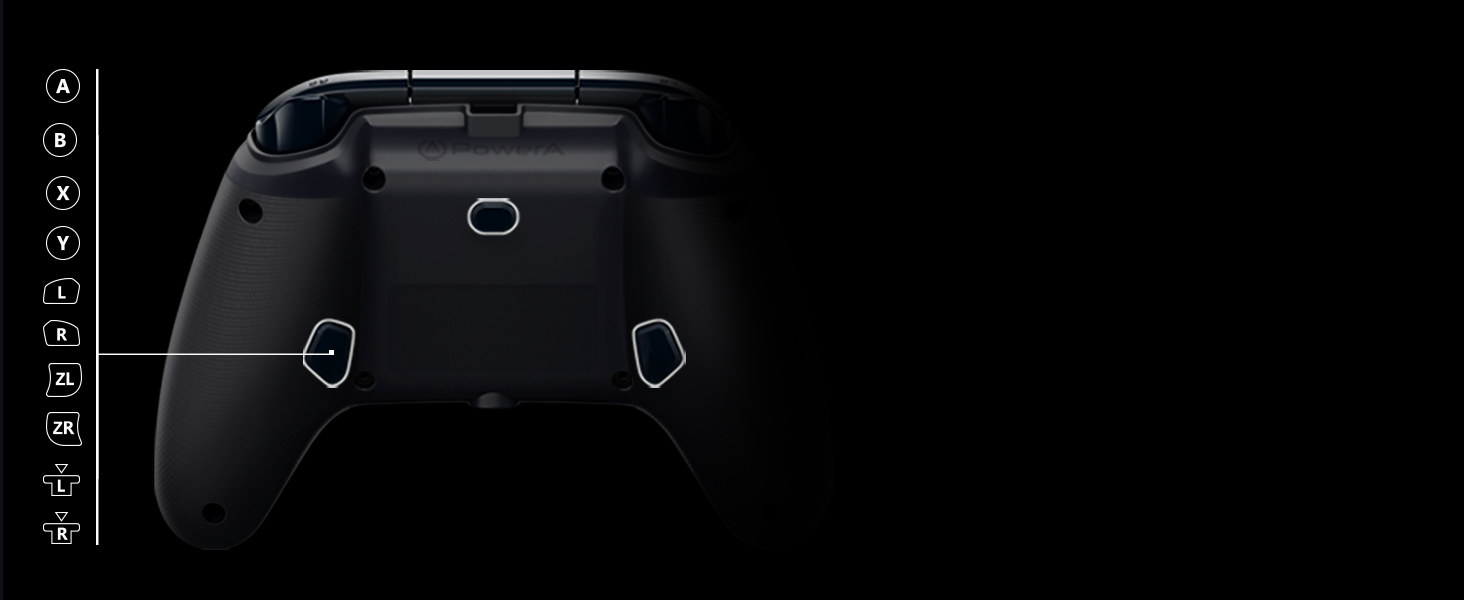
Figure 4.2: Location of Advanced Gaming Buttons and Program Button.
4.3 LED itanna
The controller features vibrant LED edge lighting in 7 colors (Red, Orange, Yellow, Green, Blue, Indigo, Violet). Use the Color-Cycle Button (located on the back, near the center) to adjust the lighting.
- Yi Awọ: Press the Color-Cycle Button to cycle through the 7 available colors.
- Auto-Cycle: Hold the Color-Cycle Button for 2 seconds to activate auto-cycle mode, where the colors will continuously fade and change.
- Pa awọn LED: Press and hold the Color-Cycle Button again for 2 seconds to turn off the LED illumination.

Alawọ ewe Green

LED bulu

LED eleyi

LED Cyan

Osan LED
4.4 3-Way Trigger Locks
The controller features 3-way trigger locks for the Left Trigger (LT) and Right Trigger (RT). These switches allow you to adjust the travel distance of the triggers, enabling quicker response times in certain games.
- Full Travel: Default position for maximum trigger movement.
- Medium Travel: Reduces trigger travel for a faster response.
- Short Travel: Minimizes trigger travel for the quickest possible input.
Adjust the physical switches on the back of the controller to select your preferred trigger travel setting.

Figure 4.3: Location of 3-way trigger locks.
4.5 3.5mm Stereo Headset Jack
A 3.5mm stereo headset jack is located on the bottom of the controller, allowing you to connect your gaming headset for audio and chat functionality.

Figure 4.4: Location of the 3.5mm stereo headset jack.
5. Itọju
- Ninu: Use a soft, dry cloth to clean the controller. Avoid using abrasive cleaners or solvents, as these can damage the surface.
- Itọju USB: Handle the detachable USB cable with care. Avoid sharp bends or excessive pulling. Always disconnect the cable by gripping the connector, not the cable itself.
- Ibi ipamọ: Tọ́jú ẹ̀rọ ìṣàkóṣo náà sí ibi gbígbẹ tí ó tutù, tí ó jìnnà sí oòrùn tààrà àti àwọn igbóná tí ó le koko nígbà tí a kò bá lò ó.
6. Laasigbotitusita
| Oro | Owun to le Solusan |
|---|---|
| Adarí ko fesi |
|
| LEDs not illuminating or changing color |
|
| Advanced Gaming Buttons not mapping |
|
| Headset audio issues |
|
If you continue to experience issues, please visit the official PowerA support webaaye fun iranlọwọ siwaju sii.
7. Awọn pato
- Nọmba awoṣe: 1510523-01
- Ibamu: Xbox One, Xbox Series X|S, Windows 10/11
- Asopọmọra: USB ti a firanṣẹ
- Gigun USB: 9.8 ft (3 meters) braided, detachable
- Imọlẹ: 7-color LED edge lighting
- Awọn ẹya pataki: 2 mappable Advanced Gaming Buttons, 3-way Trigger Locks, Dual Rumble Motors, 3.5mm Stereo Headset Jack, Anti-friction Rings on thumb sticks
- Àwọn ìwọ̀n (Àpótí): Isunmọ 7.76 x 7.76 x 11.14 inches
- Ìwúwo: Isunmọ 15.8 iwon
- Olupese: Agbara
8. Atilẹyin ọja ati Support
The PowerA Spectra Enhanced Illuminated Wired Controller comes with a 2-odun lopin atilẹyin ọja from the date of purchase. This warranty covers defects in material and workmanship under normal use.
For warranty claims, technical support, or further product information, please visit the official PowerA support webojula tabi kan si wọn onibara iṣẹ taara.
PowerA Official Webojula: www.powera.com


