
AIMOS TIMEUSBTY-QHEI
AIMOS USB Volume Controller Knob User Manual
Model: TIMEUSBTY-QHEI
Ọrọ Iṣaaju
Thank you for choosing the AIMOS USB Volume Controller Knob. This device provides a convenient and precise way to adjust the audio volume of your computer or compatible Android phone. Designed for ease of use, it features a durable aluminum shell and a responsive rotary knob for seamless control. This manual will guide you through the setup, operation, and maintenance of your new volume controller.

Image: The AIMOS USB Volume Controller Knob, showcasing its compact design and included USB cable.
Package Awọn akoonu
Jọwọ rii daju pe gbogbo awọn nkan ti a ṣe akojọ rẹ si isalẹ wa ninu package rẹ:
- 1 x AIMOS USB Volume Controller Knob
- Okun USB 1 x (mita 2)
- 1 x Afọwọṣe olumulo (Gẹẹsi)

Image: Contents of the product package, showing the volume controller, USB cable, and user manual.
Awọn pato
| Ẹya ara ẹrọ | Ẹ̀kúnrẹ́rẹ́ |
|---|---|
| Brand | AIMOS |
| Nọmba awoṣe | TIMEUSBTY-QHEI |
| Ohun elo | Aluminiomu ikarahun |
| Àwọ̀ | Dudu |
| Awọn iwọn (L x W x H) | 65 x 49 x 39 mm |
| Okun USB Ipari | 2 mita |
| Asopọmọra | USB |
| Orisun agbara | Electric Cable (USB Powered) |
| Iṣakoso Iru | Rotary Knob with Push Button |

Image: Detailed dimensions of the AIMOS USB Volume Controller Knob (Length: 65mm, Width: 49mm, Height: 39mm) and its 2-meter USB cable.
Ṣeto
The AIMOS USB Volume Controller Knob is designed for plug-and-play functionality. No drivers or additional software are required for most operating systems.
- Sopọ si PC: Insert the USB cable from the volume controller into an available USB port on your computer.
- Ijade Olohun (Aṣayan): If your audio output device (e.g., speakers, headphones) is connected to your computer's 3.5mm earphone jack, ensure it is properly connected. The volume controller will adjust the system volume.
- For Android Phones (with OTG): If using with an Android phone, connect the volume controller via an OTG (On-The-Go) cable (not included).
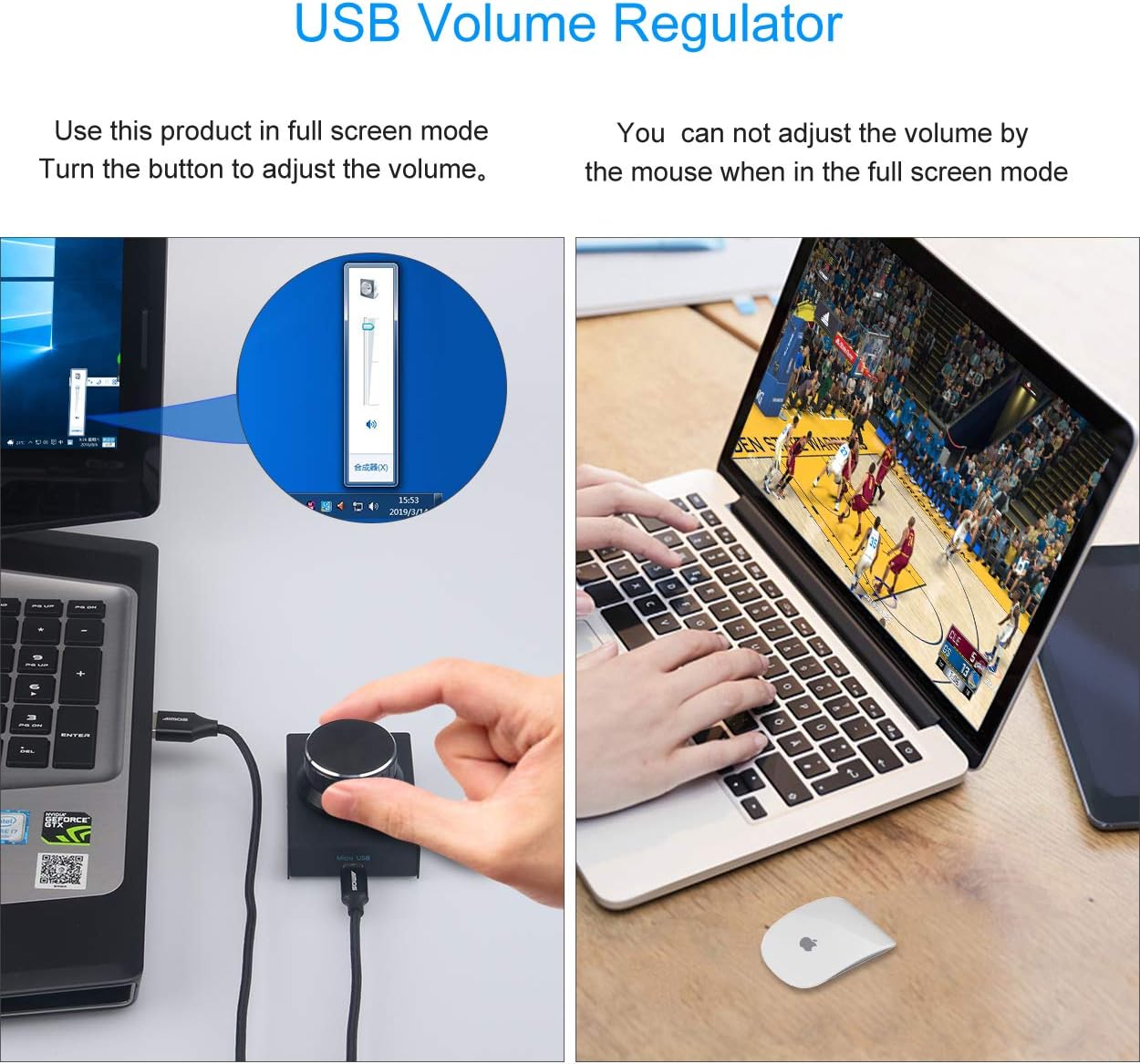
Image: The USB volume controller connected to a laptop, demonstrating its use for adjusting system volume, even in full-screen applications.
Awọn ilana Iṣiṣẹ
The volume controller offers intuitive operation for managing your audio levels.
Isẹ ipilẹ
- Ṣatunṣe Iwọn didun: Rotate the knob clockwise to increase the volume and counter-clockwise to decrease the volume. The ALPS rotary shaft supports 30 anchor points per turn for precise adjustment.
- Pakẹ́/Yipadanu: Press the knob once to instantly mute the audio. Press it again to unmute and resume playback.
- Atunṣe yara: Press and hold the knob while rotating to quickly adjust the volume.

Image: Visual guide demonstrating the rotation of the knob for volume adjustment and pressing the knob for mute/unmute functionality.
LED Atọka
- The blue LED light under the knob will illuminate when the device is in use or being rotated.
- If the knob is not rotated for 15 seconds, the LED light will automatically turn off to conserve power and reduce distraction.
Ibamu
The AIMOS USB Volume Controller Knob is compatible with a wide range of operating systems:
- Windows 10
- Windows 8
- Windows 7
- Windows Vista
- Windows XP
- macOS (Mac)
- Android (with OTG cable)
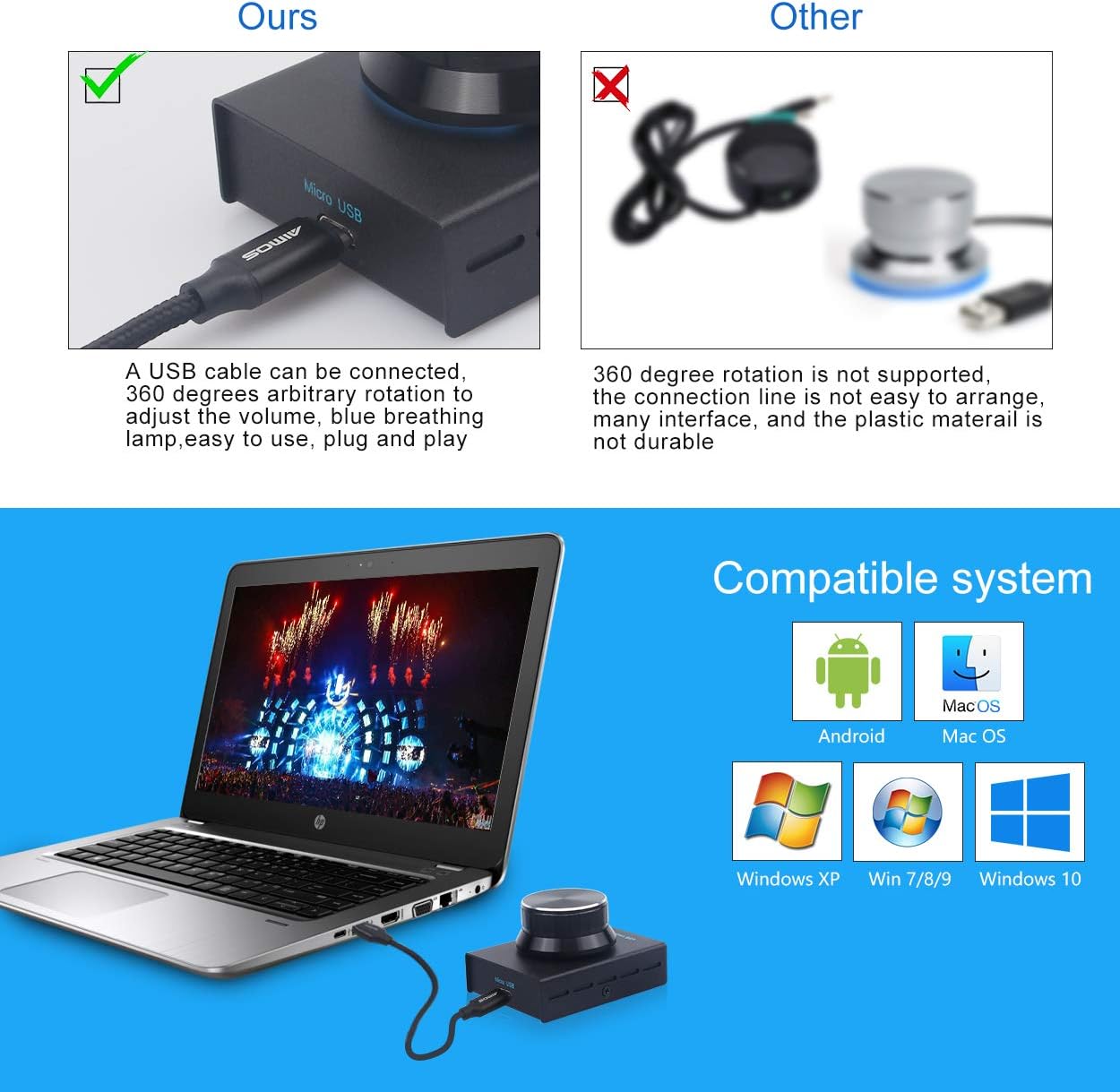
Aworan: Pariview of compatible operating systems, including Android, macOS, and various Windows versions.
Itọju ati Itọju
To ensure the longevity and optimal performance of your volume controller, follow these simple care guidelines:
- Ninu: Use a soft, dry cloth to wipe the surface of the device. Avoid using abrasive cleaners or solvents.
- Ibi ipamọ: Tọju ẹrọ naa ni itura, aye gbigbẹ kuro lati orun taara ati awọn iwọn otutu to gaju.
- Mimu: Yẹra fún fífi ohun èlò náà sílẹ̀ tàbí kí o fi agbára mú un, nítorí pé èyí lè ba àwọn ẹ̀yà ara inú jẹ́.
Laasigbotitusita
If you encounter any issues with your AIMOS USB Volume Controller Knob, please refer to the following common solutions:
| Isoro | Owun to le Solusan |
|---|---|
| Ẹrọ ko mọ / Ko ṣiṣẹ |
|
| Volume adjustment is erratic or jumps |
|
| Imọlẹ LED ko tan imọlẹ |
|
Atilẹyin ọja ati Support
Information regarding product warranty and specific support contacts is typically provided by your retailer or included with your purchase documentation. Please refer to those resources for details on warranty coverage and how to obtain technical support.
Ask a question about this manual
Ask about setup, troubleshooting, compatibility, parts, safety, or missing instructions. Manuals+ will review the question and use this page’s manual context to help answer it.